How to Screen Record on Windows 11 and 10, With Audio (2026)
Vorec Team · 2026-07-29 · About 9 min read
To screen record on Windows 11, press Windows logo key + Shift + R to open Snipping Tool's recording bar, select an area, then select Start. On Windows 10 or 11, press Windows logo key + Alt + R to record the current app with Xbox Game Bar, and press the same keys again to stop. Both tools are built into Windows, so there is nothing to download.
What differs between them is what they record, how they handle sound and where the file ends up. This guide covers both, plus the recorder inside PowerPoint (a separate, licensed app), using Microsoft's own support pages as the source (checked 22 October 2026).
Quick answers: Windows 11, any area of the screen: Snipping Tool, Windows logo key + Shift + R. Windows 10 or 11, one app or game: Xbox Game Bar, Windows logo key + Alt + R to start and stop, Windows logo key + Alt + M to switch the microphone on or off. Game Bar files: Videos > Captures, as MP4. PowerPoint users: Insert > Screen Recording, stop with Windows logo key + Shift + Q.
Which recorder to use
| Snipping Tool | Xbox Game Bar | PowerPoint | |
|---|---|---|---|
| Windows version | Windows 11 | Windows 10 and 11 | Needs desktop PowerPoint installed; Microsoft's page lists PowerPoint for Microsoft 365, 2024, 2021, 2019 and 2016 |
| What it records | An area you select | The game or app you are using | An area you select, or the full screen |
| Start | Windows logo key + Shift + R | Windows logo key + Alt + R | Insert > Screen Recording |
| Stop | Stop button | Windows logo key + Alt + R | Windows logo key + Shift + Q |
| Pause | Not covered in Microsoft's steps | Not covered in Microsoft's steps | Windows logo key + Shift + D |
| Microphone | Optional in recent supported builds (added in version 11.2307.44.0) | Toggle with Windows logo key + Alt + M | Audio is on by default |
| System sound | Optional in recent supported builds (added in version 11.2307.44.0) | Set in Game Bar settings | Not separated in Microsoft's steps |
| Built-in follow-up editing | Edit in Clipchamp | None in these steps | The video sits on a slide; save it as a file |
For a software walkthrough on Windows 11, Snipping Tool is usually the most direct choice, because you choose the exact area. Game Bar suits recording a single app on Windows 10. PowerPoint is handy when the recording belongs in a slide deck anyway, and it is the only one of the three whose steps include a pause.
Method 1: Snipping Tool (Windows 11)
Microsoft's Snipping Tool help page gives these steps:
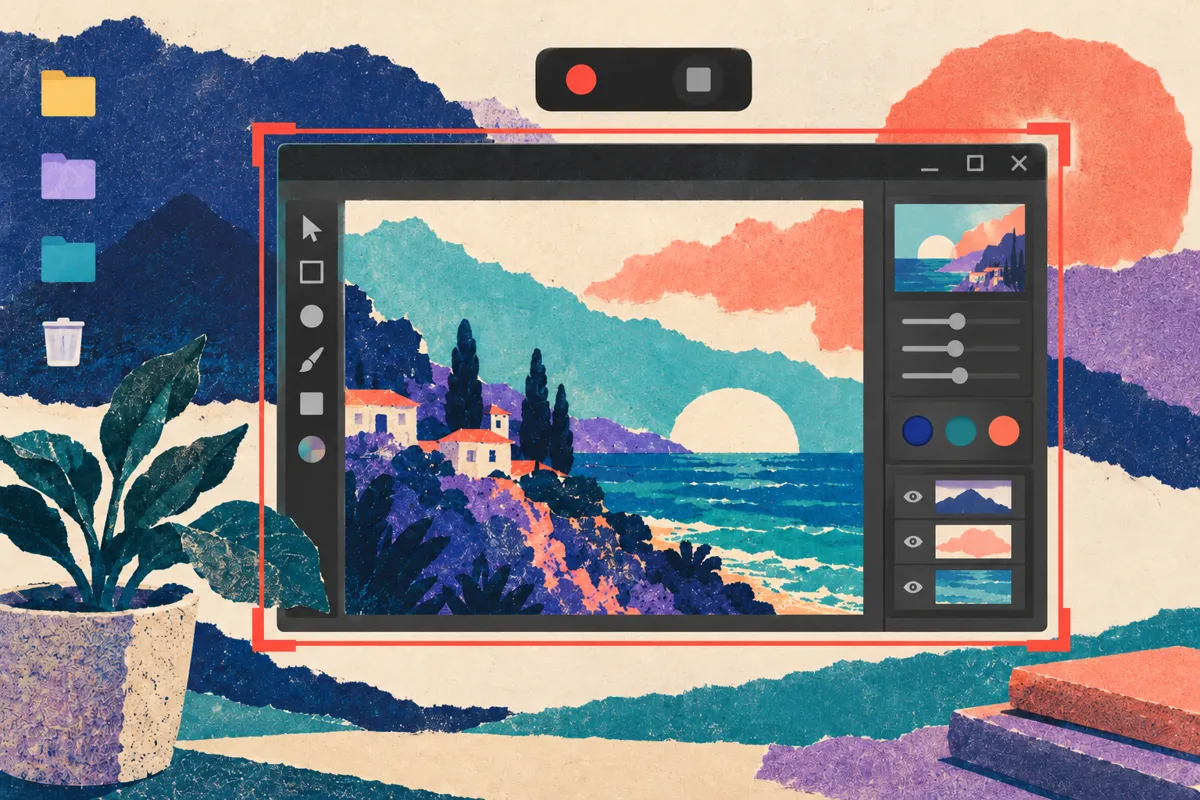
- Press Windows logo key + Shift + R. Or open Snipping Tool, select the Record button, then select New.
- Select the area of the screen you want to record.
- Select Start.
- When you are done, select Stop.
- Save the recording as it is, or select Edit in Clipchamp to work on it in the Clipchamp video editor.
Recording sound with Snipping Tool
Microsoft added optional recording of PC audio and of voice overs through a microphone in Snipping Tool version 11.2307.44.0, which it announced to Windows Insiders in August 2023 (Canary and Dev channels first, then Beta and Release Preview). That version number is the historical starting point, not a promise that every build or device shows the same controls. According to that announcement, app settings let you choose the default audio settings for new recordings, and if you have more than one microphone you can pick the device before you start. If you do not see audio options in the recording bar, updating Snipping Tool is the first thing to try.
Captions and audio afterwards
After recording, Edit in Clipchamp opens two useful tools. On the Captions tab, Transcribe media generates captions in the language you choose. On the Audio tab you can set the volume anywhere from 0 to 200%, or select Detach audio to download the sound as a separate file.
Method 2: Xbox Game Bar (Windows 10 and 11)
Game Bar is designed for games, but Microsoft's own example is recording an app to show a usability problem to its developer. It records the game or app you are using.
Turn it on, if needed
- Press Windows logo key + I to open Settings.
- Search for xbox and open Enable Xbox Game Bar.
- Switch it on. Microsoft's instructions describe this switch differently on Windows 11 and Windows 10, so follow the wording your version shows.
Include system sound
- Press Windows logo key + G to show the Game Bar controls.
- Open Settings, then Capturing.
- Under the audio to record, choose All so all computer sounds are included.
- Press Windows logo key + G again to hide the controls.
Record
- Go to the app you want to record.
- Press Windows logo key + Alt + R to start.
- Press Windows logo key + Alt + M at any point to turn the microphone on or off.
- Press Windows logo key + Alt + R again to stop.
The video is saved as an MP4 in Videos > Captures, and the file name contains the app's name plus the date and time. For a still image instead, press Windows logo key + Alt + Print Screen; it goes to the same folder as a PNG.
Method 3: PowerPoint's screen recorder
If you have desktop PowerPoint installed (it is a separate, licensed app, not part of Windows), its recorder can capture any area of the screen and its steps include a pause.
- Open the slide where the recording should go.
- On the Insert tab, select Screen Recording.
- On the Control Dock, choose Select Area (or press Windows logo key + Shift + E) and drag across the area to record. For the full screen, press Windows logo key + Shift + B. The smallest area you can record is 64 x 64 pixels.
- PowerPoint records audio and the mouse pointer by default. To leave them out, deselect Audio and Record Pointer.
- Select Record. Pause with Windows logo key + Shift + D, and stop with Windows logo key + Shift + Q.
- The video is added to the slide. To keep it as a separate file, right-click the video and select Save Media as.
Unless you pin the Control Dock, it slides out of view while you record; point at the top of the screen to bring it back.
How to screen record on Windows with audio
The three tools treat sound differently, so pick the method by what you need to hear.
| You want | Snipping Tool | Xbox Game Bar | PowerPoint |
|---|---|---|---|
| Your voice | Microphone option (added in version 11.2307.44.0; use a recent supported build) | Windows logo key + Alt + M while recording | Audio is selected by default |
| Sound from the PC | PC audio option (added in the same version) | Settings > Capturing > All | Not separated in Microsoft's steps |
| No sound | Leave both audio options off | Microsoft's steps don't give a no-sound recipe; use Snipping Tool or PowerPoint for a silent take | Deselect Audio |
A tip that saves retakes: you do not have to talk while you click. Record the screen silently, then add narration afterwards, either in a video editor or with an AI narration tool. Many tutorials come out clearer that way, because the explanation can be written and fixed separately from the clicking.
Turn the Windows recording into a narrated tutorial
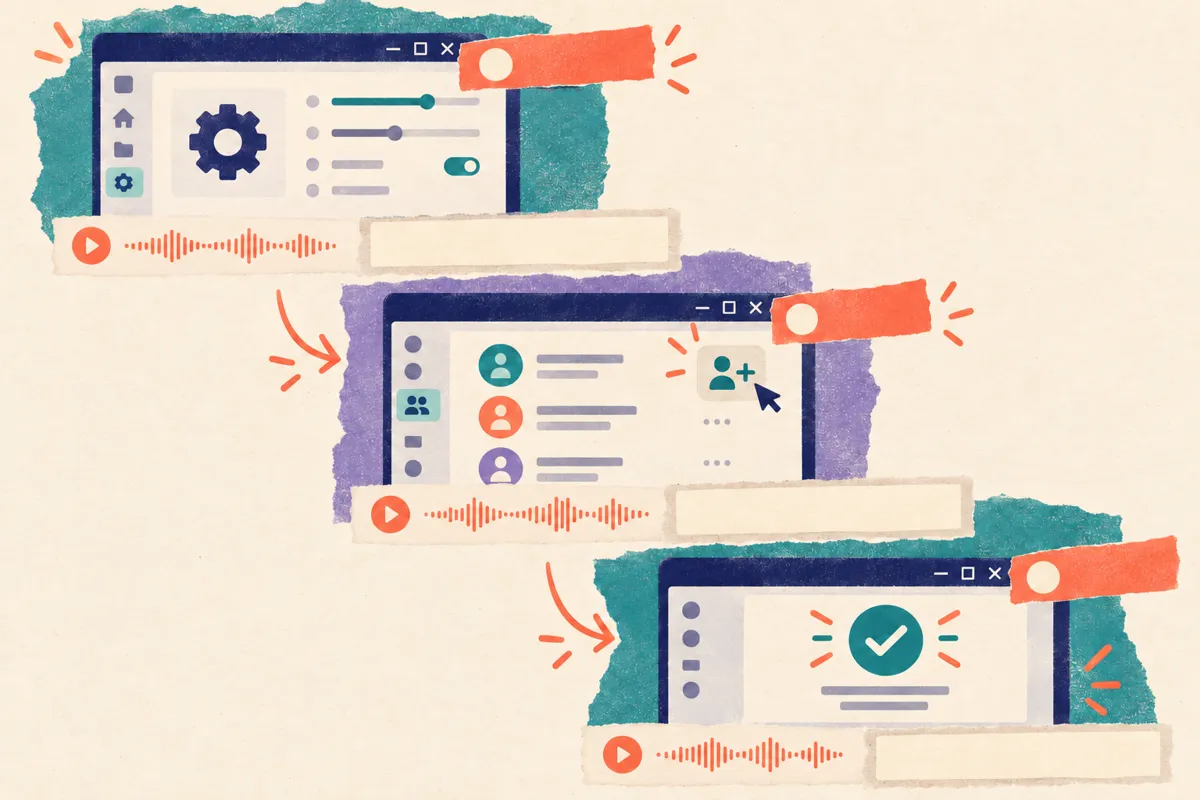
A raw capture shows what happened. A tutorial also explains why, at the moment each click happens. Start by writing one or two sentences per on-screen action; the tutorial video script guide has a two-column template for that. Then choose how the words get spoken:
| Approach | Effort | Trade-off |
|---|---|---|
| Narrate live with the microphone | Lowest setup | A stumble usually means another take |
| Record a voiceover in an editor | Moderate | You can redo one sentence without re-recording |
| Generate narration from the recording | Lowest speaking effort | You review and edit the drafted script |
Where Vorec fits
If you already have a Windows recording, you can upload the MP4 to Vorec. It analyses the recording to draft narration matched to the workflow, then generates the voiceover, so nothing is spoken into a microphone. In the editor you can adjust the script, add cursor-follow zoom and click-based auto-zoom, and freeze-sync can hold a frame to give an explanation time to finish. The same capture can also produce a written step-by-step guide with annotatable screenshots. Vorec's own recorder is a macOS app; on Windows, record with one of the tools above and upload the file.
FAQ
How do I screen record on Windows 11 with audio?
Use Snipping Tool (Windows logo key + Shift + R). Microsoft added PC audio and microphone recording in version 11.2307.44.0; in a recent supported build, turn the options on in the recording bar or set defaults in the app's settings. If you don't see them, update the app. Xbox Game Bar also records sound: choose All under Settings > Capturing, and toggle the microphone with Windows logo key + Alt + M.
How do I screen record on Windows 10?
Turn on Xbox Game Bar in Settings, go to the app you want to record, and press Windows logo key + Alt + R. Press it again to stop. The MP4 is saved in Videos > Captures. PowerPoint's Insert > Screen Recording also works if you have PowerPoint.
What is the shortcut to screen record on Windows?
Windows logo key + Shift + R opens Snipping Tool's recording bar on Windows 11. Windows logo key + Alt + R starts and stops a Game Bar recording on Windows 10 and 11.
Where do Windows screen recordings go?
Game Bar saves MP4 files to Videos > Captures. Snipping Tool lets you save the recording after you stop, or open it in Clipchamp. PowerPoint puts the video on your slide; use Save Media as to export it.
Can I pause a screen recording on Windows?
PowerPoint's recorder has a pause (Windows logo key + Shift + D). Microsoft's steps for Snipping Tool and Game Bar describe only start and stop.
How do I record my screen on Windows with my voice?
Turn on the microphone: in Snipping Tool's recording bar (recent supported builds), with Windows logo key + Alt + M in Game Bar, or keep Audio selected in PowerPoint. Or record silently and add narration afterwards.
Related reading: QuickTime screen recording with audio on Mac, How to screen record on a Chromebook, Screen recording with voice on Mac and iPhone, OBS screen recording, step by step and Add AI narration to any screen recording.
Sources: Microsoft Support, Use Snipping Tool to capture screenshots, Use a screen reader to record your screen with Xbox Game Bar (applies to Windows 11 and 10) and Record your screen in PowerPoint; Windows Insider Blog, New updates for Snipping Tool and Notepad for Windows Insiders (31 August 2023). All checked 22 October 2026.
See also: How to Screen Record on Linux: Ubuntu, KDE and OBS (2026).
See also: How to Record a Zoom Meeting (2026): Local, Cloud, Mobile, How to Record a Teams Meeting (2026): Steps, Storage, Fixes.
See also: How to Screen Record in Canva (2026): Steps, Limits, Fixes.
Want the recording to narrate itself? Upload your Windows recording to Vorec and get a narrated tutorial plus a written guide. Start free. Trial includes up to 3 projects; exports carry a watermark.