QuickTime Screen Recording With Audio: Start, Stop, Trim (2026)
Vorec Team · 2026-10-22 · About 9 min read
To make a QuickTime screen recording on a Mac, open QuickTime Player, choose File > New Screen Recording (or press Control-Command-N), click Options to pick a microphone, then click Record. To stop, press Command-Control-Esc or click the Stop button in the menu bar. That is the short version, and it works on current macOS.
The parts that trip people up are the details around it: why the recording has no sound, how to capture the Mac's own audio, where the file went, and how to cut the first few seconds. This guide covers each one, using Apple's own support pages as the source (checked 22 October 2026), and ends with how to turn the recording into a narrated tutorial.
Quick answers: Start with File > New Screen Recording or Control-Command-N. Stop with Command-Control-Esc or the menu bar Stop button. Voice: Options > choose a microphone. Mac's own sound: Options > Include System Audio, which Apple documents for macOS 27 Golden Gate or later. File: saved to the desktop by default as "Screen Recording [date] at [time].mov".
QuickTime or the Screenshot toolbar: which one you are using
On current versions of macOS, QuickTime Player does not run its own recorder. Apple's QuickTime Player guide for macOS 27 says that choosing File > New Screen Recording opens Screenshot and displays its tools. So when you start a "QuickTime screen recording" today, the controls you see are the Screenshot toolbar, the same one you get by pressing Shift-Command-5.
Apple's general article, How to record the screen on Mac, covers both cases. After you choose New Screen Recording:
| What appears on screen | Which app records | Where the settings are |
|---|---|---|
| An onscreen toolbar with Record Entire Screen and Record Selected Portion buttons | Screenshot | Options button in the toolbar |
| A small Screen Recording window with a round Record button | QuickTime Player (older macOS) | Arrow next to the Record button |
The rest of this guide follows the toolbar version first, because that is what a current Mac shows, then notes the differences for the older window.
How to start a QuickTime screen recording
- Open QuickTime Player from your Applications folder.
- Choose File > New Screen Recording, or press Control-Command-N. The Screenshot toolbar appears.
- Pick what to record:
- Record Entire Screen - Record Selected Window (macOS Tahoe 26 or later) - Record Selected Portion, then drag the borders of the box to adjust the area
- Click Options to set audio and other settings (next section).
- Click Record. If you chose Record Selected Window, click the window you want to record instead.
To back out without recording, press Esc before you click Record.
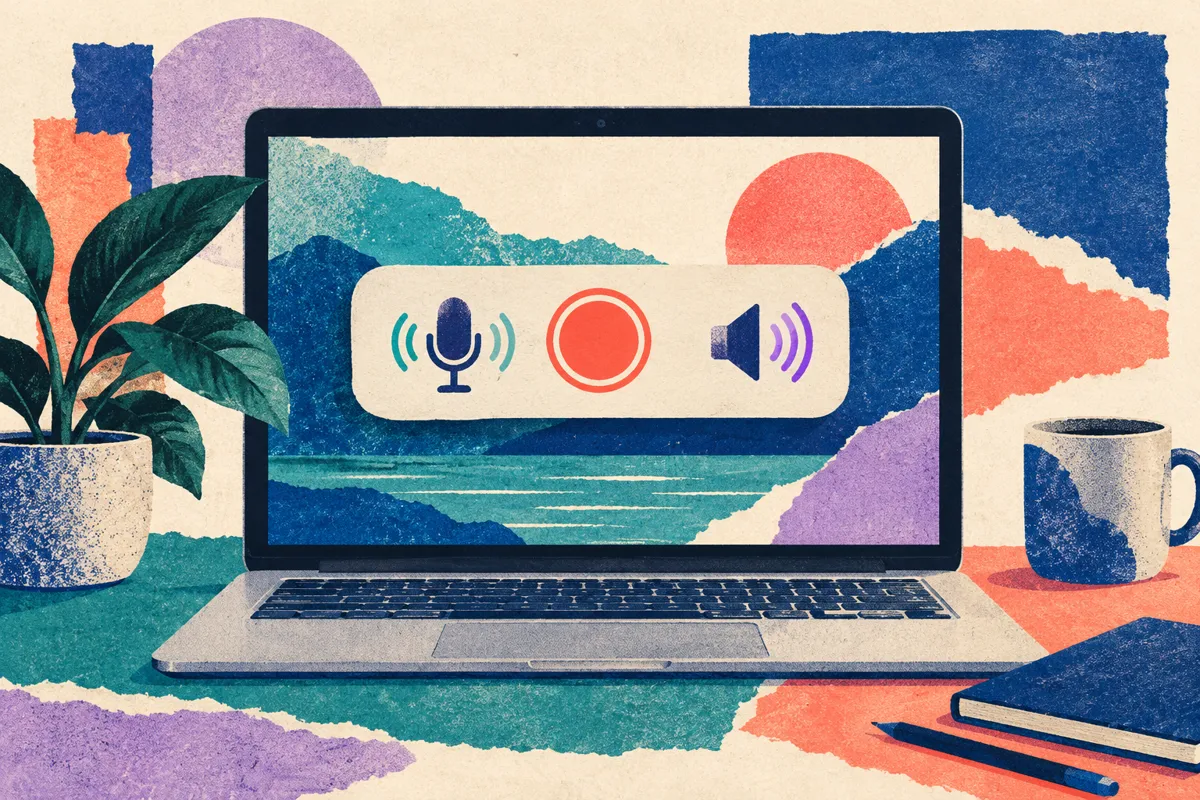
Other options worth setting before you record
The same Options menu holds four settings that matter for tutorial recordings:
- Show Mouse Clicks draws a black circle around the pointer each time you click, so viewers can see where you clicked.
- Timer waits a set number of seconds after you click Record, which gives you time to move the pointer and close notifications.
- Save to changes where the file goes. The default is the desktop.
- Format (on supported Mac models with macOS Tahoe 26 or later): SDR (Most Compatible) records H.264; HDR records HEVC. If the video is going to a learning platform, a help center or a colleague on another computer, SDR is the safer choice.
How to record audio: microphone and system sound
"QuickTime screen recording with audio" can mean two different things, and they are set separately.
| You want to record | Setting | Availability per Apple's guide |
|---|---|---|
| Your voice | Options > choose a microphone (built-in or external) | Listed for the Screenshot toolbar and the older QuickTime window |
| The Mac's own sound (an app, a video, alert sounds) | Options > Include System Audio | macOS 27 Golden Gate or later |
| Both at once | Choose a microphone and Include System Audio | macOS 27 Golden Gate or later |
| Nothing | Set the microphone to None, and on macOS 27 Golden Gate or later leave Include System Audio off | Any version |
Record your voice
Click Options and choose a microphone under the microphone section. A headset or USB microphone usually sounds cleaner than the built-in one, because it sits closer to your mouth and further from the keyboard.
In the older QuickTime window, click the arrow next to the Record button and choose the microphone there. That window also has a volume slider for monitoring your voice while you record; Apple's advice is that if you hear feedback, lower the volume or use headphones with a microphone.
Record the Mac's own sound
On macOS 27 Golden Gate or later, click Options and choose Include System Audio. Apple's instructions list this option only for that version and later. On earlier versions, the options Apple documents record a microphone, not the sound the Mac itself is playing.
How to stop a QuickTime screen recording
There are two ways, and both work for the toolbar and the older window:
- Press Command-Control-Esc.
- Click the Stop button in the menu bar at the top of the screen.
If you recorded a selected portion and the toolbar seems to have vanished, it has not: the Stop button stays in the menu bar for the whole recording.
Where the recording is saved
With the Screenshot toolbar, a thumbnail of the recording appears in the corner of the screen when you stop. Click it to trim or share straight away, or wait and the file saves to your chosen location, which is the desktop unless you changed Save to. The file name follows the pattern "Screen Recording [date] at [time].mov".
With the older QuickTime window, QuickTime Player opens the recording automatically when you stop, ready to play, edit or share; save it from QuickTime Player yourself. The default desktop location and file name above describe the Screenshot toolbar's automatic saving.
How to trim and edit the recording
QuickTime Player handles the basic cuts most tutorial clips need. To remove the dead seconds at the start and end:
- Open the recording in QuickTime Player.
- Choose Edit > Trim.
- Drag the yellow handles in the trimming bar. Everything outside the handles is removed. Click and hold a handle to see individual frames for a precise cut.
- Click Trim.
The same QuickTime Player guide also covers splitting a movie into clips, rearranging clips, rotating or flipping a clip, and removing audio or video. That last one is useful when you recorded with a microphone by mistake and want a silent track to narrate later.
Troubleshooting: no sound, cannot stop, cannot pause
The recording has no sound at all. Check both audio sources in Options before the next take: is a microphone chosen (not None) and connected, and, on macOS 27 Golden Gate or later, is Include System Audio on if you want the Mac's own sound? If macOS asks for microphone access, allow it.
My voice is there but the app's sound is missing. The microphone records what it hears in the room, not what the Mac plays. Use Include System Audio on macOS 27 Golden Gate or later.
The toolbar disappeared and I cannot find Stop. Look at the right side of the menu bar for the Stop button, or press Command-Control-Esc.
A window records as blank. Apple notes that some apps, such as the Apple TV app, might not let you record their windows.
How do I pause? Apple's instructions for both the toolbar and the QuickTime window describe Record and Stop, not a pause control. The practical workaround is to stop, record the next part as a second file, and join the clips in QuickTime Player: open the first recording, choose View > Show Clips, then Edit > Add Clip to End, choose the second file and click Done (Apple's guide: Add a movie or clip).
Turning the recording into a tutorial
A QuickTime recording is a clean capture, but a tutorial needs the viewer to know why each click happens. You have three ways to add that explanation:
| Approach | What it takes | Trade-off |
|---|---|---|
| Talk while you record | Choose a microphone in Options | One take for voice and clicks; a stumble usually means another take |
| Record narration afterwards | A voiceover track in iMovie or another editor | You can redo a sentence without re-recording the screen |
| Generate the narration | An AI narration tool working from the recording | No microphone; you review and edit the drafted script |
Whichever you choose, write the script as a list of on-screen actions with one or two sentences for each. Our tutorial video script guide has a two-column template for exactly that, and the Mac and iPhone voiceover guide walks through adding narration in iMovie.
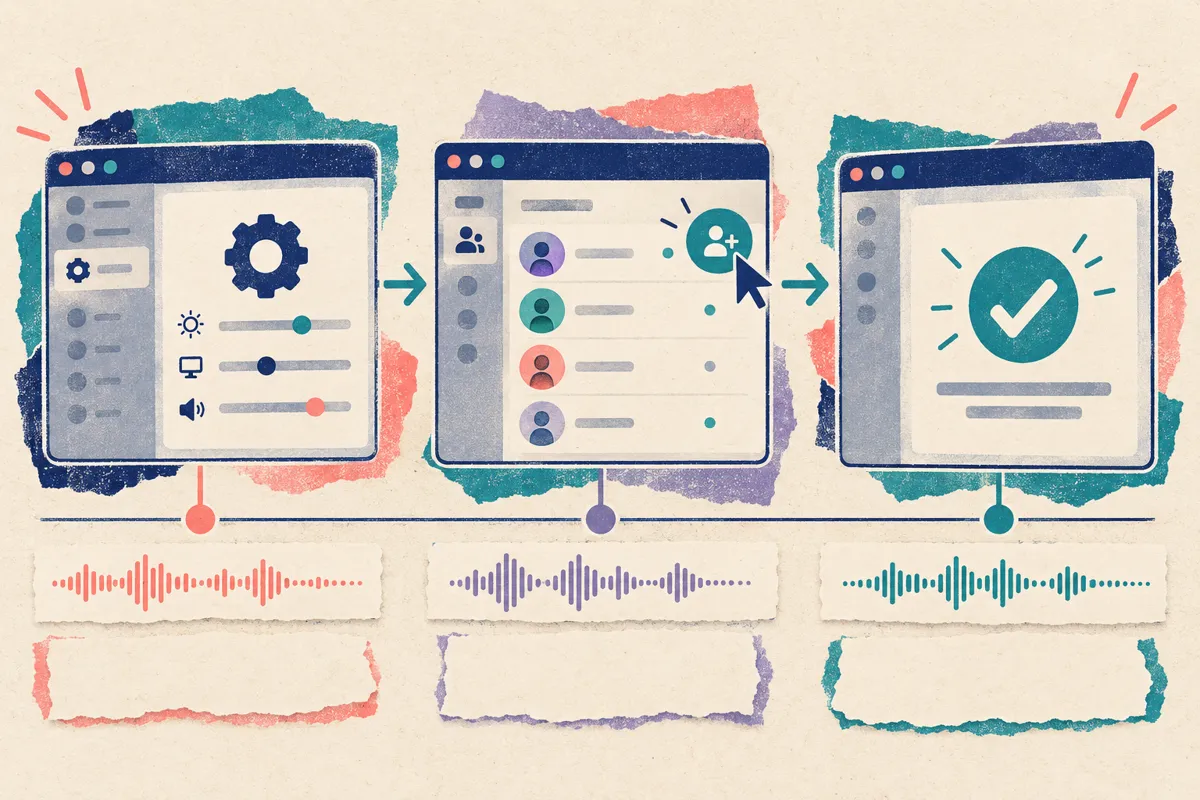
Where Vorec fits
Vorec records your screen too: it has its own macOS recorder, and an AI agent can drive it for you through the Claude Code plugin, capturing locally for you to review before anything is uploaded. It then drafts narration matched to the workflow it captured and generates the voiceover, so nothing is spoken into a microphone. In the editor you can add smooth cursor motion, cursor-follow zoom and click-based auto-zoom, and freeze-sync can hold a frame to give an explanation time to finish. If you already have a QuickTime recording, you can upload it instead, and the same capture can also produce a written step-by-step guide.
FAQ
Does QuickTime screen recording record sound?
It records your voice if you choose a microphone in Options. Recording the Mac's own sound uses Include System Audio, which Apple documents for macOS 27 Golden Gate or later.
How do I stop a QuickTime screen recording?
Press Command-Control-Esc, or click the Stop button in the menu bar.
What is the keyboard shortcut for a QuickTime screen recording?
Control-Command-N starts a new screen recording from QuickTime Player. Shift-Command-5 opens the same Screenshot toolbar directly.
Where do QuickTime screen recordings go?
To the desktop by default, named "Screen Recording [date] at [time].mov". You can change the location with Options > Save to.
Can I record just one window?
Yes, on macOS Tahoe 26 or later: choose Record Selected Window, then click the window.
Can I show my clicks in the recording?
Yes. Choose Show Mouse Clicks in Options (Show Mouse Clicks in Recording in the older QuickTime window) to draw a black circle around the pointer when you click.
Related reading: Best Mac screen recorder for tutorials, Record a software demo on Mac without a mic, How to record your screen on Windows and Add AI narration to any screen recording.
Sources: Apple Support, How to record the screen on Mac (published 14 September 2026); QuickTime Player User Guide for macOS 27: Record your screen, Trim a movie or clip and Add a movie or clip. All checked 22 October 2026.
Want the recording to narrate itself? Record with Vorec, or upload one you already have, and get a narrated tutorial plus a written guide. Start free. Trial includes up to 3 projects; exports carry a watermark.