Tutorial Video Script: Template, Example and How to Write One
Vorec Team · 2026-10-21 · About 9 min read
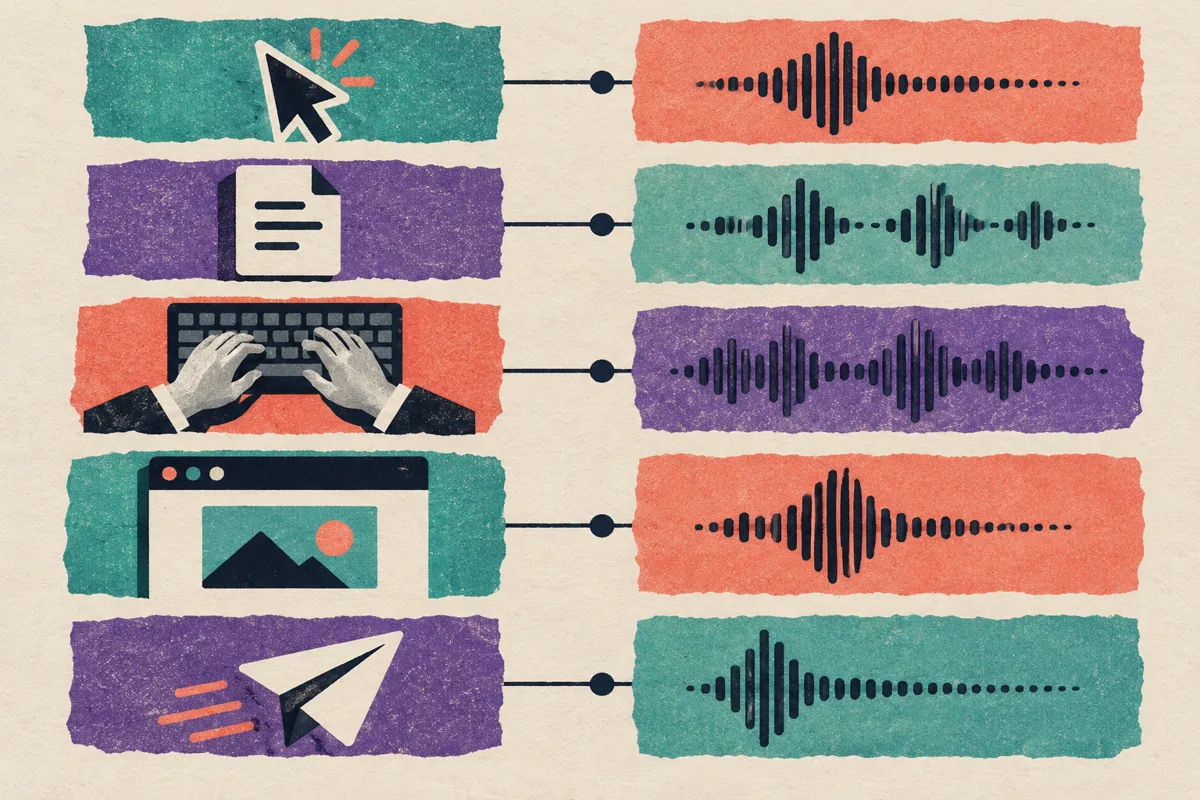
A tutorial video script is a list of on-screen actions, each paired with the words that explain it. That pairing is the whole job. A script can be well written and still fail if the words and the screen drift apart: the narrator is still explaining step two while the cursor is already on step four, and the viewer has to pause, rewind and guess.
This guide gives you a template that keeps the two locked together, a worked example for a software walkthrough, a variant for internal training videos, and a checklist to run before you record a single word.
What makes a tutorial script different from other video scripts
A marketing or explainer script is built around a message. A tutorial script is built around a sequence. The viewer is usually trying to copy what you do, often with your video in one window and their own app in another. That changes the rules:
| Explainer / promo script | Tutorial script | |
|---|---|---|
| Organised by | Story or argument | Order of actions on screen |
| Viewer goal | Understand or be persuaded | Repeat the steps themselves |
| Main risk | Losing attention | Words and screen falling out of sync |
| Best unit | Scene | One action: a click, a field, a choice |
| Tone | Persuasive | Plain, specific, calm |
So a tutorial script is not prose with stage directions sprinkled in. It is a table of actions with narration attached to each row.
The two-column tutorial script template
Use two columns. The left column says what the viewer sees. The right column says what they hear. One row per action.
| # | On screen (what happens) | Narration (what is said) |
|---|---|---|
| 0 | Starting screen, nothing selected | Goal: what the viewer will have at the end, in one sentence |
| 1 | First action, e.g. click Settings | Name the control, then say why you are going there |
| 2 | Next action | What to do, and what to look for after it happens |
| … | … | … |
| N | Final state on screen | Confirm the result, then the one thing to do next |
Copy this into a doc or spreadsheet and fill it in row by row. A few rules make the template work:
- One action per row. If a row says "open Settings, choose Billing and change the plan", split it into three. Each row should be one thing the viewer can do and check.
- Write the left column first. Do the task once yourself, list every click and field in order, and only then write the narration. Narration written from memory skips steps.
- Name what the viewer will see. "Click Save changes in the bottom-right corner" beats "save it". The viewer is scanning the screen for the exact words you say.
- Say why, briefly. One clause of reason ("so the invoice uses your company name") turns a list of clicks into something the viewer can apply to their own case.
- Describe the result. After an action that changes the screen, say what should appear: "A green banner confirms the change." That is the viewer's checkpoint.
A worked example: a software walkthrough script
Here is the template filled in for a short, generic software task: adding a teammate to a workspace. Swap in your own product's labels.
| # | On screen | Narration |
|---|---|---|
| 0 | Workspace dashboard | In this video you'll invite a teammate to your workspace and give them editor access. |
| 1 | Click the gear icon, top right | Start from the dashboard and open Settings with the gear icon in the top-right corner. |
| 2 | Click Members in the left menu | In the left menu, choose Members. This is the list of everyone who can see this workspace. |
| 3 | Click Invite | Click Invite. A small form opens. |
| 4 | Type an email address | Enter your teammate's work email. Use the address they sign in with, or the invite won't match their account. |
| 5 | Open the Role menu | Open the Role menu. |
| 6 | Choose Editor | Choose Editor. Editors can change content; viewers can only read it. |
| 7 | Click Send invite | Click Send invite. |
| 8 | New row appears with "Pending" | Their name now shows as Pending. It switches to Active once they accept the email. |
| 9 | Back on the members list | That's it. If the invite doesn't arrive, check the spam folder, or resend it from this list. |
Notice what the narration does and doesn't do:
- It never says "as you can see". The viewer can see; the narration tells them what matters about it.
- It names every control in bold in the script, which reminds whoever records it to make that control visible on screen when it is named.
- Rows 4 and 6 carry the only real teaching: the email must match, and the difference between roles. Those are the lines a viewer would otherwise get wrong.
- The last row handles a common snag (no email) instead of a generic "thanks for watching".
A variant for internal training videos
Training videos for employees follow the same template with three additions. Put them in as extra rows, not as a separate script:
- A context row at the start. Who this is for and when they'll need it: "You'll do this every time a new client signs a contract."
- Policy rows where the policy applies. If a field has a rule ("never put client names in the subject line"), state it on the row where the field appears, not in a list at the end.
- A recap row at the end. Three short lines naming the steps, so the video works as a reference when someone scrubs back to it next month.
For longer procedures, split the work into several short videos, one task each, rather than one long one. A viewer looking for "how to issue a refund" should not have to scrub through a video that also covers account setup. Our guides on how to make a training video and SOP training videos cover how to break a process into pieces.
How to time narration against the screen
The template keeps the order right. Timing is the other half. Three checks:
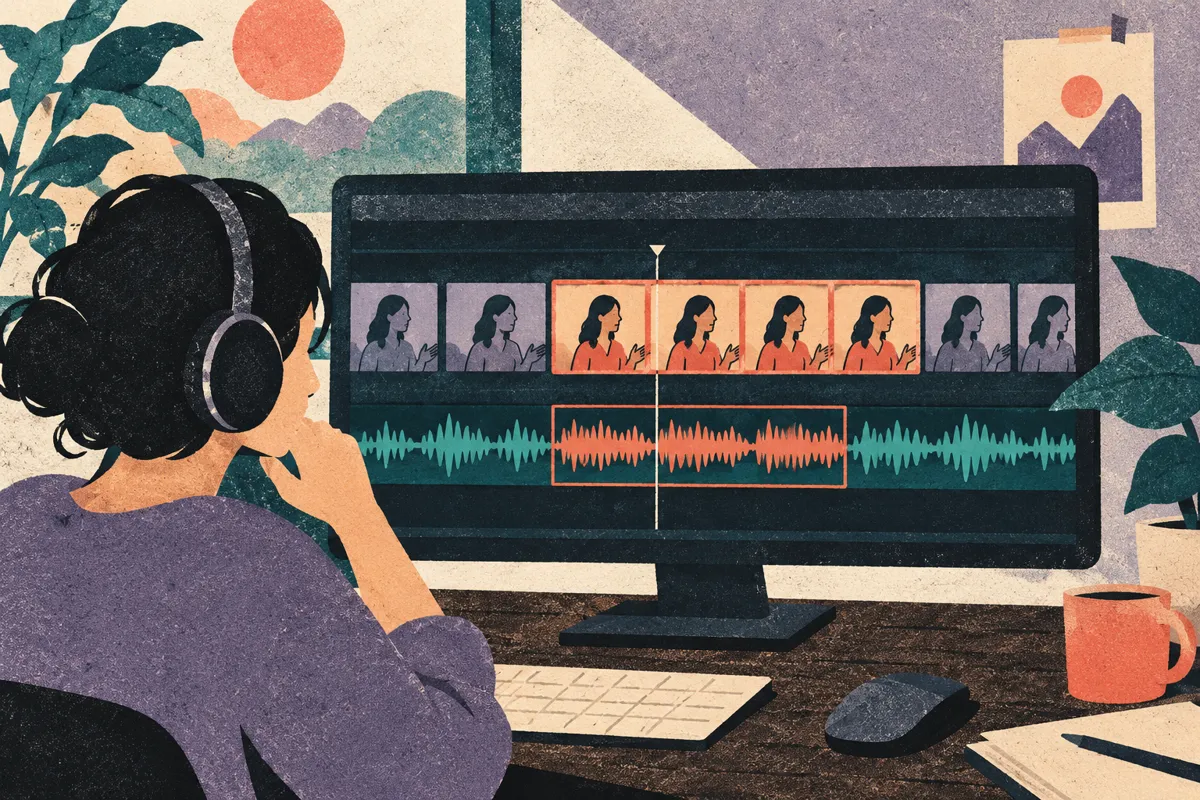
Read each row aloud while you do the action. Use a timer. If a line takes longer to say than the action takes to do, you have two options: shorten the line, or plan to hold the screen still while the line finishes. Viewers cope well with a short pause on a still screen; they cope badly with narration describing something that has already scrolled away.
Front-load the instruction. "Click Invite, which opens the form" lets the viewer act while you finish the sentence. "To open the form where you add people, click Invite" makes them wait for the instruction at the end.
Leave room after things change. When a new page or dialog appears, the viewer's eyes need a moment to find their place. Start the next line just after the screen settles, not on the same frame.
Common tutorial script mistakes
| Mistake | What the viewer experiences | Fix |
|---|---|---|
| Narration written before doing the task | Missing steps; "where did that button come from?" | Do the task first, list actions, then write |
| Several actions in one sentence | Pausing and rewinding to catch each click | One action per row |
| Vague references ("click here", "this one") | Hunting the screen for the control | Use the exact label shown on screen |
| Long intros | Skipping ahead, sometimes past the first step | One sentence of goal, then the first action |
| No result described | Unsure whether it worked | Say what appears after each change |
| Reading values aloud that are already on screen | Slower video, no new information | Say what the value is for, not the value itself |
| Script never re-checked against the UI | Labels that no longer match after a product update | Re-run the task before each re-record |
The last one matters more than it looks. Software changes. A script that was right in spring can name a menu that moved by autumn. Keep the left column as a checklist you re-run whenever the product ships an interface change.
Should you write the script by hand or have it drafted for you?
Writing the script by hand is a useful way to learn what a tutorial needs, and the template above works with any recorder and any voice: your own, a colleague's, or a text-to-speech voice.
The slow part is the left column: listing every action in order and matching narration to it. That is the part tools can now help with. Some tools draft narration from a recording; the approaches differ in what they start from (a transcript of your own speech, a written prompt, or the captured actions themselves), so check what a tool actually reads before assuming it understands the screen.
Vorec is our product, so weigh this accordingly. It works from the action side: you record with its macOS recorder (or upload an existing recording), and it drafts narration matched to the captured workflow, then generates the voiceover, so nothing is spoken into a microphone. You then edit the draft like any script: tighten a line, add the "why", fix a label. Where a line runs longer than the action, freeze-sync can hold the frame so the explanation finishes before the screen moves on. The same capture can also produce a written step-by-step guide if you choose to generate one. A drafted script still needs the review step in this guide; it saves the listing work, not the judgement.
A quick pre-recording checklist
- I did the task once myself and listed every action in order
- Each row has exactly one action
- Every control is named with the label shown on screen
- Row 0 states the goal in one sentence
- Every screen change has a "what you'll see" line
- The tricky rows explain why, not just what
- I read each row aloud against the action and fixed the long ones
- The last row covers a possible failure or the next step
- I re-checked the labels against the current version of the app
FAQ
How long should a tutorial video script be?
As long as the task, and no longer. Write one row per action and cut anything that isn't an action, a reason or a result. If the script grows past a handful of minutes when read aloud, consider splitting it into separate videos, one task each.
What is the best format for a tutorial video script?
A two-column table: on-screen action on the left, narration on the right, one action per row. It keeps the words tied to what the viewer sees and makes it obvious when a step is missing.
Do I need a script for a screen recording tutorial?
You can record without one, but unscripted narration tends to wander, repeat itself and fall out of step with the screen. Even a bare list of actions, written before you record, improves the result.
How is a training video script different from a tutorial script?
It uses the same structure, plus a context row (who it's for and when they'll need it), policy notes on the rows where a rule applies, and a short recap at the end so the video works as a reference.
Can AI write a tutorial video script?
AI tools can draft one, and some draft it from the recording itself. Treat the draft as a first pass: check every label against the screen, add the reasons a new user needs, and confirm the order matches what you actually did.
Related reading: How to Make a Tutorial Video in 2026, How to Add Narration to a Screen Recording, How to Make a Tutorial Video Without a Microphone, What Is Freeze-Sync Video Editing?.
Want the recording to narrate itself? Record with Vorec, or upload one you already have, and get a narrated tutorial you can edit like a script. Start the 7-day trial: 100 credits, no card. Trial includes up to 3 projects; exports carry a watermark. Paid plans start at $9/month.