How to Make Tutorial Videos Without a Microphone
Vorec Team · 2026-03-19 · About 5 min read
The Silent Screen Recording Problem
You recorded a perfect software walkthrough. Every click, every step, flawless. But when you play it back, there is nothing but silence. Without narration, your tutorial is just someone watching a cursor move around a screen.
The obvious fix is grabbing a microphone and recording your voice. But that introduces a whole new set of problems — background noise, ums and ahs, re-takes, and the awkward realization that you sound different on recordings than you do in your head.
What if you could skip the microphone entirely?
Why Most People Avoid Recording Voiceover
Before we get to the solution, let us acknowledge why so many tutorials end up silent:
- No quiet space — open offices, kids at home, construction outside
- Accent anxiety — non-native speakers worry about pronunciation
- Perfectionism — one stumble means starting over
- Equipment cost — decent microphones, pop filters, audio interfaces add up
- Time — recording narration takes far longer than the walkthrough itself, because of the retakes
- Post-production — editing audio, removing filler words, normalizing volume
These are real barriers. They explain why most internal knowledge bases have zero video content, and why support teams default to screenshots instead of recordings.
The AI Voiceover Alternative
Modern AI has reached the point where it can understand what is happening in a video, generate intelligent narration, and speak it naturally. This is not simple speech synthesis — it is a multi-stage AI pipeline that understands intent, not just pixels.
Here is the workflow:
- Record your screen silently using any tool — QuickTime, OBS, Loom, or your OS built-in recorder
- Upload the recording to an AI tutorial engine
- AI understands the workflow — identifying clicks, navigation, form inputs, UI context, and user intent
- AI writes contextual narration for each step, explaining what is happening and why
- AI generates voiceover with natural speech synthesis
- Export a polished tutorial with intelligently synced narration
No microphone. No script writing. No audio editing.
How Vorec Makes This Work
Vorec is not just another screen recorder with a voice plugin bolted on. It is a purpose-built AI tutorial engine with a multi-model intelligence pipeline:
Scene Intelligence Engine
Vorec's proprietary analysis engine goes far beyond basic video processing. It builds a semantic understanding of your entire workflow — recognizing application context, understanding UI hierarchies, tracking user intent across actions, and identifying the purpose behind each interaction.
When you click a "Save" button, Vorec does not just detect a click event. It understands you are saving work, knows the application context, and generates narration that explains why this action matters in the workflow.
Smart Action Recognition
The AI distinguishes between meaningful actions and noise. Accidental hovers, window resizing, scroll events — these are filtered out. Only deliberate, purposeful interactions become narration segments. The result is a clean, focused tutorial without irrelevant steps.
Adaptive Voice Synthesis
Vorec's speech engine generates voices that match the tone of instructional content — proper emphasis on key terms, natural pauses at transitions, and correct pronunciation of technical vocabulary. Multiple voice profiles let you match your brand's tone.
Intelligent Timing (Freeze-Sync)
Most AI narration tools have a timing problem: the voiceover either rushes to keep up with fast actions or leaves awkward silences during slow moments. Vorec's timing engine solves this by dynamically adjusting video playback — pausing playback when narration needs more time, and flowing naturally when actions are well-spaced. The viewer never feels rushed or bored.
Step-by-Step: Your First No-Mic Tutorial
Step 1: Record Your Screen
Use whatever screen recording tool you already have:
- Mac: QuickTime Player (File → New Screen Recording) or Cmd+Shift+5
- Windows: Xbox Game Bar (Win+G) or Snipping Tool
- Cross-platform: OBS Studio (free), Loom, or any tool you prefer
Record your workflow naturally. Do not worry about pausing or being perfect — Vorec's AI handles the complexity.
Step 2: Upload to Vorec
Go to vorec.ai and upload your recording. Sign up to start the 7-day free trial (100 credits included).
Step 3: Review AI Analysis
Within seconds, Vorec's engine returns a complete narration script broken into intelligent segments. Each segment maps to a specific action in your video with context-aware explanations. Review and edit anything that needs adjusting.
Step 4: Generate Voiceover
Select a voice and generate the audio. Each segment gets its own audio clip, so you can regenerate individual segments without redoing the entire narration.
Step 5: Export
Export your finished tutorial as an MP4 with narration baked in. You can also generate a written help article with screenshots from the same analysis — two outputs from one recording.
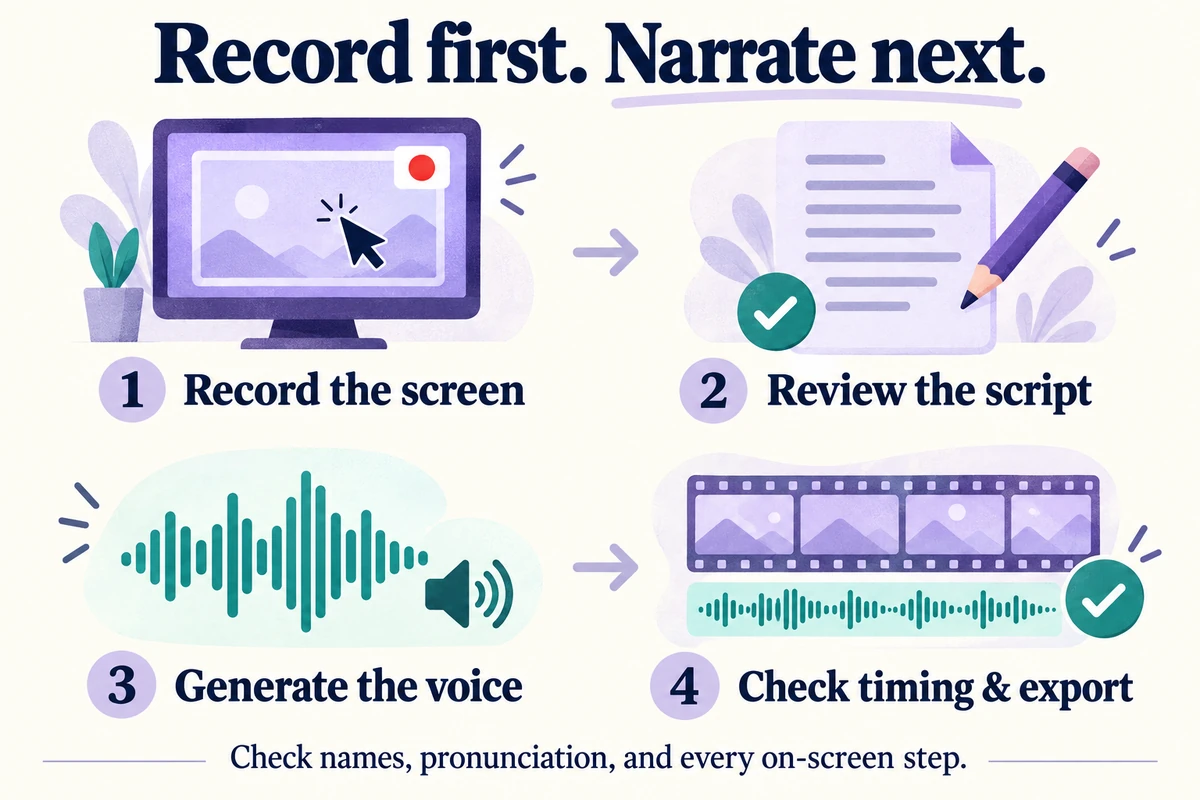
The narration is generated after capture, and you review the script before the voice is made.
Tips for Better Results
Even with AI handling narration, the quality of your source recording matters:
- Clean your desktop — close unnecessary tabs, hide bookmarks and personal files
- Use a logical order — perform steps the way a new user would
- Pause 1-2 seconds between major steps — helps the AI identify clear action boundaries
- Keep it focused — one topic per tutorial, under 5 minutes is ideal
- Full screen or maximized window — gives the AI more visual context to work with
Who Should Use This Approach
The no-mic tutorial workflow is perfect for:
- Support teams creating help center videos without a recording studio
- Product managers documenting features during sprint reviews
- Remote workers in noisy environments
- Non-native English speakers who want perfect pronunciation
- Anyone who wants to ship tutorials fast without the overhead of audio recording
The Bottom Line
You do not need a microphone to create professional narrated tutorials. Vorec's AI engine can understand your screen recording, write intelligent narration, and generate natural voiceover — all from a silent video you already recorded. The entire process takes minutes, not hours.
Ready to start? Try Vorec free — upload your first silent recording and see the results.
Related reading: Loom Alternative with AI Narration, Employee Training Videos with AI Narration and Best Screen Recorder with AI Narration.