How to Screen Record on Linux: Ubuntu, KDE and OBS (2026)
Vorec Team · 2026-10-25 · About 8 min read
To screen record on Ubuntu, press PrintScr and switch to Record Screen (Ubuntu also lists Ctrl + Alt + Shift + R as an alternative). Choose Selection or Screen, click Capture, and click the red indicator in the top panel when you're done. The video lands in Videos/Screencasts in your home folder. On KDE Plasma, Spectacle records a region with Meta + R (Meta + Alt + R for the whole screen). If you need your microphone or the computer's sound on Ubuntu, use OBS Studio, because Ubuntu's recording page doesn't mention audio.
Linux isn't one desktop, so "the screen recorder" depends on which desktop you run. This guide covers the three routes that have official documentation behind them:
- the built-in recorder on Ubuntu and other GNOME desktops, from Ubuntu's desktop documentation (last updated 13 October 2026) and GNOME Help
- Spectacle on KDE Plasma, from KDE's Plasma 6 release announcement (28 February 2024) and Plasma 6.8 announcement (14 October 2026)
- OBS Studio, which is officially distributed as a Flatpak and as an Ubuntu PPA, from the OBS download page
All of them were checked on 25 October 2026. Menus and shortcuts can change between releases, so if a label doesn't match, check your desktop's own help.
Which recorder to use
| You run | Use | Records sound? | Saves to |
|---|---|---|---|
| Ubuntu (default desktop) | Built-in recorder (Ctrl + Alt + Shift + R) | Not mentioned in Ubuntu's or GNOME's docs | Videos/Screencasts, WebM or MP4 |
| Another GNOME desktop | Built-in recorder (Shift + Ctrl + Alt + R) | Not mentioned in GNOME's docs | Videos/Screencasts |
| KDE Plasma 6 | Spectacle (Meta + R for a region) | Optional system audio and microphone in Plasma 6.8 | ~/Videos/Screencasts |
| Another desktop, or you need audio | OBS Studio (Flatpak or Ubuntu PPA) | Yes, through audio sources | Folder set in OBS |
If you only need a quick silent clip of a bug or a setting, the built-in recorder is enough. If you're making a tutorial with your voice in it, read the audio row carefully before you record ten minutes of silence.
How to screen record on Ubuntu
Ubuntu's own page describes the steps below. The video "either captures your whole screen or a selected region" and is saved as a WebM or MP4 file.
Step 1: Open the recorder
Press PrintScr and switch to Record Screen. Ubuntu's page gives Ctrl + Alt + Shift + R as an alternative.
Step 2: Choose what to record
- Selection records a region of the screen. Drag the handles to the area you want.
- Screen records your whole screen.
Step 3: Start and stop
Click Capture or press Enter. A red indicator in the top panel shows that you're recording and for how long. To stop, click that red indicator.
Step 4: Find the video
Open the Videos/Screencasts folder in your home directory.
If the recording stutters: turn on hardware encoding
Ubuntu notes that screen recording relies on your CPU by default, which "might cause skipped frames or higher resource usage". Many computers have hardware video encoding through VA-API. On an installed Ubuntu system, Ubuntu's page says to install the extra packages with:
Some GPU models and drivers don't support VA-API, and on those the recording still uses the CPU after the install.
How to screen record on other GNOME desktops
GNOME Help describes the same tool in slightly different words, so the steps carry over if you run GNOME on another distro:
- Press the Print key, or press the screenshot button in the system menu.
- Click to switch to screencast mode. Click the pointer button if you want the pointer in the video.
- Choose Selection or Screen. For Selection, drag the area you want.
- Click the big round red button to start.
- A red indicator in the top right corner shows the elapsed seconds. Click it in the top bar to stop.
The file goes to Videos/Screencasts, with a name that starts with "Screencast" and includes the date and time.
GNOME keyboard shortcuts
Inside the screenshot tool, GNOME Help lists these keys:
| Key | What it does |
|---|---|
| V | Switch between screenshot and screencast |
| S | Select an area |
| C | Capture the screen |
| P | Show or hide the pointer |
| Enter (or Space, or Ctrl + C) | Capture |
| Shift + Ctrl + Alt + R | Start a screencast without opening the tool |
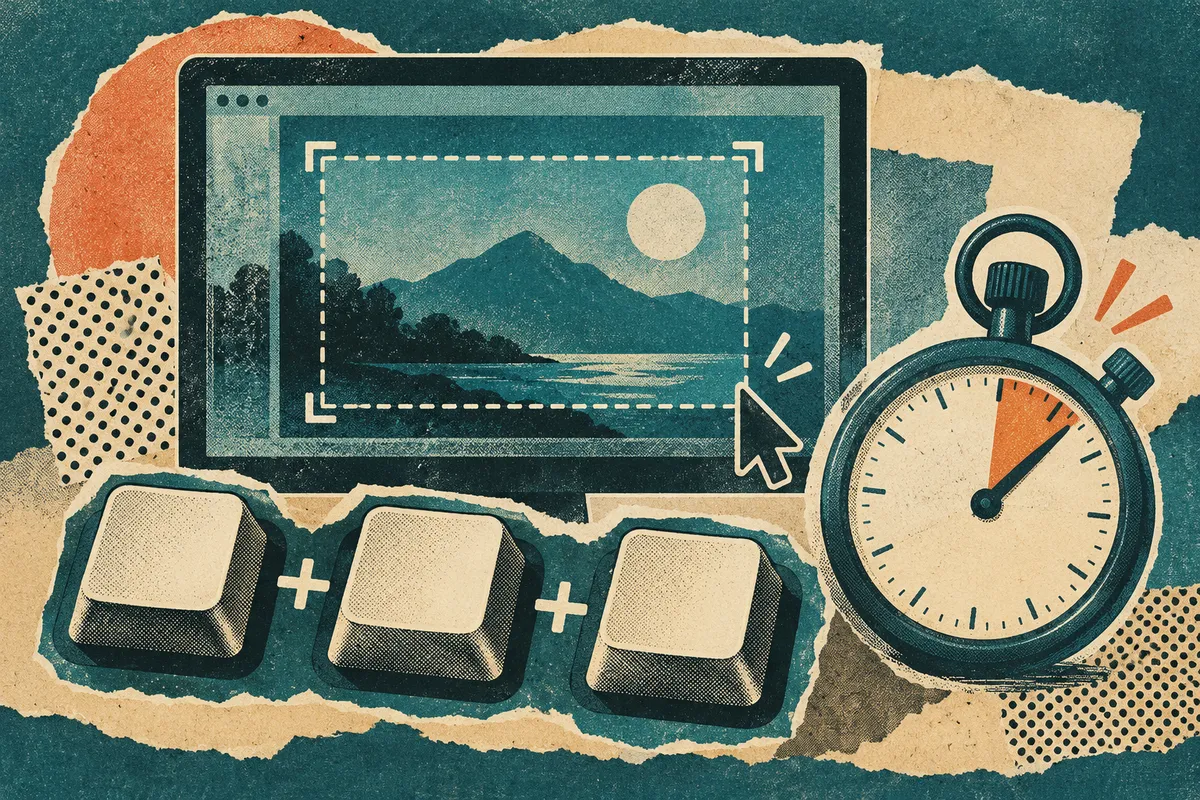
GNOME lists a Window option for screenshots. For screencasts, it lists only Selection and Screen, so to record one window, select the region around it.
How to screen record on KDE Plasma with Spectacle
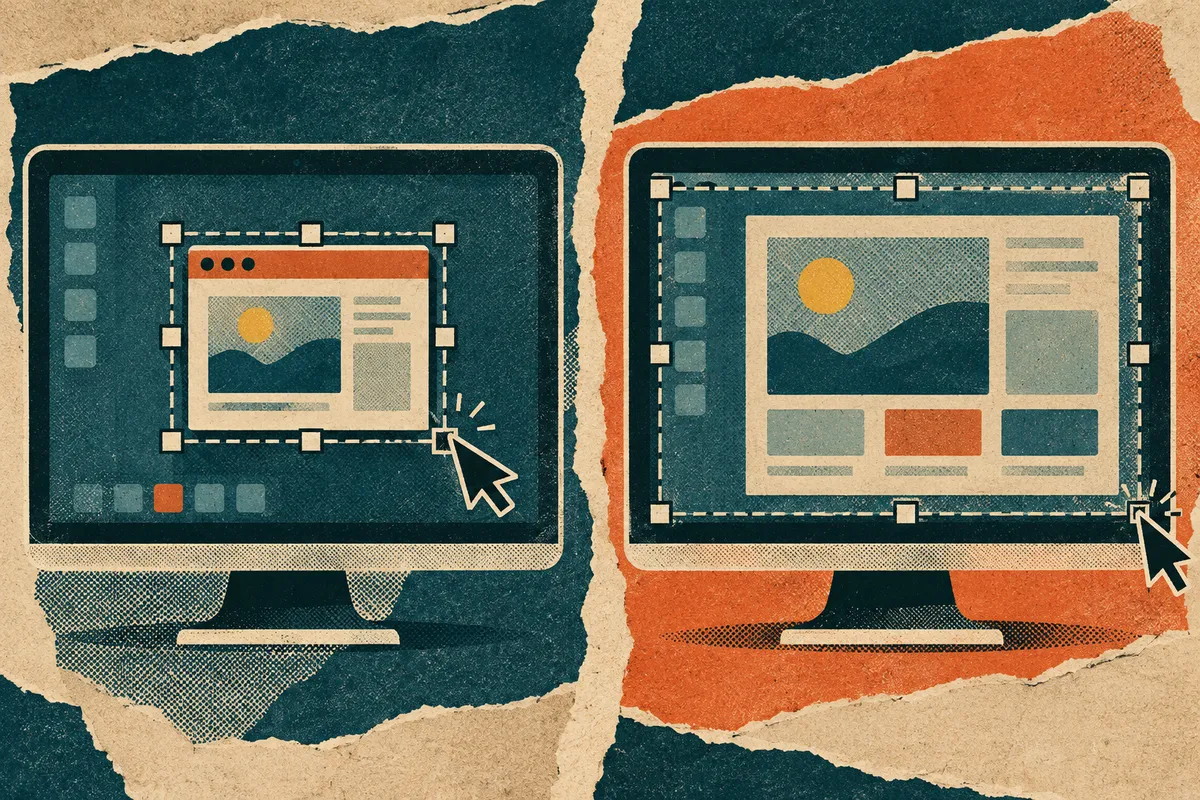
On KDE Plasma, screen recording lives in Spectacle, KDE's screenshot utility. KDE's Plasma 6 announcement lists three recording shortcuts:
| Shortcut | Records |
|---|---|
| Meta + R or Meta + Shift + R | A region you draw |
| Meta + Alt + R | The whole screen |
| Meta + Ctrl + R | A window |
While Spectacle records, it shows a system tray icon. Hover over it to see the time recorded, and click it to finish the recording. KDE moved the default save location to ~/Videos/Screencasts for recordings (screenshots go to ~/Pictures/Screenshots). The same announcement lists recording quality settings and VP9 encoding.
Recording sound with Spectacle
KDE's Plasma 6.8 announcement (14 October 2026) says Spectacle "can now optionally include both system audio and microphone input" in screen recordings, so you can narrate as you go. If you're on an older Plasma release, don't count on audio in Spectacle; use OBS instead.
How to screen record on Linux with OBS Studio
OBS Studio is the route to take when you need your microphone, the computer's audio, or both on a desktop whose built-in recorder doesn't document sound.
Install OBS
The OBS download page says OBS Studio is officially distributed as a Flatpak on Flathub and as a PPA for Ubuntu 24.04 and newer. On Ubuntu, the page gives these commands:
On other distros, install the Flatpak from Flathub. On 25 October 2026 the download page listed version 32.2.2, released 14 August.
Record
Add a screen capture source and your audio sources, set where recordings are saved, then click Start Recording. Our OBS screen recording guide walks through sources, audio and output settings step by step.
Troubleshooting
| Problem | What to check |
|---|---|
| The shortcut does nothing on Ubuntu | Press PrintScr and switch to Record Screen from the tool instead. |
| The video has no sound | Ubuntu's and GNOME's docs don't mention audio. Use Spectacle on Plasma 6.8 or later, or OBS. |
| Recording drops frames | On Ubuntu, try hardware encoding (VA-API) as described above. Some GPUs don't support it. |
| You can't find the file | Look in Videos/Screencasts in your home folder (GNOME, Ubuntu and Spectacle). For OBS, check the recording path in its settings. |
| You only want one window on GNOME | Use Selection and drag around the window. |
Before you record a tutorial on Linux
- Close what you don't want seen. A terminal can show command history or secrets you pasted, and notifications can pop up with message previews. Our screen recording privacy checklist covers what to hide.
- Do a 10-second test. Check the file plays and, if you need sound, that the sound is there.
- Pick a region that fits your viewers. A region around one app window is easier to follow than a full 4K desktop.
- Decide whether you'll narrate live. If talking while you click doesn't suit you, record silently and add the explanation afterwards. Our guide on adding narration to a screen recording compares the options.
Turning a Linux recording into a narrated tutorial
A raw screen recording shows what you did, not why. Viewers usually need the "why": which menu to look in, what the setting changes, what to check afterwards. You can add that by speaking over the video, by writing captions, or by generating narration from the recording itself. A no-mic tutorial is the last kind: the narration is written and voiced after recording, so nobody speaks into a microphone.
Where Vorec fits
Vorec records your screen too: it has its own macOS recorder, and an AI agent can drive it for you through the Claude Code plugin, capturing locally for you to review before anything is uploaded. On Linux, you upload the recording instead. Vorec accepts MP4, WebM and MOV uploads, and the Ubuntu, GNOME and Spectacle recorders save WebM or MP4 files. Upload a short test clip first to check yours goes through and plays. An MKV file from OBS needs converting to MP4 (H.264) before you upload it. Vorec then analyses the recording to draft narration matched to the workflow and generates the voiceover. In the editor you can add captions, callouts and zoom, and freeze-sync can hold a frame to give an explanation time to finish. The same capture can also produce a written step-by-step guide, and narration regenerates in supported languages on eligible plans. Plans start at $9/month (Starter); a free trial is available (current allowances on the pricing page).
If you also record on other machines, see our guides for Windows and Chromebook.
FAQ
How do I screen record on Ubuntu?
Press PrintScr and switch to Record Screen, or use the alternative shortcut Ctrl + Alt + Shift + R. Choose Selection or Screen, click Capture, and click the red indicator in the top panel to stop. The video is saved to Videos/Screencasts as a WebM or MP4 file.
Does Ubuntu's screen recorder record sound?
Ubuntu's recording page doesn't mention audio, and neither does GNOME Help. If you need your voice or the computer's sound, use OBS Studio.
What is the screen record shortcut on Linux?
It depends on the desktop. On Ubuntu it's Ctrl + Alt + Shift + R, and GNOME Help lists Shift + Ctrl + Alt + R. On KDE Plasma 6, Spectacle uses Meta + R for a region, Meta + Alt + R for the screen and Meta + Ctrl + R for a window.
Where are screen recordings saved on Linux?
On Ubuntu, GNOME and KDE Spectacle, in the Videos/Screencasts folder in your home directory. OBS saves to the folder set in its own settings.
Can I record just one window on Linux?
On KDE Plasma, press Meta + Ctrl + R. On GNOME and Ubuntu, the screencast options are Selection and Screen, so drag a selection around the window.
How do I stop a screen recording on Ubuntu?
Click the red indicator in the top panel. It also shows how long you've been recording.
Want the recording to narrate itself? Record with Vorec, or upload one you already have, and get a narrated tutorial plus a written guide. Start free. Trial includes up to 3 projects; exports carry a watermark.