Screen Tutorial Tools and Sensitive Data: What to Check
Vorec Team · 2026-10-05 · About 5 min read
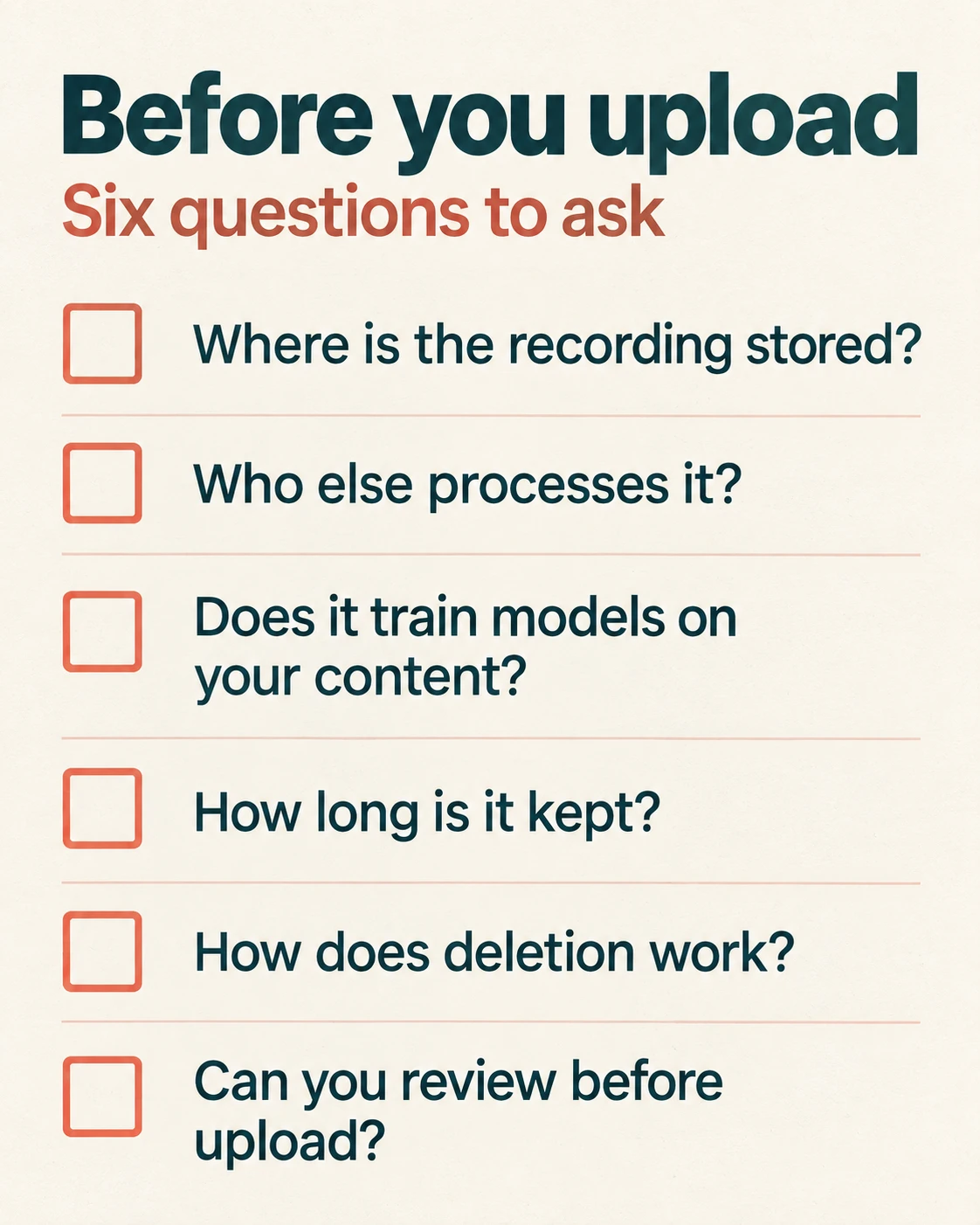
Before your team records customer screens for tutorials, check six things: where the recording is stored, who processes it, whether your content trains a model, how long it is kept, how deletion works, and whether you can review the recording before it leaves your machine. Look for the answers in a tool's public policy and workflow documentation, and ask the vendor about any gaps.
Screen tutorials capture whatever is on screen: customer names, emails, account numbers, internal URLs. This checklist applies to any screen tutorial tool. After each point we note what Vorec's public Terms and Privacy Policy say, summarised from the policy text as of 5 October 2026. These are the policies' own statements, not an audit or a security certification, and we did not review any other vendor's policy here, so check theirs directly. Before recording customer data, also check your own team's permissions and handling requirements.
The Checklist
| Question to ask | Why it matters | What Vorec's public policy says |
|---|---|---|
| Where is the recording stored? | Uploaded video sits in someone's cloud | Video files and project data are stored in cloud storage with encryption at rest and in transit and access controls |
| Who else processes it? | AI steps often send content to outside providers | The policy lists AI service providers, a payment processor, cloud infrastructure, analytics and error-tracking providers, and says it does not sell personal data |
| Does it train models on your content? | Your customers' screens could become training data | The policy says uploaded videos and generated content are not used to train AI models |
| How long is it kept? | Old recordings are old liabilities | The Privacy Policy says data is retained while the account is active; see the retention section below |
| How does deletion work? | You need a real exit | The policy says content is deleted within 30 days of account deletion, with billing records kept longer; see below |
| Can you review before upload? | The best fix for sensitive data is not uploading it | See the next section |
Review Before Upload
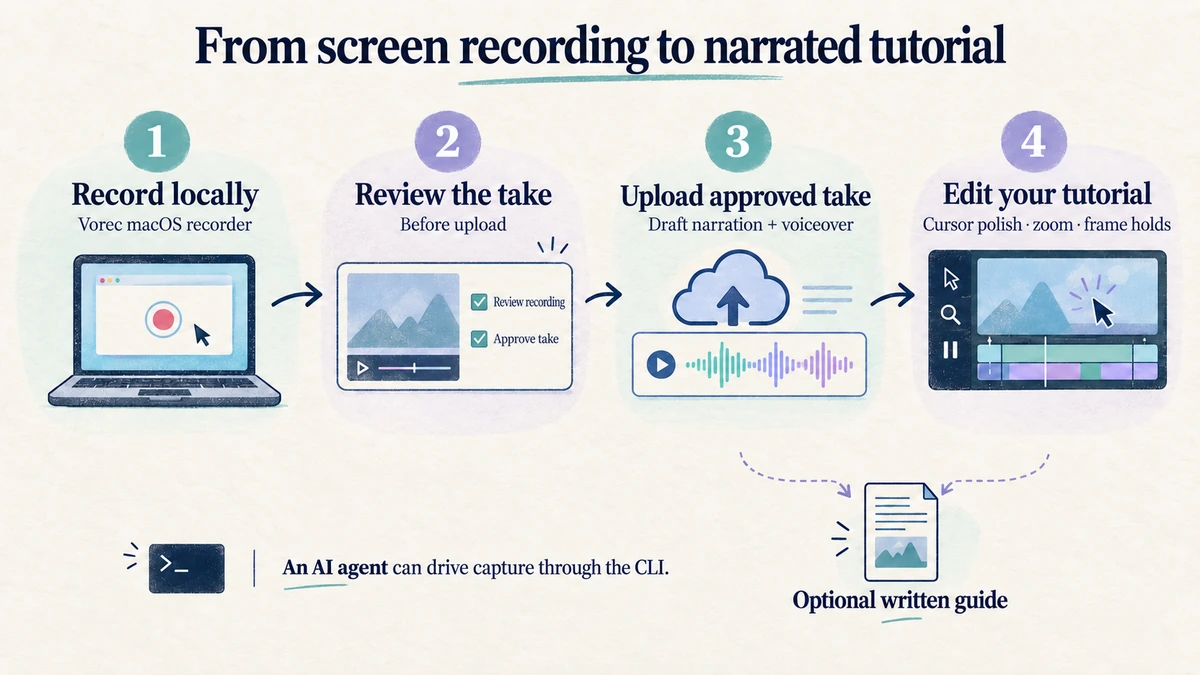
The safest way to handle sensitive information is to never send it. In Vorec's documented CLI workflow, `run` saves the MP4 and an action sidecar file locally on your Mac. You review the take before asking your agent to run `analyze`, the separate command that uploads it and starts narration. If you never run that step, a rejected take is not uploaded by this workflow.
This is a documented procedure, not an approval gate that the software enforces, and local capture does not mean the app you record is offline. Review the video and any accompanying action or context data, because action and context data from the sidecar are uploaded too.
That helps, but it is not a redaction tool. Review catches a take that shows the wrong screen. It does not remove a customer's name from a take you decide to keep. For that, prepare the screen first:
- Use a demo or test account with sample data instead of a real customer account.
- Close notification centers, chat apps and other tabs before recording.
- Replace real names, emails and IDs with placeholder values in the app you record.
- Re-record short takes rather than editing sensitive material out later.
Blurring a video after uploading it does not prevent the original upload. Vorec's documented blur overlay belongs to project editing after upload, so it is not a pre-upload redaction step. Check how the original recording is retained, and treat blur as a second line of defence.
What Vorec's Policy Says About Retention and Deletion
- While your account is active: the Privacy Policy says data is retained while the account is active.
- Account deletion: the policy says personal data and content, including videos, projects and articles, are deleted within 30 days of account deletion, while billing records are retained for seven years. See the full Privacy Policy for other retention provisions.
- Ownership: the Terms say you keep the rights to the videos you upload and to the narration, voiceover and articles the service generates, and that you grant Vorec a limited license to process, store and transmit your content solely to provide the service.
If you need a specific retention period, deletion proof, a data processing agreement or a named storage region, or certifications such as SOC 2, ask Vorec directly before you record customer data. This page does not claim any of them: the public policy also says data may be processed outside your country.
A Short Procurement Checklist for Your Team
- Ask where recordings are stored and in which regions.
- Ask which providers process the recording and the generated narration.
- Ask whether your content is used for training, and get the answer in writing.
- Ask how long each file type is kept and how you delete it.
- Decide who can access recordings inside your team.
- Do a pilot with a demo account before using a real customer's screen.
- Check any accompanying data the tool uploads, such as action logs or context files, as well as the video.
How Vorec Fits
Vorec focuses on narrated screen tutorials and written guides. It records your screen through its macOS recorder, and an AI agent can drive that capture through the CLI, recording locally so you review the take before anything is uploaded. It then uses captured action data, or analyses a recording you upload, to draft narration matched to the workflow and generate the voiceover, so no microphone narration is required.
Plans start at $9/month billed monthly, with a 7-day free trial of 100 credits, no credit card required, whose exports carry a watermark. See Vorec's pricing, credits and plan limits for the details.
Bottom Line
Ask six questions before a tool sees your customers' screens: where the recording lives, who processes it, whether it trains models, how long it is kept, how deletion works, and whether you can review before upload. Vorec's public policy states its position on storage, processing, training, retention and deletion; the review-before-upload step comes from its documented local-capture workflow, which is a procedure rather than an enforced control. Follow the checklist with a demo account first, and check your own team's requirements before recording real customer data.
Related: our Scribe pricing breakdown and Guidde pricing breakdown cover two tools teams often compare on documentation and privacy.
Want the recording to narrate itself? Record with Vorec, or upload one you already have, and get a narrated tutorial plus a written guide. Start free: a 7-day trial with 100 credits, no credit card required, up to 3 projects and watermarked trial exports. Paid plans start from $9/month.