Customer Onboarding Videos: A Practical Guide (2026)
Vorec Team · 2026-10-11 · About 9 min read
A new customer signs up, lands on an empty dashboard, and has to work out the first useful thing to do on their own. If they cannot find it quickly, they leave, and the account that cost you a marketing budget to acquire goes quiet. A short customer onboarding video placed at the right moment is a practical way to close that gap, because it shows instead of describing.
This guide covers which onboarding videos to make first, how long they should be, a reusable script structure, where to put them, and how to keep them accurate when the product changes. It is written for software teams: SaaS founders, customer success, support, and product marketing.
What Is a Customer Onboarding Video?
A customer onboarding video is a short recording that walks a new customer through a specific task in your product, so they reach their first successful outcome without a call or a support ticket. Most are screen recordings of the real interface with a voiceover explaining each step.
It is different from three neighbouring formats:
| Format | Audience | Goal | Typical length |
|---|---|---|---|
| Customer onboarding video | New customers, after signup | Complete one task and reach a first success | 1-3 minutes |
| Product demo video | Prospects, before signup | Show why the product is worth trying | 2-5 minutes |
| Employee onboarding video | New hires | Learn internal tools and processes | Varies by role |
| Help-center tutorial | Any customer, on demand | Answer a specific "how do I" question | 1-4 minutes |
The lengths above are suggested starting ranges, not measured benchmarks. The principle behind them is sound: one video, one task. If you are building videos for new staff rather than customers, see our guide to onboarding videos for new employees. For pre-signup videos, see how to make a demo video.
Which Onboarding Videos to Make First
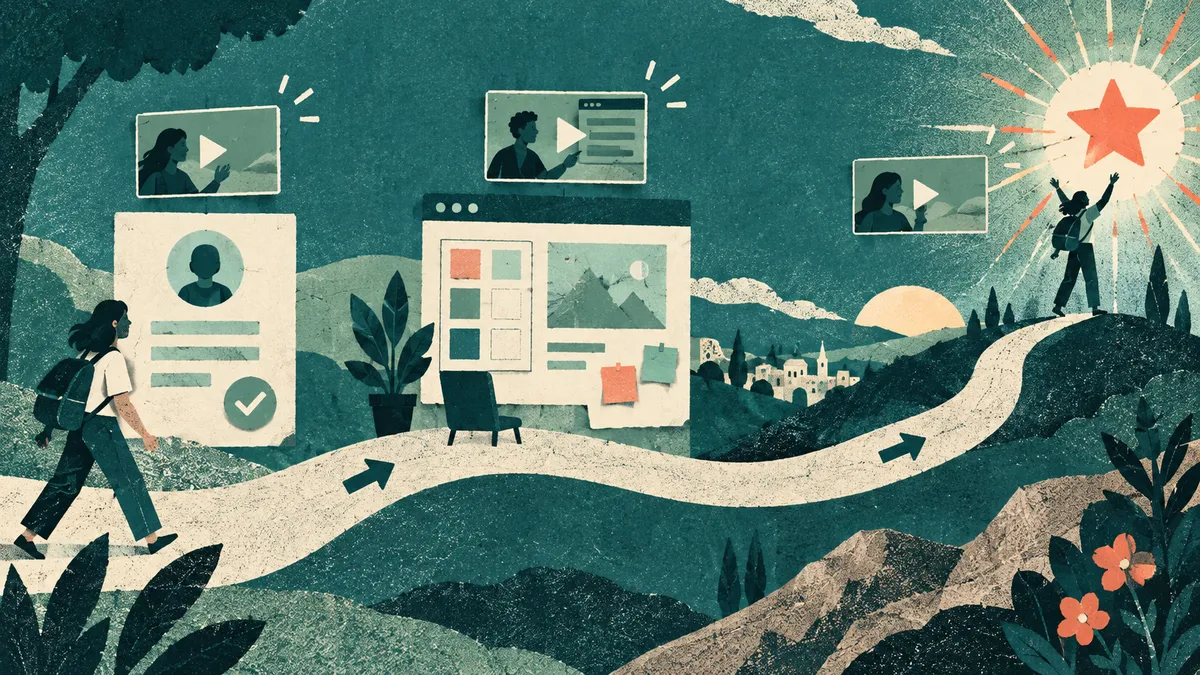
Do not start by recording a full product tour. Start with the shortest path to the moment a customer first gets value, often called the "aha" moment. For a project tool that might be creating a first project and inviting a teammate. For an analytics tool it might be connecting a data source and seeing a first chart.
Map that path, then make one video per step. A typical first set looks like this:
- Welcome and orientation (under a minute). What the main areas of the screen are, and what the customer will do next. No feature list.
- First setup task. Connecting an account, importing data, or configuring the one setting everything else depends on.
- First core action. The task the product exists for, done once end to end.
- Sharing or inviting. If the product gets more valuable with teammates, show how to add them.
- Where to get help. Where the help center, chat, or documentation lives.
After that set, let your support queue choose the next videos. Every question that reaches support more than a few times a week is a candidate for a one-task video. That keeps the library tied to real confusion rather than to the features you are proudest of.
How to Plan and Script Each Video
Each onboarding video answers one question. Write that question at the top of the script, for example "How do I import my contacts?", and cut anything that does not help answer it.
A simple script structure that works for most tasks:
| Section | What it says | Approximate share |
|---|---|---|
| Outcome | What the customer will have at the end | One sentence |
| Starting point | Where to begin in the product | One sentence |
| Steps | Each click or field, with why it matters | Most of the video |
| Result | What success looks like on screen | One or two sentences |
| Next step | The single next thing to do | One sentence |
Writing tips that keep scripts short:
- Name the screen element the customer sees. "Click New Project in the top right" beats "create a new project".
- Explain why only when it changes a decision. "Choose Private if only your team should see it" is useful; a paragraph on access models is not.
- Avoid version-specific promises. "In the current version" ages badly. Describe what the screen shows.
- Keep sample data realistic and harmless. Use a demo account, not a real customer's records. Our screen recording privacy checklist covers what to hide before you record.
How to Record Customer Onboarding Videos
The recording is the easy part if the preparation is done. A repeatable workflow:
- Prepare a clean demo workspace. Seed it with sample data so screens are not empty, close notifications, and set the browser zoom so text is readable at small sizes.
- Set a consistent window size. A fixed size makes every video in the library look like it belongs to the same set.
- Rehearse the click path once. Know exactly where you will click before you start.
- Record the task without talking. Moving the mouse slowly and pausing on each result makes it easier to follow and easier to narrate afterwards.
- Add narration. Either record your voice, or write the script and generate the voiceover. Our guide on adding narration to a screen recording compares the options.
- Add emphasis where it helps. Zoom on small controls and highlight the field being filled. Use it sparingly; constant zooming is tiring to watch.
- Export and caption. Captions help customers who watch with the sound off and make the video easier to skim.
Recording silently and narrating afterwards has a practical advantage for onboarding libraries: you can fix a sentence or translate the narration without re-recording the screen, as long as the interface has not changed.
Where to Put Onboarding Videos in Your Product
A video nobody finds does not onboard anyone. Place each video where the question arises:
| Placement | Best for | Watch out for |
|---|---|---|
| Empty states | The first time a customer sees an empty list or dashboard | Keep it skippable |
| Welcome email or checklist | Orientation and the first setup task | One video per email, not five |
| Inline help links | Complex settings and integrations | Link to the exact step, not a long tour |
| Help center articles | On-demand answers | Pair the video with written steps for skimmers |
| In-app announcements | New features for existing customers | Retire them once the feature is familiar |
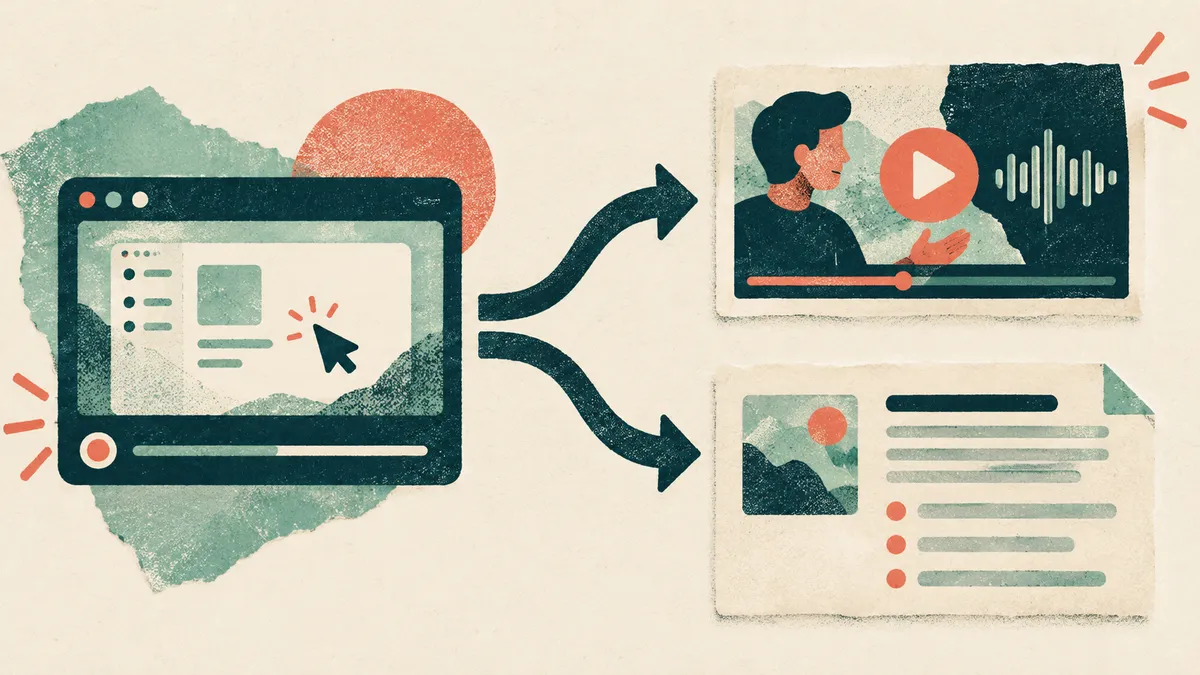
Pair videos with written steps wherever you can. Some customers prefer to skim, written steps can be searched and copied, and a written version is easier to update for small changes. Our knowledge base article template gives a structure for the written half.
How to Keep Onboarding Videos Current
Onboarding videos can become outdated when the interface changes, especially when the click path they show changes. Build maintenance into the process:
- Keep an inventory. For each video, record the task, the screens it shows, its placement, and the date it was last checked.
- Tie checks to releases. When a release touches a screen, flag every video that shows it. Your release notes are a natural trigger.
- Keep the script with the video. If the narration is generated from a script, a wording fix is a text edit rather than a re-recording.
- Re-record only the changed task. Short, one-task videos are cheap to replace. A twenty-minute tour is not.
- Retire videos for removed features. Remove them from every placement, not just the help center.
How to Measure Whether Onboarding Videos Work
Views alone tell you little. Measure what the video was meant to change:
- Task completion. Do customers who watch the "import data" video complete an import more often than those who do not? Treat that as a descriptive association, not proof the video caused it: customers who choose to watch may already be more motivated. Where feasible, show the video to a randomly assigned group and compare against a group that does not see it.
- Time to first success. Does the time from signup to the first core action fall after you add a video to the empty state?
- Support volume for that task. Do tickets about the task fall after the video goes live?
- Drop-off within the video. If many viewers stop at the same point, that section may be confusing or too slow. It can also mean viewers found their answer there, or hit a playback problem, so treat it as a prompt to investigate rather than a diagnosis.
Treat early results with care. With small numbers of new signups, a week-to-week change can be noise. Compare like-for-like periods and give each change enough time before judging it.
Where Vorec Fits
Vorec records your screen. It has its own macOS recorder, and an AI agent can drive it for you through the Claude Code plugin, capturing locally for you to review before anything is uploaded. It then drafts narration matched to the workflow it captured and generates the voiceover, so nothing is spoken into a microphone. In the editor you can add smooth cursor motion, cursor-follow zoom and click-based auto-zoom, and freeze-sync can hold a frame to give an explanation time to finish. The same capture can also produce a written step-by-step guide, with annotatable screenshots, and narration regenerates in supported languages on eligible plans, without re-recording. You can upload an existing recording instead if you already have one.
For an onboarding library, that maps to the workflow above: record one task at a time, edit the narration script when the wording needs to change, and generate a written guide for the help center when you want one. Vorec focuses on narrated tutorials and written guides; teams that need live in-app guidance, such as product tours rendered inside their own UI, should evaluate a dedicated in-app guidance tool.
Plans start with a 7-day free trial with no credit card required. Trial includes up to 3 projects; exports carry a watermark. Paid plans are $9, $24 and $59 a month, or $86, $230 and $566 a year; see Vorec pricing for credits and plan details.
FAQ
How long should a customer onboarding video be?
As short as the task allows. For a single task, one to three minutes is a good working target. If a video runs much longer, it is usually covering more than one task and should be split.
Should customer onboarding videos use a human voice or an AI voice?
Either can work. A human voice suits personal welcome messages from a founder or account manager. A generated voice suits a library of task videos that need frequent wording changes or several languages, because the narration can be regenerated from the script without a new recording session.
What is the difference between a customer onboarding video and a product demo?
A product demo persuades a prospect that the product is worth trying. An onboarding video helps someone who has already signed up complete a specific task. Demos sell outcomes; onboarding videos teach steps.
How many onboarding videos does a SaaS product need?
Start with one video per step on the path to the first success, usually around five. Add more as support questions reveal where customers get stuck, rather than recording every feature up front.
Do onboarding videos replace written documentation?
No. Videos are good for showing a sequence of clicks; written steps are better for skimming, searching and quick updates. Most teams get the best result by pairing each video with a short written version. See our process documentation guide for how the two fit together.
Want the recording to narrate itself? Record with Vorec, or upload one you already have, and get a narrated tutorial plus a written guide. Start free.