Knowledge Base Article Template: 4 Formats (2026)
Vorec Team · 2026-09-28 · About 7 min read
A customer opens your help center with one question. They find an article with the right title, start reading, and discover it is three paragraphs of background before the first step — and the step references a button that was renamed two releases ago. They close the tab and open a ticket.
That article was not necessarily badly written. It used the wrong format for the question, and it buried the answer under context. This guide gives you four formats matched to the questions readers bring to a help center, a template for each, and a way to fill the how-to template from a screen recording instead of a blank page.
What is a knowledge base article?
A knowledge base article is a self-contained answer focused on one task or topic a user has a question about. It lives in a help center or internal wiki and is written to be found by search and read in one sitting. (The Q&A format below is the deliberate exception: several short, related questions on one page.)
The focus is the part that matters. An article titled "Billing" is a category. An article titled "How to change the card on your subscription" is an article. If you need an "and" in the title, you probably have two articles.
If you are setting up the whole library rather than a single article, start with how to create a knowledge base, which covers structure, categories and tooling. This post is about the unit inside it.
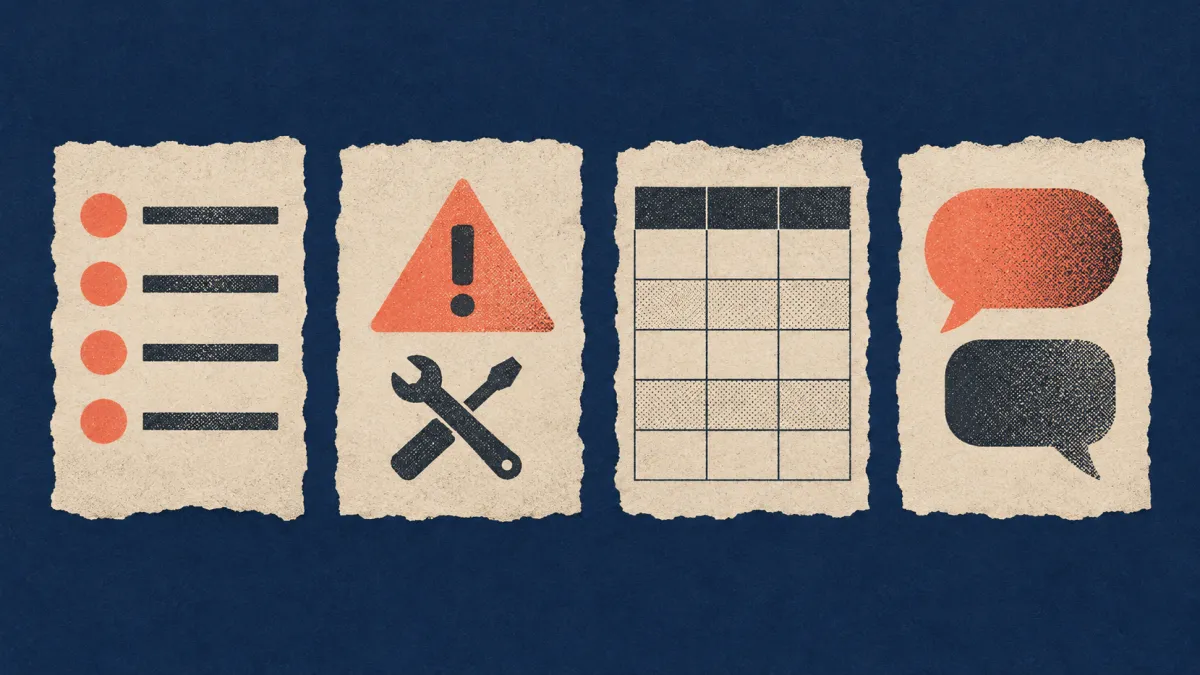
The 4 knowledge base article formats
Pick the format from the reader's question, not from what you want to explain.
| Reader's question | Format | Answer shape | Example title |
|---|---|---|---|
| "How do I…?" | How-to | Numbered steps | How to export a report as CSV |
| "Why isn't this working?" | Troubleshooting | Symptom → cause → fix | Export button is greyed out |
| "What does this mean / what are the options?" | Reference | Table or definition list | Export file formats and limits |
| "Can I…? / Does it…?" | Q&A | Short direct answers | Exports: common questions |
A common failure is mixing them: a how-to article that pauses at step 4 to list every setting on the screen. That list is a reference article. Link to it from step 4 instead.
Template 1: How-to article
Use this for any task with a clear start and a clear finished state.
Rules that make the template work:
- Start the title with "How to" and a verb. It matches how people phrase the search.
- One action per step. "Click Save and then close the dialog" is two steps.
- Bold the exact UI label the reader is looking for, spelled as it appears on screen.
- Say what they should see after a step when it is not obvious. It is how a reader knows they are still on track.
- End with the result, not with the last click.
Template 2: Troubleshooting article
Use this when a reader arrives with a symptom. They do not know the cause yet, so the title must describe the symptom in their words.
Title it "Export button is greyed out", not "Export permissions". The reader searches for what they see.
Template 3: Reference article
Use this for facts a reader looks up rather than follows: limits, file formats, keyboard shortcuts, field definitions, plan differences.
Reference articles go stale quietly, so the review date is not decoration. A reader who sees a date can judge how far to trust the table.
Template 4: Q&A article
Use this for short yes/no or "can I" questions that do not justify an article each.
In your help center, format each question as a subheading so readers can scan them.
Keep each answer short. If an answer grows steps, promote it to a how-to article and link to it.
How to write a knowledge base article, step by step
- Pull the question from a real source. Support tickets, search logs from your help center, sales-call notes. The wording customers use is the wording they will search for.
- Choose the format from the table above.
- Write the title first. If you cannot write a specific title, the article is not scoped yet.
- Do the task yourself while writing. Writing from memory is how an article ends up naming a button that has since been renamed.
- Put the answer first. Background goes after the steps, or in a linked article.
- Add screenshots where the interface is the difficulty — finding an unobvious control, say. Every screenshot is something to update when the UI changes, so add them where they earn it.
- Have someone who did not write it follow it. Where they hesitate is where the article is unclear.
- Set a review date. Tie reviews to releases that touch the feature, not to the calendar alone.
Filling the how-to template from a screen recording
Step 4 above — doing the task while writing — involves a lot of switching: you click, switch to the doc, write a step, take a screenshot, crop it, switch back, click again.
The alternative is to record the task once and write from the recording. The recording already contains the steps in order, the exact labels on screen, and the state after each action. Writing becomes transcription and editing rather than reconstruction from memory.
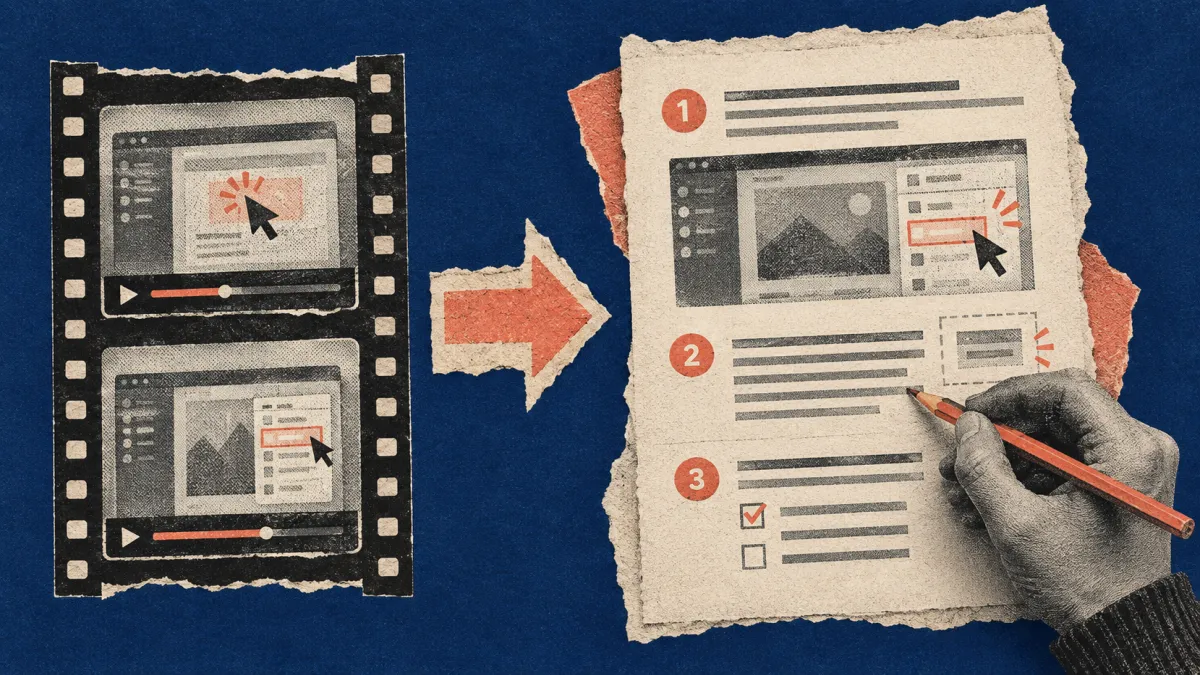
Vorec is built around that workflow. It has its own macOS recorder — and an AI agent can drive it for you — or you can upload a recording you already have. From the capture, Vorec drafts narration matched to the workflow and generates the voiceover, and it can generate a written step-by-step guide from selected actions, screenshots and narration. You then edit that draft into your template, and the article editor lets you annotate the screenshots with arrows, text and shapes.
It is a draft, not a finished article. A generated draft can miss an action or misread one, so check every step, UI label and screenshot against the recording before you publish. You still choose the title, trim steps, add the "before you start" line and link the troubleshooting article. If the task touches billing or customer records, record it with demo or test data rather than a real account.
We cover the full recording-to-article workflow in how to turn screen recordings into help articles, and when a video belongs next to the article in knowledge base videos.
Common knowledge base article mistakes
| Mistake | Why it hurts | Fix |
|---|---|---|
| Background before the answer | Reader has to scroll to find step 1 | Answer first, context after |
| Title names a feature, not a task | Doesn't match what people search | "How to…" or the symptom |
| Several tasks in one article | Hard to scan, hard to maintain | Split and cross-link |
| UI labels paraphrased | Reader can't find the button | Copy labels exactly, in bold |
| No result stated | Reader can't tell if they're done | End with what has changed |
| No review date | Stale articles look as trustworthy as fresh ones | Date it; review on releases |
FAQ
What is the best format for a knowledge base article?
The one that matches the reader's question. "How do I…" gets numbered steps, "why isn't this working" gets symptom-cause-fix, lookups get a table, and short yes/no questions go in a Q&A article.
How long should a knowledge base article be?
As long as its one task or topic needs and no longer. We do not have a sourced word count to give you. For a how-to article, a practical test is whether a reader can reach step 1 without scrolling past background.
Should knowledge base articles include video?
Where watching someone do it is easier than reading it — multi-screen flows, drag interactions, anything where position matters. Put the video next to the written steps rather than replacing them, so readers can scan the steps and search engines can read them.
What's the difference between a knowledge base article and an SOP?
A knowledge base article covers one task or topic, usually for customers or a broad internal audience. An SOP documents how a team performs a recurring procedure, with owners and controls. See our process documentation guide for where SOPs fit.
Related reading: Release Notes Template, User Guide Software and What Is Video Documentation?.
Want the recording to write the first draft? Record with Vorec — it has its own macOS recorder, and an AI agent can drive it for you — or upload a recording you already have. Vorec drafts narration matched to the workflow it captured and generates the voiceover, and the same capture can also produce a written step-by-step guide you edit into your template. Start free — 7-day trial, 100 credits, no credit card required. Trial includes up to 3 projects; exports carry a watermark.