How to Make a Demo Video That Converts (2026 Guide)
Vorec Team · 2026-04-03 · About 10 min read
Demo videos are the closest thing to a cheat code in marketing. They show your product doing exactly what it promises — no fluff, no guesswork. A 90-second recording answers "what does this actually do" faster than a page of feature copy, and it answers it the same way for every visitor.
But most demo videos fail. They're too long, too unfocused, or they bury the value under feature lists nobody asked for.
This guide covers how to plan, record, and distribute a video demonstration that actually converts viewers into users — whether you're building a product tour, an investor pitch, or a sales enablement clip.

Why Demo Videos Are the Highest-Converting Content Type
Before you open a screen recorder, understand why demo videos work so well compared to other content formats.
What a demo actually does: it shows the product working, in order, without asking the reader to assemble it from screenshots and feature copy. A prospect can see whether it fits their workflow before they book a call.
In Wyzowl's 2020 video survey, 84% of people said they had been convinced to buy a product or service by watching a brand's video — a self-reported survey finding from December 2019, not a measured conversion lift.
The reason is simple: a demo video removes the imagination gap. Instead of asking someone to read about what your product does and picture it working, you show them. They see real screens, real workflows, real results.
That's why a strong product demo video outperforms blog posts, infographics, and even testimonials when it comes to driving signups and trial activations.
Types of Demo Videos (and When to Use Each)
Not every demo video serves the same purpose. The format you choose depends on where your viewer is in the buying journey.
Product Tour
Best for: Landing pages, website homepage, top-of-funnel awareness
A product tour gives a high-level walkthrough of your entire product. It answers the question: "What does this thing actually do?" Keep it between 60 and 90 seconds. Show the core workflow from start to finish without diving deep into any single feature.
Feature Highlight
Best for: Product updates, email campaigns, social media
Zoom into one specific feature and show why it matters. These work well when you've shipped something new and want existing users to adopt it — or when a single feature is your competitive advantage.
Onboarding Walkthrough
Best for: Post-signup activation, help center, in-app guides
These are instructional. Walk new users through setup, first actions, and quick wins. The goal is reducing time-to-value, not selling. A good onboarding demo answers the questions people would otherwise open a ticket about.
Investor Demo
Best for: Pitch decks, fundraising, VC meetings
Investors want to see traction and market fit, not every feature. Lead with the problem, show the product solving it, and end with metrics. Keep it under 3 minutes.
Sales Enablement
Best for: Outbound sequences, follow-up emails, deal rooms
Sales teams need short, personalized clips they can drop into conversations. Record a quick demo addressing the prospect's specific pain point. These land better than generic product tours in outbound sequences.
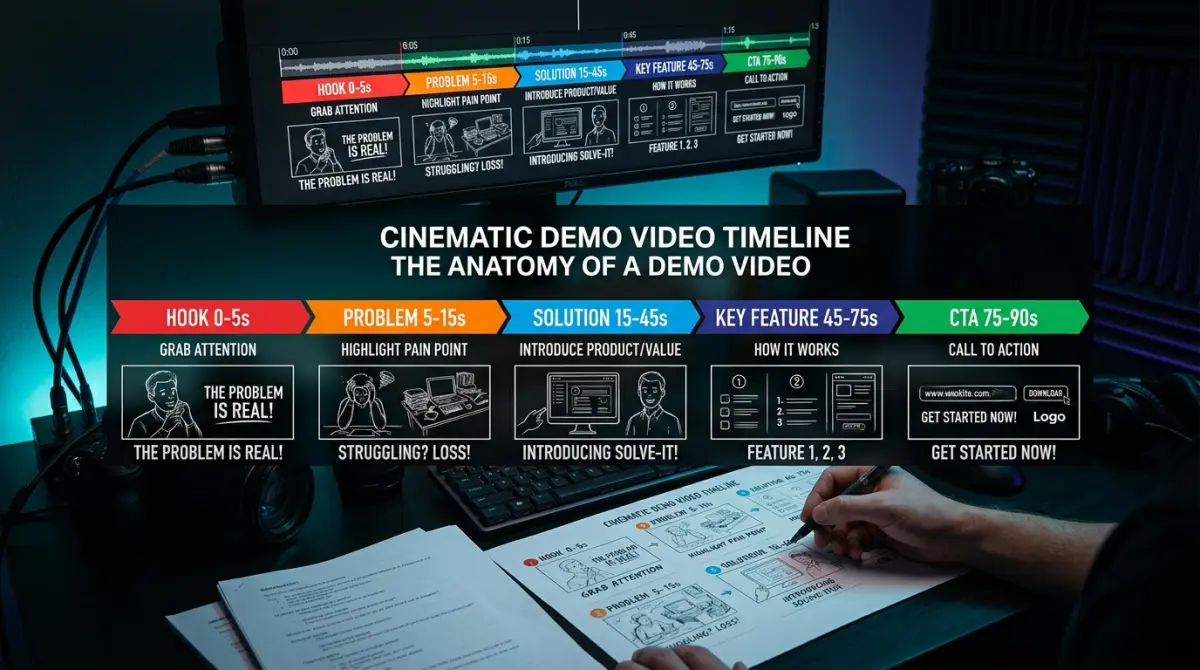
Anatomy of a High-Converting Demo Video
Every effective product demonstration video follows a predictable structure. Here's the framework that consistently drives results.
The Hook (First 5 Seconds)
You have five seconds before someone clicks away. Don't waste them on a logo animation or "Hi, welcome to our product."
Instead, lead with the outcome:
- "Here's how to cut your onboarding time from 2 weeks to 2 days."
- "This is the fastest way to turn screen recordings into tutorials."
- "Watch us build a complete report in under 60 seconds."
State the result first. Curiosity keeps people watching — but use only claims your own demo or evidence supports. A number you cannot back up is the fastest way to lose the viewer you just won.
Problem Statement (10-15 Seconds)
Name the pain your viewer feels. Be specific. "Managing projects is hard" is weak. "You're tracking tasks across Slack, email, and three spreadsheets — and things still slip through" is strong.
This is where the viewer decides: "This video is for me" or "This isn't relevant." Make it impossible to miss.
Solution Flow (60-90 Seconds)
Now show your product solving the problem you just described. Walk through the core workflow step by step:
- Start with the trigger — what action kicks things off?
- Show the magic moment — the step where your product delivers clear value
- End with the result — the output, dashboard, report, or saved time
Keep your mouse movements deliberate. Pause briefly on important screens. Avoid clicking through menus at full speed — your viewer needs time to process what they're seeing.
Social Proof (10-15 Seconds)
Drop in a quick stat, testimonial, or customer logo. "Used by 2,000+ teams" or a one-line quote from a real customer. This doesn't need to be elaborate — it just needs to establish that other people trust this product.
Call to Action (5-10 Seconds)
End with one clear next step. Not three. Not "visit our website and also follow us and also check out our blog." One action:
- "Start your free trial at [domain]."
- "Book a demo with our team."
- "Try it free — no credit card required."
Step-by-Step: How to Create a Demo Video
Here's the practical workflow for producing a product demo video from scratch.
Step 1: Plan Your Script
Before you touch a screen recorder, write down:
- The one thing you want viewers to do after watching
- Three features (maximum) to showcase
- The workflow path — the exact screens and clicks you'll walk through
- What to skip — settings pages, edge cases, admin panels. If it doesn't serve the story, cut it.
Write a rough narration script. Even bullet points help. Demo videos that wing it end up twice as long and half as clear.
Pro tip: Use the "So what?" test on every feature you plan to show. If you can't finish the sentence "This matters because…" in a way your viewer cares about, cut it.
Step 2: Record Your Screen
Clean recordings make or break your demo. Before you hit record:
- Close unnecessary tabs and notifications. Nothing kills credibility like a Slack ping mid-demo.
- Use dummy data that looks real. "Acme Corp" and "test@test.com" feel lazy. Use realistic names, numbers, and content.
- Set your resolution to 1920x1080. This is the standard for web video and looks sharp on any screen.
- Slow down your clicks. Move at about 70% of your normal speed. What feels slow to you feels natural to viewers.
- Record in segments. Don't try to nail a perfect 3-minute take. Record each section separately and stitch them together.
For a deeper walkthrough on clean screen recordings, see our guide on creating product demo videos fast.
Step 3: Add Narration
Silent screen recordings lose viewers fast. Narration guides attention, explains context, and keeps the pace moving.
You have two paths:
Record voiceover manually: Use a decent microphone (even AirPods Pro work in a pinch). Record in a quiet room. Speak conversationally — not like you're reading a script, even if you are.
Use AI narration: Tools like Vorec can watch your screen recording and generate narration automatically. You upload a silent recording, the AI analyzes what's happening on screen, writes a script, and produces voice-over synced to your actions. This is especially useful when you're producing demos at scale or don't have a narrator available.
Whichever path you choose, make sure your narration:
- Describes what the viewer should notice, not every click
- Uses "you" language — "You'll see your dashboard update" beats "The dashboard updates"
- Matches the pacing of on-screen actions
Step 4: Add Captions and Effects
Captions aren't optional. Plenty of people watch with the sound off, and on your own site captions improve comprehension and accessibility regardless.
Beyond captions, consider:
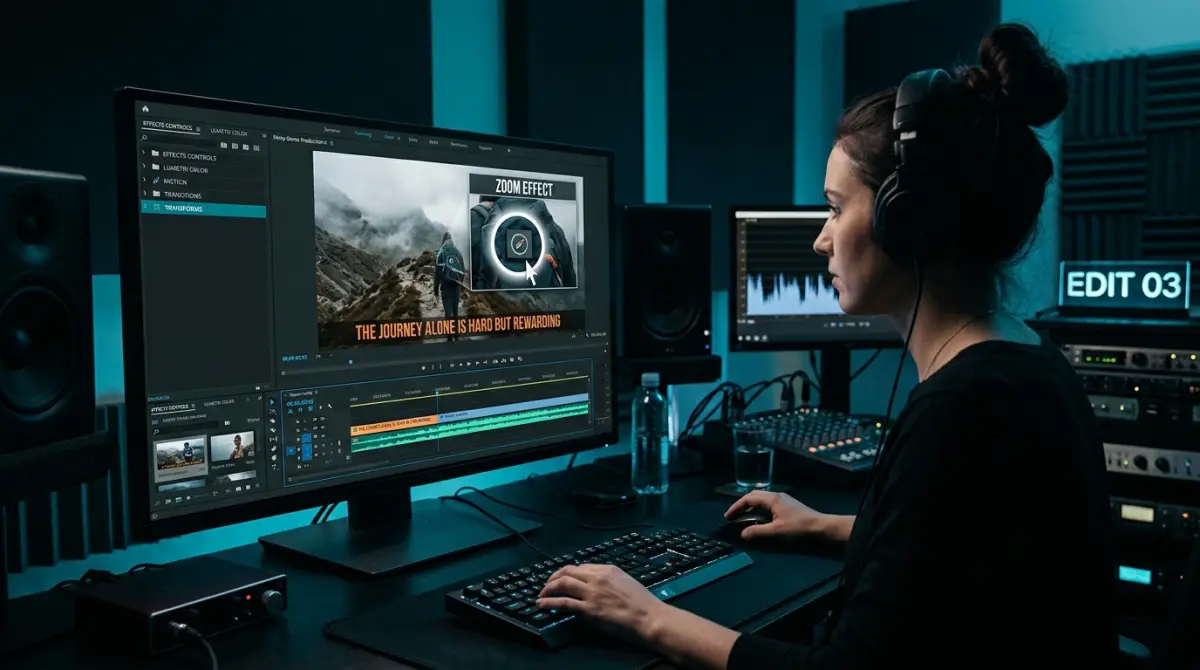
- Zoom effects on small UI elements so viewers can actually read them
- Click markers that highlight where you're clicking
- Callout boxes for key information
- Blur effects to hide sensitive data
Keep effects minimal. If your video looks like a PowerPoint transition reel, you've gone too far.
Step 5: Export and Distribute
Export at 1080p MP4 for maximum compatibility. For social platforms, also create:
- Square (1:1) for Instagram and LinkedIn feed
- Vertical (9:16) for Stories, Reels, and TikTok
- Thumbnail — a custom frame that shows your product with a clear headline
Where to Use Your Demo Video
A great demo video works across your entire funnel. Here's where to place it for maximum impact.
Landing Page
Embed your product tour above the fold, auto-playing muted with captions. A visitor sees the product working before they decide whether to read further.
Email Campaigns
Link to the demo video in onboarding sequences, feature announcements, and re-engagement campaigns, and say in the subject line that there is one.
Social Media
Native uploads outperform links. Post your demo directly to LinkedIn, Twitter/X, and Instagram. Cut it into 30-second clips for Stories and Reels.
Sales Calls
Equip your sales team with short demo clips for specific use cases. A 60-second feature highlight answers objections faster than a 30-minute live demo.
Product Hunt
If you're launching on Product Hunt, your demo video is your most important asset. Check our Product Hunt launch checklist for video specs and tips.
Help Center
Replace text-heavy support articles with quick demo walkthroughs. Users prefer watching a 45-second video over reading a 500-word guide.
Demo Video Mistakes That Kill Conversion
Avoid these common pitfalls that turn a potential conversion tool into background noise.
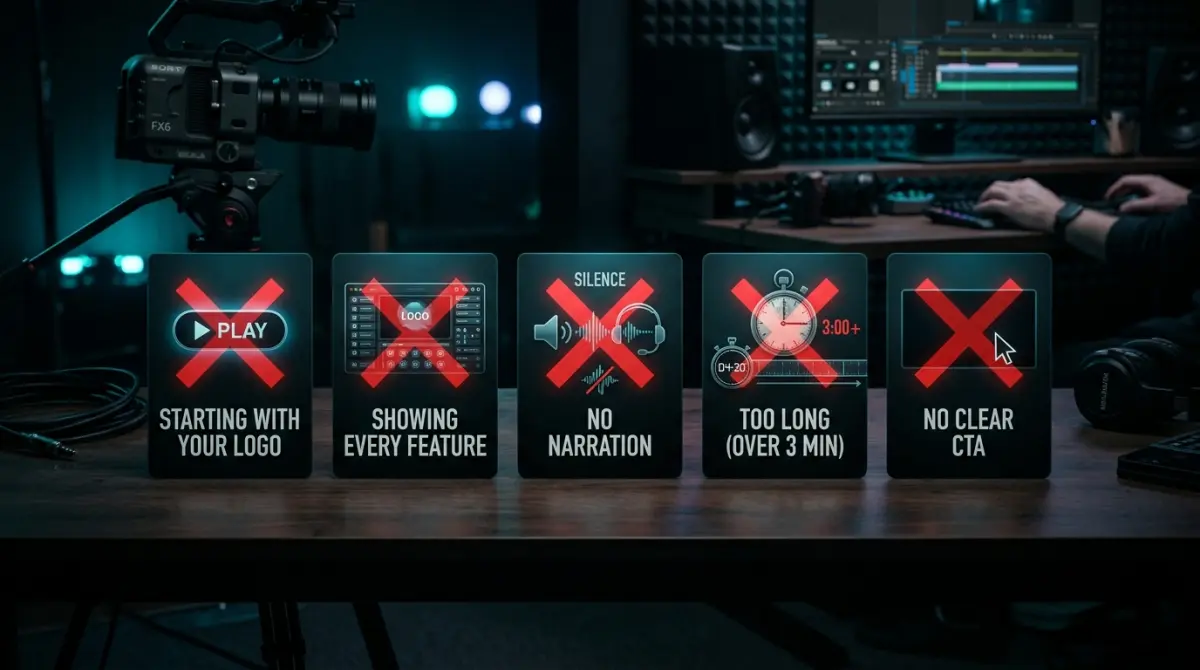
Starting with your logo, not the value. Nobody cares about your brand animation. Lead with the outcome.
Showing every feature. A demo is not a documentation site. Pick three features maximum and show them well. Viewers who want more will sign up — that's the point.
Using a monotone narration. Whether human or AI, the voice needs energy and variation. Flat delivery signals "boring product."
Skipping the problem statement. If you jump straight into features without framing the pain, viewers have no reason to care about the solution.
Making it too long. The ideal demo video is 60-90 seconds for a product tour and under 3 minutes for a detailed walkthrough. Attention drops the longer it runs, so cut anything that is not the workflow itself.
Forgetting the CTA. If your video just ends, you've given viewers a nice experience with nowhere to go. Always close with a clear next step.
Poor audio quality. Bad narration is worse than no narration. If you can't get clean audio, use an AI narration tool like Vorec instead of recording in a noisy room.
Demo Video Templates
Here are three ready-to-use templates you can adapt for your product.
Template 1: The 60-Second Product Tour
| Section | Duration | Content |
|---|---|---|
| Hook | 0:00-0:05 | State the outcome: "Here's the fastest way to [result]" |
| Problem | 0:05-0:15 | Name the pain in one sentence |
| Solution | 0:15-0:50 | Show core workflow: trigger, magic moment, result |
| Proof | 0:50-0:55 | One stat or customer quote |
| CTA | 0:55-1:00 | "Try it free at [domain]" |
Best for: Landing pages, social media, cold outreach
Template 2: The 3-Minute Feature Walkthrough
| Section | Duration | Content |
|---|---|---|
| Hook | 0:00-0:10 | "Let me show you how [feature] works" |
| Context | 0:10-0:30 | Why this feature exists, what problem it solves |
| Setup | 0:30-1:00 | Any configuration or prerequisites |
| Walkthrough | 1:00-2:20 | Step-by-step feature demo with narration |
| Result | 2:20-2:40 | Show the output / end state |
| Tips | 2:40-2:50 | One power-user tip |
| CTA | 2:50-3:00 | Next step |
Best for: Feature launches, email campaigns, help center
Template 3: The Investor Demo
| Section | Duration | Content |
|---|---|---|
| Problem | 0:00-0:20 | Market pain with a data point |
| Solution | 0:20-0:40 | Your product in one sentence + quick visual |
| Demo | 0:40-2:00 | Core workflow showing product-market fit |
| Traction | 2:00-2:20 | Key metrics: users, revenue, growth |
| Vision | 2:20-2:40 | Where this goes next |
| Ask | 2:40-3:00 | What you're raising and next steps |
Best for: Pitch decks, fundraising emails, demo days
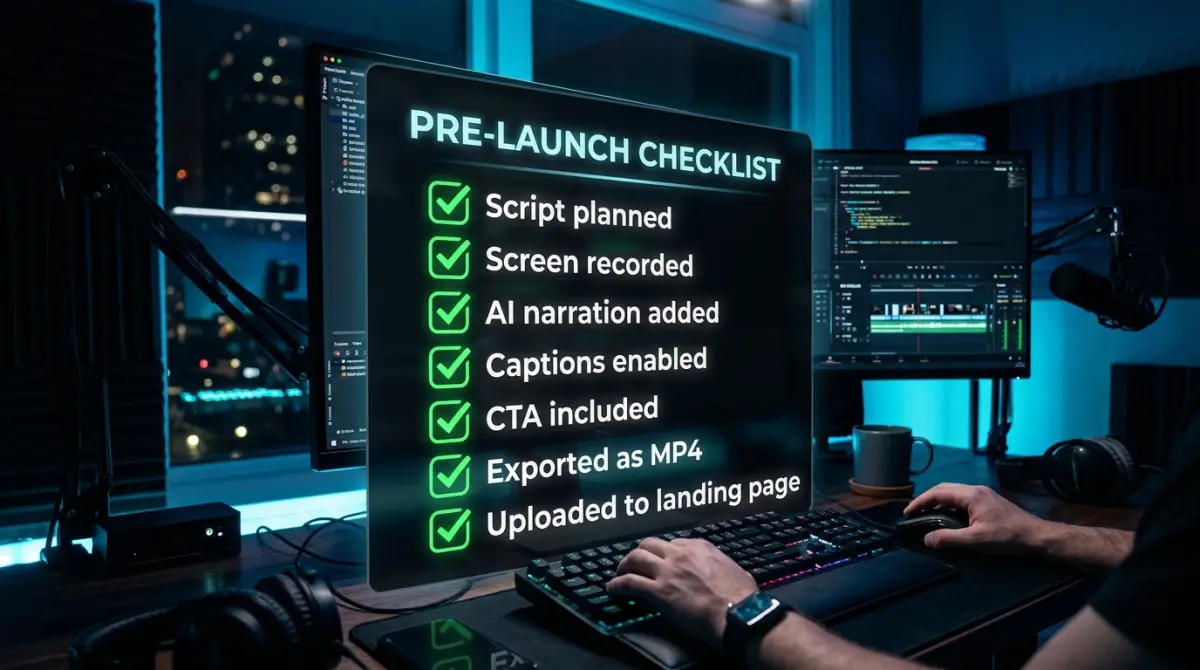
Your Demo Video Checklist
Use this before you publish any video demonstration:
Pre-Production
- [ ] Defined one clear goal for the video
- [ ] Identified three or fewer features to showcase
- [ ] Written a rough script or bullet-point outline
- [ ] Prepared realistic demo data
- [ ] Cleaned up your screen (no notifications, no clutter)
Recording
- [ ] Resolution set to 1920x1080
- [ ] Recorded in segments, not one long take
- [ ] Mouse movements are deliberate and visible
- [ ] Paused on key screens for viewer comprehension
Post-Production
- ] Narration added (manual or [AI-generated)
- [ ] Captions included
- [ ] Zoom effects on small UI elements
- [ ] Click markers or callouts where needed
- [ ] Total length under 90 seconds (tour) or 3 minutes (walkthrough)
Distribution
- [ ] Exported at 1080p MP4
- [ ] Custom thumbnail created
- [ ] Embedded on landing page
- [ ] Shared natively on social channels
- [ ] Added to email sequences
- [ ] Sent to sales team
Start Making Demo Videos That Convert
The gap between a forgettable demo and one that drives real signups comes down to structure. Hook them in five seconds. Show the problem, then the solution. Keep it short. End with a clear CTA.
You don't need a video production team or expensive equipment. A clean screen recording, solid narration, and a focused script will outperform a high-budget video that rambles for five minutes.
If you're creating demos from screen recordings, Vorec handles the narration, captions, and effects automatically — so you can focus on showing your product at its best.
Related reading: Product Walkthrough Videos and How to Make SaaS Marketing Videos with AI.