How to Make a Product Demo Video in 5 Minutes (2026)
Vorec Team · 2026-04-02 · About 9 min read
You built something worth showing off. Maybe it's a SaaS tool, an API, a mobile app, or an internal dashboard. You know it works. You know it solves a real problem. But when someone asks "got a demo video?" you freeze.
Because making a demo video feels like a whole production. Screen recording software, microphones, scripting, editing, export settings — and after two hours of fumbling in a video editor, you end up with something that still looks amateur.
Here's the thing: you don't need editing skills to make a great product demo video. You just need the right workflow.
This guide shows you how to go from zero to a polished, narrated demo video in about five minutes. No mic. No video editor. No awkward re-recordings.
Why Most Product Demo Videos Fail
Before we get into the method, let's talk about why most demos don't land.
They're too long. Nobody wants to watch a 12-minute walkthrough of every feature. Investors give you 90 seconds. Product Hunt visitors give you even less. If your demo doesn't hook in the first 10 seconds, people bounce.
They have no narration. A silent screen recording with a cursor moving around is confusing. Viewers don't know what they're looking at, what matters, or what to do next. Without a voice guiding them, they're lost.
The pacing is off. Long pauses while pages load. Rushed clicks through the important parts. Stumbling over words during a live recording. Getting the rhythm right while talking and clicking at the same time is genuinely hard.
They look unpolished. No captions, no zoom-ins on key moments, no visual cues. It looks like a screen recording — because that's all it is.
The good news: every one of these problems has the same root cause. You're trying to do everything at once — record, narrate, pace, and present — in a single take. Stop doing that.
The 5-Minute Method: Separate Recording from Narration
The trick that professional demo creators use is simple: decouple the recording from the voiceover.
- Record your screen silently — just focus on clicking through the flow
- Let AI generate narration that matches your on-screen actions
- Fine-tune the script and export
That's it. No mic, no script-writing, no editing timeline. You get a narrated video with proper pacing because the AI watches what you do and writes narration that follows along.
Let's walk through it step by step.
Step 1: Record Your Screen (60 Seconds)
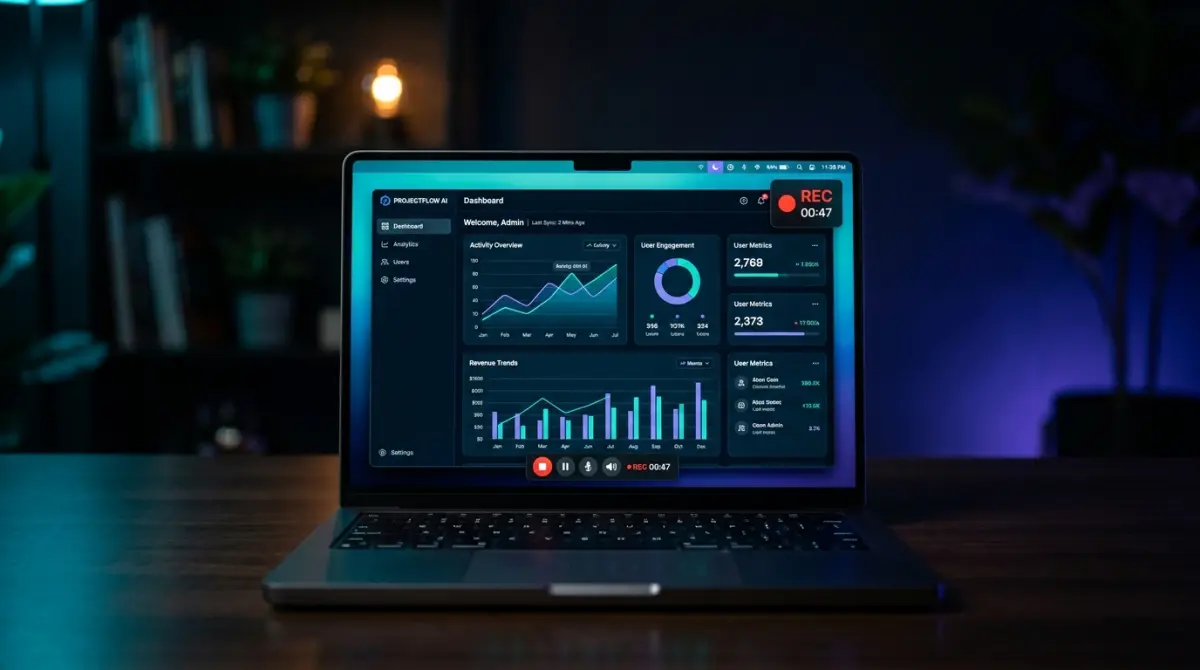
Open whatever screen recording tool you already have. QuickTime on Mac, Xbox Game Bar on Windows, OBS, Loom — anything works. You're just capturing your screen, so don't overthink it.
Tips for a clean recording:
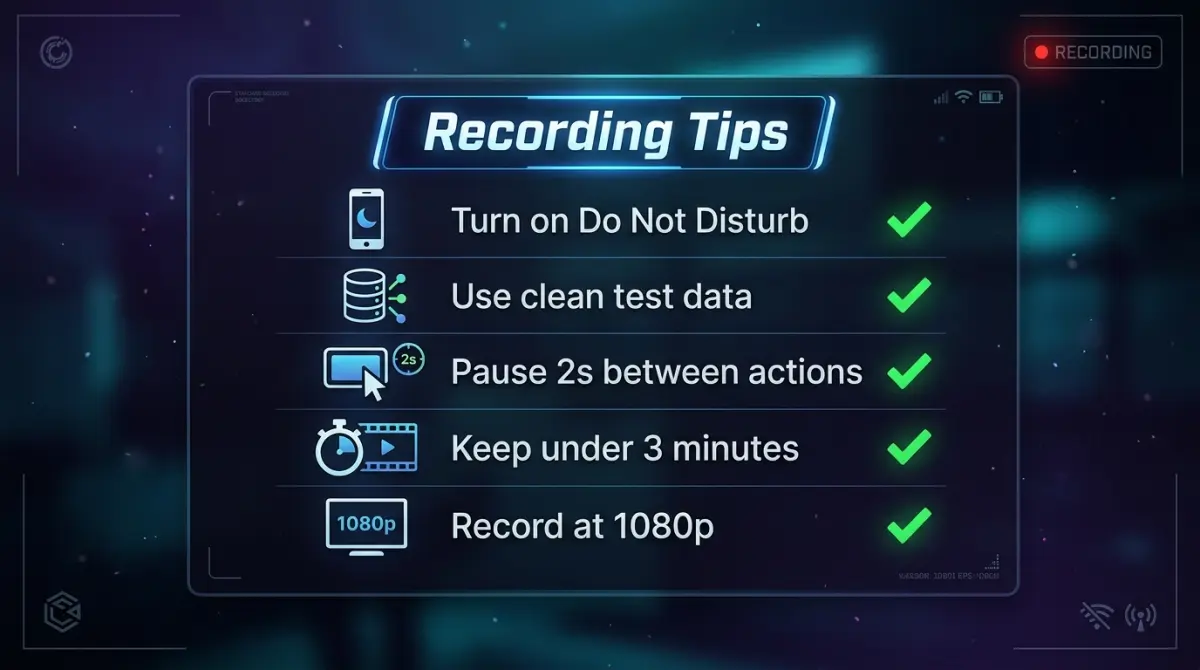
- Close notifications. Turn on Do Not Disturb. Nothing kills a demo like a Slack ping popping up mid-flow.
- Clean your desktop. Hide bookmarks bars, close extra tabs, use a clean browser profile if possible.
- Go slow. Click deliberately. Pause for a beat after each action so the AI has time to narrate what just happened. You can always speed things up later — you can't add pauses back.
- Show the happy path. Don't demo edge cases or error states. Show the primary flow that makes someone think "I need this."
- Keep it under 2 minutes. Seriously. The best demo videos are 60-90 seconds. If your product needs more than that, break it into multiple videos.
Once you've recorded your screen, save the file. You now have a silent `.mp4` or `.webm` file. That's your raw material.
Step 2: Upload to Vorec (30 Seconds)
Head to vorec.ai and create a new project. Drag your silent recording into the upload area.
Worth knowing: Vorec is a product demo video maker that turns silent screen recordings into narrated videos using AI. It watches your recording, understands what's happening on screen, and generates a voiceover script that follows your actions.
No account setup friction — you get 100 trial credits to start, enough for several demo videos.
Step 3: AI Generates Your Narration (90 Seconds)
Once your video uploads, hit Generate. The AI analyzes your recording frame by frame:
- It identifies what UI elements you're interacting with
- It detects clicks, typing, scrolling, and navigation
- It writes narration segments timed to each action
- It matches the voiceover to a natural tutorial pacing
You'll see a timeline populate with voice segments, each one synced to a specific moment in your video. The AI doesn't just describe what it sees — it explains why each step matters, turning a screen recording into a story.
Processing time depends on the length of your recording. Grab a coffee.
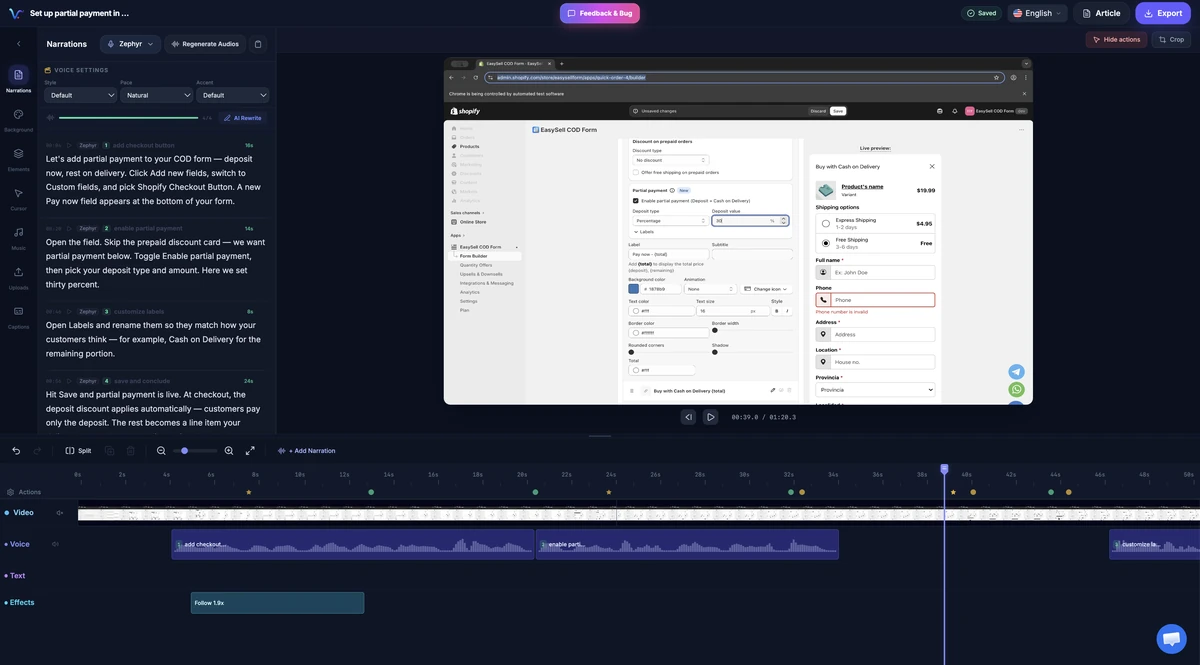
Vorec editor showing a Shopify tutorial recording and its narration and timeline tracks. Existing product capture; interface may differ by version.
Step 4: Edit the Script (60 Seconds)
The AI does a solid first pass, but you know your product better than anyone. Open the built-in editor and scan through the segments.
Common tweaks:
- Fix product-specific terms. The AI might say "the settings panel" when your product calls it "Preferences." Match your actual UI labels.
- Add context. If the AI says "click the button," you might change it to "click Create Campaign to start building your first automation."
- Cut fluff. If a segment says too much, trim it. Short and punchy beats wordy every time.
- Adjust tone. Want it more casual? More technical? Edit the text and regenerate that segment's audio.
You can also pick from different AI voices to match your brand — professional, friendly, or technical.
For a deeper guide on editing narration without recording your own voice, check out How to Make a Tutorial Video Without a Microphone.
Step 5: Add Polish and Export (60 Seconds)
Before you export, add the finishing touches that separate amateur demos from professional ones:
- Captions. Auto-generated subtitles so your video works on mute (most social media videos are watched without sound).
- Zoom effects. Auto-zoom on click areas so viewers can see exactly what you're clicking on small UI elements.
- Click markers. Visual indicators showing where you clicked, making the flow easy to follow.
Hit export. You get a polished `.mp4` with narration, captions, and effects baked in.
That's five minutes. You now have a product demo video that looks like it took a production team to make.
Where to Use Your Demo Video
A good demo video isn't a one-and-done asset. Here's where to deploy it:
Product Hunt Launch
Product Hunt gives you a single video slot on your launch page. This is the highest-leverage 60 seconds of video you'll ever make. A narrated demo outperforms a silent GIF or a talking-head intro every time. Hunters want to see the product working, with someone explaining what makes it special.
Landing Page Hero
Replace that static screenshot with an auto-playing demo video. A visitor who watches the product working knows whether it fits their workflow before they sign up. Put it above the fold, set it to autoplay (muted with captions), and let the product sell itself.
Investor Updates and Pitch Decks
Investors skim pitch decks. But they'll watch a 60-second demo that shows traction and polish. Embed it in your deck or drop the link in your investor update email. It shows you can ship — and that you know how to communicate what you've built.
Documentation and Onboarding
New users don't read docs. They watch videos. Embed short demos in your getting-started guide, and watch support tickets drop. For a complete guide on building tutorial content, see How to Make a Tutorial Video in 2026.
Sales Outreach
Cold emails with "here's a 60-second demo" get replies. It's low-commitment for the prospect and immediately shows value. Way more effective than a wall of text describing features.
Social Media
Twitter/X, LinkedIn, and even TikTok reward short video content. A 30-60 second demo clip with captions performs well in feeds. Trim your full demo down to the most impressive 30 seconds for social.
Tips for Recording a Demo That Converts
The recording is the foundation. Here's how to make it count:
Start with the outcome. Don't begin with login or setup. Start by showing the result — the dashboard with data, the generated report, the finished design. Then walk backwards through how you got there. This hooks viewers immediately.
Use real data. "John Doe" and "test@test.com" scream demo. Use realistic (but fake) data that looks like an actual customer would use your product. Names, company names, realistic numbers.
One flow, one video. Don't try to show everything. Pick the single most impressive workflow and nail it. You can always make more videos for other features.
Mind your cursor. Move it smoothly and deliberately. Don't wiggle it around while waiting for something to load. Park it somewhere neutral when you're not clicking.
Record at 1080p. This is the sweet spot for web demos. 4K is overkill and makes files huge. 720p looks blurry on modern screens.
Why Not Just Use Loom or Record a Live Voiceover?
You absolutely can. But here's what usually happens:
- Take 1: You stumble over the intro. Start over.
- Take 2: You click the wrong thing mid-sentence. Start over.
- Take 3: Pretty good, but there's a 15-second pause while the page loads. Unusable.
- Take 4: Nailed it, but your mic picked up your neighbor's dog. Start over.
- Take 5: Decent. You're exhausted. You ship it even though the pacing is off.
Live recording combines two hard tasks — performing and presenting — into one take. Separating them means you can focus on each independently and get a better result in less time.
Tools like Loom are great for async communication. But for a polished product demo that represents your brand, you want more control over the narration. For a detailed comparison, see Loom Alternatives with AI Narration.
Quick-Start Checklist
Here's your action plan. Bookmark this and knock it out in one sitting:
- [ ] Prep your screen. Close notifications, clean browser, hide bookmarks bar.
- [ ] Plan one flow. Pick the most impressive 60-90 second workflow to demo.
- [ ] Record silently. Use any screen recorder. Go slow. Show the happy path.
- ] Upload to [Vorec. Drag and drop your recording.
- [ ] Generate narration. One click. AI writes and voices the script.
- [ ] Edit the script. Fix terminology, add context, trim fluff.
- [ ] Add captions and effects. Zoom, click markers, subtitles.
- [ ] Export and ship. Put it on your landing page, Product Hunt, docs, and socials.
You don't need a video team. You don't need a microphone. You don't need to learn Premiere Pro. You just need a screen recording and five minutes.
Create your first demo video for free at vorec.ai
Related reading: How to Record a Software Demo on Mac, How to Make a Screencast and Best Screen Recorder with AI Narration.
Related reading: The Perfect Investor Demo: What VCs Actually Want to See.
See also: How to Make a Demo Video That Converts (2026 Guide).
See also: Product Hunt Launch Checklist 2026 (Free Template).