How to Make a Screencast (2026 Step-by-Step Guide)
Vorec Team · 2026-07-29 · About 5 min read
To make a screencast, plan one goal, record your screen in a single take at 1080p or higher, add narration, then edit and export. Planning takes about five minutes: a goal, the click path, and the two or three steps people get stuck on. Record with QuickTime or the Vorec Recorder on Mac, Xbox Game Bar on Windows, or OBS anywhere, pausing half a second after each click. For narration, either record your own voice, or let Vorec draft a script matched to the on-screen actions and generate a synced voiceover with no microphone.
A screencast is a recording of your screen, usually narrated, used to teach or demonstrate something — a software tutorial, a product demo, a walkthrough of a process. They're one of the most useful formats on the internet because they show exactly what to do instead of describing it. The problem is that making a good one traditionally meant a microphone, a script, several takes, and an editing session.
This guide covers how to make a screencast from start to finish — planning, recording, narration, editing, export — including the 2026 method that skips the mic, the script, and the retakes entirely by letting AI narrate your recording.
What Is a Screencast?
A screencast (or screen capture video) records what happens on your display, typically with narration explaining the actions. If you want the full definition and how it differs from a screenshot or a live stream, see what is a screencast. In short: it's the format behind most software tutorials, help-center videos, onboarding walkthroughs, and product demos.
The three things a good screencast needs:
- A clear single purpose — one task or concept per screencast.
- Readable screen — recorded at a resolution where text is legible.
- Narration synced to the action — the voice explains what's happening as it happens.
Step 1: Plan (5 Minutes)
You don't need a script for the whole thing, but you do need three things:
- One goal. "After watching, the viewer can connect their account." One goal = one screencast.
- A click path. Run through the task once and note the clicks, fields, and page changes in order.
- The confusing bits. Mark the 2–3 steps people usually get stuck on — that's where narration slows down.
Step 2: Set Up a Clean Recording
- Close extra tabs, hide your bookmarks bar and personal info, silence notifications.
- Use a demo account with realistic but non-sensitive data.
- Set your window to a standard size so text stays crisp at 1080p or higher.
Step 3: Record Your Screen
Pick a recorder — QuickTime or the Vorec Recorder on Mac, Xbox Game Bar on Windows, or OBS on any platform. Then:
- Move deliberately. Pause half a second after each click so the result is visible; don't swirl the cursor.
- Record in one take. If you're narrating later (or letting AI do it), a misclick doesn't matter — calmly undo and continue, then trim it.
- Record at full resolution. 1080p minimum; text must be legible.
Step 4: Add Narration (Two Ways)
This is the step that decides how long the whole thing takes.
The traditional way: record your own voice over the footage. You'll want a decent mic, a quiet room, and patience for the retakes — expect several passes for a clean three-minute screencast. Then edit out the filler and align the audio.
The 2026 way: don't record audio at all. Upload your silent screen recording to Vorec, and the AI watches what happened, writes a narration script that matches the on-screen actions, and generates a natural voiceover synced to each step. Freeze-sync pauses the frame when a step needs more explanation than screen time. You review the script as text, tweak wording, and regenerate only what you changed — no microphone, no scripting, no voiceover to re-record.
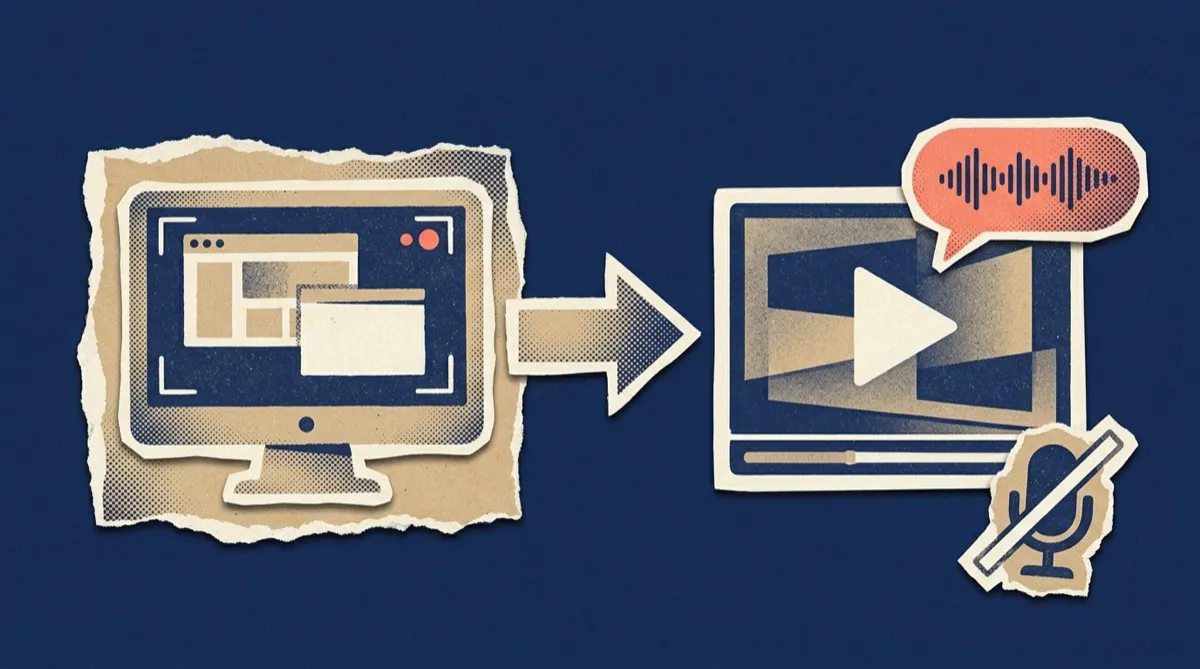
This is why screencasts got dramatically easier to make: the hardest part used to be the audio, and now it's optional. It's the same approach we detail in how to add narration to a screen recording.
Step 5: Edit for Clarity (Four Edits, No More)
Screencasts need functional editing, not cinematic editing:
- Zoom on small UI. Zoom into buttons, fields, and menus when they're the focus (auto-generated from click locations in tools like Vorec).
- Captions. A large share of viewing is muted — always include them.
- Trim dead air. Cut loading screens and long pauses.
- One callout per scene. An arrow or highlight on the critical element, sparingly.
Step 6: Export and Share
- Export at 1080p (or the resolution you recorded) as MP4 — universally compatible.
- Publish where people look: your help center, LMS, YouTube, or embedded in-app — not a buried drive folder.
- Pair it with text. A written version helps skimmers and search engines. Vorec generates a step-by-step article from the same recording, so this costs nothing extra.
Common Screencast Mistakes
- Trying to cover everything in one. One task per screencast — split the rest.
- Narrating live while clicking. Doing both at once makes both worse; narrate after, or let AI do it.
- Tiny, unreadable UI. Record at full resolution and zoom on the important parts.
- No captions. Muted viewing is the norm.
- Never updating. A screencast of last year's UI misleads people; with AI narration, re-recording a changed step takes minutes.
FAQ
How do I make a screencast for free? Record your screen with a free recorder (QuickTime, Game Bar, OBS), then narrate it. Vorec's free trial covers several complete AI-narrated screencasts if you'd rather skip the mic.
Do I need a microphone to make a screencast? No. Record the screen silently and use AI narration — it writes and speaks the script for you, synced to the action.
How long should a screencast be? 2–5 minutes for a single task. If it runs longer, it's probably two screencasts.
What's the best screen recorder for screencasts? Any that records at full resolution works. We compare options for Mac in best Mac screen recorder for tutorials.
What's the fastest way to make a narrated screencast? Record the task once silently, upload it to an AI narration tool like Vorec, review the generated script, and export — usually under 15 minutes total.
Related reading: How to Screen Record on a Chromebook, 8 Best Screen Recording Software Tools in 2026, How to Make Software Tutorials in 2026 and How to Make a Training Video in 2026.
Make your first narrated screencast in 15 minutes. Record your screen — no mic — and let Vorec write the script, narrate it, and hand you a video plus a written guide. Start your free trial, no card needed.