8 Best Screen Recording Software Tools in 2026
Vorec Team · 2026-04-05 · About 29 min read
Video has become an ordinary way for teams to communicate, and screen recording software sits at the center of that shift — from product demos and onboarding walkthroughs to internal documentation and customer support videos. But the landscape has changed dramatically in the past year. AI-powered features have moved from novelty to necessity, and the gap between basic recorders and intelligent video creation platforms keeps widening.
This guide compares eight screen recording tools on the criteria that tend to decide the choice: what they capture, what they produce, what they cost, and what they leave you to do by hand. Where a claim comes from a vendor's own documentation we link it; where we have not verified something, we say so rather than filling the gap.
Who this guide is for:
- Product teams building demos and walkthroughs
- Engineering teams documenting processes
- Support teams creating help center videos
- L&D teams producing training content
- Marketing teams crafting product stories
- Freelancers and consultants delivering client tutorials
What we cover:
- Why Screen Recording Software Matters in 2026
- What to Look For: The Buyer's Guide
- The 8 Best Screen Recording Tools
- Head-to-Head Comparison Table
- Who Should Use What
- Challenges in Video Creation
- Best Practices
- FAQ
- Final Verdict
Why Screen Recording Software Matters in 2026
The way teams create and share knowledge has fundamentally shifted. What used to require a meeting, a slide deck, or a 2,000-word document can now be communicated in a 3-minute screen recording. But 2026 is not 2020 — the bar has risen.
Video Is the Default Communication Medium
In Wyzowl's 2023 video survey, 96% of marketers said video was an important part of their marketing strategy.
The numbers tell the story. Remote and hybrid work accelerated video adoption, but it has not slowed down with return-to-office trends. If anything, it has accelerated. Teams that adopted async video during the pandemic discovered that it simply works better than meetings for most use cases:
- Bug reports take half the time when you can show the issue
- Onboarding gives a new hire something to replay instead of booking someone's time twice
- Product demos show the flow working, which a static screenshot cannot
- Documentation stays current when recording is faster than writing
The Shift From Text to Video Documentation
Static documentation is losing ground for a simple reason: a recording shows the actual interface, in the actual order, without the reader having to reconstruct it from prose.
But here is the catch — creating quality video documentation used to be expensive and slow. A short tutorial meant scripting, recording, re-recording, editing and narrating — every stage by hand. That equation changed when AI entered the picture.
AI Has Rewritten the Rules
2025 and 2026 brought a wave of AI features to screen recording tools. The most significant:
- AI narration — tools that can watch your screen recording and generate professional voiceover, eliminating the biggest bottleneck in tutorial creation
- Automatic captions — not just transcription, but properly timed, styled subtitles
- Smart editing — AI that removes silences, filler words, and mistakes
- Content repurposing — turning a single recording into articles, documentation, and social clips
The tools that have embraced AI effectively are pulling ahead. The ones that have not are falling behind fast.
AI narration is the single biggest innovation in screen recording since cloud sharing. It eliminates the need for quiet rooms, multiple takes, and voice talent — turning a silent recording into a polished tutorial in minutes.
What to Look For: The Buyer's Guide
Before diving into specific tools, here is the framework we used to evaluate each one. Not every feature matters for every team, but knowing the categories helps you weight what is important for your use case.
Must-Have Features
These are non-negotiable for any modern screen recording tool in 2026:
Recording Quality and Flexibility
- 1080p minimum, 4K preferred
- Full screen, window, and region capture
- System audio + microphone recording
- Webcam overlay support
Editing Capabilities
- Trim, cut, and split clips
- Annotations (arrows, highlights, text)
- Zoom and pan effects
- Transitions between scenes
Sharing and Distribution
- Shareable links with viewer analytics
- Embed codes for documentation sites
- Download in standard formats (MP4, WebM)
- Password protection and access controls
Nice-to-Have Features (That Are Becoming Must-Haves)
These features separate good tools from great ones:
AI Narration The ability to generate natural-sounding voiceover from your silent screen recording. This is the game-changer for teams that produce tutorials and documentation at scale. Instead of scripting and recording voiceover separately, the AI watches what happens on screen and narrates it.
Automatic Captions Not just speech-to-text transcription, but properly formatted, timed, and styled subtitles. Critical for accessibility, and for the many people who watch with the sound off.
Multi-Track Timeline A real video editor timeline where you can layer voice, music, effects, and annotations on separate tracks. Essential for polished output.
Content Repurposing Turning one recording into multiple outputs — a tutorial video, a step-by-step article, social clips, GIFs. This multiplies the ROI of every recording.
Analytics Viewer engagement metrics: who watched, for how long, where they dropped off. Valuable for product teams measuring demo effectiveness.
Deal-Breakers to Watch For
These are the red flags that should make you think twice about a tool, regardless of how good the features look.
- Watermarks on free plans — unprofessional for any business use
- Proprietary formats — if you cannot export to MP4, you are locked in
- Storage limits without export — some tools charge for hosting and make downloading difficult
- No offline recording — cloud-only tools fail when your internet does
- Per-viewer pricing — costs explode when videos are shared widely
- Missing caption support — accessibility is not optional
The 8 Best Screen Recording Tools: Detailed Reviews
We evaluated each tool on recording quality, editing capabilities, AI features, sharing, pricing, and overall value. Here they are, starting with the one closest to our own category so our affiliation is visible up front.
1. Vorec — Best for AI-Narrated Tutorials and Documentation
Overview
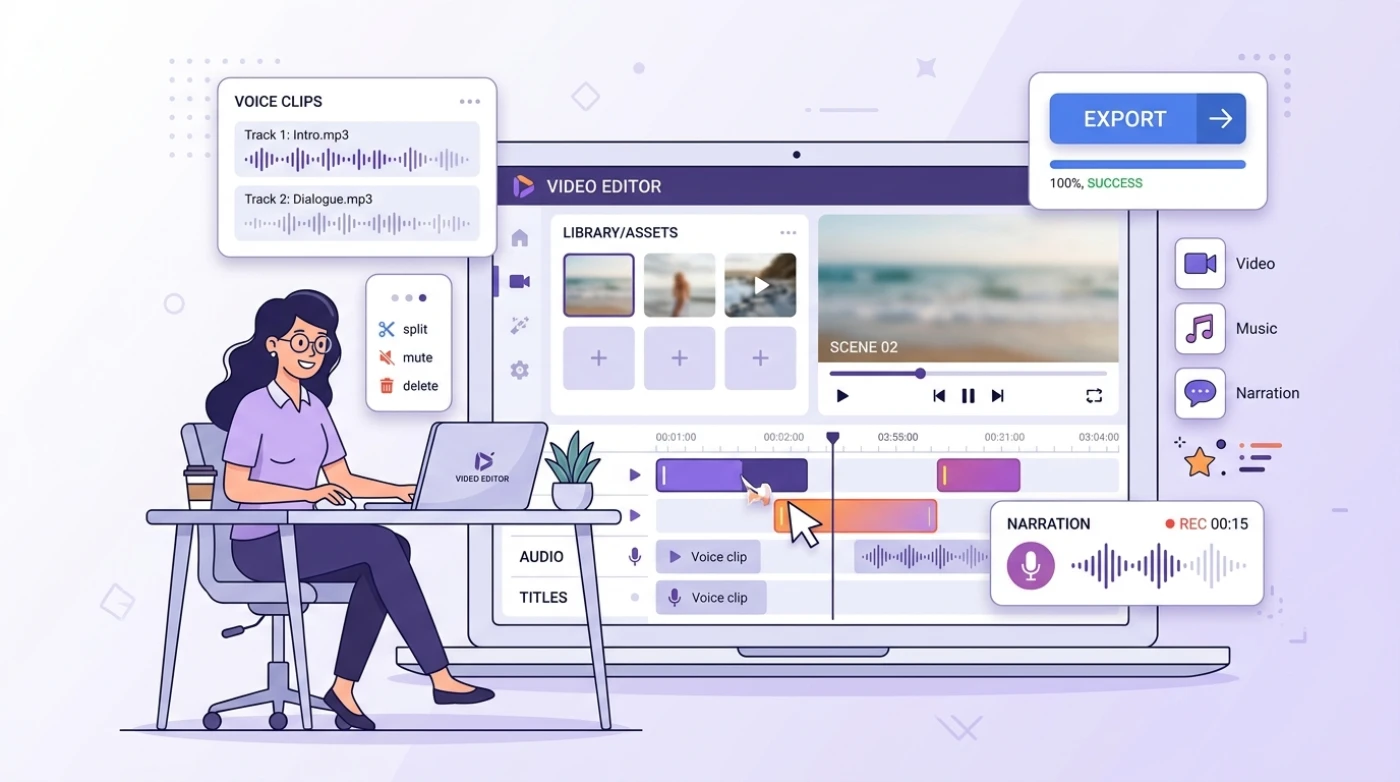
Vorec takes a fundamentally different approach to screen recording software. While most tools focus on capturing your screen and voice simultaneously, Vorec is built around a simple but powerful idea: record your screen silently, and let AI handle the narration.
This is not just a gimmick. It solves the single biggest pain point in tutorial creation — the voiceover. No more quiet rooms, multiple takes, script memorization, or hiring voice talent. You record your workflow naturally, and Vorec's AI watches what happens on screen and generates professional narration that stays perfectly in sync with your actions.
The result is a polished tutorial video in minutes instead of hours.
Best For: Teams and individuals who create tutorials, product demos, documentation videos, and training content at scale.
Key Features:
- AI Narration — The standout feature. Record with Vorec, or upload one you already have, and Vorec's AI analyzes every action, click, and screen change, then generates natural-sounding narration synced to your workflow. Multiple voice options with adjustable tone and pacing.
- Multi-Track Timeline — A proper editing timeline with separate tracks for voice segments, background music, and visual effects. Drag, trim, and rearrange clips with precision.
- Visual Effects — Callouts, spotlight, blur, and auto-zoom effects that draw attention to key actions. These are added on a dedicated effects track so they never interfere with your narration.
- AI Captions — Automatically generated subtitles with multiple styles and positioning. Full customization of font, color, size, and animation.
- Article Generation — One-click conversion of your narrated video into a step-by-step written article, complete with screenshots. Publish directly or export as markdown.
- Click Detection — AI identifies where you clicked during the recording and maps those actions to the timeline, making it easy to create precise narration segments.
Pricing:
| Plan | Price | Credits |
|---|---|---|
| Trial | $0 | 100, one-time |
| Starter | $9/mo | 150 |
| Pro | $24/mo | 500 |
| Business | $59/mo | 1,500 |
Credit costs: 10 credits per video analysis, 2 credits per voice segment. A typical 3-minute tutorial with 10 segments costs about 30 credits.
Pros and Cons:
| Pros | Cons |
|---|---|
| ✅ AI narration eliminates voiceover bottleneck | ✅ Claude Code plugin automates recording + upload |
| ✅ Multi-track timeline with real editing power | ❌ Requires a separate tool to capture screen |
| ✅ Article generation multiplies content output | ❌ Credit-based pricing needs monitoring |
| ✅ Visual effects (zoom, spotlight, blur, callout) | ❌ No webcam overlay support yet |
| ✅ 7-day free trial, no credit card required | |
| ✅ AI captions with customizable styles |
Vorec pairs perfectly with any free screen recorder (OBS, built-in OS tools, or browser extensions). Record silently with your preferred tool, upload to Vorec, and let AI handle the rest.
Verdict: Vorec is our own product, so treat this as disclosed rather than impartial. It fits when your primary goal is narrated tutorials, demos or documentation videos. The AI narration is genuinely impressive — it understands context, describes actions accurately, and produces voiceover that sounds professional. The multi-track editor and effects system put it ahead of simpler tools, while the article generation feature means every video becomes two pieces of content. The upload-based workflow means you need a separate recorder, but that trade-off is worth it for the AI capabilities you get.
2. Loom — Best for Quick Async Video Messages
Overview
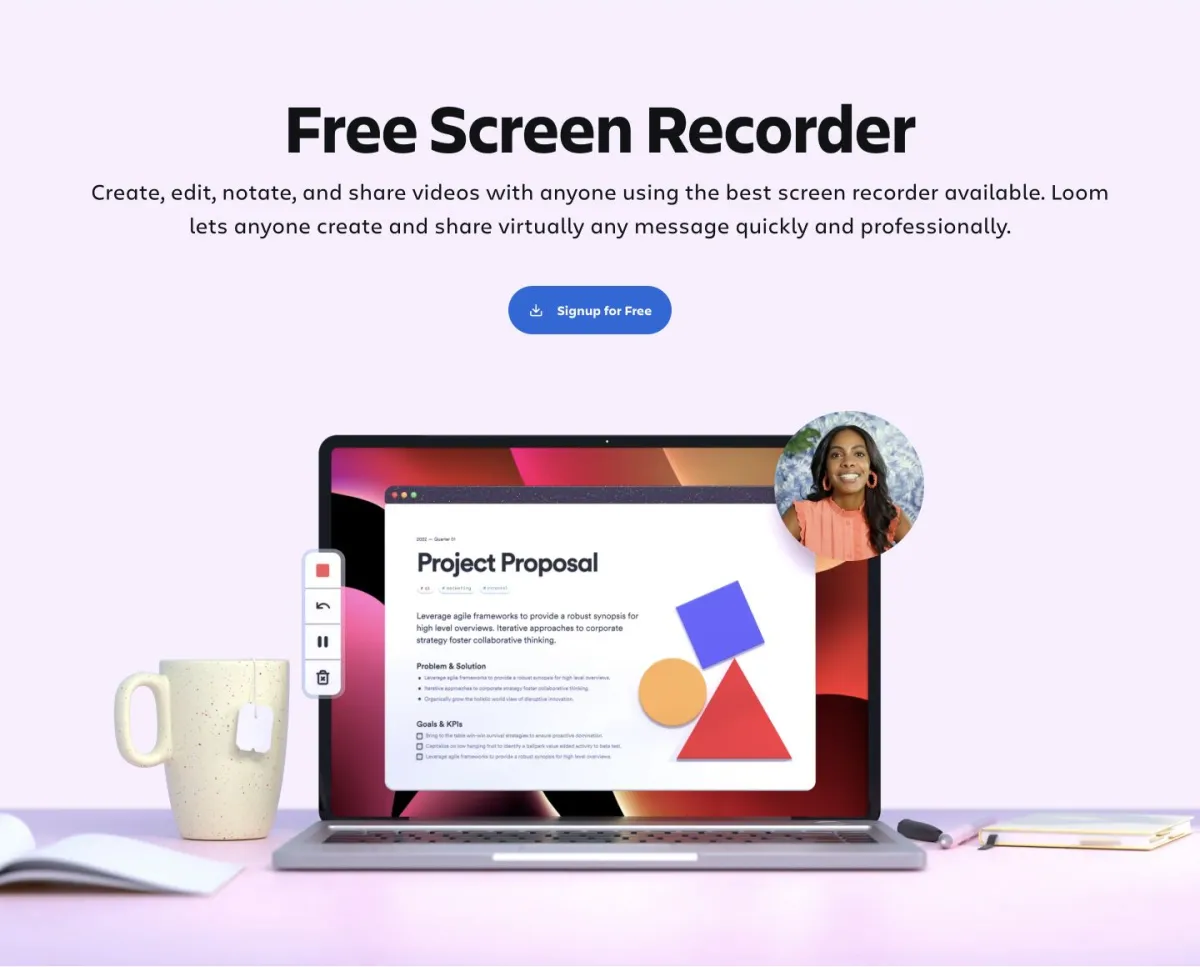
Loom has become synonymous with async video communication. It is the tool people reach for when they want to quickly record their screen, talk through something, and share a link. Loom's strength is speed and simplicity — you record, and it gives you a shareable link without an export step.
Acquired by Atlassian in 2023, Loom has doubled down on enterprise features and integrations. It now connects deeply with Jira, Confluence, and the broader Atlassian ecosystem, making it particularly strong for teams already in that world.
Best For: Teams that need fast, informal video communication — standups, bug reports, quick explanations, and feedback.
Key Features:
- Instant Recording — Browser extension, desktop app, and mobile app. Click and record, no setup.
- Webcam Bubble — Picture-in-picture webcam overlay that adds a personal touch to recordings.
- AI Summaries — Automatic summaries of your video content, plus auto-generated titles and chapters.
- Viewer Analytics — See who watched, how far they got, and CTA click-through rates.
- Transcription — Real-time transcription with searchable text.
- Atlassian Integration — Native embedding in Jira tickets, Confluence pages, and Slack.
Pricing:
| Plan | Price | Key Features |
|---|---|---|
| Starter | $0 | 25 videos, 5 min max |
| Business | $15/user/mo | Unlimited videos, custom branding |
| Enterprise | Custom | SSO, advanced admin, priority support |
Pros and Cons:
| Pros | Cons |
|---|---|
| ✅ Record-to-share in one step, no export | ❌ Not built for post-hoc narration |
| ✅ Excellent viewer analytics | ❌ Limited editing (trim only) |
| ✅ Strong Atlassian/Slack integrations | ❌ Per-user pricing adds up for large teams |
| ✅ AI summaries and transcription | ❌ Free plan limited to 25 videos |
| ✅ Webcam overlay for personal touch | ❌ Not designed for polished tutorials |
Verdict: Loom is built for quick async communication and does that job with very little friction. If your primary use case is sending video messages — explaining a feature, reporting a bug, giving feedback — nothing is faster. But if you need to create polished tutorials or documentation, Loom's editing limitations become apparent. You cannot add narration after recording, there is no multi-track editor, and there are no visual effects beyond basic trimming. For teams already deep in Atlassian, the integrations add significant value. For tutorial creators, look elsewhere.
Related: Best Loom Competitors in 2026 and Loom Alternative With AI Narration
3. Descript — Best AI-Powered Video Editor
Overview
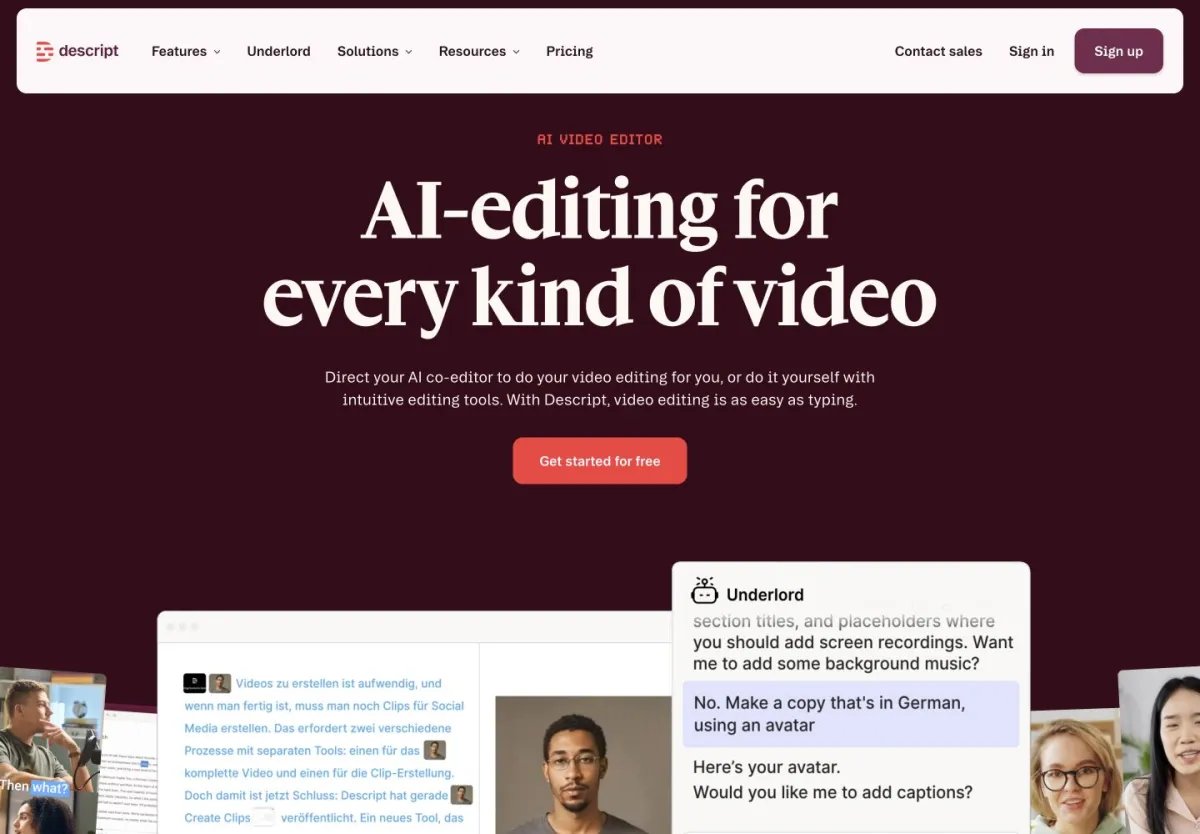
Descript pioneered the concept of editing video by editing text. Record your screen and voice, and Descript transcribes everything. Want to remove a section? Delete the text and the video follows. It is a genuinely innovative approach that makes video editing accessible to people who have never touched a timeline.
In 2026, Descript has expanded well beyond screen recording into a full creative suite. It handles podcasts, social media clips, and marketing videos. The AI features are deep — filler word removal, eye contact correction, studio sound enhancement, and even AI voice cloning.
Best For: Content creators who want an all-in-one editor for video, audio, and podcasts with AI-powered editing.
Key Features:
- Text-Based Editing — Edit video by editing the transcript. Delete text, and the video follows.
- AI Voice Cloning — Create a digital clone of your voice and use it to fix mistakes or add new content without re-recording.
- Filler Word Removal — AI automatically detects and removes "um," "uh," and other filler words.
- Studio Sound — AI noise removal and audio enhancement.
- Eye Contact Correction — AI adjusts your gaze to look directly at the camera.
- Screen Recording — Built-in recorder with webcam overlay.
Pricing:
| Plan | Price | Key Features |
|---|---|---|
| Free | $0 | 1 hour transcription/mo, watermark |
| Hobbyist | $24/mo | 10 hours transcription, no watermark |
| Business | $33/mo | 30 hours, brand kit, collaboration |
| Enterprise | Custom | Unlimited, SSO, priority support |
Pros and Cons:
| Pros | Cons |
|---|---|
| ✅ Revolutionary text-based editing | ❌ Steep learning curve for advanced features |
| ✅ AI voice cloning is impressive | ❌ More expensive than focused tools |
| ✅ Excellent for podcast and video | ❌ Requires you to narrate during recording |
| ✅ Filler word removal saves hours | ❌ Resource-heavy desktop app |
| ✅ Good collaboration features | ❌ No AI narration from silent recordings |
Descript vs Vorec: Descript requires you to record your voice while recording your screen — it then helps you edit that recording brilliantly. Vorec takes a different approach: record silently and let AI generate the narration. If you are comfortable narrating live, Descript's editing tools are excellent. If narrating is the bottleneck, Vorec removes it entirely.
Verdict: Descript's text-based editing is the most distinctive approach on this list. The text-based editing paradigm genuinely works and makes video editing less intimidating. But it is designed around the assumption that you are recording your own voice, then editing it. If your pain point is the narration itself — finding a quiet room, getting the words right, maintaining energy across multiple takes — Descript does not solve that problem. It is best for content creators who are comfortable on camera and want powerful post-production tools.
4. Clueso — Best for AI-Generated Documentation Videos
Overview
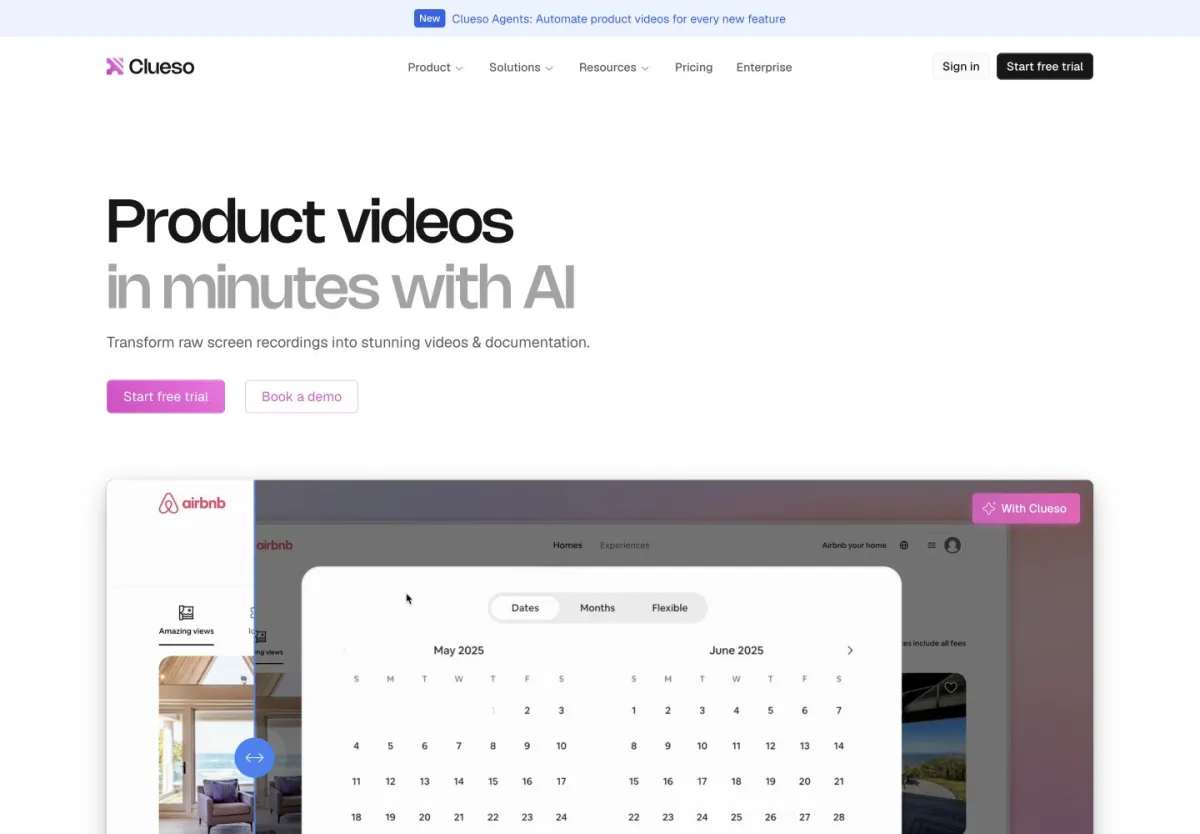
Clueso is built specifically for software documentation teams. Upload a screen recording and Clueso's AI generates a how-to video with narration, zoom effects, and branded overlays. It is laser-focused on one use case: turning raw recordings into professional documentation videos.
The platform integrates with knowledge bases like Zendesk, Intercom, and HelpScout, making it straightforward to embed videos directly in help center articles. If your team produces a lot of help documentation, Clueso is worth a close look.
Best For: Support and documentation teams producing help center videos at scale.
Key Features:
- AI Video Generation — Upload a recording and get a narrated, zoomed, and branded video.
- Auto Zoom — AI identifies important areas and adds zoom effects automatically.
- Knowledge Base Integration — Direct publishing to Zendesk, Intercom, HelpScout.
- Brand Kit — Custom colors, logos, and intros/outros.
- Multi-Language — AI narration in multiple languages.
- Automatic Updates — Re-record and the AI regenerates the video with the same style.
Pricing:
| Plan | Price | Key Features |
|---|---|---|
| Starter | $50/mo | 10 videos/month |
| Growth | $125/mo | 30 videos/month, custom branding |
| Enterprise | Custom | Unlimited, API access, SSO |
Pros and Cons:
| Pros | Cons |
|---|---|
| ✅ Purpose-built for documentation | ❌ Significantly more expensive than alternatives |
| ✅ Knowledge base integrations | ❌ Limited editing control |
| ✅ Multi-language narration | ❌ AI-driven output with less manual control |
| ✅ Automatic zoom effects | ❌ No free tier |
| ✅ Clean, professional output | ❌ Focused on help docs, limited for other uses |
Verdict: Clueso is excellent at what it does — turning screen recordings into documentation videos quickly. The knowledge base integrations are a real differentiator for support teams. However, the pricing starts at $50/month with a 10-video limit, which is steep compared to alternatives. The editing control is also limited — Clueso makes decisions for you, which is great for speed but frustrating when you want specific adjustments. If you need documentation videos and only documentation videos, Clueso is a strong choice. For broader tutorial and demo needs, the limited flexibility becomes a constraint.
5. Camtasia — Best Traditional Screen Recorder and Editor
Overview
Camtasia from TechSmith has been the industry standard for screen recording and video editing for over two decades. It is a desktop application (Windows and Mac) that combines a capable screen recorder with a full-featured video editor. If you grew up making tutorial videos, chances are you used Camtasia at some point.
Camtasia offers recording and timeline editing. TechSmith lists AI scripting and voiceover generation on Create, with avatar generation on Pro. You can record your own narration or use voiceover generation.
Best For: Users who want granular control over recording and editing in a desktop application.
Key Features:
- Professional Screen Recorder — Full screen, region, webcam, system audio, and microphone.
- Multi-Track Editor — Robust timeline with multiple video and audio tracks.
- Annotations Library — Arrows, callouts, shapes, blur, highlight, and keystroke callouts.
- Templates and Themes — Pre-built intros, outros, and lower thirds.
- PowerPoint Integration — Record directly from PowerPoint presentations.
- Cursor Effects — Highlight, spotlight, and magnify cursor movements.
Pricing:
Individual plans, all billed yearly; checked September 24, 2026, from TechSmith's Camtasia store:
| Plan | Price | Details |
|---|---|---|
| Starter | $39/year | Camtasia Editor, watermarked export |
| Essentials | $179.88/year | Billed yearly |
| Create | $249/year | Adds AI scripting and voiceover generation |
| Pro | $599/year | Adds avatar generation |
Pros and Cons:
| Pros | Cons |
|---|---|
| ✅ Granular control over recording and editing | ❌ Steep learning curve for new users |
| ✅ Rich annotation and effects library | ❌ No sharing links or viewer analytics |
Verdict: Camtasia is a desktop recorder and timeline editor with a long track record. You can record your own narration or use voiceover generation. It suits people who want granular control over recording and editing.
6. OBS Studio — Best Free Open-Source Recorder
Overview
OBS Studio (Open Broadcaster Software) is a widely used free screen recording and streaming tool. Originally built for live streaming, it has become the go-to recorder for anyone who wants powerful capture without paying a dime. It is open source, cross-platform (Windows, Mac, Linux), and endlessly customizable through plugins.
OBS is purely a recorder — there is no built-in editor. What you get is a deeply configurable capture tool, with support for multiple scenes, sources, transitions, and audio mixing. The trade-off is complexity. OBS's interface assumes you know what you are doing.
Best For: Power users who want maximum recording control, streamers, and anyone who needs a free, no-limits screen recorder.
Key Features:
- Unlimited Free Recording — No time limits, no watermarks, no cost. Ever.
- Scene Composition — Create complex layouts with multiple sources (screens, windows, webcams, images, text).
- Audio Mixer — Real-time audio mixing with per-source filters (noise gate, compression, gain).
- Plugin Ecosystem — Hundreds of community plugins for effects, automation, and integration.
- Streaming — Simultaneous recording and streaming to Twitch, YouTube, and other platforms.
- Virtual Camera — Use OBS as a virtual camera source in video calls.
Pricing: Free. Always free. Open source under GPLv2.
Pros and Cons:
| Pros | Cons |
|---|---|
| ✅ Completely free with no limits | ❌ No editing features at all |
| ✅ Deep configuration: scenes, sources, filters | ❌ Steep learning curve |
| ✅ Cross-platform (Windows, Mac, Linux) | ❌ No AI features |
| ✅ Massive plugin ecosystem | ❌ No cloud sharing or analytics |
| ✅ Excellent for streaming + recording | ❌ Interface overwhelms beginners |
OBS + Vorec is a powerful free-to-low-cost combination. Record with OBS (free, unlimited, high quality) and upload to Vorec for AI narration, effects, and captions. You get professional output without paying for an expensive all-in-one tool.
Verdict: OBS is a powerful free recorder. If you only need to capture your screen and do not care about editing or AI, it is the obvious choice. But most teams need more than raw recordings — they need narration, captions, effects, and easy sharing. OBS gives you the first step for free and lets you choose your own tools for the rest of the workflow.
7. ScreenPal — Best Free Basic Recorder
Overview
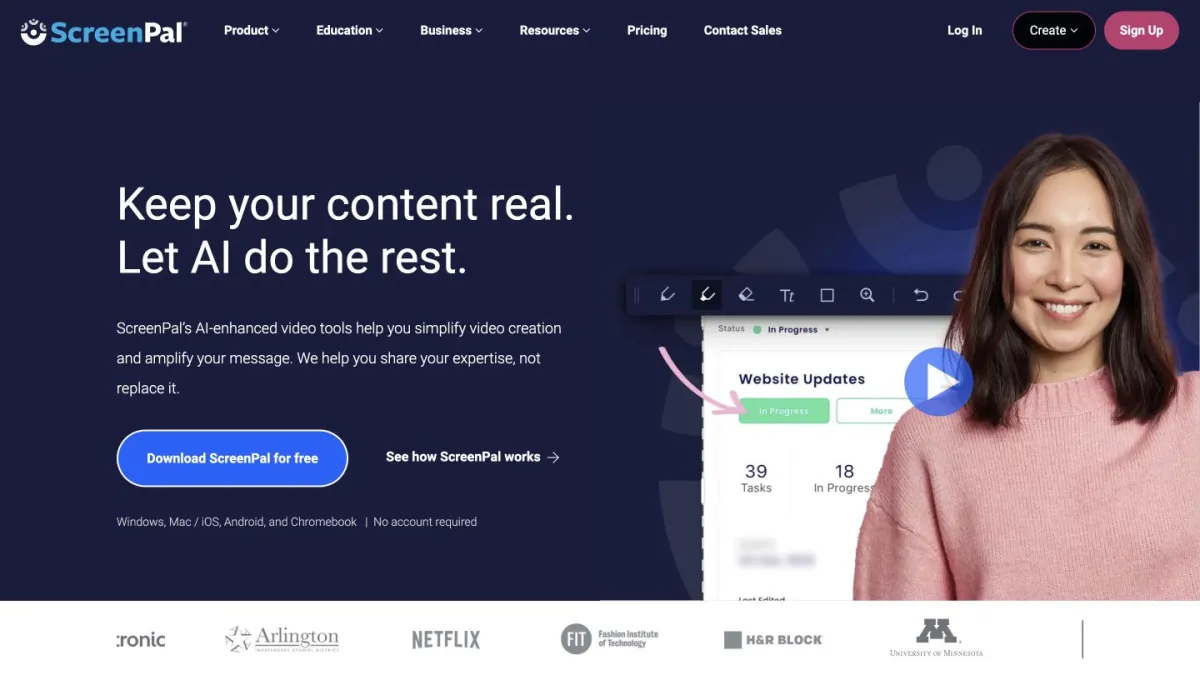
ScreenPal (formerly Screencast-O-Matic) is one of the most accessible screen recording tools available. It offers a genuinely useful free tier — record up to 15 minutes with a webcam overlay, no account required. The upgrade path adds editing, stock media, and hosting.
ScreenPal positions itself between the simplicity of Loom and the power of Camtasia. It is not the most feature-rich tool in any single category, but it covers the basics well at an approachable price. Particularly popular in education, where the free tier and affordable pricing make it a go-to for teachers and students.
Best For: Educators, students, and budget-conscious teams who need a simple recorder with basic editing.
Key Features:
- Free Recording — Up to 15 minutes, webcam overlay, no watermark on paid plans.
- Basic Editor — Trim, cut, annotate, add text, and insert images.
- Stock Library — Access to stock images, videos, and music.
- Hosting — Built-in hosting with shareable links and embed codes.
- Scripted Recording — Teleprompter-style script display during recording.
- Screenshot Tool — Capture and annotate screenshots alongside videos.
Pricing:
| Plan | Price | Key Features |
|---|---|---|
| Free | $0 | 15-min recording, basic capture |
| Solo Deluxe | $3/mo | Unlimited recording, editor |
| Solo Premier | $6/mo | Stock library, green screen |
| Solo Max | $10/mo | Unlimited hosting, custom brand |
| Team Business | $8/user/mo | Collaboration, admin controls |
Pros and Cons:
| Pros | Cons |
|---|---|
| ✅ Very affordable pricing | ❌ No AI narration |
| ✅ Genuinely useful free tier | ❌ Basic editing compared to competitors |
| ✅ Simple, approachable interface | ❌ Limited effects and transitions |
| ✅ Popular in education with good support | ❌ No multi-track timeline |
| ✅ Built-in hosting included | ❌ Video quality caps at 1080p |
Verdict: ScreenPal is the best value for teams that need basic screen recording and editing without a big budget. The free tier is genuinely useful (not crippled like some competitors), and even the paid plans are very affordable. The trade-off is capability — you will not find AI narration, multi-track editing, or advanced effects. For quick recordings with basic edits, ScreenPal is excellent. For polished tutorials, you will outgrow it.
8. Guidde — Best for Browser-Based Step-by-Step Guides
Overview
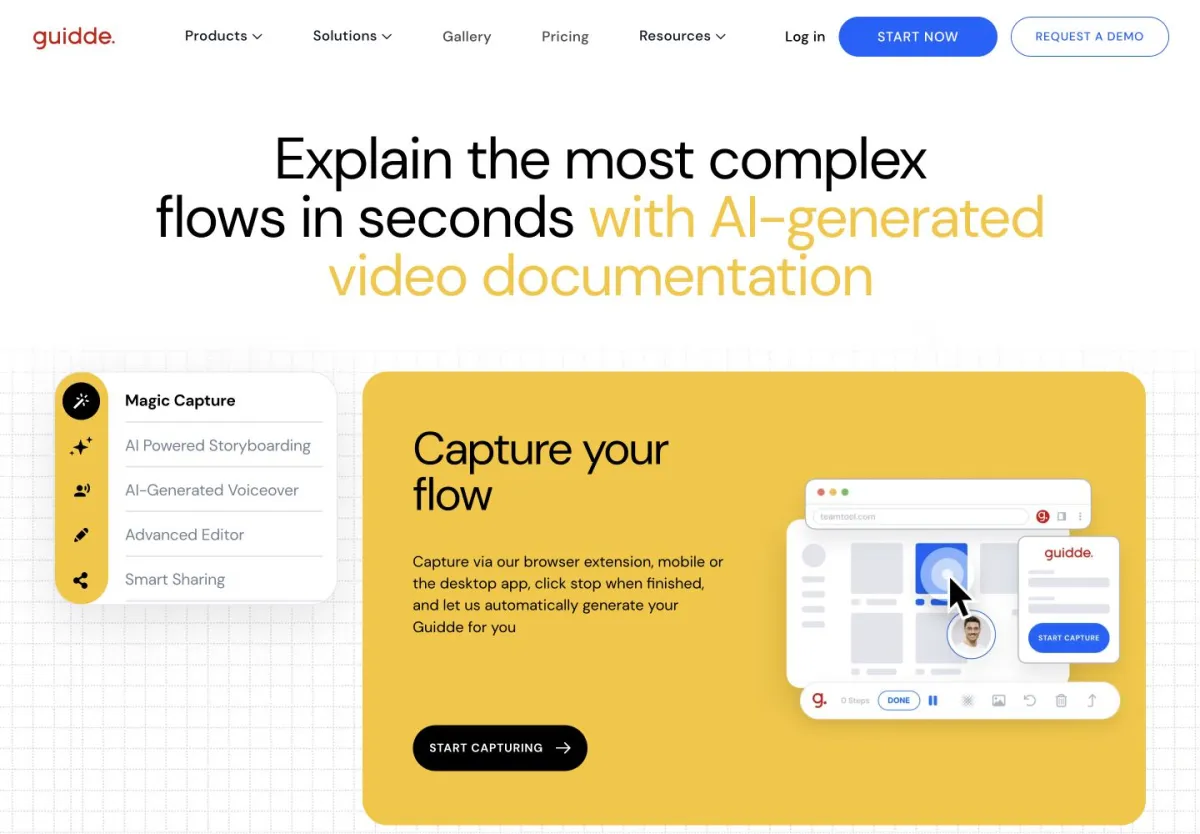
Guidde takes a unique approach: instead of producing traditional video, it captures your browser-based workflow and generates step-by-step visual guides with AI-generated narration. Each step gets a screenshot, a text description, and an optional voiceover. The output is more like an interactive guide than a traditional video.
This makes Guidde particularly well-suited for SOPs, process documentation, and onboarding flows where users need to follow along step by step. The browser extension captures clicks and page changes automatically, minimizing manual work.
Best For: Teams creating SOPs, process docs, and step-by-step guides for web-based tools.
Key Features:
- Automatic Step Capture — Browser extension records clicks and generates step-by-step guides.
- AI Narration — Generates voiceover for each step.
- Multiple Output Formats — Video, interactive guide, PDF, and embeddable widget.
- Multi-Language — Generate guides in multiple languages.
- Branding — Custom colors, logos, and templates.
- Integrations — Slack, Notion, Confluence, Zendesk, and more.
Pricing:
| Plan | Price | Key Features |
|---|---|---|
| Free | $0 | 25 how-to guides |
| Individual | $16/mo | Unlimited guides, AI narration |
| Pro | $25/mo | Custom branding, analytics |
| Enterprise | Custom | SSO, API, dedicated support |
Pros and Cons:
| Pros | Cons |
|---|---|
| ✅ Automatic step detection is clever | ❌ Browser-only (no desktop recording) |
| ✅ AI narration for each step | ❌ Output is step-based, not fluid video |
| ✅ Multiple output formats | ❌ Cannot edit the underlying video |
| ✅ Good knowledge base integrations | ❌ Limited to web-based workflows |
| ✅ Free tier with 25 guides | ❌ No timeline editor or effects |
Verdict: Guidde is smart and focused. If your documentation is primarily step-by-step guides for web applications, it automates a lot of the tedious work. The AI narration adds voice to each step without manual effort. But the output is fundamentally different from traditional screen recordings — you get a sequence of annotated screenshots, not a fluid video. For teams that need video tutorials with smooth transitions, effects, and a timeline editor, Guidde is too limited. For teams that just need clear process documentation, it is remarkably efficient.
Head-to-Head Comparison Table
Here is every tool side by side on the features that matter most:
| Feature | Vorec | Loom | Descript | Clueso | Camtasia | OBS | ScreenPal | Guidde |
|---|---|---|---|---|---|---|---|---|
| AI Narration (from silent recording) | ✅ | ❌ | ❌ | ✅ | ❌ | ❌ | ❌ | ✅ |
| Built-in Screen Recorder | ❌ | ✅ | ✅ | ❌ | ✅ | ✅ | ✅ | ✅ |
| Multi-Track Timeline | ✅ | ❌ | ✅ | ❌ | ✅ | ❌ | ❌ | ❌ |
| Visual Effects (Zoom, Spotlight) | ✅ | ❌ | ❌ | ✅ | ✅ | ❌ | ❌ | ❌ |
| AI Captions | ✅ | ✅ | ✅ | ✅ | ✅ | ❌ | ❌ | ❌ |
| Article/Doc Generation | ✅ | ❌ | ❌ | ❌ | ❌ | ❌ | ❌ | ✅ |
| Webcam Overlay | ❌ | ✅ | ✅ | ❌ | ✅ | ✅ | ✅ | ❌ |
| Viewer Analytics | ❌ | ✅ | ❌ | ✅ | ❌ | ❌ | ✅ | ✅ |
| Background Music | ✅ | ❌ | ✅ | ✅ | ✅ | ❌ | ✅ | ❌ |
| Free Tier | ❌ 7-day trial | ✅ | ✅ | ❌ | ❌ | ✅ | ✅ | ✅ |
| Starting Price | $9/mo | $15/user/mo | $24/mo | $50/mo | $39/year (Starter; watermarked export) | Free | $3/mo | $16/mo |
| Best For | AI tutorials | Async messaging | Video editing | Help docs | Manual control | Free recording | Budget recording | Step guides |
Vorec combines AI narration, a multi-track timeline editor, visual effects and article generation in one workflow in one platform. Other tools excel in individual areas but do not offer this combination.
Who Should Use What: Decision Guide
Different teams have different needs. Here is our recommendation matrix organized three ways.
By Use Case
Creating tutorials and how-to videos
- Best: Vorec — AI narration means you never record your voice, and the script stays editable as text
- Runner-up: Camtasia — if you want a timeline editor and a choice of recorded or generated narration
- Budget: OBS (record) + Vorec Free (narrate and edit)
Quick async team communication
- Best: Loom — record, talk, share, with no export step in between
- Runner-up: ScreenPal — if Loom's per-user pricing is too expensive
Product demos for sales and marketing
- Best: Vorec — professional narration and effects without a production team
- Runner-up: Descript — if you want to narrate live and edit by text
Help center and documentation
- Best: Clueso — purpose-built for help docs with knowledge base integrations
- Runner-up: Vorec — more flexible with article generation, and more affordable
- Budget: Guidde — for browser-based step-by-step guides
Internal process documentation
- Best: Guidde — automatic step detection for web-based workflows
- Runner-up: Loom — quick and informal, good for SOPs that do not need polish
Training and L&D content
- Best: Vorec — consistent AI narration across all training videos, no instructor availability needed
- Runner-up: Camtasia — if you have dedicated video producers on the L&D team
By Team
Engineering teams Engineers document APIs, architecture decisions, and code walkthroughs. They typically hate recording their voice. Vorec removes that friction entirely — record the code walkthrough silently and let AI narrate.
Product teams Product managers create demos, record user research sessions, and document features. Loom for quick async updates, Vorec for polished demos that go to customers.
Customer support teams Support creates help center articles and troubleshooting guides. Clueso or Vorec depending on budget — Clueso integrates with help desks natively, Vorec generates both video and written articles.
Marketing teams Marketing needs polished product videos and social content. Descript if the team records its own narration, Vorec if the team wants AI to handle voice.
L&D and training teams Training teams produce high volumes of educational content that needs consistency. Vorec ensures every video has the same professional quality regardless of who recorded the screen.
By Budget
Free ($0)
- Best combination: OBS (recording) + Vorec's free trial (AI narration for 100 one-time credits)
- Simple recorder: ScreenPal Free (15-min recordings, basic editing)
- Power recorder: OBS Studio (unlimited, no editing)
Under $20/month
- Best value: Vorec Starter ($9/mo) — 150 credits, AI narration, multi-track editor, effects
- Async messaging: Loom Business ($15/user/mo) — best for teams, per-user cost
- Basic editing: ScreenPal Solo Deluxe ($3/mo) — cheapest paid option
$20-50/month
- All-in-one editing: Descript Business ($33/mo) — text-based editing, AI features
- Team tutorials: Vorec Business ($59/mo) — 1,500 credits
Enterprise
- Documentation at scale: Clueso Enterprise — unlimited videos, API, SSO
- Recording and timeline editing: Camtasia (Starter $39/year with watermarked export; Essentials $179.88/year; see the individual plans above)
Challenges in Video Creation
Understanding common obstacles helps you choose the right tool. Here are the problems teams face and how different approaches solve them.
The Time Problem
A short tutorial takes far longer than the recording itself, because of everything around it:
- Planning and scripting — outlining what you will show and say
- Recording — the workflow itself, plus the failed takes and re-records
- Editing — trimming, arranging, adding effects
- Narration — finding a quiet room, recording the voiceover, syncing audio
- Polish — captions, transitions, final review
Narration is the stage that needs a quiet room, a microphone and re-takes when you misspeak. That is the one AI narration removes — time your own process across these stages to see what it is worth to you.
The Quality vs. Speed Tradeoff
Teams constantly battle between producing content quickly and producing it well. Quick Loom-style recordings are fast but often lack the polish needed for customer-facing content. Fully produced Camtasia videos look great but take too long to scale.
AI-powered tools change the shape of this tradeoff. The workflow becomes:
- [ ] Record your screen silently
- [ ] Upload and let AI generate narration
- [ ] Review and adjust the narration if needed
- [ ] Add effects, captions, export
That removes the steps a traditional workflow requires by hand: writing a script, recording a voiceover, cutting the mistakes and syncing audio back to the screen.
The Narration Bottleneck
Narration is the single biggest bottleneck in tutorial production, and it affects quality in ways most teams do not realize:
- Inconsistency — Different team members have different voices, energy levels, and speaking styles. Your tutorial library sounds fragmented.
- Availability — The person with the best voice is not always available. Projects stall waiting for one person to record voiceover.
- Environment — Open offices, barking dogs, construction noise. Finding a quiet recording space is a constant struggle.
- Perfectionism — "Let me just re-record that one sentence" turns into 45 minutes of re-takes.
- Localization — Want your tutorial in Spanish, French, and German? That is three more narrators, three more recording sessions.
AI narration eliminates every single one of these problems. Consistent voice across all videos, no environmental noise, no voiceover to re-record, and multi-language support built in.
Best Practices for Screen Recording
Regardless of which tool you choose, these practices will improve your output.
Before Recording
Plan your flow
- Outline the 5-7 key steps you will demonstrate
- Open all necessary tabs, files, and tools before hitting record
- Close notifications, messaging apps, and anything that might pop up
- Use test or demo data — never record with real customer information
Set up your environment
- Clean your desktop — hide unrelated files and bookmarks
- Set your browser zoom to 100-125% for readability
- Use a consistent resolution (1920x1080 is the standard)
- If showing code, increase font size to at least 14px
Create a dedicated "recording" browser profile with a clean bookmark bar, no extensions visible, and demo accounts already logged in. This saves 5-10 minutes of cleanup before every recording session.
Prepare your script (if narrating live)
- Write bullet points, not a full script — you want to sound natural
- Practice the flow once without recording
- Keep a glass of water nearby
During Recording
Pacing and mouse movements
- Move your cursor deliberately, not frantically
- Pause for 1-2 seconds after each major action to let viewers absorb
- Click precisely — avoid hovering or searching for buttons
- If you make a mistake, pause for 3 seconds and redo the action (easy to cut in editing)
Key actions to emphasize
- Slow down before clicking important buttons
- Let modal dialogs and loading states fully appear before continuing
- Show the result of each action before moving to the next step
If using AI narration (no live voice)
- Record at a natural pace — the AI adapts to your speed
- Do not rush through actions — clear, deliberate steps produce better AI narration
- Click with purpose — AI click detection works better with distinct, intentional clicks
- Pause briefly between different tasks or sections
After Recording
Narration and voiceover
- If using AI narration, review the generated script and adjust any inaccuracies
- If narrating manually, record in a quiet room with a decent microphone
- Match your energy level to the content — tutorials should be clear and upbeat, not monotone
Captions and accessibility
- Always add captions — plenty of people watch muted, and captions help everyone else too
- Review auto-generated captions for accuracy, especially technical terms
- Use high-contrast caption styles that are readable on any background
Distribution
- Export at 1080p for general use, 4K if embedding on product pages
- Create a thumbnail that shows the end result, not the beginning
- Write a description with key timestamps for longer videos
- If your tool generates articles (like Vorec), publish both the video and the written version for maximum SEO value
Frequently Asked Questions
What is the best free screen recording software?
For pure recording power, OBS Studio is hard to argue with — unlimited recording, no watermarks, completely free. For a simpler experience with basic editing, ScreenPal offers free 15-minute recordings. For free AI narration, Vorec's trial gives you 100 one-time credits to try the workflow end to end.
Can AI really narrate a screen recording?
Yes, and the quality in 2026 is remarkably good. Tools like Vorec and Clueso use AI that actually watches your screen recording — it understands what applications you are using, what buttons you are clicking, and what workflows you are demonstrating. The generated narration describes your actions naturally, stays synced with the video, and sounds professional. It drafts narration from the recording; you review and edit the script as text before any voice is generated.
Is Loom still worth it in 2026?
Absolutely, for its intended use case. Loom is built for recording a quick video message and sharing it immediately. If your primary need is async team communication — explaining a feature, reporting a bug, giving feedback — Loom is still the best tool for the job. Where Loom falls short is polished tutorials and documentation, which require editing, effects, and often narration that Loom does not provide.
See also: Best Loom Competitors in 2026
What is the difference between screen recording and screen capture?
Screen recording captures video of your screen over time — the moving cursor, clicks, typing, and everything that happens. Screen capture (or screenshot) captures a single still image of your screen at one moment. Most screen recording tools also include screenshot capabilities, but the reverse is not true.
How long should a tutorial video be?
Aim to keep tutorial videos short — long enough to cover one task, short enough that nobody abandons them partway. If your tutorial needs to be longer, break it into chapters or a series. The exception is comprehensive walkthroughs for complex software, where 10-15 minutes is acceptable if the content is well-organized.
Do I need a good microphone for screen recordings?
If you are narrating live (using tools like Loom, Descript, or Camtasia), yes — a USB condenser microphone ($50-100) makes a significant difference compared to laptop microphones. If you are using AI narration (Vorec, Clueso, Guidde), you do not need a microphone at all — record silently and let the AI handle voice.
Can I use screen recordings for marketing?
Absolutely. Product demo videos are among the highest-converting marketing assets. In Wyzowl's 2020 video survey, 84% of people said they had been convinced to buy a product or service after watching a brand's video — a self-reported finding from December 2019, not a measured conversion lift. Screen recordings showing real product usage outperform scripted marketing videos for SaaS products because prospects see exactly what they are getting.
Related: How to Make a Tutorial Video in 2026 and Create a Product Demo Video Fast
Which screen recorder works best on Mac?
All major tools work on Mac. OBS Studio and Camtasia are native Mac applications with full feature parity. Loom, Descript, and ScreenPal have Mac apps. Vorec, Clueso, and Guidde are web-based, so they work on any platform through the browser. macOS also includes a built-in screen recorder (Cmd+Shift+5) that handles basic capture needs.
How do I add narration to an existing screen recording?
You have three options: (1) AI narration — upload to Vorec or Clueso and let AI generate voiceover automatically, (2) Manual voiceover — import the recording into Camtasia or Descript and record your voice over it, or (3) Text-to-speech — use a TTS service and manually sync the audio. AI narration avoids the manual syncing the other two options require.
Related: AI Voiceover for Videos: Complete Guide
Is it legal to record my screen at work?
Generally yes, for your own workflow. You can record your own screen to create documentation, tutorials, and demos. However, be careful about recording sensitive data (customer PII, financial information), private conversations (always get consent), and proprietary information that should not be shared externally. Check your company's screen recording policy — most organizations encourage it for documentation but have guidelines about what can be shared.
Final Verdict
The screen recording landscape in 2026 is more capable than ever, but the tools have diverged significantly. There is no single "best" tool — the right choice depends on your primary use case.
Related reading: How to Screen Record on a Chromebook.
If you create tutorials, demos, or documentation videos — try Vorec free. Record with Vorec, or upload one you already have, and see AI narration in action. No credit card required, 100 free credits to start.
Here is the quick summary:
- Vorec if you want AI to narrate your tutorials and demos, with the script editable as text before any voice is generated
- Loom if you need quick async video messages for team communication
- Descript if you narrate live and want powerful AI-assisted editing
- Clueso if you produce help center videos at scale with knowledge base integrations
- Camtasia if you want full manual control over every aspect of recording and editing
- OBS Studio if you need a free, powerful recorder and will edit elsewhere
- ScreenPal if you want basic recording and editing on a tight budget
- Guidde if you create step-by-step browser-based guides and SOPs
The biggest shift in 2026 is AI narration. It removes the scripting and voiceover steps, which for teams that produce tutorials regularly is usually where the time goes. If narration is your bottleneck (and for most teams it is), prioritize tools that solve that problem.
Whatever you choose, the best screen recording software is the one you actually use consistently. Start with the free tiers, test with your real workflow, and upgrade when you hit the limits.