Best Screen Recorder with AI Narration (2026)
Vorec Team · 2026-04-03 · About 11 min read
Yes, several screen recorders now add AI narration: you record the screen silently and the tool generates the voiceover. They split into two kinds. Some draft the script for you from the recording (Vorec, Clueso); others read a script you write with text-to-speech (Guidde from Business, Descript AI Speech, Camtasia Create at $249 a year, ScreenPal Max). Facts below come from vendor pages captured in October 2026; we did not test output quality.
The recording itself is the easy part. What takes time is everything after it: writing a script, recording a clean voiceover, syncing it to each on-screen action, adding captions and exporting. That is the gap AI narration fills.
Quick answers
Is there an AI tool that adds narration to a screen recording automatically?
Yes. Vorec and Clueso draft the narration script from the recording and voice it; Guidde (Business), Descript, Camtasia (Create) and ScreenPal (Max) generate voiceover from a script you supply. Vendor pages were captured in October 2026; we did not test output quality.
Is there an AI tool that can create screen recording demos with AI voiceover?
Yes. Tools that list AI narration or text-to-speech for screen recordings include Vorec (narration drafted from the captured workflow), Clueso (AI narration on all plans), Guidde (AI text-to-voice from the Business plan), Descript (AI Speech from Hobbyist), Camtasia (generated voiceover from Create, $249 a year) and ScreenPal (AI narration from Max). Vendor pages captured October 2026; we did not test output quality.
Which tools draft the script for me?
Vorec drafts narration matched to the captured workflow, or from an analysis of an uploaded recording, and Clueso drafts an editable script from a recording. Others read a script you write. See best tutorial video creators.
Do I need a microphone?
Not with AI narration. You record the screen silently, review the draft script, and generate the voice.
Can I add AI narration to a recording I already have?
Yes, in tools that accept uploads: Vorec, Clueso, Guidde (Business) and Descript do. See how to add narration to a screen recording.
The Screen Recording Problem Nobody Talks About
If you have ever tried to create a tutorial video, onboarding walkthrough, or product demo, you know the pain. The actual screen recording is the quick part. Then comes:
- Writing a script that matches what happens on screen
- Setting up audio -- finding a quiet room, testing your microphone, adjusting levels
- Recording voiceover -- and re-recording when you stumble, cough, or lose your place
- Editing audio -- removing ums, ahs, dead air, and background noise
- Syncing narration to video -- making sure your words line up with the clicks and actions
- Adding captions -- because accessibility matters and viewers watch on mute
- Exporting and encoding -- getting the right format, resolution, and file size
Most screen recordings never get narrated at all. They sit in a folder as silent videos that nobody watches, because a silent screen recording without context is nearly useless. The viewer has no idea what they are looking at, why you clicked something, or what they should do next.
Traditional screen recording software solved the capture problem years ago. What it never solved was the production problem.
What "Screen Recording with AI Narration" Actually Means
AI-narrated screen recording flips the traditional workflow. Instead of recording your voice while you record your screen, you record silently and let AI handle the narration afterward.
Here is what happens under the hood:
- Visual analysis -- AI watches your recording frame by frame, identifying clicks, scrolls, menu selections, text input and page changes
- Script generation -- Based on what it sees, AI writes a natural narration script that explains each action in context
- Voice synthesis -- The script is converted to speech using AI voices that sound natural, with proper pacing and intonation
- Automatic sync -- Each narration segment is timed to the action it describes, and you can adjust timing in the editor
The result is a professionally narrated tutorial video from a silent screen recording. No microphone. No script writing. No audio editing.
The Old Way vs. The New Way
Here is what creating a narrated screen recording looks like with traditional tools versus AI narration:
The traditional workflow
- Plan what you will record and write a rough script
- Set up your microphone and test audio levels
- Record your screen while narrating live (restart when you make mistakes)
- Import into a video editor
- Edit out mistakes, pauses, and filler words
- Re-record sections where the audio is unclear
- Sync audio to video manually
- Add captions manually or pay for transcription
- Export and compress
The AI narration workflow
- Record your screen silently (use any recorder)
- Upload the recording
- AI analyzes and generates narration
- Review the script, make edits if needed
- Choose a voice and export
The difference is in the steps themselves: nine manual stages against five. Both can loop — you may re-record a take, and you may revise the script — but the second path removes the live performance and the manual audio sync entirely. How long either takes depends on your recording, your tooling, and how much editing you actually do.
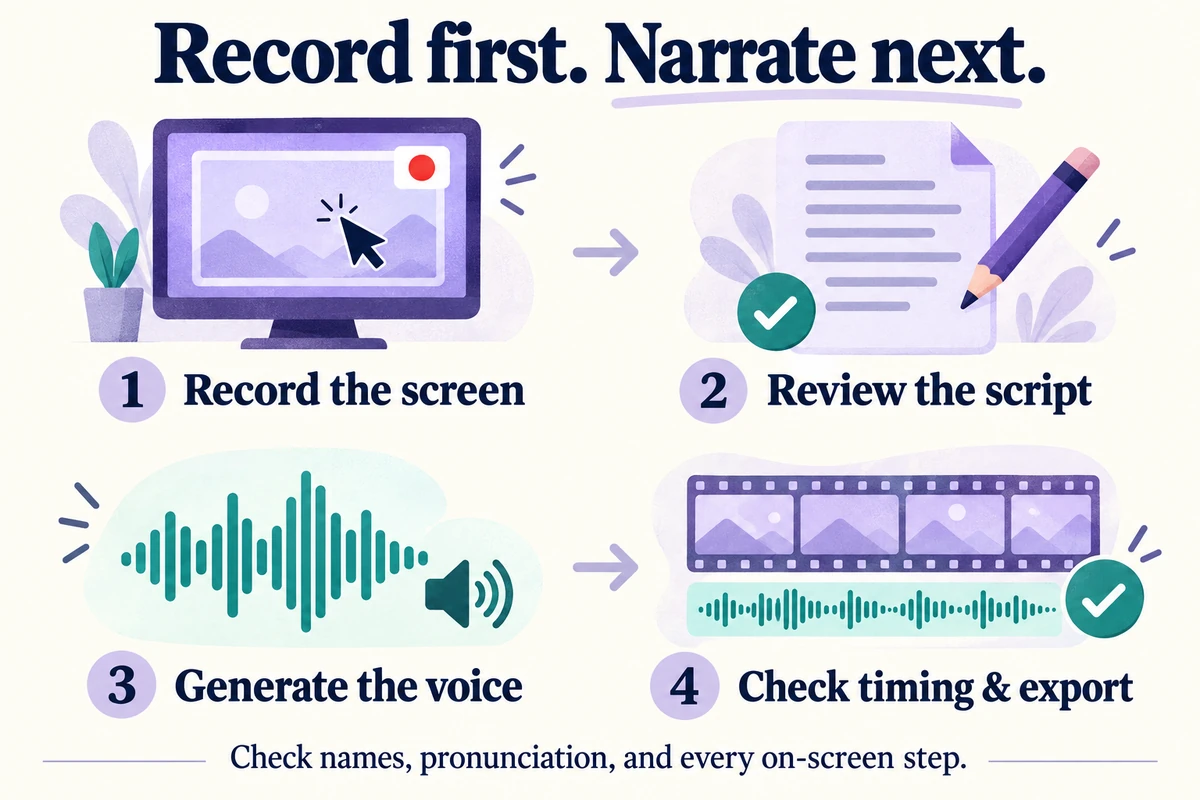
How Vorec Works: Step by Step
Worth knowing: Vorec is screen recording software built specifically for this workflow. Here is exactly how it works:
Step 1: Record Your Screen
Use any screen recorder you already have. QuickTime on Mac, Xbox Game Bar on Windows, OBS, or any browser extension. Vorec works with any video file you upload, and it also ships its own macOS recorder if you want capture and narration in one workflow.
Record your workflow silently. No need to narrate, no microphone required. Just do the thing you want to show.
Step 2: Upload the Silent Recording
Drag and drop your video into Vorec. It accepts MP4, WebM, and MOV files.
Step 3: Vorec Works Out the Steps
Vorec uses the captured action data from its recorder, or an analysis of an uploaded recording, to work out the steps. The signals include:
- Clicks and where they landed
- Text you typed
- Menus you opened
- Pages you navigated to
- Scrolling and selections
- UI changes and transitions
It builds a map of the workflow to draft narration from; on a busy or unclear recording it can miss a step, so read the script.
Step 4: Review and Edit the Script
AI generates a narration script broken into segments, each tied to a specific moment in the video. You can:
- Edit any segment's text -- tweak wording, add context, fix terminology
- Adjust timing -- move segments earlier or later on the timeline
- Add or remove segments -- insert explanations the AI missed, or remove redundant ones
- Change the narration style -- switch between tutorial, conversational, or professional tones
The script editor shows the video alongside the text, so you can see exactly what the viewer will experience.
Step 5: Choose a Voice
Pick from multiple AI voices. Preview each one with your actual script before committing. Voices are natural-sounding with proper pacing -- not the robotic text-to-speech you might expect.
Step 6: Export with Everything
Export your finished video with:
- Synchronized voiceover -- narration timed to each action
- Captions -- automatically generated from the script, fully styled
- Visual effects -- zoom into clicks, spotlight important areas, blur sensitive info
- Background music -- optional ambient tracks that auto-duck under narration
Bonus: Get a Written Article Too
Vorec can also generate a step-by-step written article from the same analysis. One screen recording gives you both a narrated video and a help doc -- two content formats from a single recording session.
Learn more about the full tutorial creation process in our guide on how to make a tutorial video.
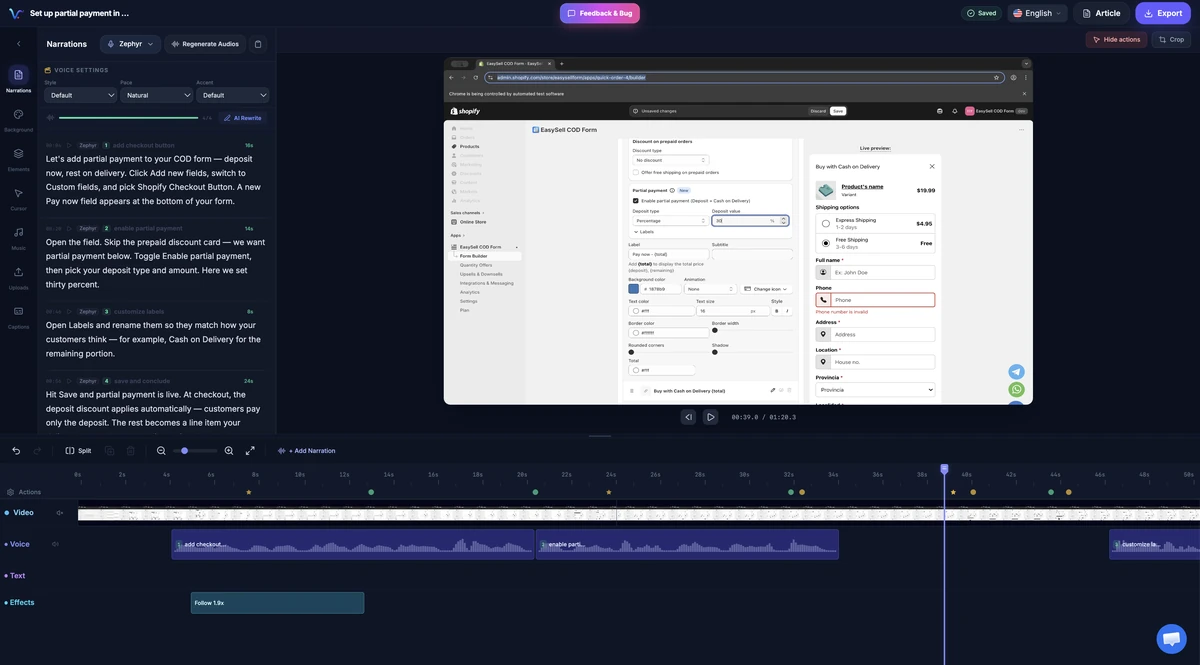
Vorec editor showing a Shopify tutorial recording and its narration and timeline tracks. Existing product capture; interface may differ by version.
Other tools that narrate a silent recording (checked 26 October 2026)
Vorec is not the only option. These three also take a screen recording with no voice and add an AI-written, AI-voiced narration. Facts come from each vendor's own site, read on 26 October 2026; we did not test them.
| Tool | How you add the recording | Entry price shown | Free try | Also produces |
|---|---|---|---|---|
| ScreenStory (screenstory.ai) | Upload, or paste a public Loom link | Starter $9.99/mo (monthly toggle): 2 videos a month, up to 5 min each, 720p | 1 free video export | Captions; talking avatars on every plan |
| Tutorial AI (formerly VideoScripter) | Its recorder for Windows and macOS, or your recording | Solo $18 per seat a month, annual toggle; 2 hours of video exports a year | Trial: 3 video projects, no card, watermarked | Written documentation |
| VideoMule | Upload your screen share | Creator $19/mo billed $228/yr, launch pricing for the first 6 months | Trial needs a card: 2 videos (3 min each), 1 watermarked export | Translations, AI avatars |
| Vorec | Its macOS recorder (an AI agent can drive it), or upload | Starter $9/mo or $86/yr | Free trial (see /pricing), no card, watermarked | Written step-by-step guide; cursor-follow and click zoom |
Pick ScreenStory if your recordings live in Loom and you want the shortest path to a voiced video. Pick Tutorial AI if a team on Windows needs a recorder plus written docs. Pick Vorec if the video is a software walkthrough where zoom, cursor motion and a matching written guide matter. ScreenStory's site is screenstory.ai; the similarly named screenstory.io is a different Mac screen recorder. We compare the first two in more detail in Vorec vs ScreenStory.
Who Is This For?
AI-narrated screen recording is not a niche tool. Anyone who records their screen regularly can benefit.
Developers and DevRel Teams
You build tools that need documentation. Recording a silent demo of your API, CLI, or dashboard is quick. Vorec turns it into a narrated walkthrough your users can actually follow. Ship docs faster without becoming a video production team.
Customer Support Teams
Stop writing 15-step support articles with screenshots. Record yourself solving the customer's problem, upload it, and send them a narrated video. Resolution time drops. Customer satisfaction goes up. Your support team stops dreading "how do I..." tickets.
Product and Marketing Teams
Feature demos, release announcements, and sales enablement videos used to require a video producer. Now anyone on the team can record a feature walkthrough and have a polished demo without booking a producer. Perfect for fast-moving teams that ship weekly.
Educators and Course Creators
If you create educational content, you know the audio recording grind. AI narration lets you focus on the teaching -- showing the right workflow on screen -- without worrying about microphone technique or audio editing.
Internal Teams and Onboarding
New hire needs to learn your internal tools? Record the workflow once, let AI narrate it, and you have a reusable onboarding video. Beats scheduling a live walkthrough every time someone joins.
Real Use Cases
Developer onboarding video: A senior engineer records themselves setting up the local dev environment. Upload to Vorec. Every new hire then has a narrated setup guide instead of a stale wiki page.
Feature demo for sales: Product manager records the new dashboard feature for the sales team. AI narrates each click. Sales has a polished demo clip for their next call -- no video editor needed.
Customer support walkthrough: Support agent records the fix for a common billing issue. The narrated video goes into the help center. Ticket volume for that issue drops.
Course module: An instructor records a Figma design workflow. AI narrates each step. The written article becomes the companion text. One recording, two deliverables.
For more on adding narration to screen recordings, check out our detailed guide.
Traditional Screen Recorders vs. AI-Narrated
| Feature | Traditional Recorders | Vorec (AI Narration) |
|---|---|---|
| Screen capture | Yes | Own macOS recorder, or upload a recording |
| Live narration | You talk while recording | Not needed |
| Post-recording narration | Manual voiceover | AI-generated |
| Script writing | You write it | AI writes it |
| Audio editing | Manual | None required |
| Captions | Manual or paid service | Automatic |
| Visual effects (zoom, blur) | Separate editor | Built-in |
| Written article | Separate effort | Auto-generated |
| Work involved | Script, record voiceover, cut mistakes, sync audio | Upload, review the script, export |
| Microphone required | Yes | No |
Traditional screen recorders like OBS, Loom, and Camtasia are great at capture. Vorec is built for what comes after capture -- the narration, production, and publishing that turns a raw recording into content people actually watch.
See how Vorec compares to other tools in our Loom alternatives guide.
Quick-Start Guide
Ready to try it? Here is how to go from zero to narrated video:
- Record your screen using any tool (QuickTime, OBS, browser extension). Keep it under 10 minutes for best results. Do not narrate -- just do the workflow silently.
- Go to vorec.ai and start the free trial (no credit card; current allowances on the pricing page). Video analysis costs 8 to 45 credits depending on length (8 up to 3 minutes) and a short narration clip costs 2, so how far that goes depends on how many steps your recording has.
- Create a new project and upload your recording. Drag and drop or click to browse.
- Click "Generate" to analyze your video. Wait for processing to finish, then review the generated narration.
- Review the narration in the timeline editor. Edit any text that needs tweaking. Adjust timing if needed.
- Pick a voice from the voice selector. Preview it with your script.
- Add effects -- zoom into click areas, add captions, spotlight important sections.
- Export your finished video. Download it or share a link.
That is it. Your silent screen recording is now a narrated tutorial with professional voiceover, captions, and effects.
Stop Recording Your Voice. Start Recording Your Screen.
The bottleneck in creating tutorial videos was never the screen recording. It was everything that came after -- the scripting, narrating, editing, and syncing that turned a simple task into a production.
Screen recording software with AI narration removes that bottleneck entirely. Record silently, upload, and let AI handle the production. You get a narrated video, captions, visual effects, and even a written article -- all from a single silent recording.
Start the free trial: no credit card required and turn your next screen recording into a narrated tutorial without recording a voiceover.
Related reading: Employee Training Videos with AI Narration, How to Add AI Voice to Any Screen Recording and How to Automate Tutorial Video Creation with AI.
More on this topic: How to Add AI Voice to Any Screen Recording.
See also: How to Add Voiceover to a Screen Recording on Mac and iPhone (2026).
See also: Vorec vs Tutorial AI (2026): Narrated Screen Tutorials.