Best Tutorial Video Creators in 2026: Complete Buyer's Guide
Vorec Team · 2026-04-03 · About 19 min read
The best tutorial video creator depends on where you want the narration to come from: Vorec generates it from your screen recording, Camtasia and Descript suit people who record their own voiceover and edit a timeline, Synthesia has an avatar read a script, and Scribe produces written docs instead of video. Paid plans start at $9 a month for Vorec after a free trial with no card, $24 a month for Descript, $29 for Synthesia and Guidde, $50 for Clueso, $35 per seat for Scribe, and $39 to $599 a year for Camtasia, per each vendor's published plans.
Every software team knows the pain: your users need tutorial videos, your support queue is overflowing, and nobody has time to sit down with a microphone and record. Video has become an ordinary part of how teams market and support their products. Producing it the traditional way has not got easier: you script it, record a voiceover, cut the mistakes, and sync the audio back to the screen.
The tutorial video creator market has exploded in response. There are now dozens of tools competing for your attention — AI narrators, text-based editors, avatar generators, browser extensions, and screenshot-to-doc converters. They differ in what they ask of you and what they produce.
This guide compares seven tools on what each one actually asks of you: whether you record a voiceover, whether you edit a timeline, what it outputs, and what it costs. Pricing is taken from each vendor's published plans.
If you want a deeper dive on the tutorial creation process itself, start with our complete guide to making tutorial videos.
Quick Comparison: All 7 Tools at a Glance
Before we go deep on each tool, here is the overview. Scroll down for detailed reviews with screenshots.
| Tool | Type | AI Narration | Screen Recording | Starting Price | Voiceover | Best For |
|---|---|---|---|---|---|---|
| Vorec | AI video creator | ✅ | Upload any, or the macOS app | Trial / $9/mo | Generated from the recording | Screen recording tutorials |
| Camtasia | Recorder + editor | Voiceover generation on Create/Pro | Built-in | $39–$599/yr | Record your own, or generate it | Recording + timeline editing |
| Descript | Text-based editor | — | Built-in | Free / $24/mo | Record your own, or use a synthetic voice | Editing narrated recordings |
| Clueso | AI doc videos | ✅ | Browser ext. | Free / $50/mo | Generated | Help center videos |
| Synthesia | AI avatar | ✅ (from a script) | — | Free / $29/mo | Avatar reads the script | Corporate training |
| Guidde | Browser guides | ✅ (text-to-voice) | Browser + desktop | Free / $29/mo | Record your own voice, or use text-to-voice on Business | Quick browser walkthroughs |
| Scribe | Documentation | — | — | Free / $35 per seat/mo | Written output | Written process docs |
The "Voiceover" column says where the narration comes from: your own recording, a generated voice, or written text instead.
What Makes a Great Tutorial Video Creator
Here are five criteria you can use to compare these tools. This comparison is based on each vendor's published material rather than hands-on testing, so it describes what the tools offer rather than how well they perform.
1. Speed to Published Video
Traditional tutorial creation means recording the screen, writing a script, recording a voiceover, syncing audio, editing and exporting — every stage by hand. Tools differ in how many of those stages they automate, and in which ones they leave to you.
2. Narration Quality and Intelligence
Viewers drop off when narration sounds robotic, generic, or out of sync with the visuals. The tool should either make self-recording frictionless or generate AI narration that:
- Sounds natural with appropriate pacing
- Understands what is happening on screen (not just reading a generic script)
- Stays precisely synced with clicks, scrolls, and UI changes
3. Editing Without a Learning Curve
You should not need to learn a full video editor to produce a tutorial. Trimming, reordering sections, adjusting timing, and tweaking narration should take seconds, not hours of scrubbing through a timeline.
4. Export and Distribution
Embed on your docs site, share a link, download MP4, generate captions. The fewer steps between "done editing" and "published," the better. Bonus points for direct integrations with help centers and knowledge bases.
5. Pricing That Scales with Your Team
Some tools charge per seat, some per video, some per minute of AI usage. Know what you are paying for before you commit — especially if your team produces tutorials regularly.
The 7 Best Tutorial Video Creators in 2026
1. Vorec — Best for Screen Recording Tutorials with AI Narration
What it does: Vorec records with its own macOS recorder, or takes a recording you upload. It drafts a narration script matched to the captured workflow that you can read and edit as text, generates a voiceover from that script, and can hold frames (freeze-sync) so explanations finish. You do not record audio yourself.
How it works:
- Record silently with Vorec's macOS recorder, or upload a recording you already have
- Vorec drafts a narration script from the captured workflow
- Edit the script in the timeline editor, adjust timing, add captions, zoom effects, callouts, and blur
- Export the finished tutorial as MP4
The editor gives you a multi-track timeline where each narration segment is tied to a specific moment in the video. You can rewrite any line of narration, regenerate individual segments with a different voice or tone, and add visual effects — all without leaving the app.
Effects: The visual effects system (zoom, blur, spotlight, callouts) lets you direct viewer attention.
Already have recordings sitting in a folder? Learn how to add AI voice to any screen recording in minutes.
Pricing:
- Trial: free, no credit card required (current allowances on the pricing page). Video analysis costs 8 to 45 credits depending on length (8 up to 3 minutes) and a short narration clip costs 2, so how far it goes depends on how many steps your tutorial has
- Starter: $9/month — 150 credits
- Pro: $24/month — 500 credits
- Business: $59/month — 1,500 credits
Strengths:
- Record or upload a silent recording, review the script, export
- Narration drafted from the captured workflow
- Full effects suite: zoom, blur, spotlight, callouts, captions
- Credit-based pricing rather than per-seat
- Accepts recordings made elsewhere, as well as its own
Limitations:
- Focused on screen recording tutorials — not a general-purpose video editor
- AI narration should be read before you publish; it depends on how clear the recording is
Ready to start? Try Vorec: free trial, no credit card
2. Camtasia — Best for Traditional Screen Recording with Full Editing Control
What it does: Camtasia records your screen and microphone, then opens a timeline editor with annotations, transitions, animations, and effects.
How it works:
- Open Camtasia and hit record (captures screen + microphone)
- Narrate live as you demonstrate the workflow, or generate the voiceover on Create and Pro
- Stop recording — you land directly in the built-in timeline editor
- Trim mistakes, add callouts, cursor effects, transitions, and captions
- Export as MP4, GIF, or upload to Screencast.com
Best for: Professionals who want a multitrack timeline editor. Record your own narration, or use the voiceover generation listed on Create and Pro.
Camtasia is billed yearly, so factor in the renewal alongside your own production time.
Pricing — from TechSmith's Camtasia store, Individuals tab, checked September 24, 2026:
- Starter: $39/year — Camtasia Editor, watermarked export
- Essentials: $179.88/year
- Create: $249/year
- Pro: $599/year
- All four plans shown here are billed yearly. No free plan is listed on this page.
Strengths:
- TechSmith's Individuals cards list unlimited caption generation on Essentials, AI scripting and voiceover generation on Create, and avatar generation on Pro; this comparison has not tested them
- Multitrack timeline editor with annotations, transitions and effects
- Cursor effects and an annotation library
Limitations: Limitations have not been independently evaluated for this comparison.
3. Descript — Best for Editing Video Like a Text Document
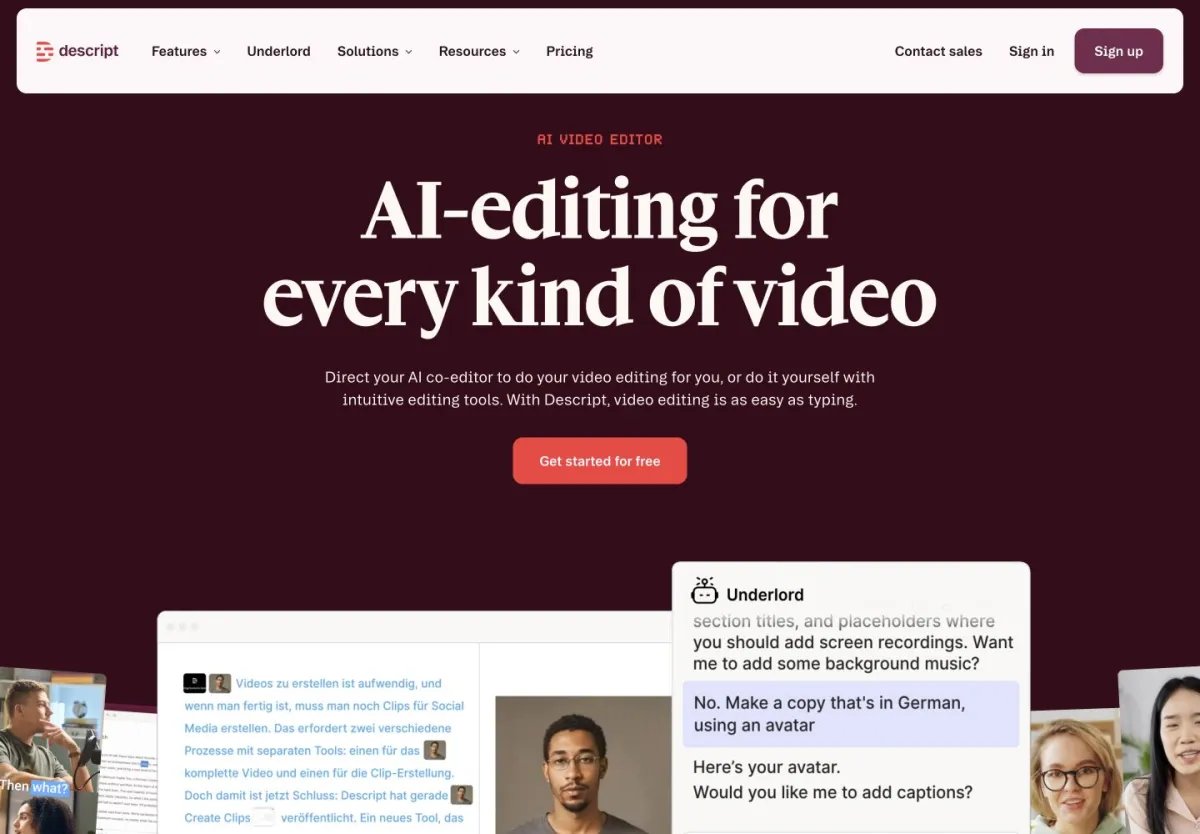
What it does: Descript lets you edit audio and video by editing its transcript. It transcribes your video, then lets you edit the footage by editing the text. Delete a sentence from the transcript and the corresponding video clip vanishes. It also offers AI voice cloning, automatic filler word removal, and a built-in screen recorder.
How it works:
- Record your screen with narration (built-in recorder) or import existing video
- Descript automatically transcribes imported or recorded audio and video
- Edit the text transcript — cuts and rearrangements happen in the video automatically
- Use AI tools to remove filler words ("um," "uh"), generate summaries, or clone your voice
- Add scenes, titles, transitions, and B-roll
- Export or publish directly to YouTube, Wistia, or download MP4
Pricing — from Descript's pricing page, checked September 23, 2026:
- Free: $0 — 1 media hour per month
- Hobbyist: $24 per person/month billed monthly, or $16 per person/month billed annually — 10 media hours/month
- Creator: $35 per person/month billed monthly, or $24 per person/month billed annually — 30 media hours/month
- Business: $65 per person/month billed monthly, or $50 per person/month billed annually — 40 media hours/month
- Enterprise: Custom pricing
Strengths:
- Text-based editing of audio and video
- Automatic transcription
- Filler word removal
- AI voice cloning (train on your voice, generate new lines without re-recording)
- Screen recording built in
Limitations: Limitations have not been independently evaluated for this comparison.
4. Clueso — Best for Help Center and Documentation Videos
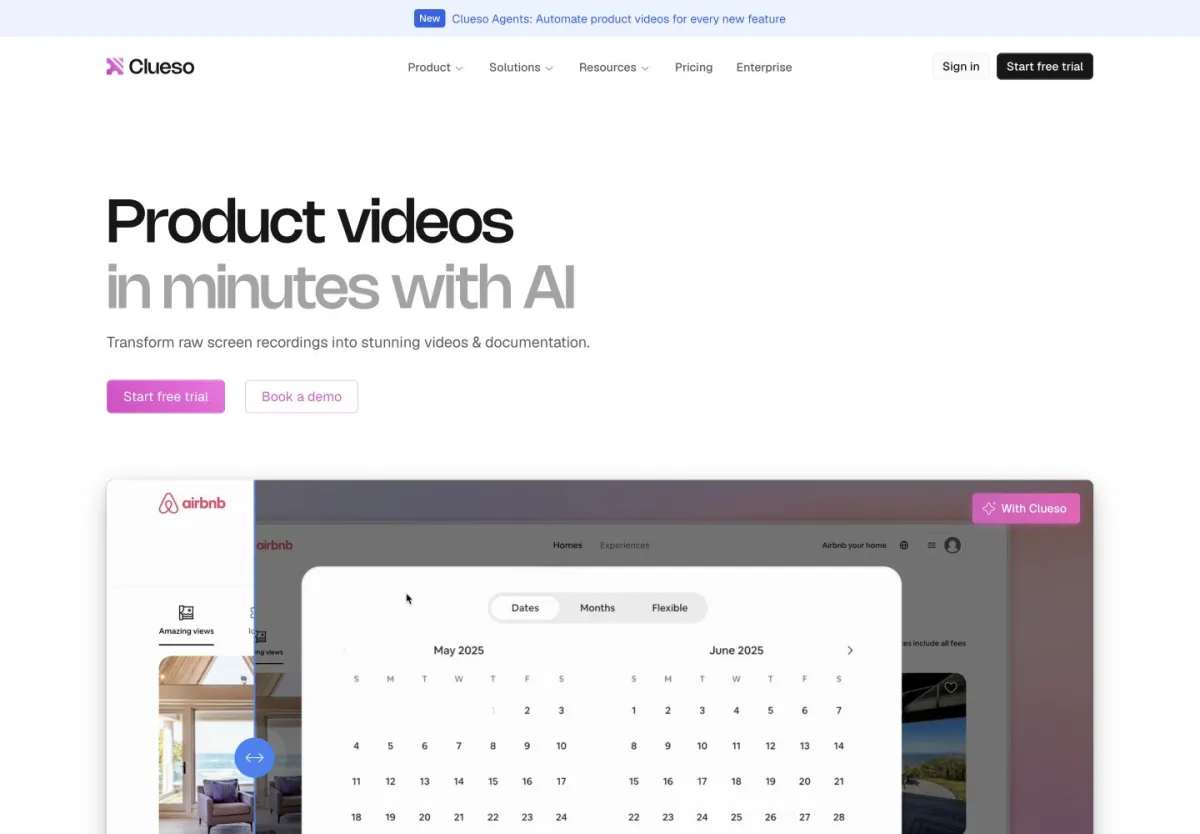
What it does: Clueso takes a recording from its browser extension or an upload and drafts an editable script, AI narration and captions, with zoom, branding and music, plus written step guides. Its pricing page lists these on all plans.
How it works:
- Record with the browser extension, or upload a video
- Clueso drafts an editable script
- AI narration and captions are added, with zoom, branding and music options
- Export an MP4, publish a page, or share a view-only link
Best for: Product and support teams that want a video plus written guides from one recording.
Pricing — from Clueso's pricing page, checked October 15, 2026:
- Free: $0
- Solo: $50/month billed monthly, or $40/month billed yearly — one user; 15 video export minutes per month on monthly billing, 3 video export hours per year on yearly
- Business: from $150/month billed monthly, or $120/month billed yearly for the two-user configuration shown — 30 video export minutes per month on monthly billing, 6 video export hours per year on yearly
- Enterprise: Custom pricing
Strengths:
- Aimed at help centre and documentation videos
- Capture is via a browser extension; you can also upload a recording
- Zoom, branding and music options listed
- Written guides, translation and an MCP connection on all plans
Limitations: Limitations have not been independently evaluated for this comparison.
5. Synthesia — Best for AI Avatar Corporate Training
What it does: Synthesia generates videos with AI avatars that lip-sync to scripts you write. You type what the presenter should say, choose from the avatar library (125+ stock avatars on Starter) in 140+ languages listed, and get a video of a realistic-looking person delivering your content. Screen recordings can be added as background media.
How it works:
- Write a script, paste existing content, or generate one with the AI Video Assistant
- Choose an AI avatar from the library (or create a custom one)
- Add slides, screen recordings, or images as visual backgrounds
- The avatar presents your script with realistic lip-sync
- Export or share via link
Best for: Corporate training and L&D teams that need presenter-style videos at scale without hiring talent or putting executives on camera. Synthesia shines for onboarding videos, compliance training, HR communications, and internal updates.
Synthesia vs. Vorec: Different tools for different jobs. Synthesia starts from a script — you provide one, or use the AI Video Assistant its pricing page lists from the Starter plan — and the AI creates the presenter. Vorec needs you to record the screen; the AI writes and delivers the narration. Choose Synthesia when you want a talking head. Choose Vorec when you want narrated screen recordings.
Pricing — from Synthesia's pricing page, checked October 10, 2026:
- Basic: $0
- Starter: $29/month billed monthly, or $18/month billed yearly — one editor, three guests
- Pro: $89/month billed monthly, or $64/month billed yearly — one editor, five guests
- Enterprise: Custom pricing
Strengths:
- Stock avatars on every plan (9 on Basic, 125+ on Starter, 180+ on Pro)
- 140+ languages listed
- No camera, microphone, or talent needed
- Custom avatar creation from a short webcam recording
- Templates for common corporate video types
Limitations: Limitations have not been independently evaluated for this comparison.
6. Guidde — Best for Quick Browser-Based How-To Guides
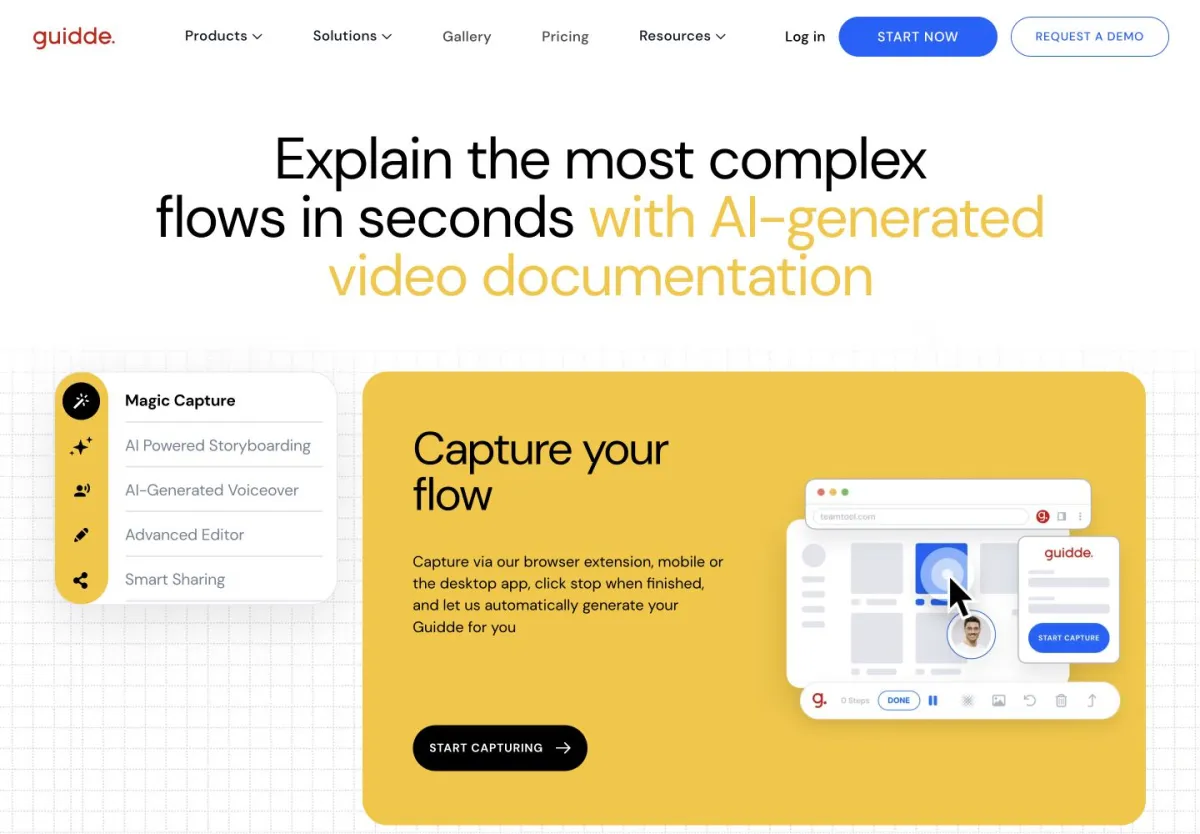
What it does: Guidde captures a workflow (web on Free; desktop and mobile sources on Business) and turns it into AI-written steps and a narrated video.
How it works:
- Capture a workflow with the browser extension (or the desktop app on Business)
- Guidde generates structured steps
- Voiceover: record your own, or use AI text-to-voice from Business
- Edit steps and share; MP4 download starts on Pro
Best for: Customer success teams and support agents creating how-to guides for web-based SaaS tools, captured through a browser extension.
Pricing — from Guidde's pricing page, checked October 15, 2026:
- Free: $0 — up to 25 how-to videos
- Pro: $29 per creator/month billed monthly, or $19 per creator/month billed annually
- Business: $59 per creator/month billed monthly, or $39 per creator/month billed annually — up to five creators, billed per creator
- Enterprise: Custom pricing
Strengths:
- The Business plan lists desktop apps alongside the browser extension
- Install the extension and start capturing
- Guides are captured through a browser extension; narration can come from text-to-voice or from speech recorded during capture
- Aimed at short how-to content
- Built-in sharing and embedding
- Analytics listed on Business
Limitations: Limitations have not been independently evaluated for this comparison.
7. Scribe — Best for Screenshot-Based Step-by-Step Documentation
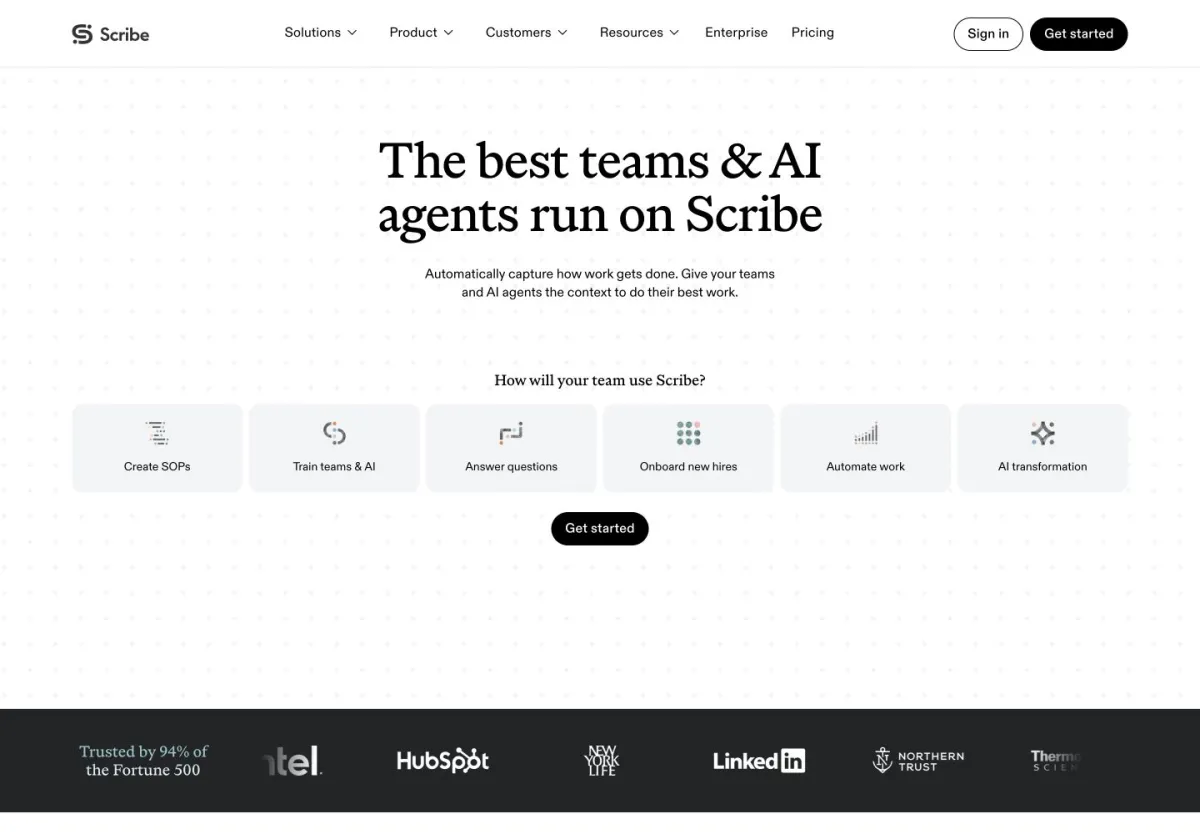
What it does: Scribe captures your clicks and keystrokes and turns them into step-by-step written guides with annotated screenshots. Its output is written documentation. It consistently appears in tutorial video creator searches because many teams searching for tutorial tools actually need written guides.
How it works:
- Install the browser extension or desktop app
- Click "Start Capture" and perform your process
- Scribe generates a written guide with numbered steps and annotated screenshots
- Edit text, redact sensitive information, add company branding
- Share via link, export as PDF, or embed in your wiki
Not sure whether you need video tutorials or written documentation? Start with Scribe for internal SOPs and process docs. Use a video tool like Vorec for customer-facing tutorials and onboarding content where engagement matters.
Best for: Teams that need process documentation more than video tutorials. SOPs, internal wikis, compliance documentation, knowledge bases. If a written guide with screenshots solves the problem, Scribe produces one without recording video.
Pricing — from Scribe's pricing page, re-checked in both billing states on October 8, 2026:
- Basic: Free
- Pro Personal: $35 per seat/month billed monthly, or $25 per seat/month billed yearly — from one seat
- Pro Team: $29 per seat/month billed monthly, or $23 per seat/month billed yearly — minimum five seats, so at least $145/month on monthly billing ($115/month equivalent billed yearly)
- Enterprise: Custom pricing
Strengths:
- Capture a workflow and get a written guide
- Written guides are easier to update than videos when UI changes
- Desktop app captures non-browser workflows too
- Aimed at internal documentation and SOPs
- Guides are searchable and indexable
Limitations:
- Static documents do not show transitions, animations, or complex interactions
Workflow Comparison: What Each Tool Asks of You
The table below compares the manual steps each tool requires to get from a recording to something you can share.
With Vorec you upload a silent recording and the narration is drafted, voiced and synced for you. A live-narration workflow instead means recording your own audio, cutting mistakes and syncing it to the video.
| Tool | Record / Import | AI step | Editing | You record a voiceover? |
|---|---|---|---|---|
| Vorec | Upload a recording | Drafts narration from the actions | Review the script as text | No |
| Camtasia | Record, with re-takes | AI scripting and voiceover on Create and Pro | Full timeline edit, sync audio | Yes, unless you use its voiceover generation |
| Descript | Record or import | Transcribes | Text-based editing | Yes, unless you use a synthetic voice |
| Clueso | Record or import | Generates narration | Light edit | No |
| Synthesia | Provide a script, or generate one | Generates an avatar read | Scene editing | No |
| Guidde | Capture in-browser | Generates steps | Light edit | Your own voice, or text-to-voice on Business |
| Scribe* | Capture in-browser | Generates written steps | Light edit | n/a |
*Scribe produces written documentation — included for comparison since it solves a similar problem.
Decision Guide: Which Tool Is Right for Your Team?
For Developer Relations and DevTool Teams
Recommended: Vorec
Developer advocates record demos constantly but rarely have time to narrate and edit them. Vorec turns those silent recordings into narrated tutorials. Its pricing is credit-based rather than per-seat.
Vorec also ships a macOS recorder and a CLI, so a coding agent can drive a recording locally; you review the result before it is uploaded and narrated. See automating tutorial video creation.
For Customer Support and Success Teams
Recommended: Guidde (quick guides) or Vorec (polished tutorials)
If your team needs many short how-to guides for common support questions, Guidde captures them from a browser extension. For customer-facing tutorials that need narration and visual effects, Vorec generates narration from the recording.
For Product and Marketing Teams
Recommended: Vorec or Descript
Product teams need tutorials for onboarding flows, feature announcements, and help centers. If you already record product demos, Vorec turns them into tutorials automatically. If your team prefers to narrate live and values text-based editing, Descript is built for that.
For Corporate Training and L&D
Recommended: Synthesia (presenter-led) or Vorec (screen-based)
If you need a talking-head presenter for compliance training or onboarding, Synthesia builds videos around AI avatars. For software training that shows the application itself, Vorec narrates a screen recording.
For Educators and Course Creators
Recommended: Camtasia or Descript
Course creators often want granular editing control and their own narration style. Camtasia's annual plans are sold to individuals as well as teams. Descript edits video by editing its transcript.
Not sure which tool fits your workflow? Try Vorec: the free trial needs no credit card.
Pricing Deep Dive
| Tool | Free Tier | Entry Price | Mid-Tier | What You Pay For |
|---|---|---|---|---|
| Vorec | ❌ One-time trial, not a free plan | $9/mo (Starter) | $24/mo (Pro) · $59/mo (Business) | Credits (per tutorial produced) |
| Camtasia | ❌ No free plan listed | $39/yr (Starter) | $249/yr (Create) · $599/yr (Pro) | Annual subscription |
| Descript | ✅ Limited | $24/mo | $65/mo (Business) | Media hours |
| Clueso | ✅ Free | $50/mo (Solo) | $150/mo (Business, 2 users) | Video export minutes |
| Synthesia | ✅ Basic | $29/mo (Starter) | $89/mo (Pro) | Editors and guests |
| Guidde | ✅ Free | $29 per creator/mo (Pro) | $59 per creator/mo (Business) | Per creator |
| Scribe | ✅ Basic | $35 per seat/mo (Pro Personal) | $29 per seat/mo (Pro Team, min 5) | Per seat |
Check how each tool counts what you pay for before your team grows: Scribe's Pro Team plan is billed per seat with a five-seat minimum, Guidde's Pro and Business plans are billed per creator, and Descript's plans are billed per person. Clueso's Business pricing scales with the number of users in the configuration you select. Figures checked September 24, 2026, except Descript (September 23, 2026) and Scribe (October 8, 2026); Synthesia's tier name was re-checked October 8, 2026.
Frequently Asked Questions
How can I turn a screen recording into a narrated tutorial?
One option is to upload a silent screen recording to an AI tool like Vorec: record your screen, upload, wait for processing, review the generated script, and export. That path does not involve recording a voiceover yourself. See our step-by-step guide to making tutorial videos for the full process.
Can I make tutorial videos without a microphone?
Vorec and Clueso generate narration without you recording audio. Guidde's page lists text-to-voice generation on its Business plan, and separately a Magic Mic feature that transcribes speech recorded during capture — so speaking is one option there, not a requirement. Vorec specifically analyzes your screen recording to understand what is happening and generates contextual narration. Synthesia also does not require a microphone; it starts from a script, which you can provide or generate with the AI Video Assistant listed on its paid plans. We wrote a complete guide on making tutorial videos without a microphone.
How does AI narration differ between these tools?
Vorec analyzes the video content and generates narration from what it observes on screen, then lets you edit the script as text before any voice is produced. Synthesia's own pricing page lists an AI Video Assistant from its Starter plan. This comparison has not tested narration output side by side, so it does not rank the tools on quality. For a deeper comparison of AI voiceover quality, see our AI voiceover guide.
Are AI-generated tutorial videos good enough for customers?
That depends on the tool and on your audience, and this comparison has not tested output quality. What you can control: with Vorec the narration is generated from the actions in your recording, and you can read and edit the script as text before any voice is produced — so the wording is yours before anyone hears it.
How much does it cost to produce tutorial videos at scale?
Costs vary by tool and by how much you publish. Work it out against your own monthly volume:
- Vorec Starter: $9/month, 150 credits. Video analysis costs 8 to 45 credits depending on length (8 up to 3 minutes) and a short narration clip costs 2, so what 150 credits covers depends on how many steps your tutorials have — count the steps in a typical one and work it out against your own volume
- Camtasia: $249/year (Create) or $599/year (Pro), billed yearly, plus your team's editing time
- Descript Business: $65 per person/month billed monthly ($50 per person/month billed annually) + narration recording time
- Clueso Solo: $50/month billed monthly, with 15 video export minutes per month — whether that covers your volume depends on how long your videos are
- Synthesia Pro: $89/month billed monthly, one editor and five guests
- Guidde Pro: $29 per creator/month billed monthly
Plan prices are only part of the comparison: allowances are counted differently by each tool — export minutes, seats, editors, creators — so the right plan depends on your video length, team size and publishing volume, not on the headline figure alone. Camtasia, Clueso, Synthesia and Guidde figures were checked on September 24, 2026, with Synthesia's tier name re-checked on October 8, 2026; Scribe's were re-checked on October 8, 2026, and Descript's on September 23, 2026. Vorec's own rates are not part of that check. Prices change without notice.
Can I use these tools for mobile app tutorials?
Vorec accepts an uploaded screen recording, so a recording made on a phone can be narrated like any other. Guidde's Business plan lists desktop apps alongside the browser extension. Whether Guidde or Clueso can capture a mobile app directly is not something this comparison has verified, and neither is mobile support in Camtasia, Descript, Synthesia or Scribe.
The Verdict
AI tools have added a path from a silent screen recording to a narrated tutorial that does not involve recording a voiceover. The tools on this list take different approaches to it, and to the editing that follows.
Here is our recommendation in one line for each:
- Vorec — Best for software tutorials made from a silent recording. Upload, review the script, export.
- Camtasia — Best for teams that record their own narration and edit on a timeline.
- Descript — Best for creators who narrate live and want to edit by transcript.
- Clueso — Best for help center video libraries at scale.
- Synthesia — Best for corporate training with AI presenters.
- Guidde — Best for short browser-captured guides.
- Scribe — Best for written step-by-step documentation.
Related reading: Synthesia Alternative for Screen Tutorials & Demos, Vorec vs Clueso and 7 Best Clueso Alternatives in 2026.
See also: What Is Vorec? AI Narrated Tutorials From a Screen Recording (2026).
See also: Video Tool Alternatives and Comparisons (2026 Hub).
Ready to turn your screen recordings into tutorials? Try Vorec: record or upload a recording and get an AI-narrated tutorial without recording a voiceover. The free trial needs no credit card.
Quick-Start Checklist
Before you commit to a tool, run through this checklist:
- [x] Define your primary use case (customer tutorials, internal training, developer docs)
- [ ] Decide if you need video or if written documentation suffices
- [ ] Check whether you already have screen recordings you can upload
- [ ] Test 2-3 tools from this list with the same tutorial to compare output quality
- [ ] Factor in your team's time, not just the subscription price
- [ ] Verify export formats work with your distribution channels (docs site, help center, LMS)
- [ ] Check team collaboration features if multiple people will create content
The right choice depends on whether you want to record narration yourself, generate it, or produce written guides instead.
Ready to start? Start creating tutorials with Vorec