How to Add AI Voice to Any Screen Recording
Vorec Team · 2026-02-26 · About 4 min read
You Have the Video. It Just Needs a Voice.
Screen recordings without narration are like presentations without a speaker. The content is there, but the audience has to figure out what is happening on their own. Most viewers give up within seconds.
Adding voice to an existing recording traditionally means one of two things:
- Record yourself narrating while watching the playback — requires a mic, quiet room, and usually multiple takes
- Write a script and use a voice tool — requires you to write every word and manually sync the audio
Both approaches are slow. There is a third option.
Let AI Do Both: Script + Voice
The fastest way to add voice to a screen recording is to let AI handle the entire narration pipeline:
- Upload your silent recording
- AI understands the workflow and writes narration for each action
- AI generates natural-sounding voice from the script
- Timing engine synchronizes voice with video automatically
- Export the narrated video
No script writing. No microphone. No manual timeline editing.
How Vorec Adds AI Voice
Upload Any Recording
Vorec works with any video file — MP4, MOV, WebM, from any source. QuickTime captures, OBS recordings, Loom exports, phone recordings. If it is a video file, it works.
No browser extension needed. Upload a file you already have — or record it with Vorec's own macOS app, which an AI coding agent can drive for you.
Intelligent Workflow Analysis
Instead of requiring you to describe what happens in the video, Vorec's engine watches the recording and understands the workflow automatically. It recognizes applications, UI components, user actions, and the purpose behind each interaction.
This means the narration is context-aware. When you navigate to a settings page, the AI does not just say "the user went to settings" — it understands the context and explains why ("Open Settings to configure your notification preferences").
Voice Synthesis
The engine generates natural-sounding voice optimized for instructional content. Multiple voice profiles are available so you can match your brand's tone — professional, casual, energetic, or calm.
The voice handles technical terms correctly, maintains consistent pacing, and places emphasis on key actions and outcomes.
Adaptive Timing
The timing engine is what makes AI narration actually work for tutorials. Without it, the voice either rushes to keep up with fast actions or leaves awkward gaps during slow moments.
Vorec's adaptive timing dynamically adjusts:
- Pausing the video when narration needs more time to explain a step
- Flowing naturally when actions are well-spaced
- Matching pacing to the complexity of each action
The result is a tutorial that feels professionally timed without any manual adjustment.
Click Markers
The vision engine identifies where each click happened in your recording. Visual markers (circles, arrows, highlights) can be overlaid on the video automatically, showing viewers exactly where to look.
Voice Quality: What to Expect
AI voice for tutorials in 2026 is genuinely good. Specifically:
- Natural pacing — sentences flow with proper rhythm, not robotic monotone
- Technical accuracy — handles product names, technical terms, and abbreviations correctly
- Consistent quality — no vocal fatigue, background noise, or volume fluctuations
- Instructional tone — emphasis on action words and outcomes, not just flat reading
Where AI voice falls short: humor, sarcasm, emotional storytelling, and unique personality. For tutorial content, these are rarely needed.
Step-by-Step Guide
1. Find Your Recording
Check your Downloads folder, Loom library, or cloud storage. Any screen recording works — recent or old, any resolution, any length (under 10 minutes recommended for best results).
2. Upload to Vorec
Go to vorec.ai and upload your file. The 7-day free trial includes 100 credits — enough for several tutorials.
3. Review AI Narration
The engine returns narration segments in seconds. Each segment shows:
- The timestamp in your video
- The detected action
- The generated narration text
Read through and edit anything that needs adjusting. Most segments are ready to use as-is.
4. Choose a Voice
Preview available voices on your actual content (not generic sample text). Pick the one that matches your brand.
5. Generate and Export
Generate the voiceover, preview the synced result, and export as MP4. The video now has professional narration baked in.
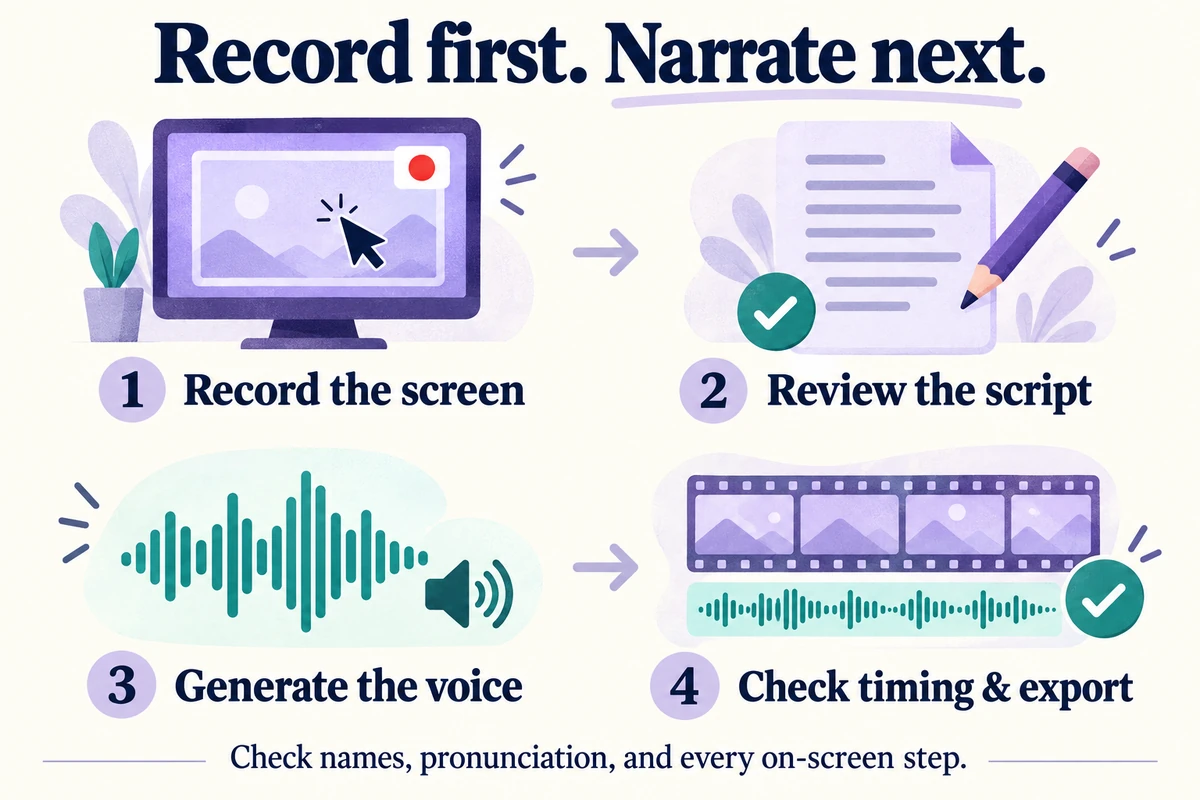
The narration is generated after capture, and you review the script before the voice is made.
Common Use Cases
- Reviving old recordings — add narration to screen captures from weeks or months ago
- Loom recordings — upgrade silent Loom exports with AI voice
- Sprint demo recordings — turn informal demo recordings into polished tutorials
- Support screenshots — record a quick walkthrough and let AI explain it
- Training content — create onboarding videos from existing workflow recordings
Getting Started
Add AI voice to a screen recording right now:
- Pick any silent screen recording from your files
- Upload to vorec.ai — 100 free credits
- AI generates narration from the recording
- Export your narrated tutorial
Your silent recordings are sitting there unused. Give them a voice.
Related reading: What Is Freeze-Sync in Video Editing?, What Is AI Narration? and How to Automate Tutorial Video Creation with AI.