Copilot Vision: What It Sees and What It Won't Do (2026)
Vorec Team · 2026-10-06 · About 7 min read
You're stuck in a settings screen, and the person who knows the answer is in another meeting. Microsoft's pitch for Copilot Vision is that you share the screen with Copilot instead, ask out loud, and get talked through it.
That's a real change in how people get help with software. It also raises a practical question for anyone who writes training material: if an assistant can look at the screen and explain it, do you still need recorded tutorials?
This page sets out what Copilot Vision does according to Microsoft's own documentation, what it doesn't do, and where it fits next to a recorded walkthrough.
Checked 6 October 2026 against Microsoft's support pages: Get started with vision, Use vision, How vision works and Supported languages. None of those pages displayed a publication date. We didn't run a Vision session ourselves, so everything below is Microsoft's description of the product, not our test of it. The header image is a screenshot of Microsoft Support's "Get started with vision in Microsoft Copilot" page, captured 6 October 2026; it shows documentation, not an in-product session.
What Copilot Vision Is
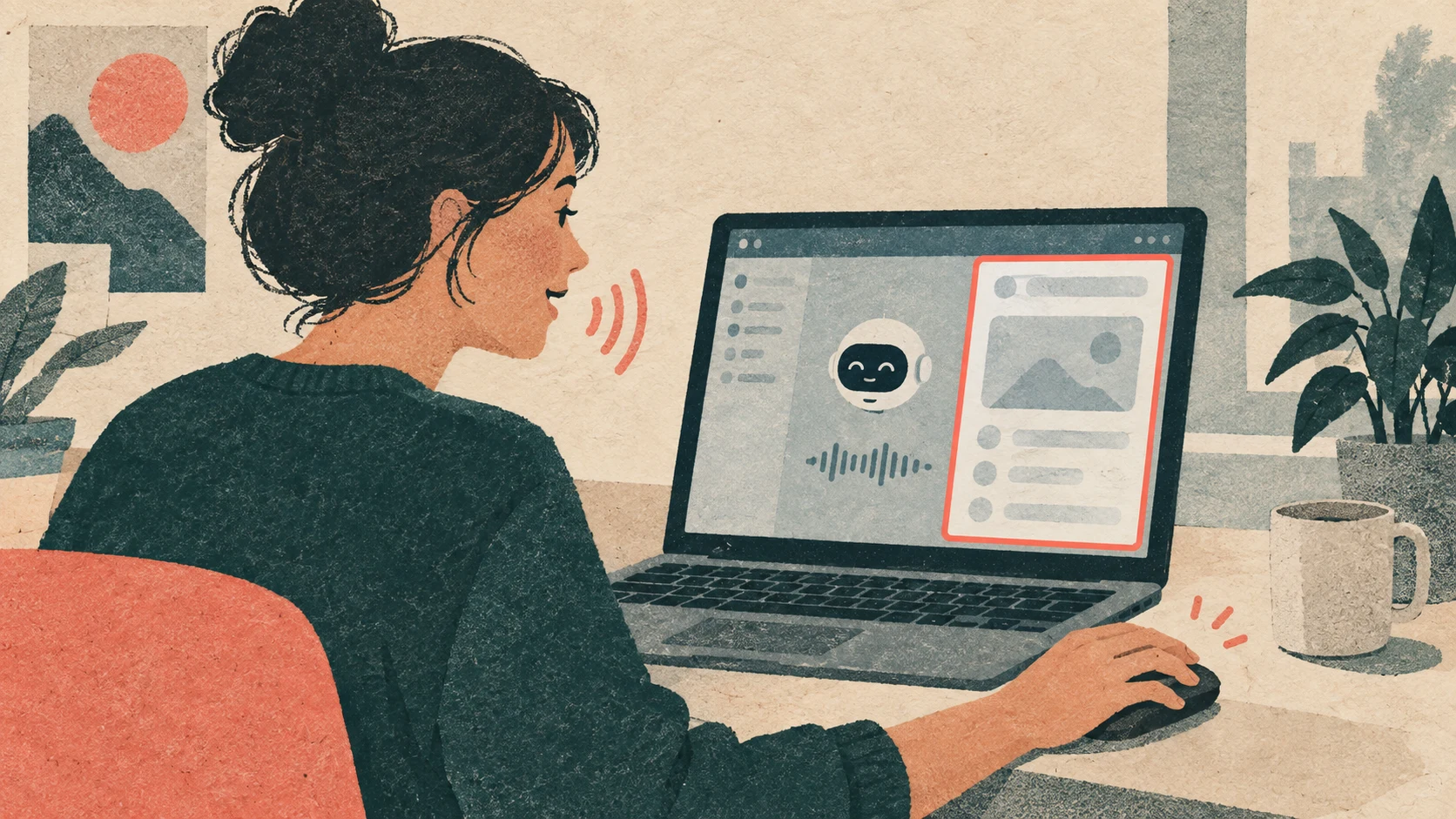
Copilot Vision lets Copilot see what you're sharing and talk to you about it. On a Windows or web desktop you share your entire screen or a specific window; on mobile you share the camera. Microsoft says Vision is "only available during a voice conversation with Copilot", so it works through speech and needs a microphone.
Copilot then explains what it sees and answers questions about it. Microsoft says it "might highlight parts of the screen" to show you where to look.
The most important line on the getting-started page is about what it doesn't do:
Vision helps you understand what you're sharing, but it doesn't act for you.
It goes on to say Copilot won't click, type or scroll. That puts Vision in a different category from browser agents that operate a page for you, such as the ones in our computer-use agents explainer. Vision is a guide; you still do the clicking.
Who Can Use It
Microsoft's getting-started page names two routes:
| Account | What you need |
|---|---|
| Personal Microsoft account | A Microsoft 365 Personal, Family or Premium subscription |
| Work or school account | A Microsoft Copilot licence |
Earlier announcements described Vision as part of the consumer Copilot app, and you'll still find older articles that call it free. We'd go by the current support page, which lists these subscription and licence requirements.
On availability, Microsoft's supported-languages page says Copilot is offered in more than 170 markets, with exceptions including China (other than Hong Kong SAR) and embargoed markets. It also notes that new features can reach some markets and languages later than others, so being in a supported market doesn't guarantee every Vision feature is switched on for you.
How a Session Works
From Microsoft's "Use vision" page:
- Start a voice conversation with Copilot.
- Choose to share your entire screen or one window (desktop), or turn on the camera (mobile).
- Ask questions out loud. Copilot answers by voice and may highlight parts of the screen.
- Stop sharing to end its view. The voice chat can carry on without it.
Microsoft also notes that each conversation is independent and can't be resumed later. You can't pick up yesterday's session where you left off.
What Microsoft Says It Can't Do
The "How vision works" page lists the limits. In summary:
- It won't click, type or scroll for you.
- It can't read videos or animated GIFs. It processes shared screen or camera content "as a series of images".
- It's voice-only, and daily use is capacity-based and counted toward your voice usage.
- Switching windows quickly can confuse it about what you're asking about.
The video limit matters for training teams. If your how-to lives in a video playing on screen, Microsoft says Vision can't read it.
What Happens to What You Share
This is the section to read before using Vision on anything sensitive. Microsoft's "How vision works" page says:
- Shared screen and camera content is processed as images.
- Audio and video data are temporarily stored so you can give Microsoft feedback, and deleted after 48 hours.
- Text transcripts of your voice conversation are stored and managed like ordinary Copilot text conversations.
- Responses can also draw on your Microsoft 365 work data, depending on the account.
The page also says Microsoft doesn't keep the screen or camera context for long-term use and that feedback isn't used to train its foundation models. That statement is about Vision feedback specifically. We wouldn't stretch it into a claim about every Microsoft product or every kind of data.
If you'd share your screen in a support call, the same caution applies here. Close what doesn't need to be visible first. Our screen-recording privacy checklist covers the habits that carry over.

How It Got Here
Microsoft rolled Vision out in stages. These dates come from Microsoft's own blogs:
| Date | What Microsoft announced | Source |
|---|---|---|
| 4 April 2025 | Vision on mobile in the iOS and Android Copilot app; Windows Insider rollout to follow | Microsoft blog |
| 6 May 2025 | Vision on Windows for Insiders: share selected browser or app windows and get spoken coaching, starting in the US | Windows blog |
| 16 October 2025 | Vision on Windows expanded to all markets where Copilot is offered, with full desktop and app sharing and Highlights | Windows blog |
These are announcements, not a description of what's available today. Product names and plan requirements have changed since, so the current support pages above take priority.
Live Guidance vs a Recorded Tutorial
The question for anyone producing training content is whether an on-screen assistant replaces the recorded walkthrough. Our reading of Microsoft's documentation is that the two do different jobs. This is our analysis, not a Microsoft claim:
| Copilot Vision | Recorded tutorial | |
|---|---|---|
| Best for | One person, stuck now, on their own screen | Many people learning the same workflow |
| Who explains | Copilot, from what it sees in that session | Your team, reviewed before anyone watches |
| Consistency | Answers can differ between sessions; each session is independent | Everyone sees the same steps |
| Accuracy control | You can't review an answer before the user hears it | You review and correct before publishing |
| Reusable | A live session can't be resumed later | Yes; link it, embed it, put it in onboarding |
| Requirements | Subscription or Copilot licence, microphone, voice chat | A player and a link |
| Format | A live service you talk to | A file you can download and play in any compatible player, or host where your team learns |
Vision is useful when someone's stuck on a screen nobody documented. A tutorial is useful when the workflow is known and you want everyone to do it the same way. Teams with good documentation will probably still find people asking Copilot, which is one more reason to record the workflows people ask about most.
Microsoft also says Vision can't read videos, so if a tutorial video is playing on the shared screen, Vision can't analyse that video itself. The two sit side by side rather than one replacing the other.
Where Vorec Fits
Vorec is for the second column: the walkthrough you record once and share widely.
Vorec records your screen. It has its own macOS recorder, and an AI agent can drive it for you through the Claude Code plugin, capturing locally for you to review before anything is uploaded. It then drafts narration matched to the workflow it captured and generates the voiceover, so nothing is spoken into a microphone. In the editor you can add smooth cursor motion, cursor-follow zoom and click-based auto-zoom, and freeze-sync can hold a frame to give an explanation time to finish. You can also generate a written step-by-step guide from the same capture, with annotatable screenshots. Narration regenerates in supported languages on eligible plans, without re-recording. You can upload an existing recording instead if you already have one.
Vorec doesn't offer live, in-app guidance on a user's own screen; that's what Vision is for. Plans start at $9 a month, after a 7-day trial with 100 credits and no credit card. Trial includes up to 3 projects; exports carry a watermark. See Vorec pricing.
Quick Answers
What is Copilot Vision?
A Microsoft Copilot feature that lets Copilot see a screen, window or camera view you share during a voice conversation, explain it and highlight parts of it. It doesn't click, type or scroll for you.
Is Copilot Vision free?
Microsoft's current support page lists a Microsoft 365 Personal, Family or Premium subscription for personal accounts, or a Microsoft Copilot licence for work and school accounts.
Does Copilot Vision record my screen?
Microsoft says shared content is processed as images, and audio and video data are temporarily stored for feedback and deleted after 48 hours. Voice transcripts are kept like other Copilot text conversations.
Can Copilot Vision watch a video?
No. Microsoft's "How vision works" page says Vision can't read videos or animated GIFs.
Related: Computer-use agents explained, AI agents and screen recording, Playwright MCP and Google Vids for tutorials.
Want the recording to narrate itself? Record with Vorec, or upload one you already have, and get a narrated tutorial plus a written guide. Start free.