Computer Use Agents: What the Vendor Docs Say (2026)
Vorec Team · 2026-09-28 · About 7 min read
Automating software through its graphical interface is not new — GUI test tools and scripted automation have done it for years. What is different about computer-use agents is who decides the next step. They look at a screenshot, decide where to click or what to type, do it, and look again.
Anthropic, OpenAI and Google each now document a way to build one. This post summarises what their own documentation says — the loop, the environments, and the safety guidance — and what it suggests for anyone who records, documents or trains people on software.
Checked on 28 September 2026. Each factual claim links to the vendor's own page. This area moves quickly; check those pages for anything newer than this date.
What is a computer-use agent?
A computer-use agent is an AI model connected to a real or virtual screen through three abilities: seeing (screenshots), pointing (mouse actions) and typing (keyboard actions). It can operate a program's graphical interface the way a person would, rather than requiring that program to offer an API. (The agent itself still talks to its model through an API, and agents can mix approaches.)
The vendors describe the same basic loop:
- The application sends the model a task and a screenshot.
- The model returns one or more actions — click at these coordinates, type this text, scroll, press a key.
- The application executes those actions in its environment and captures a new screenshot.
- Repeat until the task is done or the model stops asking for actions.
Anthropic's computer use tool documentation names this repetition, without user input between turns, "the agent loop". Google's Gemini API computer use documentation describes the same cycle: a request with a screenshot, a function-call response describing the action, client-side execution, and a new screenshot sent back. OpenAI's computer use guide describes a screenshot → actions → updated screenshot loop as well.
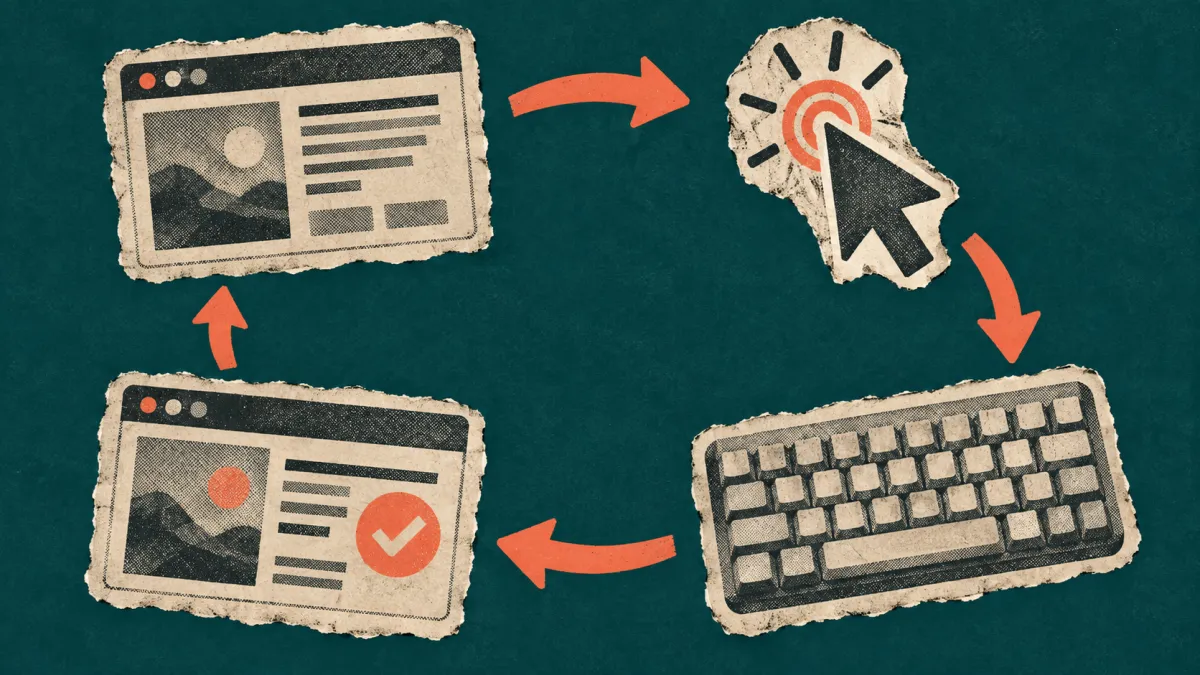
A point that is easy to miss: in all three, your application executes the actions. The model proposes clicks and keystrokes; your code performs them in an environment you control. That is why the safety guidance below is written for developers, not end users.
What each vendor documents
| Anthropic (Claude) | Google (Gemini API) | OpenAI | |
|---|---|---|---|
| Source | Computer use tool docs | Computer use docs | Computer use guide |
| Interface described | Screenshot, mouse and keyboard control of a desktop environment | Browser, mobile and desktop environments | Browser and desktop interfaces |
| Approach notes | Docs describe a reference environment on a virtual X11 display | Model may return a safety decision with a proposed action; the client must handle it (see below) | Documents two paths: a structured computer tool, or the model writing code against a library such as Playwright or PyAutoGUI |
| Status as documented | Current toolset listed for the Claude API and Google Cloud; beta on some other platforms (per the docs page) | Labelled a preview capability | Documented in the API guide |
This is not a capability ranking. The vendors publish different benchmarks under different conditions, and we have not run a comparison of our own, so we are not making one.
For context on how fast this moves: when Google announced its Gemini 2.5 Computer Use model on 7 October 2025, it described the model as primarily optimized for web browsers and not yet optimized for desktop OS-level control. Google's current documentation lists desktop as a supported environment and treats the 2.5 model as legacy. Dates on this kind of claim matter.
The safety guidance — in the vendors' own terms
Each vendor pairs the capability with explicit guidance, and the guidance overlaps more than it differs.
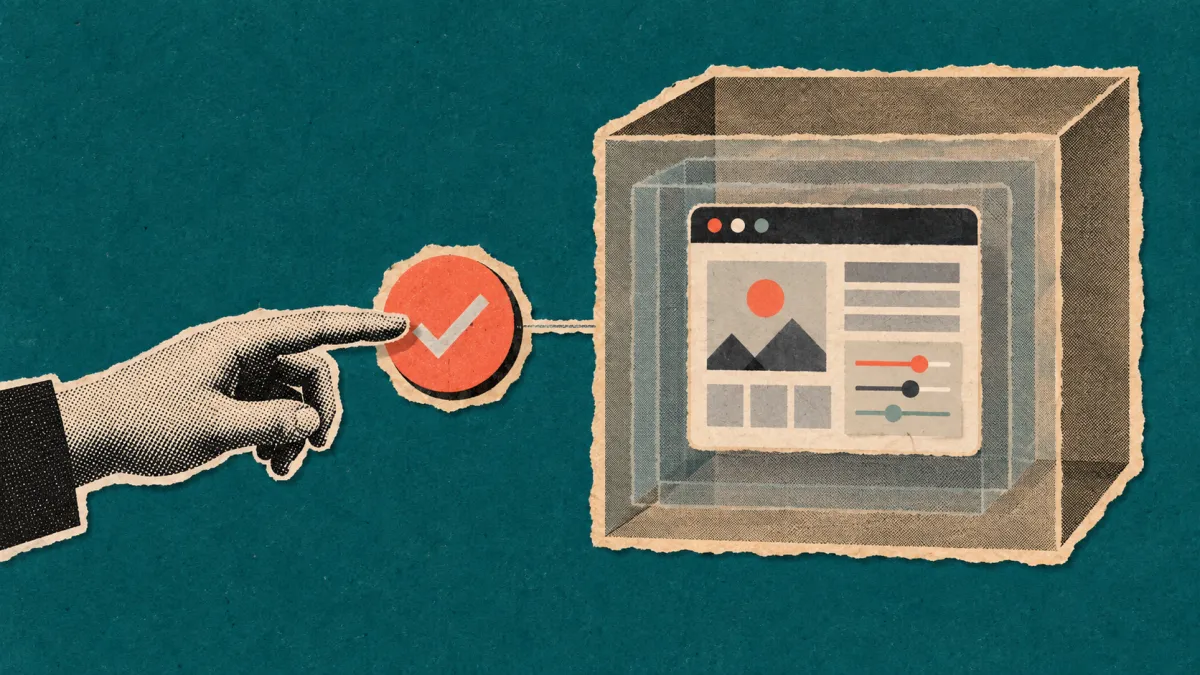
Isolate the environment. Anthropic recommends a dedicated virtual machine or container with minimal privileges, and limiting internet access to an allowlist of domains. OpenAI's guide recommends an isolated browser or VM and an allow list of sites and actions.
Keep a human on consequential actions. Anthropic recommends human confirmation for tasks requiring affirmative consent, naming accepting cookies, completing financial transactions and agreeing to terms of service. OpenAI's guide says to keep users in control of purchases, data transmission and destructive changes. Google's documentation describes the model's response possibly including a safety decision with a proposed action — allowed, requiring confirmation, or blocked — and says clients must implement handling for it, halting until a user approves when confirmation is required.
Bound the run and check the result. OpenAI's guide recommends step, time or cost limits, support for cancellation, and checking the actual outcome rather than trusting that the task succeeded.
Treat the screen as untrusted input. A page the agent is looking at can contain text written to manipulate it. Anthropic's docs describe prompt-injection classifiers that scan tool results; OpenAI's guide says to treat screen content as untrusted.
Expect errors. Google's documentation labels computer use a preview capability that may contain errors and security vulnerabilities.
None of the three guides we reviewed presents computer use as something to point at a production account unsupervised.
What this means for teams that document software
This is our reading of the implications, not a claim any vendor makes.
1. Your UI is now read by two audiences
A computer-use agent works from what is visible on screen. So does a new employee following a tutorial. Clear, consistent button labels, predictable navigation and visible state changes help both. Documentation habits that help humans — using the exact on-screen label, saying what should appear after each step — also make a flow easier to describe to an agent.
2. "Watch it happen" becomes a review format
When an agent operates software, the loop produces screenshots and actions — but they are only available to review if the application keeps them. Retaining that record is the implementer's job. Where it exists, reviewing it is much like reviewing a screen recording: you are checking that each step did what it should. Teams that already review recorded walkthroughs have the right habit for it.
3. Scripted replay and computer use solve different problems
Not every agent that touches a UI is a computer-use agent. It is worth knowing which one you have.
| Computer-use loop | Scripted replay | |
|---|---|---|
| How actions are chosen | Model decides each step from the latest screenshot | Steps written in advance, executed in order |
| Good at | Unfamiliar or changing interfaces; open-ended tasks | Repeating a known flow in a consistent order |
| Main risk | A wrong decision mid-task | A script that no longer matches the UI |
Vorec's agent recording workflow is the scripted kind. An AI coding agent such as Claude Code or Codex explores your app first and writes a manifest of actions — click this element, type this text — and by default `vorec run` refuses to record unless each selector-based action has a matching discovery record marked verified, with a note of what changed on screen (a flag skips the check for people driving the CLI by hand). That check confirms the records exist; it does not prove each action worked, which is one reason you review the take before `vorec analyze` uploads it and drafts the narration. The CLI replays the manifest during capture with Vorec's macOS recorder. For a tutorial, a scripted flow is easier to repeat when you re-record after a UI change — though the script still has to be checked against the changed UI.
We explain that workflow in using any coding agent to record your app demo, and the skill that drives it in what are Agent Skills.
FAQ
What is a computer use agent?
An AI model that operates software through its graphical interface — reading screenshots and sending mouse and keyboard actions — rather than requiring the software to offer an API.
Which is the best computer use agent?
We can't give you a sourced answer. Vendors publish different benchmarks under different conditions, and the right choice depends on whether you are automating a browser, a desktop app or something else. Start from each vendor's documentation of what their model is optimised for.
Are computer-use agents safe to run on my own computer?
The vendors' own guidance is to run them in an isolated environment — a VM, container or isolated browser — with limited network access, human confirmation for consequential actions, and limits on how long or how far a run can go.
Can a computer-use agent record a tutorial?
An agent operating a screen can be recorded like any other screen. Whether that makes a good tutorial is a separate question: tutorials benefit from a repeatable, reviewed flow, which is why scripted replay suits them.
Related reading: What Is the Model Context Protocol?.
Want an agent to record your tutorials — and a human to approve them? Record with Vorec — it has its own macOS recorder, and Claude Code or Codex can drive it, capturing locally for you to review before anything is uploaded — or upload a recording you already have. Vorec drafts narration matched to the workflow it captured and generates the voiceover, so nothing is spoken into a microphone. The same capture can also produce a written step-by-step guide. Start free — 7-day trial, 100 credits, no credit card required. Trial includes up to 3 projects; exports carry a watermark.