Google Vids for Tutorials: What It Does in 2026
Vorec Team · 2026-10-04 · About 8 min read
Google Vids started as a work app for paying Google Workspace customers. Google's current help pages say anyone with a Google Account can use it. Personal accounts get a small monthly pool of credits for AI features like voiceovers, and Workspace and Google AI plans get higher limits.
That change put a video editor in front of a lot of people who make how-to videos: trainers, support teams and teachers. If you make tutorials or screen recordings, it's fair to ask what Vids actually does and where it stops.
This guide answers that from Google's own help pages and official announcements only. It covers what Vids is, its recording studio, AI voiceovers, availability by account type, and where it fits for tutorials.
Checked on 4 October 2026. Google updates Vids often, and its pages don't always agree with each other on details like language counts. Where they differ, we say so. Treat the linked Google pages as the source of truth.
What is Google Vids?
Google's general availability announcement (7 November 2024) called Vids "an AI-powered video creation app for work". It said Vids was designed to help teams in customer service, learning and development, project ops and marketing tell stories through video.
It lives in Google Workspace next to Docs, Sheets and Slides. You build a video as a sequence of scenes. You can share and collaborate on it like any other Workspace file.
The launch announcement listed these core features:
- "Help me create": generates an editable first storyboard from a prompt and a Google Drive document.
- Templates organized around use cases.
- A stock content library of media assets.
- AI voiceovers using preset voices, or your own recorded voice.
- A recording studio for video, screen and audio-only recordings.
- A teleprompter with read-along.
What the recording studio can do
For tutorials, the recording studio matters most. Google's recording help page lists four recording types:
| Recording type | What Google says it captures |
|---|---|
| Camera | Video and audio from your computer's camera and microphone |
| Camera and screen | Camera, microphone and your computer screen |
| Screen | Your screen with system audio |
| Voiceover | Audio only, from your microphone |
Limits worth knowing, from the same page:
- 10 minutes maximum for any single recorded video or audio clip.
- Up to 50 audio objects per video. Music clips, sound effects and voiceovers all count.
- Noise cancellation requires Chrome.
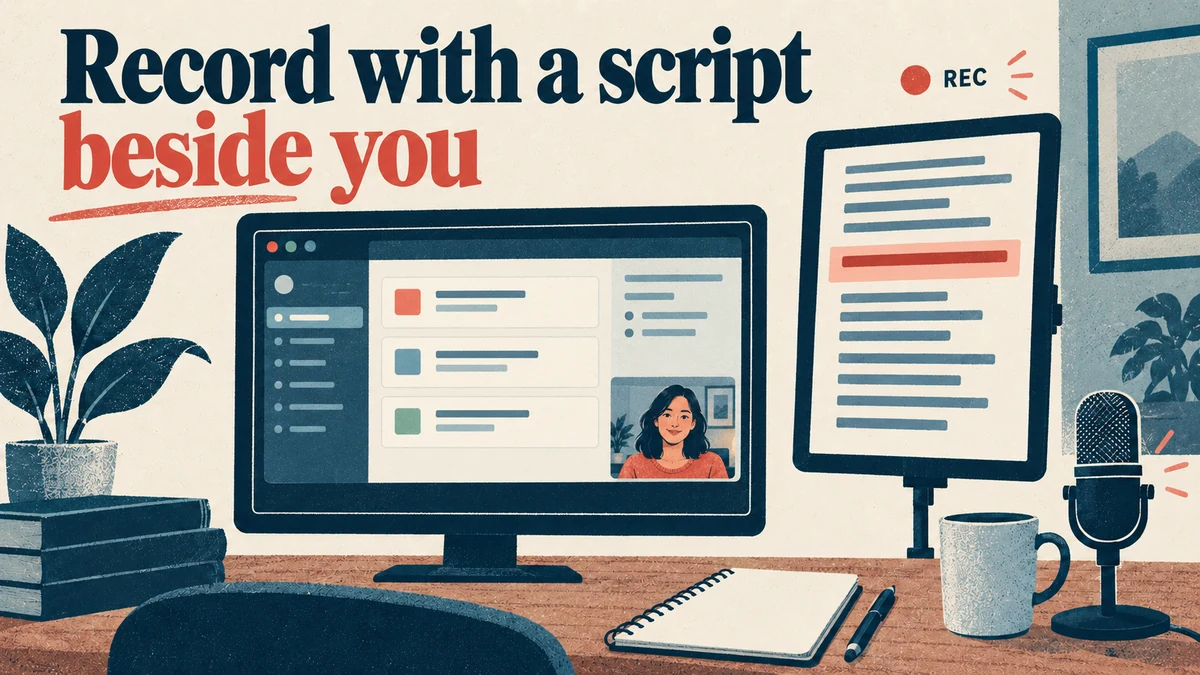
- Teleprompter modes (Read along, Rolling and Manual) are available with the Camera and Camera-and-screen options.
So Vids records a screen. The narration for that recording comes from you, through the microphone or the teleprompter, unless you use an AI voiceover instead.
How AI voiceovers work in Vids
Google's AI voiceover help page describes the flow:
- Open your video and click Voiceover.
- Choose Current scene or All scenes.
- Write your script in the text box.
- Click Insert voiceover, pick a voice, and confirm.
The page sets these limits:
- Access depends on your account. The page's banner says the feature needs an eligible Google Workspace or Google AI plan. Google's more specific availability page also lists personal accounts, where each AI voiceover costs 1 credit from a shared 50-credit monthly pool.
- Scripts can't exceed 2,500 characters.
- Plain text only, without emojis or symbols.
- Audio tags: typing "[" opens a menu for pace, pauses, emotion, style and sounds.
On languages, Google's pages don't agree. When we read them, the voiceover help page listed 23 languages, while the Vids product page mentioned 24 languages for avatars and AI voiceovers. Google's feature availability page also says many AI features in Vids are only available in English at this time. Check the pages for the language you need.
Where does the script come from? The documented voiceover workflow takes a script for one scene or all scenes, which you can write yourself. The same help page says you can also generate a script with AI, for voiceovers, video clips and narrated screen recordings, and that a video made with "Help me create" automatically gets a voiceover. The pages we read don't say whether Vids drafts a tutorial script by analysing the actions in a screen recording.
Is Google Vids free?
Yes, to start. Google's product page says you can use Vids at no cost with a Google Account, with expanded features and limits on Workspace or Google AI plans. Access has widened in stages:
| Date | Source | What changed |
|---|---|---|
| 7 Nov 2024 | Workspace Updates | Generally available to listed Workspace business, enterprise and education editions and Gemini add-ons |
| 27 Aug 2025 | Google blog | "The basic Vids editor — all the tools you love, just without AI capabilities — will be available to consumers at no cost" |
| 4 Feb 2026 | Workspace Updates | Read-along teleprompter, transcript trim and styled captions expanded to all Workspace customers, Workspace Individual subscribers and personal Google accounts |
The August 2025 quote is history now: the availability help page we read lists AI features for personal accounts too. For AI voiceovers specifically, it showed:
- Unlimited on Workspace Business and Enterprise Starter, Standard and Plus; Essentials, Enterprise Essentials and Enterprise Essentials Plus; Nonprofits; Education Plus; and Google AI Pro and Ultra.
- 1 credit per voiceover, from a shared 50-credit monthly pool, on personal accounts, Workspace Individual and Google AI Plus. The page says monthly credits don't roll over.
- No entitlement marked for some editions, including Essentials Starter and Education Fundamentals. On Frontline, Gemini in Vids is unavailable.
The same page lists separate caps for AI avatars, AI video clips and image generation. Those change, so read them there. On work and school accounts, administrators can also turn Vids or its AI features off, so a plan alone doesn't guarantee access.
Where Google Vids fits for tutorials
Here's our reading of the documentation above, not Google's statement.
Vids is a strong fit when:
- Your team already works in Google Workspace and wants video to sit beside Docs and Slides.
- The video is mostly presenter-led: an update, an announcement, or a talk over slides.
- You're happy to write, generate or speak the narration script, with the teleprompter helping.
- Clips stay under the 10-minute recording limit, or you can stitch scenes together.
It's a weaker fit when:
- You want narration drafted from the clicks and steps in a screen recording. The help pages describe scripts that you write or generate with AI, but they don't say whether Vids reads the actions in a recording to do it.
- A recording runs past 10 minutes in a single take.
- You need narration in a language the AI voiceover doesn't support.
Vids vs a recording-first tutorial tool
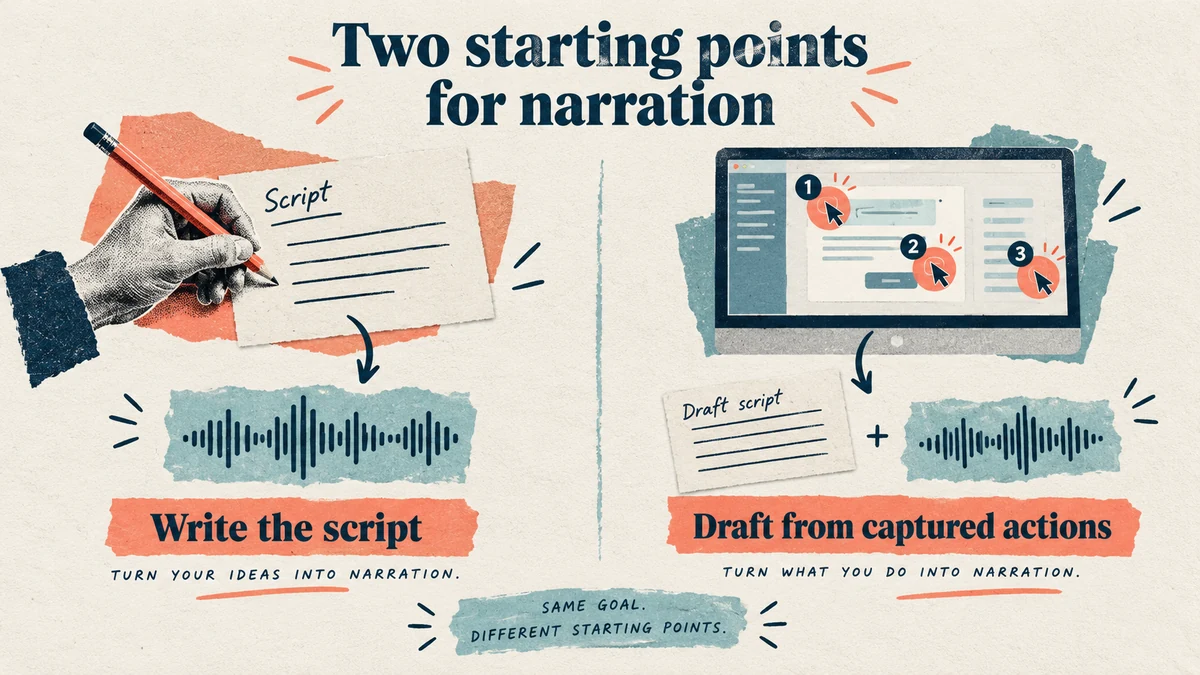
The underlying difference is where the narration comes from:
| Google Vids (per its help pages) | Recording-first tutorial tools | |
|---|---|---|
| Starting point | Scenes, a prompt or a Doc, or a recording | A screen recording of the workflow |
| Narration source | You speak it, or write or AI-generate a script for AI voiceover | Drafted from the captured workflow, then edited |
| AI voiceover script limit | 2,500 characters | Varies by tool |
| Single recording limit | 10 minutes | Varies by tool and plan |
| Lives in | Google Workspace | The tool's own editor and exports |
Neither approach is universally better. If you start from slides, a prompt or a document, Vids is built around exactly that. If you start from a recording of software, a tool that drafts narration from the captured workflow saves you from scripting each step.
For a broader comparison, see our guide to screen recording software with AI narration and our explainer on what AI narration is.
Where Vorec fits
Vorec records your screen. It has its own macOS recorder, and an AI agent can drive it for you through the Claude Code plugin, capturing locally for you to review before anything is uploaded. It then drafts narration matched to the workflow it captured and generates the voiceover, so nothing is spoken into a microphone.
In the editor you can add smooth cursor motion, cursor-follow zoom and click-based auto-zoom, and freeze-sync can hold a frame to give an explanation time to finish. The same capture can also produce a written step-by-step guide, with annotatable screenshots. Narration regenerates in supported languages on eligible plans, without re-recording. You can upload an existing recording instead if you already have one.
Vorec focuses on narrated software tutorials and written guides. Teams who want video to live inside Google Workspace beside their Docs and Slides should evaluate Vids.
FAQ
Is Google Vids free to use?
You can start at no cost with a Google Account, per Google's product page. Personal accounts get a 50-credit monthly pool for AI features, where one AI voiceover costs 1 credit, per the availability help page. Workspace and Google AI plans raise the limits.
Can Google Vids record my screen?
Yes. The recording studio has a Screen option that records your screen with system audio, and a Camera-and-screen option. Each recorded clip can be up to 10 minutes.
Does Google Vids have AI voiceovers?
Yes. You enter a script of up to 2,500 characters, written by you or generated with AI, then pick a voice and insert it. Audio tags let you adjust pace, pauses, emotion and style. Limits depend on your account: unlimited on many Workspace and Google AI plans, and 1 credit per voiceover on personal accounts.
Can Google Vids write narration for a screen recording?
The voiceover help page says you can generate a script with AI for narrated screen recordings, or write your own. "Help me create" can also generate a script and voiceover. The pages we read don't say whether the script is drafted from the actions in the recording itself.
How long can a Google Vids recording be?
Ten minutes per recorded video or audio clip, per Google's recording help page.
Can I export Google Vids to YouTube?
Yes. Google's product page says you can upload a video directly to YouTube from Vids, and that exported videos default to private.
Want the recording to narrate itself? Record with Vorec, or upload one you already have, and get a narrated tutorial plus a written guide. Start free. 7-day trial, 100 credits, no credit card required. Trial includes up to 3 projects; exports carry a watermark. Paid plans start at $9/month.