NotebookLM Video Overviews: What They Make (2026)
Vorec Team · 2026-10-05 · About 9 min read
You drop a stack of PDFs into a notebook, click one button, and a narrated video explaining them comes back. That is the promise of Video Overviews in NotebookLM, and it is why trainers, teachers and documentation teams keep asking whether it can replace the tutorial videos they make by hand.
The short answer: it makes a different thing. A Video Overview explains what your sources say. It doesn't record your software or the clicks you make in it. This guide covers what Google's own help pages say the feature does, what goes in, what comes out, and where it fits next to screen-recorded tutorials.
Checked on 5 October 2026. Google changes this product often, including its name. Every factual statement below comes from a Google help page or Google announcement, linked in place. Treat those pages as the source of truth if anything here has since changed.
First: NotebookLM is now called Gemini Notebook
On 16 July 2026, Google announced it was renaming NotebookLM to Gemini Notebook. The announcement calls it "the same standalone product", now connected to the Gemini app and, soon, AI Mode in Search. The same post says more than 30 million people and over 600,000 organizations use it. That is Google's own figure.
Most people still search for "NotebookLM", and Google's older announcements use that name, so this guide uses both. The help center now lives under the Gemini Notebook name.
What is a Video Overview?
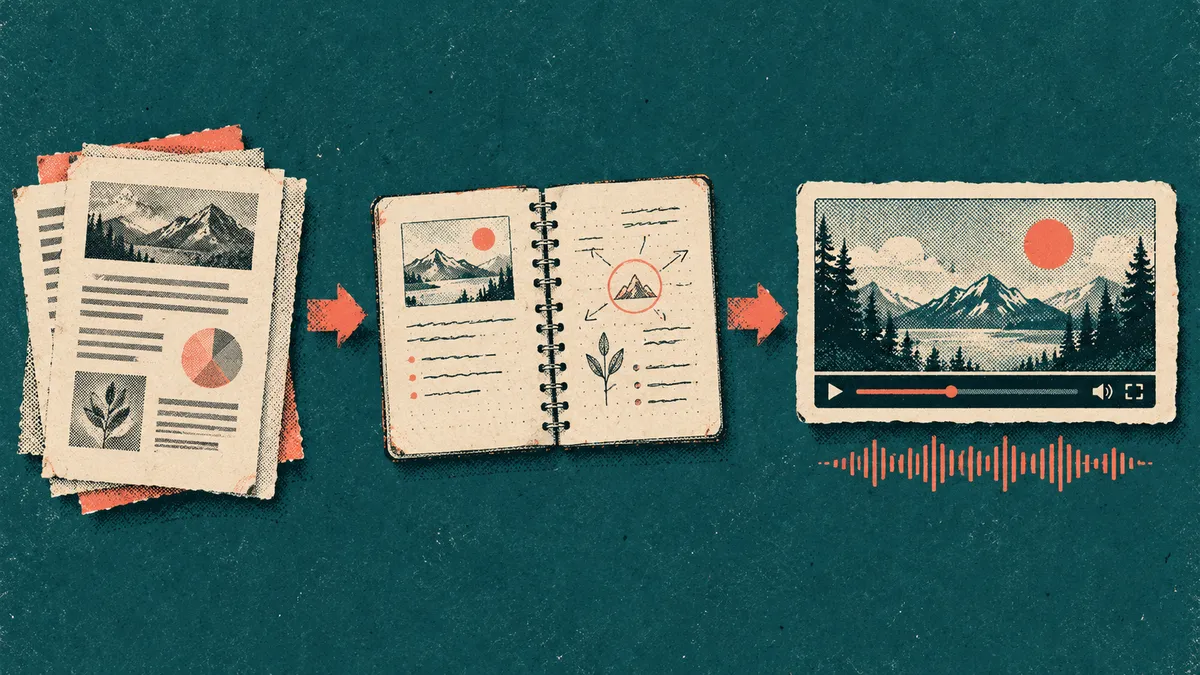
Google's Video Overviews help page says Video Overviews "transform the sources in your notebook into an engaging video". In practice, you pick sources, choose a format and style, and the app generates a narrated video with AI-generated visuals.
The steps, per that page:
- Open a notebook and add sources. You need edit access to generate or delete a Video Overview.
- In the Studio panel, select Video Overview.
- Optionally set the format, language, visual style and a steering prompt (a topic to focus on).
- Select Generate. The video renders in the background, so you can keep working.
Two warnings on that page are worth taking seriously. Video Overviews, "including voices and visuals, are AI-generated and may contain inaccuracies or audio glitches". And generation can take "more than 30 minutes".
The three formats
The help page lists three formats today:
| Format | What Google says it is | Restrictions Google lists |
|---|---|---|
| Cinematic | "A rich, immersive experience" with engaging visuals and storytelling | Users 18+ only; English narration only |
| Explainer | "A structured, comprehensive overview that connects the dots within your sources" | None listed beyond supported languages |
| Short | Key concepts "in ~60 second videos" | None listed beyond supported languages |
Google's October 2025 announcement introduced a short format under the name "Brief". The current help page calls it "Short". If you read older coverage, that is the same idea under an earlier label, as far as we can tell from the two pages.
Visual styles and languages
Styles. The help page lists Classic, Whiteboard, Watercolor, Retro Print, Heritage, Paper-craft, Kawaii and Anime. You can also let the app auto-select a style, or choose Custom and describe your own look. Style selection is only for users 18+, and it excludes the Cinematic and Short formats.
The October 2025 announcement says these illustrations are generated with Nano Banana, Gemini's image-generation model.
Languages. Google announced Video Overviews in 80 languages on 25 August 2025. The current help page lists 80 entries for Explainer Video Overviews and a separate list of 73 entries for Short. Some entries are regional variants (for example, two forms of Arabic), so entry counts are not the same as distinct languages. Cinematic supports English only.
What you can feed it, and what you can't
This is the part that matters most for anyone who makes software tutorials. Google's sources help page lists the supported source types:
- Audio files (MP3, WAV and others)
- Copied and pasted text
- Google Docs, Google Slides (up to 100 slides) and Google Sheets (up to 100k tokens)
- Images
- Word, text, Markdown, PDF, CSV and PowerPoint files
- Play Books, web URLs and ePub files
- YouTube URLs of public videos
- Gemini chats
Each source can hold up to 500,000 words or 200MB for uploaded files. Free users can add up to 50 sources per notebook.
Now the detail. For YouTube, the page says only public videos with captions are supported, "only the text transcript of the video is imported", and "videos without speech aren't supported". For local audio files, the file is transcribed on import and its text is saved; MP4 is in the list of accepted file types, and "audios with no speech aren't supported". For web pages, only the text is scraped; images and embedded videos are not imported.
Put those rules together and you get a specific boundary. The two documented ways to bring in a video, a YouTube link or a local file, both import a speech transcript, not the video frames. A silent screen recording of someone clicking through an app has no speech, so by Google's own rules it can't come in through either path.
That doesn't mean a notebook can't know anything about your app. Images are a supported source type, so you can add screenshots, and you can add written steps as a document. Our reading of the help pages, not a statement Google makes: what a notebook knows about a procedure is what its supplied sources describe or show. The recording's clicks and timing don't carry over on their own.
Limits, plans and watermarks
Usage limits. Google's usage limits page says limits are compute-based. They factor in the features you use, and the quota "refreshes every 5 hours until you reach your weekly limit". It gives multiples rather than counts:
| Plan | Limit, per Google |
|---|---|
| No plan | Standard limits |
| Google AI Plus | Two times standard |
| Google AI Pro | Four times standard |
| Google AI Ultra | 5x or 20x AI Pro, depending on subscription |
Google doesn't publish a fixed number of Video Overviews per day on that page. Instead, the Studio panel shows the expected usage cost before you generate. If you are out of quota, a web-only Generate later option queues the job.
Watermarks. The plans page says outputs made with Veo, Omni or Nano Banana carry invisible SynthID watermarks. It also says a visible watermark is added to generated images and videos. Eligible Google One AI Pro and Ultra subscribers can control it with a "Visible watermarking" toggle. The same page says a visible watermark is applied automatically for people residing in India, South Korea or Vietnam.
Sharing. You can share a link, share the whole notebook, or download the video. Public link sharing is only enabled for consumer accounts; the help page says it is disabled for Workspace Enterprise and Education accounts.
Video Overviews vs a screen-recorded tutorial
These tools answer different questions, so a side-by-side helps:
| Video Overview | Screen-recorded tutorial | |
|---|---|---|
| Starts from | Your sources: documents, slides, images, web text, speech transcripts | A recording of the actual software |
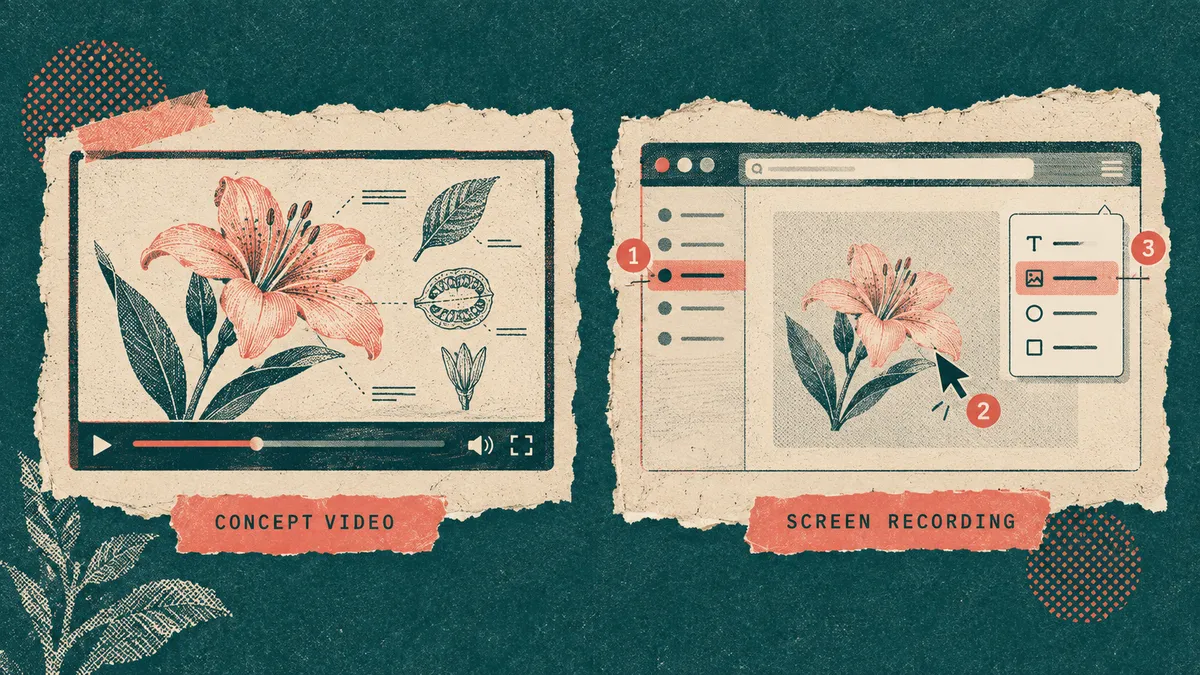
| Visuals | AI-generated illustrations in a chosen style | Your real interface |
| Best at | Explaining concepts, summarizing a document set | Showing exact clicks, menus and screens |
| Accuracy caveat | Google warns of possible inaccuracies in voices and visuals | Shows what happened on screen; narration still needs checking |
| Silent recording as input | Not via the YouTube or audio-file import paths, which require speech | The usual starting point |
A good way to use both: put your product docs or release notes in a notebook and generate an Explainer to cover why a feature exists. Then record the how, the actual walkthrough, as a screen recording. A learner gets the concept in a couple of minutes and the procedure in a video that matches the real UI.
When a Video Overview is the right tool
Based on what Google documents, Video Overviews suit:
- Onboarding to a body of knowledge. Policies, product background or a research pack, turned into a short explainer.
- Study material. Google's own August 2025 announcement uses lecture footage and dense presentations as examples.
- Multilingual summaries. Explainer supports the 80-entry language list, so one source set can yield summaries in several languages.
They are a weak fit when the viewer must reproduce exact steps in an interface. Generated illustrations aren't your UI. Google also tells you the output may contain inaccuracies, so anything procedural needs checking against the real product.
If you are weighing AI tools that work on video directly, our guide to Gemini video understanding covers how Google's models read video files, and Google Vids for tutorials covers Google's own video editor with a recording studio.
Where Vorec fits
Vorec starts where a Video Overview can't: the screen recording itself. Vorec records your screen. It has its own macOS recorder, and an AI agent can drive it for you through the Claude Code plugin, capturing locally for you to review before anything is uploaded.
It then drafts narration matched to the workflow it captured and generates the voiceover, so nothing is spoken into a microphone. That means a silent recording is a normal input, not an unsupported one.
In the editor you can add smooth cursor motion, cursor-follow zoom and click-based auto-zoom, and freeze-sync can hold a frame to give an explanation time to finish. The same capture can also produce a written step-by-step guide, with annotatable screenshots. Narration regenerates in supported languages on eligible plans, without re-recording. You can upload an existing recording instead if you already have one.
Vorec focuses on narrated software tutorials and written guides. Teams that want AI summaries of a document collection should evaluate Gemini Notebook's Video Overviews, and the two work well side by side.
FAQ
Is NotebookLM the same as Gemini Notebook?
Yes. Google announced on 16 July 2026 that NotebookLM was renamed Gemini Notebook and described it as "the same standalone product".
Can NotebookLM make a video from a screen recording?
Not from a silent one, through the documented import paths. Google's sources help page says YouTube imports use only the text transcript and that videos without speech aren't supported. Local audio files (MP4 is on the accepted list) are transcribed, and audio with no speech isn't supported. You can still add screenshots as image sources, or your steps as a document.
How long does a Video Overview take to generate?
Google's help page says it "may take a while", sometimes more than 30 minutes. It generates in the background.
How many Video Overviews can I make?
Google's usage limits page doesn't give a fixed count. Limits are compute-based, refresh every 5 hours up to a weekly limit, and scale with your Google AI plan (Plus 2x, Pro 4x, Ultra 5x or 20x Pro).
What languages do Video Overviews support?
The help page lists 80 entries for Explainer and 73 for Short, including regional variants. Cinematic Video Overviews support English only.
Do Video Overviews have a watermark?
Google's plans page says generated images and videos get a visible watermark, plus invisible SynthID watermarks for outputs made with Veo, Omni or Nano Banana. Eligible AI Pro and Ultra subscribers can control the visible watermark, except in India, South Korea and Vietnam, where it is applied automatically.
Want the recording to narrate itself? Record with Vorec, or upload one you already have, and get a narrated tutorial plus a written guide. Start free. 7-day trial, 100 credits, no credit card required. Trial includes up to 3 projects; exports carry a watermark. Paid plans start at $9/month.