Gemini Video Understanding: How It Reads Video (2026)
Vorec Team · 2026-10-02 · About 10 min read
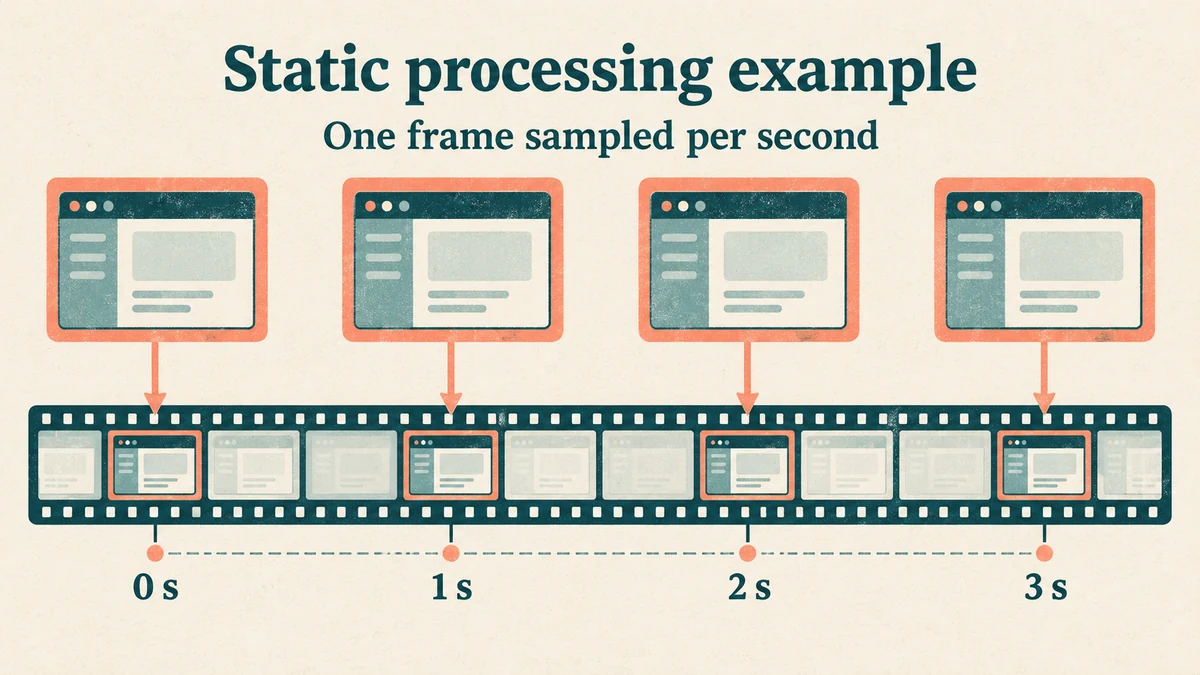
By default, Google's Gemini API doesn't watch a video the way you do. In its default static processing, it samples still frames at 1 frame per second, turns each frame into tokens, adds the audio track, and reasons over that. Something that happens between two sampled frames may never reach the model.
That matters for any video with quick events. It matters especially for screen recordings, where the important event is often a click that lasts a fraction of a second.
This post explains how video understanding works in Google's Gemini API, using only Google's own documentation: how you send video, how frames are sampled, what it costs in tokens, and the two processing modes. Then we look at what those mechanics mean for screen recordings and tutorials.
Checked on 2 October 2026 against Google's video understanding guide, which showed "Last updated 2026-09-23 UTC" when we read it. Model names and limits change in this area, so treat that page as the source of truth.
What is Gemini video understanding?
Google's guide says Gemini models can process videos to describe and segment them, extract information, answer questions about their content, and refer to specific timestamps. The guide's opening example uploads a video and asks the model to summarize it, then write a quiz with an answer key based on what it saw.
The guide also says plainly that "All Gemini models can process video data." What differs between models is how they process it. More on that below.
How do you send a video to Gemini?
The guide lists four input methods:
| Input method | Max size | Google's recommended use |
|---|---|---|
| File API | 20 GB (paid) / 2 GB (free) | Large files (100 MB+), long videos (10 min+), reusable files |
| Cloud Storage registration | 2 GB per file, no storage limits | Large, long, persistent, reusable files |
| Inline data | Under 100 MB | Small files, short duration (under 1 min), one-off inputs |
| YouTube URLs | — | Public YouTube videos |
Google recommends the File API "for most use cases". The guide gives two inline figures in different places. The table above lists inline data at under 100 MB. The code-sample section says inline data suits "shorter videos under 20MB total request size", and to always use the File API when the total request (file, prompt and instructions) is larger than 20 MB, when the video is long, or when you plan to reuse it. Our reading: if you're near either figure, use the File API.
YouTube input has its own rules. The guide marks it as a preview feature "available at no charge", with pricing and rate limits "likely to change". Only public videos work, not private or unlisted ones. The free tier is capped at 8 hours of YouTube video per day. Gemini 2.5 and later models accept up to 10 videos per request, and earlier models accept one.
Supported file types include `video/mp4`, `video/mov`, `video/webm`, `video/mpeg`, `video/avi`, `video/wmv`, `video/x-flv`, `video/mpg` and `video/3gpp`.
How does Gemini sample frames?
By default, according to the guide, "the model samples the video at a rate of 1 frame per second (FPS)." Google adds a caveat in the same paragraph: this rate "works well for most content", but "it may miss details in videos with rapid motion or quick scene changes." The technical-details section repeats it: "fast action sequences might lose detail due to the 1 FPS sampling rate."
You can change two things, and both only in static mode:
- Custom frame rate. The guide's example sets `fps` to 0.5 to sample one frame every two seconds.
- Clipping. You can set `start_offset` and `end_offset` so the model only processes part of the video.
Audio is processed alongside the frames. For static mode, the guide's own wording is that audio "is processed at 1Kbps (single channel)" and that "timestamps are added every second". That describes how Google processes the audio, not a requirement for the file you upload.
How many tokens does a video cost?
Video is billed as tokens, so length and resolution drive cost. The guide gives this breakdown for each second of video in static mode:
| Component | Tokens |
|---|---|
| Each frame, `media_resolution` low | 66 |
| Each frame, otherwise | 258 |
| Audio | 32 per second |
| Metadata | Included (no figure given) |
| Total (approximate) | ~100 per second at default (low) resolution, ~300 per second at high |
The guide also says models with a 1M-token context window can process videos up to 3 hours long at low media resolution, or up to 1 hour at high.
What that means for a typical recording (our arithmetic from Google's approximations): a 10-minute screen recording is 600 seconds. At about 100 tokens per second, that is roughly 60,000 tokens at the default resolution. At about 300 tokens per second, it is roughly 180,000 tokens at high resolution. Google calls these totals approximate, so treat the results as rough estimates. For money, multiply by the input price of the model you use on Google's pricing page.
Media resolution and small text
The `media_resolution` parameter sets the maximum number of tokens per frame. Google's guide states the trade-off directly: "Higher resolutions improve the model's ability to read fine text or identify small details, but increase token usage and latency."
Software interfaces are full of fine text: menu labels, field names, tooltips. Our hypothesis, which we haven't tested, is that higher media resolution is worth trying when a model misreads which button was pressed. It may not fix the problem. Under Google's static 1 FPS figures, it also roughly triples the per-second token count (about 300 instead of about 100).
Static vs agentic processing
The guide describes two processing modes:
| Static | Agentic | |
|---|---|---|
| How it works | Frames extracted at 1 FPS and loaded into context in a single pass | The model "dynamically navigates the video timeline, loading only the content it needs based on the prompt" |
| Google's description | "Works well for short clips." Best when every frame matters, such as frame-by-frame inspection | "Up to 88% more token-efficient and ~7% higher quality on long-form content" |
| Models | All Gemini models | Gemini 3.8 Flash, 3.7 Flash, 3.6 Flash and 3.5 Flash Lite |
| Custom FPS and clipping | Yes | No (static mode only) |
In agentic mode, the model can inspect transcripts selectively and adjust frame rate and resolution as it goes. Google's general advice is to "start with agentic mode, especially when optimizing for response quality or token efficiency," and it recommends agentic mode for long videos or questions about specific moments.
Two practical details from the guide:
- You can check which mode ran. The response's `steps` array includes `processing_call` and `processing_result` entries when the model navigated the video on its own.
- Follow-up questions need those steps. In stateless use, you must pass every step back in your next request to keep the video context. Leaving them out "does not currently return an API error", but the context is lost and follow-up answers get much worse. Those returned steps also count as input tokens.
The "88%" and "7%" figures are Google's own claims about its models. We haven't tested them.
Asking about a specific moment
You can point the model at a moment using `MM:SS` timestamps, for example "What happens at 01:15?". The guide's example asks what the examples at 00:05 and 00:10 are meant to show. The guide also suggests asking for timestamps in the output ("Include timestamps for salient moments"), which is useful when you're turning a video into steps.
One small formatting tip from the guide: when combining text with a single video, place the text prompt after the video in the input.
What this means for screen recordings and tutorials
Everything above comes from Google. This section is our reading of how those mechanics apply to screen recordings. It's inference from the documentation, not something Google states.
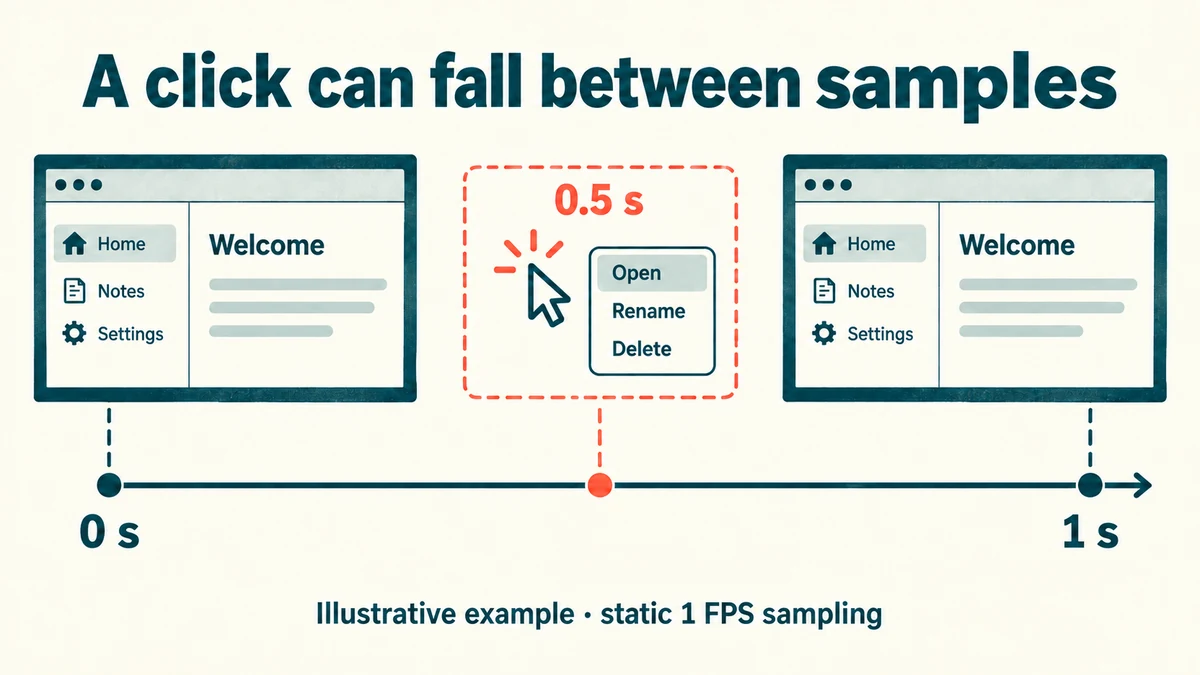
1. A click can fall between samples. In static mode at 1 FPS, a model sees one frame per second. A click, a dropdown that opens and closes, or a toast notification could start and end between two frames. Google warns generally that the default rate "may miss details in videos with rapid motion or quick scene changes". It doesn't document click-level tests, so this is our extrapolation. A tutorial built only from sampled frames could skip a step, or describe the right screen with the wrong action.
2. Small UI text may need resolution. If the model has to read a menu item to name the step, low media resolution may not be enough. Higher resolution costs more tokens, as described above, and isn't guaranteed to help.
3. Action data recorded at capture time reduces reliance on frame inference. If a recorder logs interaction events such as clicks while the video is captured, a system can rely less on inferring them from sampled frames. The video supplies context (what the screen looked like), and the log supplies events (what happened, and when). A log can still miss things, and it records actions rather than intent. This is our inference about tutorial pipelines in general, not a feature of the Gemini API.
4. Ask for timestamps, then check them. For step-by-step output, ask the model for `MM:SS` timestamps and review a few against the video. A note on the same Google page says generative models can produce inaccurate output, and that "post-processing and human evaluation are essential" to limit the risk of harm.
Where Vorec fits
Vorec turns screen recordings into narrated tutorials. Vorec records your screen with its own macOS recorder, and an AI agent can drive it for you through the Claude Code plugin. Capture runs locally so you can review the take before anything is uploaded. Vorec uses the action data it captures, such as clicks, to draft narration matched to the workflow, then generates the voiceover, so nothing is spoken into a microphone. You can also upload an existing recording, and Vorec analyses it to draft the narration.
In the editor you can add smooth cursor motion, cursor-follow zoom and click-based auto-zoom. Freeze-sync can hold a frame to give an explanation time to finish. The same capture can also produce a written step-by-step guide with annotatable screenshots.
For related reading, see computer use agents explained, how to turn a screen recording into a help article, and our explainer on Gemini TTS.
FAQ
How does Gemini process video?
By default, it samples frames at 1 frame per second, tokenizes each frame plus the audio, and reasons over the result. On Gemini 3.8 Flash, 3.7 Flash, 3.6 Flash and 3.5 Flash Lite, an agentic mode lets the model move through the video and load only the parts it needs.
What is the maximum video length for Gemini?
Google's guide says models with a 1M-token context window can process up to 3 hours of video at low media resolution, or up to 1 hour at high resolution. File API uploads can be up to 20 GB on the paid tier and 2 GB on the free tier.
How many tokens is one second of video in Gemini?
About 100 tokens per second at the default (low) media resolution, or about 300 at high resolution, in static mode. That covers 66 or 258 tokens per frame plus 32 tokens per second of audio. Agentic mode varies with the model's navigation.
Can Gemini watch YouTube videos?
Yes, for public videos. The guide marks YouTube input as a preview feature that is currently free, with pricing and limits likely to change. The free tier is capped at 8 hours of YouTube video per day.
Can I change the frame rate?
Yes, in static mode. You can set a custom `fps` value (the guide's example uses 0.5) and clip the video with start and end offsets. These options don't apply in agentic mode.
Does Gemini catch every click in a screen recording?
Not necessarily. Google warns that the default 1 FPS rate may miss details during rapid motion or quick scene changes. Our reading is that a brief click or menu could fall between two sampled frames in static mode.
Want the recording to narrate itself? Record with Vorec, or upload one you already have, and get a narrated tutorial plus a written guide. Start free. 7-day trial, 100 credits, no credit card required. Trial includes up to 3 projects; exports carry a watermark. Paid plans start at $9/month.