Playwright MCP: How AI Agents Drive a Browser (2026)
Vorec Team · 2026-10-05 · About 8 min read
Ask a coding agent to "check the signup flow still works" and it needs a way to open a browser, find the button and click it. Playwright MCP is one way to give it that ability. It is Microsoft's Model Context Protocol server for Playwright, the browser automation library.
This guide explains what it does, how it differs from screenshot-based "computer use", how to set it up, and one detail that matters for anyone making product demos: it has opt-in tools that record the browser session as a video.
Checked on 5 October 2026 against the project's README on GitHub at commit `ea00e62` (28 September 2026), with npm package version 0.0.83. The README is generated from the code and changes often. Treat it as the source of truth over anything here.
What is Playwright MCP?
The README describes it as "a Model Context Protocol (MCP) server that provides browser automation capabilities using Playwright". MCP is the open protocol that lets AI apps call external tools; our guide to the Model Context Protocol explains it from the ground up.
Once installed, an MCP client such as Claude Code, VS Code, Cursor or Claude Desktop can call tools like `browser_navigate`, `browser_click` and `browser_type`. The agent decides what to do; Playwright does the clicking in a real browser.
The repository is published by Microsoft under the Apache-2.0 license. GitHub shows it was created in March 2025, and its latest release at the time of checking was v0.0.83, published 28 September 2026.
Snapshots, not screenshots
The core design choice is in the README's feature list:
- Fast and lightweight. It "uses Playwright's accessibility tree, not pixel-based input."
- LLM-friendly. "No vision models needed, operates purely on structured data."
- Deterministic tool application. It "avoids ambiguity common with screenshot-based approaches."
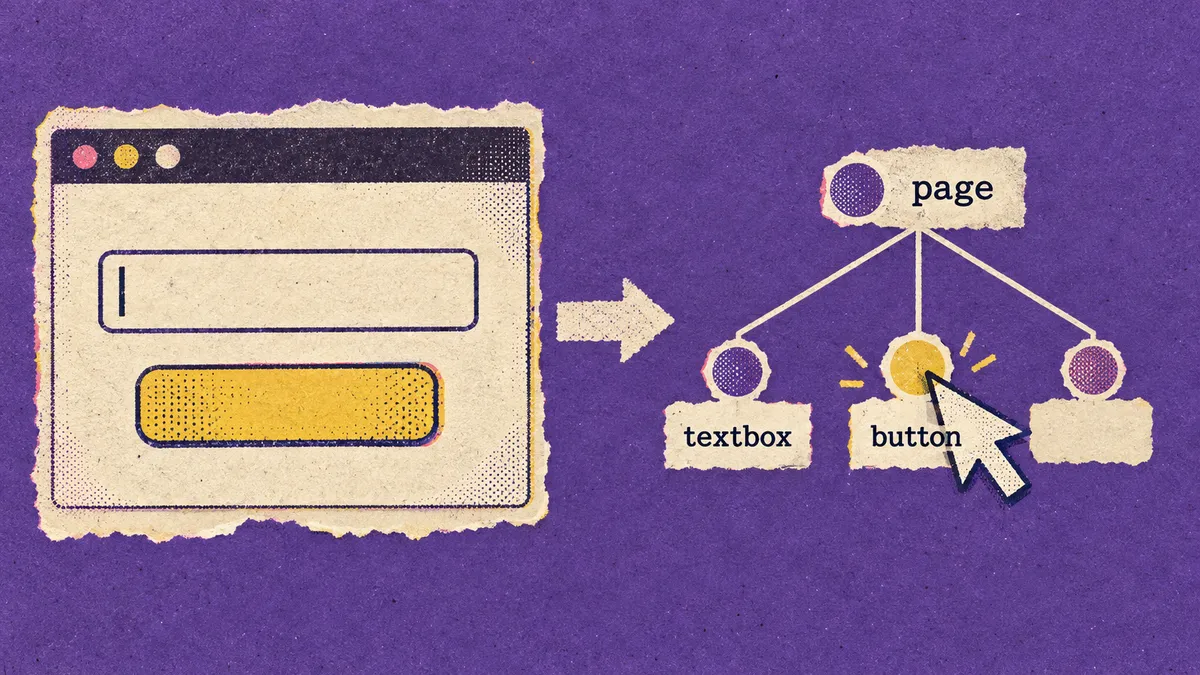
In practice, the `browser_snapshot` tool returns the page as an accessibility tree: buttons, links, fields and their labels, each with a reference the agent can target. The README's description of that tool says it "is better than screenshot". The screenshot tool even warns: "You can't perform actions based on the screenshot, use browser_snapshot for actions."
That is a different approach from screenshot-driven computer use, where a model looks at pixels and picks coordinates. Playwright MCP does have a coordinate mode, but it is opt-in (`--caps=vision`). Our computer use agents guide covers the pixel-based approach and what the vendor docs say about it.
MCP or CLI? The README's own advice
An unusual thing about this README: it tells many readers they might not want the MCP server. Its opening section says that if you are using a coding agent, you "might benefit from using the CLI+SKILLS instead".
The reasoning it gives: CLI invocations are "more token-efficient" because they avoid loading large tool schemas and verbose accessibility trees into the model's context. It says MCP "remains relevant" for loops that benefit from persistent state and iterative reasoning over page structure, such as exploratory automation, self-healing tests or long-running autonomous workflows.
So the choice, per Microsoft's own README:
| Use | Per the README |
|---|---|
| Playwright CLI + skills | Coding agents working in large codebases with limited context |
| Playwright MCP | Agent loops that need persistent browser state and rich page introspection |
If skills are new to you, our explainer on agent skills and SKILL.md covers how they work.
How to set it up
The README lists Node.js 18 or newer as the requirement. The standard config, which it says works in most clients, is:
For Claude Code, the README gives a one-line install:
A few options worth knowing, all from the README's configuration table:
| Option | What it does |
|---|---|
| `--browser` | Choose chrome, firefox, webkit or msedge |
| `--headless` | Run without a visible window (headed is the default) |
| `--isolated` | Keep the profile in memory instead of saving it to disk |
| `--storage-state` | Load cookies and local storage from a file into an isolated session |
| `--extension` | Connect to a running Chrome or Edge via the Playwright Extension |
| `--viewport-size` | Set the browser viewport, for example `1280x720` |
| `--caps` | Enable opt-in tool groups |
Profiles and logins. By default, the README says, Playwright MCP runs with a persistent profile, so logged-in state is stored between sessions. A persistent profile can only be used by one browser instance at a time; for parallel clients, it recommends `--isolated` or a distinct `--user-data-dir`.
Security: read this part
The README is direct: "Playwright MCP is not a security boundary." It points to the MCP security best practices for guidance.
Two configuration notes reinforce that. The `--allowed-origins` and `--blocked-origins` options both carry the warning that they "does not serve as a security boundary and does not affect redirects". And file system access is restricted to workspace roots by default, with an explicit `--allow-unrestricted-file-access` flag to lift it.
Our reading: give an agent a browser profile that holds only the logins it needs for the task, and treat any page it visits as untrusted input.
The opt-in video tools
The README groups some tools behind `--caps` flags, and the DevTools group (`--caps=devtools`) includes tools for recording:
| Tool | What the README says |
|---|---|
| `browser_start_video` / `browser_stop_video` | Start and stop video recording. Saves as `video-{timestamp}.webm` by default; frame rate defaults to 25 fps |
| `cursor` option on start video | Renders "an animated mouse cursor that travels to each action point", pacing actions by 800ms |
| `browser_video_chapter` | Adds a chapter marker that "shows a full-screen chapter card with blurred backdrop" |
| `browser_video_show_actions` | Annotates each action with a callout naming it, and can highlight the target element |
| `browser_start_tracing` | Starts a Playwright trace recording |
| `browser_start_recording` | Records actions you perform as Playwright code |
Put together, an agent can open your app, walk through a flow with a visible animated cursor, drop chapter cards between sections and save a video file. That is a real building block for agent-made product demos.
What the documented tools don't cover is the voice. None of the parameters listed for the video tools adds narration or audio. That is a statement about the README, not a claim that nothing else in Playwright can do it. If you want a walkthrough someone can follow without reading callouts, the recording still needs a script and a voiceover.

Where this fits for tutorials and demos
Agent-driven browser recording is becoming a practical way to make demo footage that stays in sync with the product. Re-run the agent after a UI change and you get fresh footage, rather than re-recording by hand. For that workflow, three questions decide the tool:
- What does the agent drive? Playwright MCP drives a browser it controls. Desktop apps and OS-level UI outside the controlled browser are out of its scope as documented.
- What does the output look like? The README's video tools produce a WebM file with optional cursor animation, chapters and callouts.
- Who writes and speaks the narration? Nothing in the documented video tools does. That step stays with you or another tool.
Our guide to using any coding agent to record your app demo walks through that workflow end to end.
Where Vorec fits
Vorec handles the step a silent capture leaves open: narration. Vorec records your screen. It has its own macOS recorder, and an AI agent can drive it for you through the Claude Code plugin, capturing locally for you to review before anything is uploaded.
It then drafts narration matched to the workflow it captured and generates the voiceover, so nothing is spoken into a microphone. If you already have a recording, from a Playwright session or anywhere else, you can upload it instead.
In the editor you can add smooth cursor motion, cursor-follow zoom and click-based auto-zoom, and freeze-sync can hold a frame to give an explanation time to finish. The same capture can also produce a written step-by-step guide, with annotatable screenshots. Narration regenerates in supported languages on eligible plans, without re-recording.
Vorec focuses on narrated tutorials and written guides. Teams that need browser automation for testing, scraping or agent loops should evaluate Playwright MCP or the Playwright CLI directly.
FAQ
What is Playwright MCP?
It is Microsoft's Model Context Protocol server for Playwright. It lets AI agents and MCP clients control a real browser through tools like navigate, click and type, using accessibility snapshots rather than screenshots.
Is Playwright MCP free?
The repository is published under the Apache-2.0 open-source license. You run it locally with Node.js 18 or newer.
Does Playwright MCP need a vision model?
No. The README says it "operates purely on structured data" from the accessibility tree. A coordinate-based mode exists as an opt-in (`--caps=vision`).
Should I use Playwright MCP or the Playwright CLI with Claude Code?
The README suggests coding agents may benefit from the CLI with skills, because it is more token-efficient. It recommends MCP for agent loops that need persistent browser state and iterative reasoning over the page.
Can Playwright MCP record a video?
Yes, with the opt-in DevTools capability (`--caps=devtools`). The `browser_start_video` tool saves a WebM file and can render an animated cursor; other tools add chapter cards and action callouts.
Is Playwright MCP safe to give my browser logins?
The README states it is "not a security boundary". Use a dedicated or isolated profile with only the access the task needs, and follow the MCP security best practices it links to.
Want the recording to narrate itself? Record with Vorec, or upload one you already have, and get a narrated tutorial plus a written guide. Start free. 7-day trial, 100 credits, no credit card required. Trial includes up to 3 projects; exports carry a watermark. Paid plans start at $9/month.