Screenpipe: Always-On Screen Recording for AI (2026)
Vorec Team · 2026-10-20 · About 10 min read
Most screen recordings start with a decision. Someone presses record because they want to show a colleague a bug, walk a customer through a setting, or document a process. Screenpipe works the other way round. It records in the background all day, and the decision about what the recording is for comes later, when you or an AI agent search it.
Screenpipe is a Y Combinator Summer 2026 company. Its GitHub repository describes a tool that records a company's computer work continuously, maps the workflows in it, helps find work worth automating, and gives AI agents that history as context. It is an example of a trend that matters to anyone who records software: screen capture used as memory for AI agents, not just as video for people.
This post sets out what Screenpipe's own README and YC profile say it does, and what limits and licence terms they state. After that comes our reading of how ambient screen memory differs from a tutorial recorded to teach. Where a point is our interpretation rather than Screenpipe's statement, we say so.
Checked on 20 October 2026. Sources: the screenpipe GitHub repository README and the screenpipe profile on Y Combinator. Both change. Treat them as the source of truth over this summary.
What Screenpipe is
According to its YC profile, Screenpipe learns how people in a company work and turns that into searchable memory, documents and AI agents. The README lists four jobs:
| Job | What the README says |
|---|---|
| Remember | Keep a record of what you did, saw and heard |
| Map workflows | Produce a list of workflows worth automating, as an alternative to interviews or consultants |
| Run agents | Generate agents, skills and automations from what you do |
| Search | Find anything in your history using natural language |
It ships as a desktop app for macOS, Windows and Linux, and as a CLI (`npx screenpipe record`). The README's platform table marks macOS (Apple Silicon and Intel) and Windows 10/11 as full support. Linux has a desktop app, but capture behaviour depends on the distribution and desktop environment.
What it captures, and how
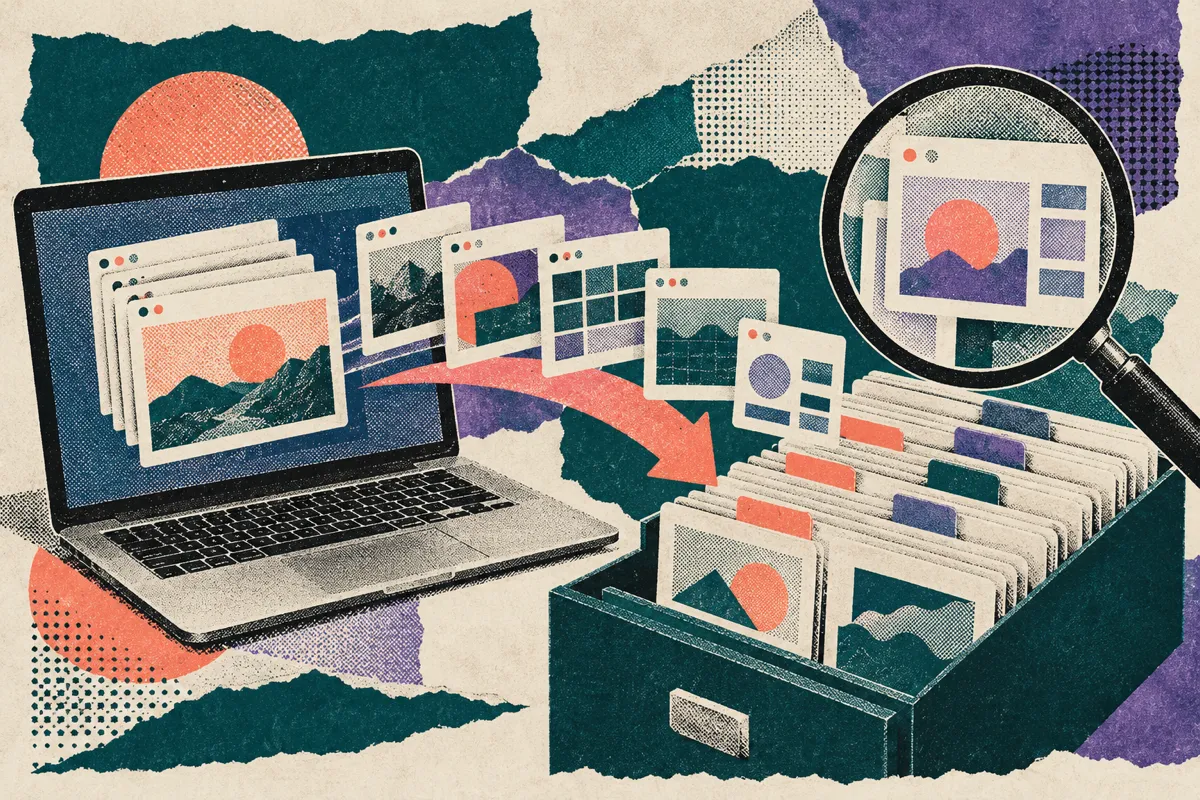
Screenpipe does not record continuous video by default. The README calls its approach event-driven capture:
- It listens for operating-system events (app switches, clicks, typing pauses, scrolling, clipboard) and takes a screenshot only when something changes. An idle fallback captures periodically when nothing is happening.
- Each screenshot is paired with the accessibility tree, the structured text the OS already exposes for buttons, labels and text fields. Where that is unavailable, as on remote desktops or in games, it falls back to OCR.
- Audio comes from system output and the microphone. It is transcribed locally with Whisper (Large-V3-Turbo) or in the cloud with Deepgram, with speaker identification.
- Keyboard input and app switches are listed among the captured signals.
The README gives planning estimates of about 5-20% CPU and 0.5-3 GB of RAM for capture, and recommends 8 GB of system RAM. It says storage varies with activity and settings, and advises measuring a representative day before sizing it. These are the vendor's estimates, not our benchmark.
How agents use the recording
The recording becomes useful to AI through three routes the README documents:
- An MCP server. One command, `claude mcp add screenpipe -- npx -y screenpipe-mcp@latest`, lets Claude Code or any MCP client query your screen history. The README's example is asking what you saw in the last five minutes. Our guide to the Model Context Protocol explains what that connection is.
- A local REST API on `localhost:3030`, with search, frame and audio endpoints, read-only SQL access to the SQLite store, and a JavaScript/TypeScript SDK.
- Pipes. These are scheduled AI agents, each defined as a `pipe.md` file containing a prompt and a schedule. Built-in pipes include `meeting-summary`, `day-recap`, `standup-update`, `time-breakdown` and `video-export`, which turns recent screen activity into a video.
Each pipe can be restricted in YAML frontmatter. Admins can allow or deny apps and windows, restrict content types, limit time ranges and block raw SQL or frame access. The README says this is enforced in three layers (skill gating, agent interception and server middleware with per-pipe tokens) rather than by prompting the model.
Privacy, storage and licence
This is where an always-on recorder deserves the closest reading. What the README states:
| Topic | README statement |
|---|---|
| Default storage | Screen frames, audio, transcripts and the search index are stored on your device by default |
| What can leave the device | Cloud AI, cloud transcription, sync, integrations, exports and enterprise storage can send data off the device |
| Telemetry | Product analytics through PostHog is on by default, and Sentry receives crash and error diagnostics while telemetry is on. The README says you can turn it off in Settings → Privacy → Analytics |
| Filters | Window, app, Chrome-extension and password filters, plus a PII model |
| Encryption | Optional encryption at rest; optional end-to-end encrypted sync between devices |
| Account | The core app works without sign-up |
| Team deployments | Organisation-managed storage can give authorised administrators access to captured data |
| Source builds | Source-available under Screenpipe's own licence. It permits personal non-commercial use, nonprofit, educational and research use, and a limited organisational evaluation. Other commercial use needs a commercial licence |
| Official app | Governed by Screenpipe's Terms of Service and the relevant subscription. Free, Basic and Business desktop plans; Enterprise pricing is scoped per deployment |
Two notes matter most. First, "stored locally" is not the same as "no network traffic": the README's FAQ says the app sends product analytics by default until you switch it off, and every cloud feature you enable is another data path. Second, for teams, the README itself advises agreeing on storage, access, retention and employee controls before rollout. A recorder that captures everything an employee sees and hears raises different questions from one that someone starts for a two-minute demo. Our screen recording privacy checklist covers the basics for deliberate recordings. Ambient capture needs those checks plus a policy.
Check the licence route too. Building from source and using the official app are governed differently. The source licence covers personal, nonprofit, educational and research use and a limited organisational evaluation, and other commercial use needs a commercial licence. The official desktop app runs under Screenpipe's terms and plans. We did not capture Screenpipe's pricing page for this post, so we quote no prices.
Ambient memory versus deliberate tutorials
This section is our analysis, not Screenpipe's.
Screenpipe and a tutorial recorder both point a camera at the same screen, but the output is built for a different consumer:
| Ambient screen memory (as Screenpipe documents it) | Deliberate tutorial recording | |
|---|---|---|
| Primary consumer | An AI agent, or you searching later | A person learning a task |
| When capture starts | Always on, in the background | When someone decides to teach something |
| What it stores | Event-triggered screenshots, accessibility text, transcripts | A continuous video of one workflow |
| Question it answers | "What did I see, say or do?" | "How do I do this, step by step?" |
| Structure | A timeline you query | A sequence with a start, steps and an end |
| Mistakes and detours | Kept, because they are part of the history | Usually cut or re-recorded |
| Explanation | Whatever was said at the time, if anything | Narration written for the viewer |
Workflow mapping is where the two meet. If a tool can tell you that a refund process happens forty times a week across a team, that is a strong signal the process deserves a proper tutorial or SOP. Our reading is that ambient capture is good at finding the work worth documenting, while a teaching recording is still needed to explain it. A day of screenshots with detours, other tabs and half-finished attempts is not something a new hire can follow.
There is also a consent difference. A tutorial records one workflow that someone chose to show. Ambient capture records everything unless it is filtered out. For process documentation inside a company, that difference decides who has to agree before anything is recorded. Our process documentation guide covers the deliberate route.
Questions to answer before you deploy always-on capture
If you are evaluating Screenpipe or any ambient recorder for a team, its README raises these questions:
- Who can see the history? On a local-only setup it stays on each device. On managed storage, administrators may have access. Decide which you are running.
- What is filtered, and what is sent? Review the telemetry setting as well as the capture filters. Check the app, window and password filters, and add your own for personal email, HR systems and customer data.
- What leaves the device? Cloud transcription, cloud AI and sync each change the data path. Configure them deliberately.
- Which agents can read it, and what can they read? Set per-pipe permissions before connecting an agent through MCP.
- Which licence applies? The official app's plans and terms, or the source licence, whose free uses are limited to personal, nonprofit, educational, research and limited evaluation use.
- What will you do with what you find? A list of workflows worth automating or documenting is a starting point. Someone still has to record and explain them.
Where Vorec fits
Vorec sits on the deliberate side of that table. It records your screen, with its own macOS recorder or from a recording you upload, drafts narration matched to the workflow it captured, and generates the voiceover, so nothing is spoken into a microphone. In the editor you can add smooth cursor motion, cursor-follow zoom and click-based auto-zoom, and freeze-sync can hold a frame to give an explanation time to finish. The same capture can also produce a written step-by-step guide with annotatable screenshots.
Agents can drive this too, with a review step. Vorec's `record-tutorial` skill lets an AI agent in Claude Code or Codex plan a walkthrough and drive the Vorec recorder through the CLI on your Mac. The capture stays local for you to review before anything is uploaded and narrated. Our post on the Claude Code screen recording plugin walks through it, and computer use agents explained covers how agents operate a screen in the first place.
Plans are listed on the Vorec pricing page. Trial includes up to 3 projects; exports carry a watermark.
FAQ
What is Screenpipe?
A source-available application that records your screen and audio in the background and stores the history locally by default, so you and AI agents can search it. It is a Y Combinator Summer 2026 company.
Does Screenpipe record video all the time?
Not continuous video by default. Its README describes event-driven capture: a screenshot plus accessibility text whenever something changes on screen, with OCR as a fallback and periodic captures when idle. Audio is transcribed separately.
Where does Screenpipe store data?
Captured history is stored on your device by default, in a local SQLite database with media files on disk. The app still makes network requests: product analytics is on by default and can be turned off, and cloud AI, cloud transcription, sync, integrations and team storage send data off the device if you enable them.
Can Claude Code read my Screenpipe history?
Yes, if you connect it. The README documents an MCP server you add with `claude mcp add screenpipe -- npx -y screenpipe-mcp@latest`, after which you can ask questions about recent screen activity.
Is Screenpipe free for work use?
It depends on the route. The official desktop app has Free, Basic and Business plans under Screenpipe's terms. Source builds are under a licence that allows personal, nonprofit, educational and research use and a limited organisational evaluation, and other commercial use needs a commercial licence. Check Screenpipe's current pricing and licence pages.
Can Screenpipe replace tutorial videos?
They solve different problems. Ambient capture helps you recall what happened and find workflows worth automating or documenting. A tutorial explains one workflow, in order, to someone who has to learn it.
Want the recording to narrate itself? Record with Vorec, or upload one you already have, and get a narrated tutorial plus a written guide. Start free. 7-day trial, 100 credits, no credit card required. Trial includes up to 3 projects; exports carry a watermark.