How to Screen Record on iPhone (With Sound): iOS 27 Steps
Vorec Team · 2026-10-23 · About 9 min read
To screen record on an iPhone, open Control Center (swipe down from the top-right corner on models with Face ID), tap the Screen Recording button, and wait for the 3-second countdown. To stop, tap the red circle (on an iPhone with a Dynamic Island) or the red timer at the top left (on other models), then tap Stop. The video is saved to the Photos app. If you don't see the Screen Recording button, you have to add it to Control Center first.
That short version is right, but it leaves out the steps people actually get stuck on: adding the control, getting sound into the recording, finding the file, and cutting the first seconds where Control Center is still on screen. This guide covers each one, using Apple's own iPhone User Guide for iOS 27 and its support article Record the screen on your iPhone, iPad, or iPod touch as the sources (both checked 23 October 2026). It ends with how to turn a recording into a narrated tutorial.
Quick answers: Start: Control Center > Screen Recording button > 3-second countdown. Stop: red circle then Stop (Dynamic Island models) or red timer then Stop (other models). Sound: touch and hold the Screen Recording button > Microphone on > Start Recording. File: Photos > Collections > Media Types > Screen Recordings.
Step 1: Add the Screen Recording control to Control Center
Screen recording lives in Control Center, and the button is not always there by default. If you swipe down and can't find it, add it once:
- Open Control Center. On an iPhone with Face ID, swipe down from the top-right corner of the screen. On iPhone SE, swipe up from the bottom edge.
- Tap the Add button in Control Center to start editing the controls.
- Tap Add a Control at the bottom of the screen to open the controls gallery.
- Tap the Screen Recording control to add it.
- Close Control Center by swiping up from the bottom center of the screen (or pressing the Home button on iPhone SE).
While you are editing, you can also drag the control to a position that's easy to reach, or resize it with the handle at its lower right. Apple describes all of this in Use and customize Control Center on iPhone.
One setting can hide Control Center while you are inside an app: Settings > Control Center > Access Within Apps. If it is turned off, Control Center won't open over the app you want to record, so turn it back on before you start.
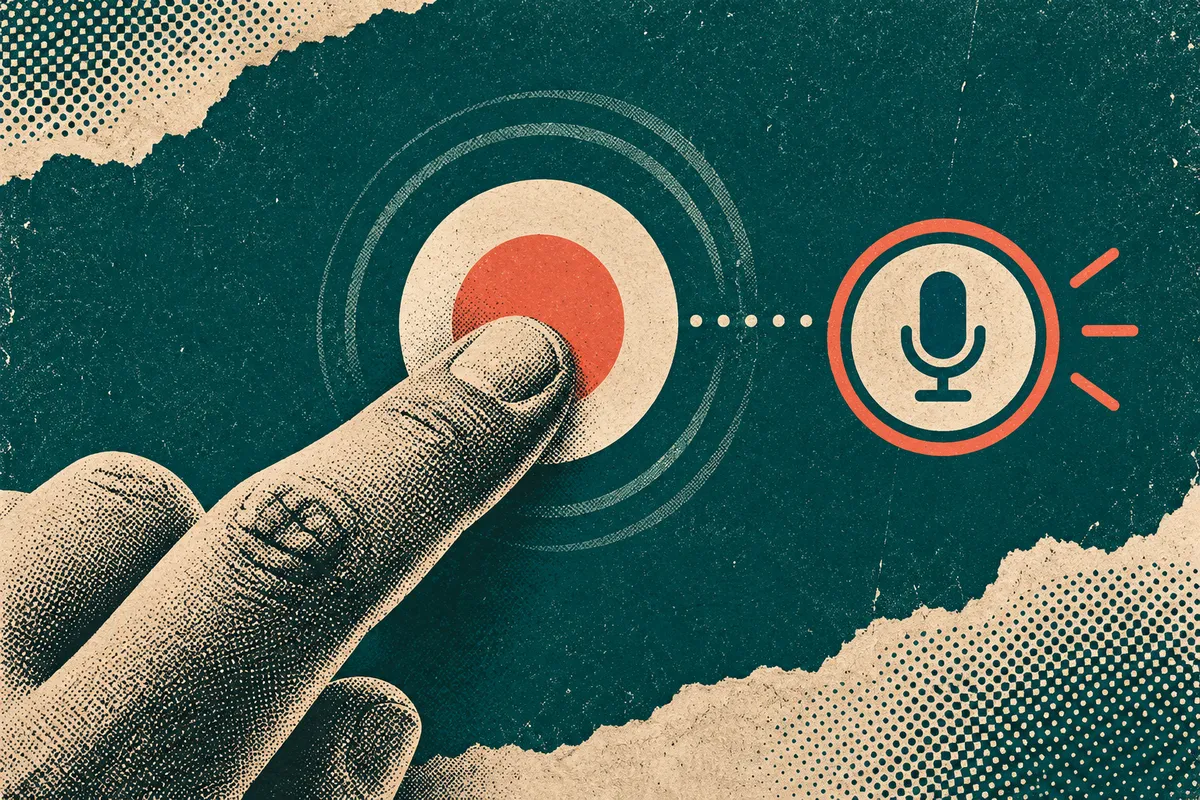
Step 2: Start a screen recording
- Open Control Center (swipe down from the top-right corner on an iPhone with Face ID, or up from the bottom edge on iPhone SE).
- Tap the Screen Recording button.
- Wait for the 3-second countdown.
- Swipe up to dismiss Control Center, then do whatever you want to record.
Once the countdown ends, swipe up to dismiss Control Center and go to the screen you want to start on. If the finished video opens with Control Center or ends with your tap on the stop button, trim those seconds off (Step 5) before you share it.
Step 3: Record with sound (your voice)
Whether your voice is recorded depends on the Microphone setting of the Screen Recording control. To record your voice as well:
- Open Control Center.
- Touch and hold the Screen Recording button (don't just tap it).
- Tap Microphone to turn it on.
- Tap Start Recording, then wait for the 3-second countdown.
The same menu is where you turn the microphone off again: if you don't want your voice in a recording, touch and hold the button and confirm Microphone is off before you start. It is also the first thing to check when a recording comes out without your voice. The Microphone setting covers your voice; Apple's pages we checked don't describe a separate control for an app's own sound, so record a short test clip if you need that audio. Apple also notes that some apps might not allow you to record audio or video, and that you can't record your screen and use screen mirroring at the same time. If a specific app records as a black screen or without its sound while others work, a restriction in that app is one possible reason.
| What you want | What to do |
|---|---|
| Screen only, no voice | Touch and hold the button, confirm Microphone is off, then Start Recording |
| Screen plus your voice | Touch and hold the button > Microphone on > Start Recording |
| Voice added later, not live | Record without the microphone, then add a voiceover in an editor |
| No voice at all, narrated later by AI | Record without the microphone and generate narration afterwards |
The last two rows are worth considering if talking while you tap feels awkward. Our guide to adding a voiceover on Mac and iPhone covers recording narration afterwards in iMovie.
Step 4: Stop the recording
How you stop depends on your iPhone model:
- iPhone with a Dynamic Island: tap the red circle at the top of the screen, then tap the Stop Screen Recording button.
- Other models: tap the timer (highlighted in red) at the top left of the screen, then tap Stop.
Apple's support article gives a second route that works the same way on any model: open Control Center and tap the red Screen Recording button.
Step 5: Find, trim and share the recording
Screen recordings are saved automatically to your photo library. To see only screen recordings:
- Open the Photos app.
- Tap Collections, scroll down to Media Types, then tap Screen Recordings.
To trim unwanted opening or closing footage, such as Control Center at the start or your tap on the stop button at the end, use Photos. Apple's steps, from Trim video length, adjust speed, and edit audio on iPhone:
- Open the video in Photos, then tap the Edit button.
- Drag either end of the frame viewer below the video to set the new start and stop, then tap Done.
- Tap Save Video to keep only the trimmed version, or Save Video as New Clip to keep both.
If you save over the original, you can undo it later: open the video, tap Edit, then tap Revert. A video saved as a new clip can't be reverted to the original, so keep that in mind before choosing.
SDR or HDR: which format your recordings use
In Settings > General > Screen Capture you can choose the format for screenshots and screen recordings. Apple's screen capture settings page describes the two options:
| Setting | Screen recording format | Notes from Apple |
|---|---|---|
| SDR | HEVC | Standard for most computer displays and mobile devices |
| HDR | HEVC (HDR10) | Needs an HDR display to show the full quality; on standard displays, HDR recordings play back with slightly reduced quality |
If you are recording a tutorial that people will watch on ordinary laptop screens or upload to a help center, SDR is the safer choice. HDR is worth it only when you know your viewers have HDR displays.
Common problems and fixes
| Problem | Likely cause | Fix |
|---|---|---|
| No Screen Recording button in Control Center | The control hasn't been added | Control Center > Add > Add a Control > Screen Recording |
| Recording has no voice | Microphone may be off | Touch and hold the button and turn Microphone on before starting |
| One app records black or without its sound | That app may not allow recording | Apple notes some apps might not allow recording audio or video; try another app to compare |
| Can't start recording while casting to a TV | Screen mirroring is on | Stop screen mirroring first; you can't do both at once |
| Control Center won't open inside an app | Access Within Apps is off | Settings > Control Center > turn on Access Within Apps |
| Control Center or the stop tap shows at the start or end | Captured before you dismissed Control Center, or while stopping | Trim the start or end in Photos |
Turning an iPhone recording into a tutorial
A raw screen recording shows what happened. A tutorial also explains why, step by step, at a pace the viewer can follow. Three things make the difference:
- Plan the taps before you record. Write the steps as a short list so you don't hunt for buttons on camera. Our tutorial video script guide has a two-column template for this.
- Decide how the narration gets there. Speaking live works for quick clips. For anything longer, recording silently and adding narration afterwards lets you fix a sentence without redoing the whole take.
- Trim and add context. Trim unwanted opening and closing footage, and consider a title or a short intro line so viewers know what the video will show.
Where Vorec fits
Vorec records your screen too: it has its own macOS recorder, and an AI agent can drive it for you through the Claude Code plugin, capturing locally for you to review before anything is uploaded. It then drafts narration matched to the workflow it captured and generates the voiceover, so nothing is spoken into a microphone. If you already have a recording, such as one from your iPhone, you can upload it instead and Vorec analyses it to draft the narration. In the editor you can add captions, callouts and zoom, and freeze-sync can hold a frame to give an explanation time to finish. The same capture can also produce a written step-by-step guide, and narration regenerates in supported languages on eligible plans. Plans start at $9/month (Starter); a free trial is available (current allowances on the pricing page).
FAQ
How do I screen record on my iPhone?
Open Control Center (swipe down from the top-right corner on an iPhone with Face ID, or up from the bottom on iPhone SE), tap the Screen Recording button and wait for the 3-second countdown. If the button isn't there, add it with Control Center > Add > Add a Control.
How do I screen record with sound on iPhone?
Touch and hold the Screen Recording button in Control Center, tap Microphone to turn it on, then tap Start Recording.
Where do iPhone screen recordings go?
To your photo library. In Photos, tap Collections, scroll to Media Types, then tap Screen Recordings.
How do I stop a screen recording on iPhone?
On an iPhone with a Dynamic Island, tap the red circle, then the Stop Screen Recording button. On other models, tap the red timer at the top left, then Stop. You can also tap the red button in Control Center.
Why is my voice missing from my iPhone screen recording?
Check the Microphone setting first: touch and hold the Screen Recording button and make sure Microphone is on before you start. If an app's own sound or picture is missing, that app may not allow recording; Apple notes some apps don't.
Can I record my iPhone screen while mirroring it to a TV?
No. Apple states you can't record your screen and use screen mirroring at the same time.
Related reading: Screen recording with voice on Mac and iPhone, QuickTime screen recording with audio, How to record your screen on Windows and How to make a tutorial video without a microphone.
Sources: Apple iPhone User Guide for iOS 27: Take a screen recording on iPhone, Use and customize Control Center on iPhone, Change the screen capture settings on iPhone and Trim video length, adjust speed, and edit audio on iPhone; Apple Support, Record the screen on your iPhone, iPad, or iPod touch (published 14 September 2026). All checked 23 October 2026.
See also: How to Screen Record on Android (With Sound): Pixel & Samsung.
Want the recording to narrate itself? Record with Vorec, or upload one you already have, and get a narrated tutorial plus a written guide. Start free. Trial includes up to 3 projects; exports carry a watermark.