Copilot Computer Use: Desktop Apps From the CLI (2026)
Vorec Team · 2026-11-04 · About 9 min read
Since 1 October 2026, GitHub Copilot has been able to operate desktop applications: read what's on screen, click controls, enter and edit text, press keys, scroll, drag and move between apps. GitHub calls the feature computer use. It's in public preview in GitHub Copilot CLI and the GitHub Copilot app on macOS and Windows, and arrived in VS Code as an experimental setting on 28 October 2026. You turn it on with `/computer on`; whether Copilot asks for approval before controlling an app depends on your permission mode and any saved approvals; and on macOS it needs the Accessibility and Screen Recording permissions. Organizations can switch it off through managed settings.
This page is built from GitHub's changelog posts of 1 October, 28 October 2026 for the Copilot app and 28 October 2026 for VS Code, and the Copilot CLI computer use documentation, all read on 2 November 2026. We haven't run the feature for this article. Everything below is what GitHub documents; where a sentence is our reading, it says so. The feature is in preview and GitHub says it's subject to change.
What Copilot computer use is, in GitHub's words
GitHub's changelog describes the capability as Copilot interacting with desktop apps on your behalf: "reading accessible app content and visual context, clicking controls, entering and editing text, pressing keys, scrolling, dragging, and moving through workflows across apps."
The stated purpose is software that has no other interface. GitHub frames it as a way to automate tasks in legacy and GUI-only applications that lack an API, a command-line interface or an MCP integration. The examples GitHub gives are modest: summarising browser notifications, updating a presentation, moving information through a desktop workflow, and, in the 28 October post, working through an expense-report flow.
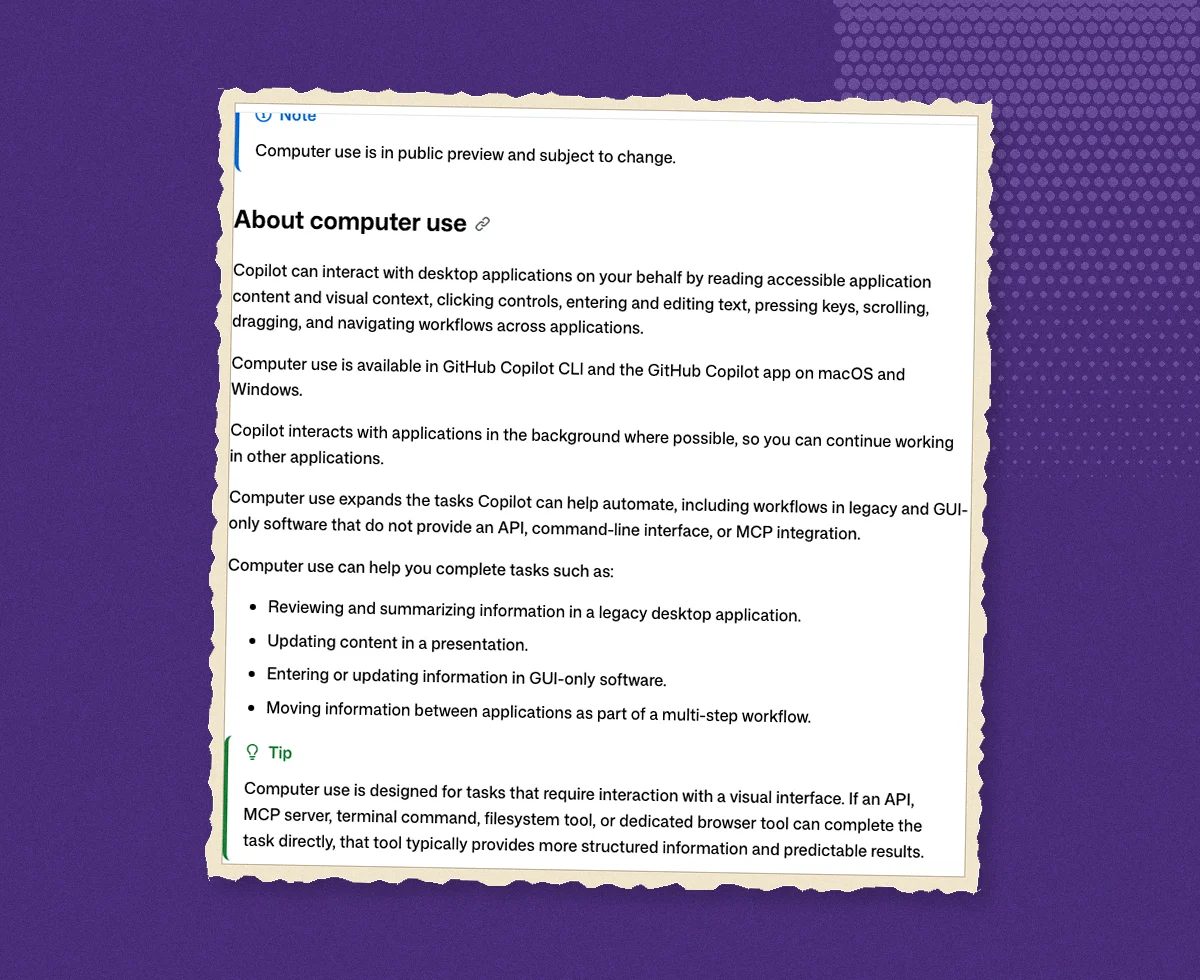
Where it's available
| Surface | Status per GitHub | Since |
|---|---|---|
| GitHub Copilot CLI | Public preview, macOS and Windows, local sessions | 1 October 2026 |
| GitHub Copilot app | Public preview, macOS and Windows | 1 October 2026 (restated 28 October) |
| VS Code | Experimental setting, macOS and Windows | 28 October 2026 |
The documentation is explicit that the CLI version works for local sessions only. It also says the first troubleshooting step, when `/computer show` reports the feature as unavailable, is to confirm that it's available for your account.
How to turn it on
Copilot CLI
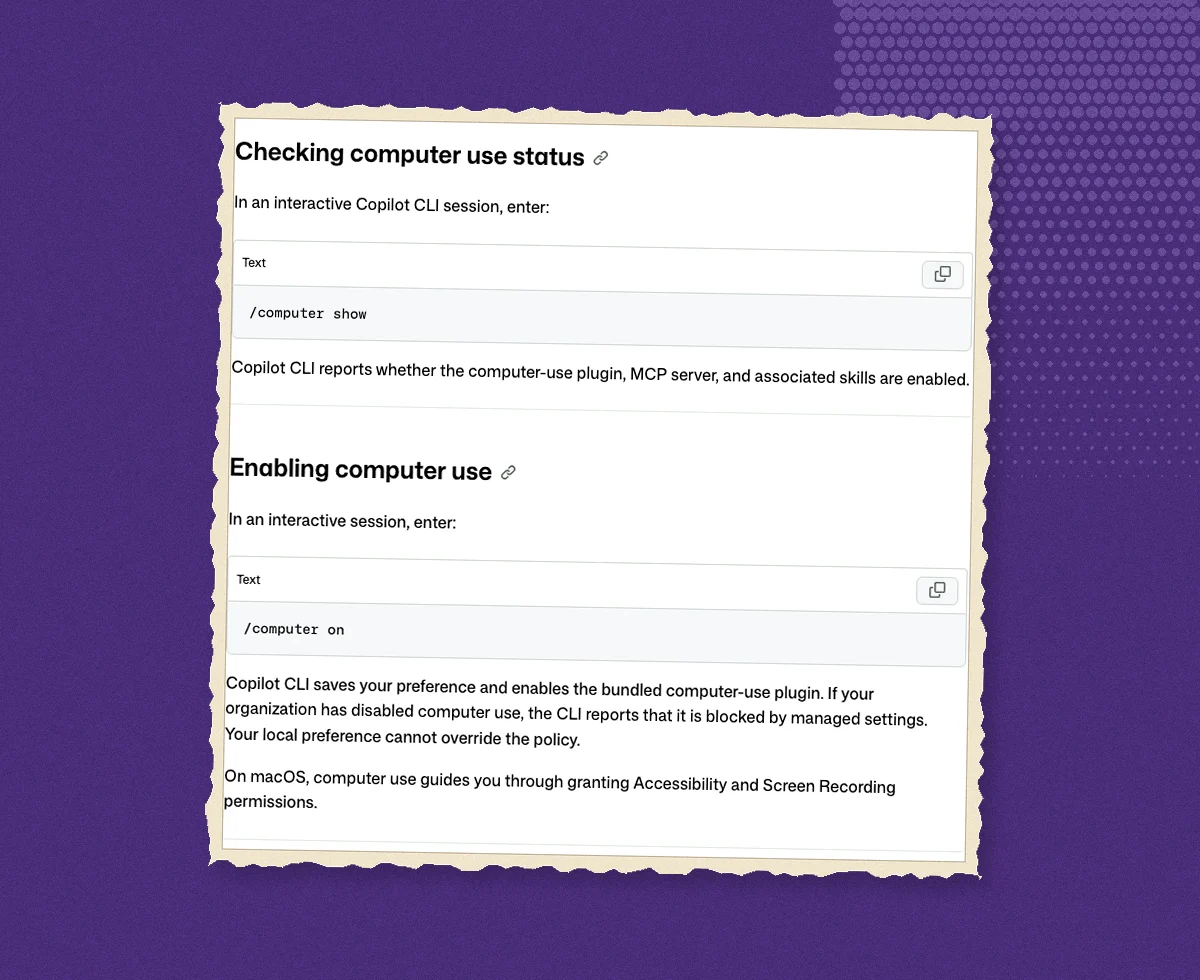
- Run `/computer on`. GitHub says this saves your preference and enables the bundled computer-use plugin.
- Run `/computer show` to check the status. It reports whether the plugin, its MCP server and the associated skills are enabled.
- Run `/computer off` to disable it, then `/computer show` again to confirm the plugin and MCP server are off.
GitHub Copilot app
Open Settings, select Computer Use, and turn on Enable Computer Use. GitHub notes you can also use `/computer on` there.
VS Code
Turn on the `chat.agentHost.computerUse.enabled` setting, restart VS Code, then run `/computer on` in a Copilot session running on your computer. GitHub labels this experimental.
macOS permissions
On a Mac, computer use walks you through granting two system permissions to its helper: Accessibility (so it can click and type) and Screen Recording (so it can see the screen). The troubleshooting section says the helper must have both. GitHub says these permissions are granted once and shared across Copilot CLI, the Copilot app and VS Code on the same computer.
How approvals work
GitHub's changelog says Copilot asks for approval before controlling an app; the CLI documentation adds that the active permission mode, which you can check with `/permissions show`, determines whether it asks. When a prompt appears, the choices are:
- Allow for the current session.
- Always allow for future sessions. GitHub says an always-allow choice in the CLI also applies to the Copilot app on the same computer, and you can review or reset the apps you've allowed.
- Decline or cancel.
GitHub's advice at the prompt is to check that the app and action match what you asked for. Configured deny rules take precedence over an allow. To interrupt an operation that's already running, press Esc twice.
Organizations can disable the feature through managed settings. If that's the case, the CLI reports that computer use is blocked by managed settings, and GitHub states that "Your local preference cannot override the policy."
What GitHub hasn't documented yet
Preview documentation has gaps, and it's worth being precise about them rather than guessing:
- What's sent to the model, in detail. GitHub's About computer use page (checked 4 November 2026) does say what Copilot reads: "accessible application content and visual context through your operating system's accessibility tree or screenshots when visual context is needed", and it warns that you should only use the feature with applications "whose visible content you are comfortable providing as context to Copilot". What the pages we read don't say is how often screenshots are taken, how they are transmitted, or how long that data is retained.
- Pricing. None of the three changelog posts mentions premium request usage or any cost specific to computer use.
- Limits. Beyond "public preview and subject to change", the documentation lists no rate limits, session limits or unsupported app types.
- Mobile and web. Only macOS and Windows local sessions are described.
If any of these matter for your use, the answer has to come from GitHub, not from a blog post.
How it compares with other computer-use agents
Our other pages cover the alternatives in detail, so here's only the shape of the field, as our reading from those pages rather than a fresh check of each vendor's documentation. OpenAI's computer use and Google's Gemini Computer Use tool are APIs: a model returns actions and your own code executes them in a browser or environment you run. Claude's computer-use toolsets and Cursor's computer use sit closer to the end user. GitHub's version is squarely the latter kind: an assistant you already have on your machine, now able to reach into the apps next to it, with an approval prompt in between.
Our reading of the distinguishing feature is the setup path. Because Copilot CLI runs in a terminal on the user's own computer, the agent that writes your code and the agent that clicks through your apps are the same session, with the same permission mode and the same deny rules.
Why this matters if you make software tutorials
An agent that can operate desktop software can perform a workflow. Performing a workflow on screen is most of what a tutorial is. The gap is everything that makes a performance watchable: a continuous recording rather than a series of actions, a visible and well-paced cursor, a zoom onto the control that matters, and narration that says why each step happens.
Two practical observations, both our reading:
- Approval prompts map onto the steps a tutorial should emphasise. When an agent stops to ask whether it may act in an app, that's usually a moment of consequence. A tutorial should slow down at the same points.
- The Screen Recording permission is the same one a tutorial recorder needs. On macOS, any tool that watches the screen, whether to drive an agent or to capture a video, goes through the same Privacy & Security setting. Our Mac screen recording guide covers where it lives and how to fix a black recording when it's missing.
For the broader question of which tasks an agent can usefully record, see what an AI agent can record and AI agent screen recording.
Where Vorec fits
Vorec records your screen and drafts narration for the capture. It has its own macOS recorder, and an AI coding agent can drive it for you through the Claude Code plugin: the agent plans and performs the walkthrough, the recorder captures it locally, and you review the take before anything is uploaded. Vorec then drafts narration matched to the workflow it captured and generates the voiceover, so nothing is spoken into a microphone. In the editor you can add smooth cursor motion, cursor-follow zoom and click-based auto-zoom, and freeze-sync can hold a frame so an explanation has time to finish. The same capture can produce a written step-by-step guide, and you can upload an existing recording instead. Vorec doesn't integrate with GitHub Copilot's computer use, and this page isn't a comparison between the two.
Vorec starts with a free trial, no credit card required (current allowances are on the pricing page). The trial includes up to 3 projects, and exports carry a watermark. Paid plans are Starter at $9 a month ($86 a year), Pro at $24 a month ($230 a year) and Business at $59 a month ($566 a year).
FAQ
What is computer use in GitHub Copilot?
A public-preview capability, announced on 1 October 2026, that lets Copilot interact with desktop apps on your behalf: reading app content, clicking controls, entering and editing text, pressing keys, scrolling, dragging and moving between apps.
How do I enable Copilot computer use?
In Copilot CLI, run `/computer on`; check with `/computer show`; disable with `/computer off`. In the GitHub Copilot app, go to Settings, then Computer Use, and turn on Enable Computer Use. In VS Code, enable the `chat.agentHost.computerUse.enabled` setting, restart, then run `/computer on`.
Which permissions does Copilot computer use need on a Mac?
Accessibility and Screen Recording, granted to the computer-use helper. GitHub says the setup walks you through both, and that granting them once covers the CLI, the app and VS Code on that computer.
Does Copilot ask before controlling an app?
GitHub's changelog says it asks for approval before controlling an app, and the CLI docs say the active permission mode determines whether it asks. When it does, you can allow for the session, always allow, or decline. Always-allowed apps can be reviewed and reset. Deny rules you've configured take precedence.
Can my organization turn Copilot computer use off?
Yes. GitHub says organization-managed settings can disable the feature, and a local preference can't override that policy.
Is Copilot computer use available on Linux or in the browser?
GitHub documents it for local sessions on macOS and Windows only, as of 2 November 2026.
Does GitHub say what screenshots are sent to the model?
Partly. GitHub's About computer use page says Copilot reads accessible application content through the accessibility tree, or screenshots when visual context is needed, and that visible content is provided to Copilot as context. The pages we read don't describe how often screenshots are captured, how they are transmitted, or how long they are kept.
Sources: GitHub Changelog, GitHub Copilot can now interact with desktop apps with computer use (1 October 2026), GitHub Copilot app, Universe releases (28 October 2026) and GitHub Copilot in VS Code, Universe releases (28 October 2026); GitHub Docs, Using GitHub Copilot CLI to interact with desktop applications, all checked 2 November 2026, and About computer use in GitHub Copilot, checked 4 November 2026.
Want the recording to narrate itself? Record with Vorec, or upload one you already have, and get a narrated tutorial plus a written guide. Start free. Trial includes up to 3 projects; exports carry a watermark.