OpenAI Agents API Computer Use: What the Docs Say (2026)
Vorec Team · 2026-10-12 · About 9 min read
At DevDay 2026, OpenAI said its Agents API "now supports computer use so developers can build agents that interact with software to complete tasks." The developer documentation describes the setup in one line: "Let an agent complete tasks in an OpenAI-hosted browser."
That matters to anyone who records, documents or trains people on software. An agent that clicks through an application leaves a trail of steps behind it. The questions are what that trail contains and what it does not.
This post covers what OpenAI's own pages say: how a session runs, the approval and sign-in model, and what the session records. It ends with our reading of what that means for tutorials and documentation. Every factual claim links to OpenAI's DevDay 2026 recap (dated 29 September 2026) or its computer use guide for the Agents API.
Checked on 12 October 2026. These are new beta APIs, and OpenAI's pages can change without notice. Treat the linked pages as the source of truth, and re-check them before you build on any detail here.
What OpenAI announced
The DevDay recap lists "Agents API with Computer use" among its developer announcements. Besides computer use, it says the Agents API "brings Codex's multi-agent capabilities, tool search, tool calling, and context compaction into your application", and that "OpenAI runs the underlying infrastructure."
On availability, the recap says: "Available through the API and in Codex and ChatGPT Work on Pro 500 and Enterprise." Read that line yourself before relying on it. It is the only availability statement we found, and it doesn't break the access down any further.
The SDK calls in the guide sit under `client.beta.agents`, so the interface is labelled beta in code.
How a computer-use session works
The guide describes the browser as running "in an OpenAI-hosted environment". It says computer use lets an agent "navigate websites and interact with browser interfaces to test a website, collect information, or use an application through its UI."
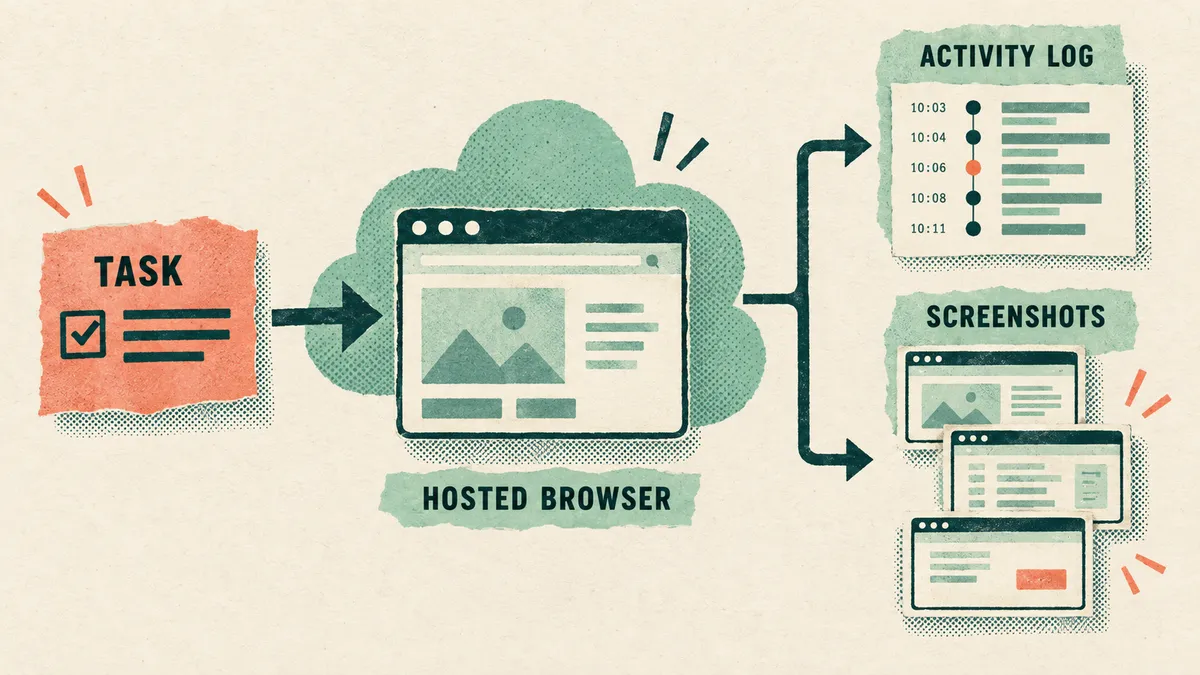
The documented flow has five steps:
- Create a browser session and save its ID. Creating a session doesn't start a task.
- Follow the session's events and send the agent a task. The guide says to open the event stream before you send the task, so you receive the first progress events.
- Handle each website access request, and sign-in if the task needs an account.
- Wait for the main agent's turn to finish and verify its result. If the connection drops, recover the same session before retrying.
- Review the saved browser activity, then delete the session.
To turn it on, the guide adds `{ "type": "computer_use" }` to the agent's tools and sets the environment type to `openai_hosted` with the desktop enabled.
Two operational details are easy to miss. First, "Closing the event stream does not stop the task. To stop it, cancel the turn." Second, the same session can be reused for follow-up tasks that need the same browser state, but "Login cookies can expire, and recycling the environment clears the browser state."
The approval model: per site, not per click
This is the part to read carefully.
Every new website needs approval. The guide says: "The browser requires the user's approval before accessing each new website origin, including public websites. Enabling network access does not approve these requests." Your application shows the requested origin and collects an approve, deny or cancel decision.
Approving a site doesn't approve each action. The guide states it plainly: "Origin approval does not enforce confirmation before individual actions."
An ask-the-user tool isn't a guarantee. The guide lets you define your own function tool to ask the user a question during a task. It's explicit that this isn't enforcement: "Asking for confirmation through a function tool relies on the agent calling that function." If your application must guarantee confirmation before purchases, destructive changes or other consequential actions, the guide says to "restrict the hosted browser to resources that cannot perform them, or use a browser runtime you control."
Website content can't grant permission. The same note says to treat website content as untrusted: it "cannot grant permission or override the user's instructions."
Network policy is a separate layer. Origin approval "does not override the network policy". The hosted environment's network settings control outbound access for both the browser and any code running in the environment.
How sign-in is handled
Some tasks need an account, such as reading issues in a private repository. The guide routes sign-in through a dedicated request-and-response flow instead of the chat:
- Only the main agent can ask to sign in. "Only the main agent can request browser authentication; subagents cannot."
- Supported methods are limited. The flow "supports email addresses, passwords, and verification codes, but not passkeys or QR-code sign-in." Sites that require an unsupported method can't complete sign-in this way.
- Credentials stay out of the model's input. "Submitted values stay outside the agent's model input and are omitted from authentication response items in session history."
- Requests time out. "Authentication requests expire after five minutes."
- Check the destination first. The guide tells developers to ask users for credentials only for a destination they can verify, and to cancel the request when the credential origin is missing or unfamiliar.
A 202 response to a sign-in submission confirms the submission was accepted, not that sign-in worked. The guide says to keep following the session's events and check the result.
What the session records
This part matters most if you document software.
An activity log of browser operations. "Browser operations appear as computer_use_call items in session output." Each item has these fields:
| Field | What the guide says it holds |
|---|---|
| `id` | The activity item's identifier |
| `turn_id` | The turn that produced the activity |
| `title` | A description of the browser activity, or null |
| `status` | in_progress, completed, failed or incomplete |
| `output` | Screenshot output, when available |
Screenshots are opt-in and partial. "Screenshots are excluded from API output by default; the agent can still observe them." With `include_screenshots` set to true, "A completed browser activity event includes its last emitted screenshot", returned as a JPEG data URL. The guide adds that "Some operations return output: null, even with screenshots enabled."
You keep the images. "Retrieved history can omit image bytes, so retain the image in your application rather than relying on a later items-list request."
Screenshots can hold private data. "Screenshots can contain sensitive page or account data. Show them only to authorized users and keep them out of application logs."
So the documented record is a list of described steps, each with at most one still image. The guide doesn't describe a video recording of the session, and we found no video output on the pages we read.

What this means for tutorials and documentation
The rest of this post is our reading of the documentation above, not OpenAI's statement.
A step trail is not a tutorial. A list of activity titles with one screenshot each looks like the skeleton of a written how-to. But titles can be null, screenshots can be missing, and each image is only the last one emitted for its operation. You'd still need to check every step, fill the gaps and write for a human reader. Our guide to writing an SOP covers what that last step involves.
Testing documented steps is a documented use. The guide names testing a website as one purpose of computer use. Help-center steps go stale when a UI changes. An agent that walks the documented path and reports where it fails could flag a stale article before a customer does. That's an idea for you to evaluate, not a feature OpenAI describes for documentation.
Review screenshots before you reuse them. OpenAI's own warning about sensitive data applies twice over to anything you publish. A screenshot taken inside a signed-in session can show account names, emails or customer records. Our screen recording privacy checklist covers what to look for.
Hosted and local are different trade-offs. The browser here runs in OpenAI's environment, and each new site needs approval. Agents that drive your own machine, or your own local browser, raise different questions about access and review. Our explainer on computer-use agents compares what Anthropic, Google and OpenAI document across their computer-use tools. Our posts on Playwright MCP and Claude in Chrome cover two local approaches.
Where Vorec fits
Vorec records your screen. It has its own macOS recorder, and an AI agent can drive it for you through the Claude Code plugin, capturing locally for you to review before anything is uploaded. That agent workflow runs through Vorec's own recorder and CLI on your Mac. It captures your own screen locally, a separate approach from an agent working in OpenAI's hosted browser.
After capture, Vorec drafts narration matched to the workflow it captured and generates the voiceover, so nothing is spoken into a microphone. In the editor you can add smooth cursor motion, cursor-follow zoom and click-based auto-zoom, and freeze-sync can hold a frame to give an explanation time to finish. The same capture can also produce a written step-by-step guide, with annotatable screenshots, and narration regenerates in supported languages on eligible plans, without re-recording. You can upload an existing recording instead if you already have one.
Vorec focuses on narrated software tutorials and written guides. If you need an agent that completes tasks in a hosted browser inside your own application, evaluate the Agents API directly.
FAQ
What is computer use in the OpenAI Agents API?
It's a tool that lets an agent operate a browser to complete a task. Per OpenAI's guide, the browser runs in an OpenAI-hosted environment, and your application starts the session, sends the task and follows its events.
Who can use it?
The DevDay recap says: "Available through the API and in Codex and ChatGPT Work on Pro 500 and Enterprise." Check OpenAI's current pages for your account before relying on it.
Does the agent ask before every action?
No. The guide says the browser needs approval before it accesses each new website origin, but "Origin approval does not enforce confirmation before individual actions."
You can give the agent a function tool for asking the user, but the guide notes that this "relies on the agent calling that function". Where confirmation must be guaranteed, the guide says to restrict the hosted browser to resources that can't perform consequential actions, or to use a browser runtime you control.
Can it sign in to websites?
Yes, through a dedicated sign-in flow that supports email addresses, passwords and verification codes, but not passkeys or QR-code sign-in. Submitted values stay outside the model's input, and requests expire after five minutes.
Does it record a video of the session?
The guide doesn't describe one. It documents an activity log of browser operations and optional screenshots: at most the last emitted screenshot per completed operation, and some operations return none.
Can I turn an agent's session into a tutorial?
The activity log and screenshots can be a starting point for a written outline, but the guide says titles and screenshots can be missing. Plan to verify each step, fill gaps, and check the screenshots for private data before publishing anything.
Want the recording to narrate itself? Record with Vorec, or upload one you already have, and get a narrated tutorial plus a written guide. Start free. 7-day trial, 100 credits, no credit card required. Trial includes up to 3 projects; exports carry a watermark. Paid plans start at $9/month.