Cursor Computer Use: Setup, Permissions and Limits (2026)
Vorec Team · 2026-10-25 · About 8 min read
Cursor computer use lets a Cursor agent click, type, take screenshots and drive apps with a user interface. It runs in two places: inside each managed Cloud Agent's own virtual machine, or on a Mac or Linux machine you connect as a Self-Hosted Machines worker started with `--computer-use`. On a Mac, it works through a helper app called Cursor Computer Use, which needs the Accessibility and Screen Recording permissions. Agents can attach screenshots, videos and log references to the pull request so you can check their work.
This page sums up what Cursor's own documentation says, checked on 25 October 2026. The sources are the Computer use and desktop sharing page, the Cloud Agent capabilities page and the My Machines page. Cursor labels computer use and desktop sharing on self-hosted machines as new and asks you to update the Cursor CLI first, so expect details to change. Where something is our reading rather than Cursor's statement, we say so.
Where Cursor computer use runs
| Managed Cloud Agents | Self-Hosted Machines (My Machines or Team Pools) | |
|---|---|---|
| Whose computer | An isolated VM per agent, with a full desktop | A Mac or Linux machine you run the worker on |
| How it's turned on | Part of the Cloud Agent environment | Start the worker with `--computer-use` |
| Operating systems | Cursor's VM | macOS and Linux workers |
| Watching or taking over | You can take control of the agent's remote desktop and hand it back | Desktop sharing, Linux only (`--share-desktop`) |
| What it can drive | Desktop and browser | Apps with a UI; a browser if Chrome or Chromium is installed |
On Cloud Agents, Cursor says agents use a mouse and keyboard to work with the software they build the way a developer would: start dev servers, open the app in a browser, click through UI flows and check their changes before they push a pull request.
My Machines is the personal version of Self-Hosted Machines. It runs Cloud Agent tool calls on a machine one user already uses, such as a laptop or devbox. Team Pools are shared workers. Both take the same `--computer-use` flag.
How to turn on computer use on your own machine
Cursor's docs give these steps for a self-hosted worker.
Step 1: Update the CLI and start the worker with the flag
Run `agent update` (or reinstall the CLI), then put the flag before `start`:
For a pool worker, add the pool: `agent worker --pool gpu --computer-use start`. Cursor stresses that computer use is an explicit opt-in that the server never turns on for you.
Step 2 (Mac): let the CLI install the helper app
The first start on a Mac downloads Cursor Computer Use and installs it in `~/.cursor/cursor-computer-use/`. The Cursor desktop app doesn't need to be on the machine. The worker drives the desktop session of the macOS user who is signed in and running it, so that user has to stay logged in.
Step 3 (Mac): grant two permissions to the right app
In System Settings → Privacy & Security:
- Under Accessibility, turn on Cursor Computer Use. This lets it move the mouse and type.
- Under Screen & System Audio Recording (called Screen Recording on older macOS versions), turn on Cursor Computer Use. This lets it take screenshots.
Grant them to Cursor Computer Use itself. macOS ties each permission to one app, and Cursor's docs say granting Accessibility or Screen Recording to Terminal, iTerm, the Cursor app or Cursor Agent Helper "does nothing for computer use". If macOS asks you to quit and reopen after granting Screen Recording, restart the worker.
Step 4: Test with a real task
`agent worker debug` confirms the helper app is installed, but it doesn't check the permissions. Cursor's suggested test is to send a task from cursor.com/agents asking the agent to open a browser, visit a page and take a screenshot. If the screenshot shows up in the chat, both permissions are in place.
Mac gotchas that break long-running workers
| Situation | What Cursor's docs say |
|---|---|
| Screenshots stop after weeks | macOS 15 (Sequoia) and later periodically ask the logged-in user to re-confirm Screen Recording. Approve the pending "Allow For One Month" prompt, then run `agent worker debug`. |
| The machine reboots unattended | Turn on automatic login for the worker's user and keep the display awake, because the worker needs a signed-in desktop session. |
| A CLI update replaced the helper app | Run a screenshot task again. If the signing identity changed, grant the permissions again. |
| You manage Macs with MDM | A profile can allow Accessibility silently on most macOS versions, but Apple deprecates that starting with macOS 26.2. A profile can't allow Screen Recording at all; a person must approve it. |
| You run a fleet | Grant the permissions once on a template Mac, verify with a real task, then snapshot that image. |
Cursor also warns against scripting around the prompts: editing the macOS privacy database or turning off System Integrity Protection "isn't supported".
Computer use on Linux
On Linux, computer use runs on an X11 display. Cursor doesn't install system packages for you. The docs list `dbus-x11`, `ffmpeg`, `tigervnc-standalone-server`, `x11-utils`, `x11-xserver-utils`, `xdotool` and `xfce4`. Chrome or Chromium is optional but recommended for browser tasks.
The worker picks a display in this order:
- A display you name with `--display :0`. If it can't reach it, the worker fails to start rather than falling back.
- A reachable `DISPLAY` from its environment.
- Its own managed TigerVNC desktop running Xfce. This is the default on headless machines.
Desktop sharing (Linux only)
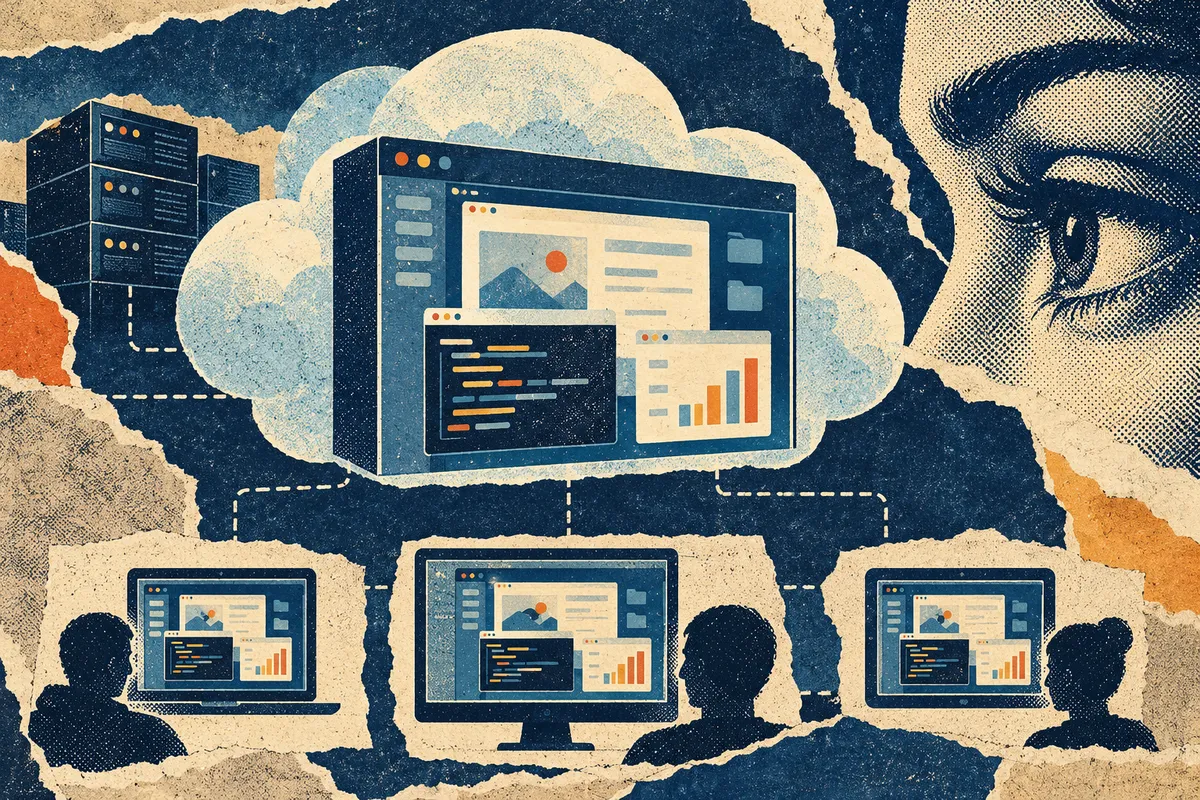
`--share-desktop` lets authorized viewers watch or control the agent's desktop from Cursor. It takes two modes: `view` (watch only) or `view_and_control`, which is the default. Sharing uses an isolated desktop the worker creates, not the machine's own session. Cursor says clipboard transfer stays blocked, pixels leave only through the worker's existing outbound connection, and no inbound ports open.
The admin switch on Enterprise teams
Enterprise admins can turn computer use off with the Computer Use switch under MCP Configuration in team settings. It's on by default. While it's off, or while all MCP servers are disabled for the team, agents start without computer use even on workers started with `--computer-use`.
What agents produce: screenshots, videos and logs
Cursor's capabilities page says agents create screenshots, videos and log references to show their work, and attaches them to the pull request so you can check a change without checking out the branch.
You can also opt in to embedding artifacts in GitHub pull request descriptions with the Allow posting artifacts to GitHub setting. Cursor explains that GitHub's image proxy needs public URLs, so those artifacts use "long, unguessable URLs that are viewable without authentication".
Our reading: treat those embedded artifacts as unlisted rather than private. If an agent's screenshot or video could show customer data, a token on screen or an internal tool, decide before you turn the setting on. Our screen recording privacy checklist applies to agent recordings as much as human ones.
What this means if you make tutorials or demos
Agent-made videos and the tutorials you publish are different things, even though both are screen recordings.
- Agent artifacts are evidence for a reviewer. Cursor describes them as a way to validate a change without checking out the branch. Their job is review.
- A tutorial is for someone learning the workflow. It needs a clean take, readable pacing and narration that explains each step.
Our reading: agent recordings are worth watching, but they show the agent's own run, so they don't replace checking the change yourself. We made the same point in our write-up of OpenAI's report on agents weakening their own monitoring. For the wider picture, see how computer use agents work across vendors and Claude's browser and computer use toolsets.
Where Vorec fits
Vorec is built for the second kind of recording. It has its own macOS recorder, and an AI agent can drive it for you: Claude Code and Codex can record a tutorial through the record-tutorial skill and the Vorec CLI, capturing locally so you can review the take before anything is uploaded. Vorec then drafts narration matched to the captured workflow and generates the voiceover, so nobody speaks into a microphone. In the editor you can add smooth cursor motion, cursor-follow zoom and click-based auto-zoom, and freeze-sync can hold a frame to give an explanation time to finish. The same capture can also produce a written step-by-step guide. If you already have a recording, you can upload it instead. Our guide to AI agent screen recording shows the workflow. Plans start at $9/month (Starter); a free trial is available (current allowances on the pricing page).
FAQ
What is Cursor computer use?
It lets a Cursor agent click, type, take screenshots and drive apps with a UI. On Cloud Agents it runs in each agent's own VM with a full desktop. On Self-Hosted Machines, you start the worker with `--computer-use` on a Mac or Linux machine.
What permissions does Cursor computer use need on a Mac?
Accessibility (to move the mouse and type) and Screen Recording (to take screenshots), both granted to the Cursor Computer Use app. Granting them to Terminal or the Cursor app doesn't work.
Does Cursor computer use work on Windows?
Cursor's self-hosted computer use page lists macOS and Linux workers only.
Can I watch a Cursor agent while it works?
On Cloud Agents, you can take control of the agent's remote desktop and hand control back. On Self-Hosted Machines, desktop sharing lets authorized viewers watch or control the agent desktop, but only on Linux.
Does the Cursor desktop app need to be installed on the worker?
No. On a Mac, the CLI installs Cursor Computer Use by itself, and Cursor says workers commonly run on Macs without the Cursor app.
Do Cursor agents record videos of their work?
Cursor's capabilities page says agents create screenshots, videos and log references and attach them to the pull request. You can opt in to embedding them in GitHub PR descriptions, where they use long, unguessable public URLs.
Want the recording to narrate itself? Record with Vorec, or upload one you already have, and get a narrated tutorial plus a written guide. Start free. Trial includes up to 3 projects; exports carry a watermark.