Loom for Mac (2026): The Rebuilt App, 4K and Hide System UI
Vorec Team · 2026-11-05 · About 9 min read
Loom for Mac is a rebuilt, native macOS app that Atlassian announced on 7 October 2026. It requires macOS 15 or later, lives in the menu bar, is about 80% smaller than the old app, records at up to 4K on eligible plans and devices, and adds a Hide system UI option that removes the menu bar, the Dock and desktop widgets from the final recording. It also brings new camera bubble shapes and filters, a teleprompter for speaker notes, and the Record for agent mode that turns a recording into instructions for an AI agent. If you're on an older macOS, Atlassian points you to the previous version of the app instead.
This page is built from three Atlassian sources, all read on 5 November 2026: the Loom for Mac announcement (7 October 2026), the Record for agents announcement (22 October 2026), and the support articles Get started with Loom for MacOS and Install the Loom desktop app. We haven't benchmarked the app for this article. Everything below is what Atlassian documents; where a sentence is our reading, it says so. Vorec, which publishes this page, comes up near the end.
What Atlassian announced, and when
| Date | Source | What it says |
|---|---|---|
| 29 August 2023 | Atlassian blog | An earlier redesign of the desktop app for Mac and Windows: movable recording controls, speaker notes, camera bubble frames |
| 7 October 2026 | Atlassian blog | The new Loom for Mac, rebuilt natively for macOS 15+ |
| 22 October 2026 | Atlassian blog | Record for agent in open beta on Business + AI and Enterprise, the new Mac app with 4K by default, Loom tools in Atlassian MCP, Rovo in Loom |
The 2023 post matters because it's the app most people still picture when they hear "Loom desktop app". The October 2026 app is not an update of it; Atlassian says it was built from scratch.
What changed under the hood
The announcement, written by Loom's senior design manager Rick Messer, makes four technical claims:
- Native. The app was rebuilt with Apple's technologies and, per Atlassian, opens faster and uses less memory and CPU while recording.
- Smaller. Atlassian says the app is "~80% smaller", which reduces the download and disk footprint.
- Higher resolution. It uses newer macOS capture features, defaults to a higher resolution and supports 4K. The post mentions smoother frame rates but gives no figure.
- Screen awareness. A new foundation tracks the screen, windows, mouse movement and recording area in real time. Atlassian credits it with cleaner recordings, precise capture, camera bubble placement and the video prompts behind Record for agent.
Our reading: the screen-awareness layer is the real change. Everything else on the feature list is a consequence of the app knowing which pixels are your content and which are macOS.
Hide system UI: cleaner recordings by default
The announcement describes automatic decluttering: Loom separates the content you mean to share from the surrounding Mac interface and hides desktop icons and the top menu bar from the final recording. Atlassian's post presents this as keeping personal context out of the video; what the documented setting actually removes is listed below, and nothing on either page says browser tabs or notifications inside a recorded window are hidden.
The support article names the setting. In Recording settings, Hide system UI removes the macOS menu bar, the Dock and desktop widgets from the final recording. The two pages don't list exactly the same items (the blog says desktop icons and the menu bar; the support article says menu bar, Dock and widgets), so treat the support article as the current description and check the result on your own Mac before you rely on it for a sensitive recording.
Two neighbouring settings in the same list are worth knowing: Highlight mouse clicks adds a quick yellow indicator whenever you click, and Include system audio records the Mac's audio output.
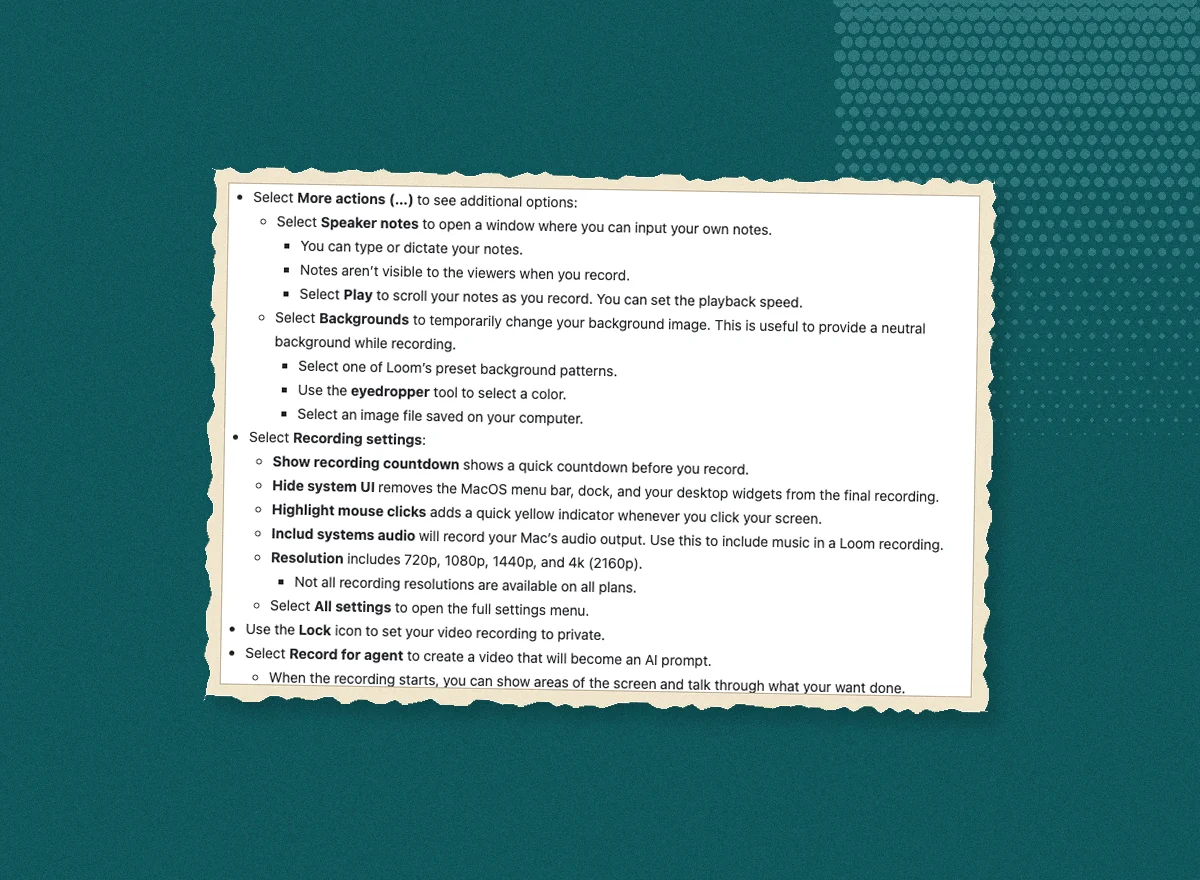
Why it matters for tutorials, in our reading: a full-screen recording of a web app usually carries the menu bar and Dock at the top and bottom of the frame. Removing them at capture time saves an editing step afterwards.
Capture modes and resolutions
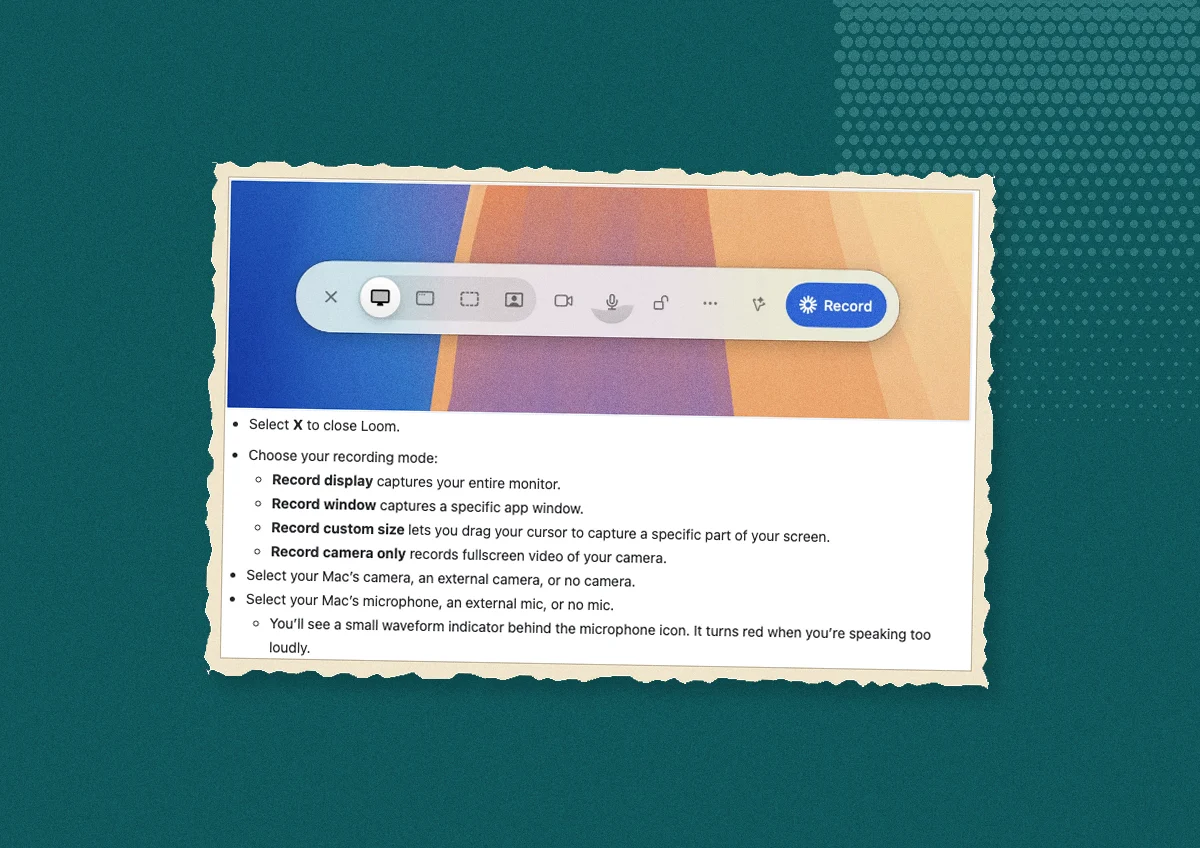
Per the support article, the toolbar offers four recording modes:
| Mode | What it captures |
|---|---|
| Record display | The whole screen |
| Record window | One application window |
| Record custom size | A region you drag out |
| Record camera only | Your camera, no screen |
Camera and microphone are chosen separately in the toolbar, so screen-plus-camera is any of the first three modes with the camera on. The announcement calls the custom region "drag-to-select" and frames it as sharing exactly the boundary you choose.
Recording settings list four resolutions: 720p, 1080p, 1440p and 4K (2160p). The article adds two caveats worth quoting in spirit: not all recording resolutions are available on all plans, and 4K is available on eligible plans and devices. Free-plan users are shown an Upgrade option. Atlassian's pages don't say which plan unlocks which resolution, and we're not going to guess; our Loom pricing page tracks what the plan cards say.
Camera bubble, filters and backgrounds
The camera bubble gets four shapes: squircle (a rounded square), circle, landscape and portrait. The support article lists a five-step size slider and seven filters: None, Vivid, Mono, Chrome, Warm, Vibey and Rainbow. The announcement adds backgrounds (gradients, brand assets, custom colours) and says the bubble can be dragged along the screen edge with edge-snapping that avoids covering key elements.
For a tutorial, the useful part is the portrait and landscape frames, which take less of the screen than a large circle when you need the presenter visible but the interface in focus.
Speaker notes and the teleprompter
Notes can be typed or dictated, scroll in a teleprompter under the camera when you press Play, and aren't visible to viewers. You can set the scroll speed. The announcement says voice-to-text can turn spoken ideas into structured notes.
One feature on that section of the announcement is explicitly not available yet: "AI Speaker Notes powered by Rovo", which Atlassian lists as coming soon. Don't plan a workflow around it until it ships.
Record for agent
Record for agent is a toolbar option that creates a video meant to be read by an AI agent rather than a person. Per the support article, Loom captures screenshots and context automatically while you record; per the 22 October announcement, it collects the narrated transcript, screenshots of the elements you click and the links you visit, and turns them into a structured prompt that can be sent from Loom or opened as a Jira work item. The announcement states it is in open beta for Loom Business + AI and Enterprise plans, on the new Mac app or the Chrome extension.
The Mac app adds a Selection tool that pins a specific UI element for the agent and a Magic pen for freehand annotation. We cover the mode in detail in Loom Record for agent: video prompts explained, and the agent-facing API side in Loom MCP tools.
Requirements, download and the old app
- macOS 15 (Sequoia) or later. The support article says users on an older version should download the previous version of Loom for macOS.
- Download from loom.com/desktop, choosing Mac. Per the install article, a drop-down next to the Download button offers the previous version.
- Windows. Atlassian's October announcement covers Mac only and says nothing about Windows; the install article still lists a Windows .exe from the same download page.
- Apple silicon versus Intel isn't mentioned on any of the pages we read.
- Keyboard shortcuts are listed and customised in the Settings Shortcuts tab; the article doesn't print a default list.
What the sources don't say
Reading the pages as a buyer, these are the open questions as of 5 November 2026:
- No frame-rate figure for any resolution (the announcement says only "smoother").
- No mapping of resolutions to plans beyond "eligible plans and devices".
- No rollout dates or regional availability for the app.
- No statement on whether the old app keeps receiving updates, only that it remains downloadable.
- No limits on recording length specific to the new app.
If any of these matters to you, check the support article again; it shows no last-updated date.
What it means if you make tutorials
Here is our reading, kept separate from what Atlassian claims.
The new Loom for Mac removes two familiar chores: hiding the desktop before you hit record, and cropping the menu bar out afterwards. 4K capture, on eligible plans and devices, can help keep text in dense admin screens legible when viewed full screen. Those are real improvements to the capture step.
Atlassian's documented recording flow uses live microphone narration, with speaker notes and a teleprompter to help; none of the pages we read describes generating the narration for you. If you make many short tutorials, or make them in more than one language, the narration is the part that doesn't scale.
Vorec approaches that step differently. It records your screen with its own macOS recorder, and an AI agent can drive it for you through the Claude Code plugin, capturing locally for you to review before anything is uploaded. It then drafts narration matched to the workflow it captured and generates the voiceover, so nothing is spoken into a microphone. In the editor you can add smooth cursor motion, cursor-follow zoom and click-based auto-zoom, and freeze-sync can hold a frame to give an explanation time to finish. The same capture can also produce a written step-by-step guide, with annotatable screenshots, and narration regenerates in supported languages on eligible plans without re-recording. You can upload an existing recording instead if you already have one. The side-by-side is in Vorec vs Loom.
Pricing, read live on 5 November 2026: Vorec offers a free trial, no credit card required (current allowances on the pricing page); paid plans are $9, $24 and $59 a month.
Frequently asked questions
Is the new Loom for Mac free?
Atlassian's pages don't tie the app itself to a plan; the app is downloaded from loom.com/desktop. What varies by plan is what you can do in it: the support article says not all recording resolutions are available on all plans, and Record for agent is in open beta on Business + AI and Enterprise. Plan prices are on our Loom pricing page.
Does Loom for Mac record in 4K?
Yes, on eligible plans and devices. Recording settings offer 720p, 1080p, 1440p and 4K (2160p). Atlassian doesn't state a frame rate.
What does Hide system UI remove?
Per the support article: the macOS menu bar, the Dock and desktop widgets. The announcement describes the same idea as hiding desktop icons and the top menu bar.
Can I use the new app on macOS 14 or earlier?
No. The new app needs macOS 15 (Sequoia) or later. Atlassian directs older systems to the previous version, available from a drop-down next to the Download button.
Is there a new Loom for Windows?
Atlassian's October 2026 announcement covers Mac only and says nothing about Windows. The install article still lists a Windows .exe from the same download page.
Does the Mac app include AI speaker notes?
Not yet. "AI Speaker Notes powered by Rovo" is listed as coming soon in the announcement; the teleprompter and dictated notes are available now.
Related reading
For the agent mode, see Loom Record for agent: video prompts explained. For the Mac recorder landscape, see the best Mac screen recorder for tutorials and how to screen record on Mac. For the comparison, see Vorec vs Loom.
Want the recording to narrate itself? Record with Vorec, or upload one you already have, and get a narrated tutorial plus a written guide. Start free.