Clipchamp AI Upscaler for Screen Recordings (2026)
Vorec Team · 2026-10-19 · About 7 min read
A blurry tutorial is hard to follow. If the viewer can't read the menu label you are pointing at, the narration has to carry the whole lesson, and it usually can't. So when an editor offers to make low-resolution footage look sharper, anyone who makes screen recordings pays attention.
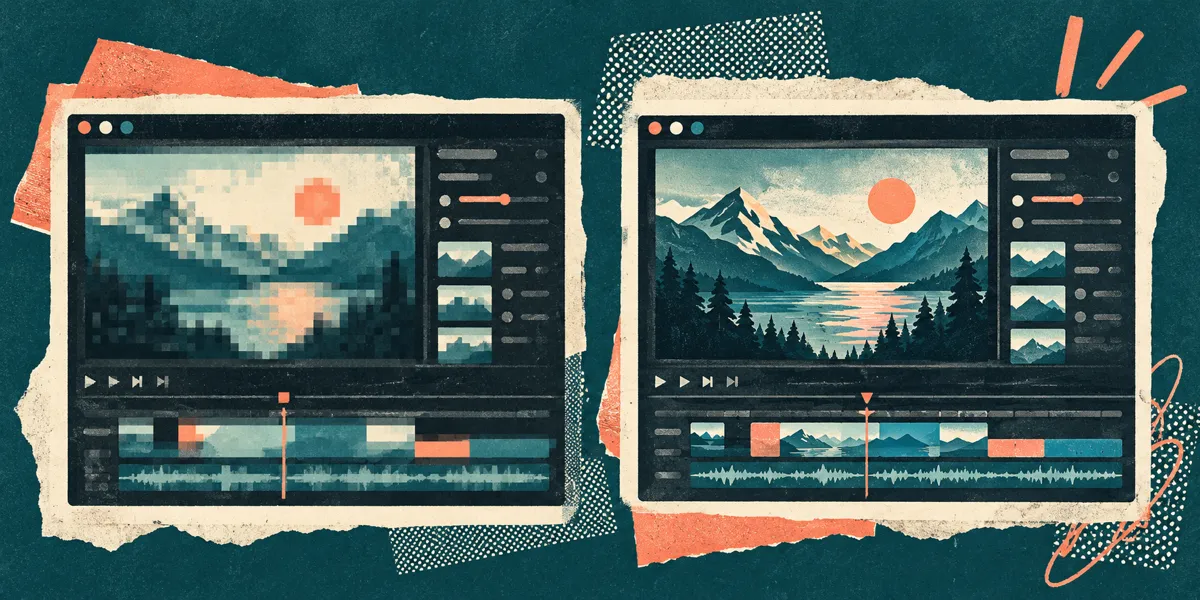
On 21 September 2026 Clipchamp published a guide to a new AI video upscaler in the Microsoft Clipchamp Windows app. It uses Windows' Video Super Resolution to create a higher-resolution copy of a clip, up to 4K, and it runs on the device rather than in the cloud.
This post covers what Clipchamp says the feature does, where it works, and what it can and can't do for tutorial and demo footage. We have not tested the feature. Everything below comes from Clipchamp's own pages, and where something is our inference we say so.
Checked on 19 October 2026. Source: Clipchamp's blog post How to upscale a video on Windows (up to 4K), posted 21 September 2026, and the "AI video upscaler in Windows" entry on Clipchamp's What's new page. Plan prices and export limits come from our Clipchamp pricing breakdown, verified 13 October 2026.
What Clipchamp released
The right-hand column paraphrases Clipchamp's guide.
| Question | What Clipchamp says |
|---|---|
| What it does | Makes a higher-resolution copy of a clip and uses AI to add visual detail to it |
| Target resolutions | 480p, 720p, 1080p or 4K. The menu only offers resolutions above the source clip's |
| Where it runs | On the Windows device itself, with no cloud upload |
| Which app | The Microsoft Clipchamp desktop app for Windows, with personal, work or school accounts. It is not available in the browser version |
| Which devices | Supported Windows 11 PCs. It can run on the CPU of a compatible device or on the NPU of a Copilot+ PC, and AMD, Intel and Qualcomm hardware is supported |
| What it can't do | It can't bring back detail the original recording never captured |
The guide's FAQ adds that availability also depends on whether Windows video upscaling is supported and switched on for the device. So a Windows 11 PC is necessary but not, by itself, enough.
How to upscale a clip in Clipchamp
Clipchamp's guide describes three steps:
- Import the video. Open the Clipchamp Windows app, create a new video, import your clip and drag it onto the timeline.
- Choose a resolution. Select the clip, open the upscale tab in the property panel, pick a target resolution from the quality menu and click upscale.
- Preview and export. Play the result against the original. A restore original button undoes it. Then export as usual.
The export limit to know about
Upscaling to 4K is only useful if you can export at 4K. On Clipchamp's pricing page, which we read on 13 October 2026, the free plan exports up to 1080p HD and Premium exports up to 4K UHD. Premium comes with Microsoft 365 Personal or Family rather than as a standalone Clipchamp plan.
Clipchamp's upscaling guide doesn't say which plans can use the upscaler. It mentions personal accounts but not whether Premium is required. That question is unresolved. What is clear is the export cap: on the free plan, a 4K upscale would still have to leave the editor at 1080p or lower. Check the upscale and export options in your own account before you process a whole library.
What upscaling can and can't do for screen recordings
Here is where tutorial makers need to be careful.
Clipchamp states the limit itself: upscaling can't restore detail that wasn't captured, and the result depends on the original footage. A screen recording is mostly text and thin lines. If a menu label was captured as a few blurry pixels, the real letters aren't stored anywhere in the file for the upscaler to find.
It is also worth noticing the tutorial use Clipchamp suggests. Its example is improving a low-resolution webcam recording so it looks clearer next to screen recordings and text. That is upscaling the face-cam, not the screen.
Our reading of what that means in practice:
| Footage | Is upscaling likely to help? | Why (our reading) |
|---|---|---|
| A low-resolution webcam clip next to a sharp screen recording | Plausibly, and it is Clipchamp's own example | Viewers notice the mismatch in sharpness, and a face is more forgiving of added detail than text is |
| An old 720p tutorial you want to fit into a 1080p series | Possibly, for overall softness | It may make edges look cleaner. Small text that was hard to read before is likely to stay hard to read |
| A recording where the UI text is already unreadable | Unlikely | The detail was never captured. The tool adds plausible detail, and for text, plausible is not the same as correct |
| A compressed clip someone sent you through a chat app | Possibly | Clipchamp lists compressed clips from messaging apps as a use. Heavy compression artefacts may still show |
That third row matters most for software tutorials. When an upscaler adds detail, a viewer can't tell added detail from real detail. On a setting name, a version number or a file path, our view is that you shouldn't rely on it. If a viewer needs to read it, re-record that part and make it readable at capture: a larger app zoom, a higher-resolution recording, or narration that reads the label aloud.
Enlarging the blurry region afterwards doesn't fix it either. Zooming into footage that was captured at low resolution makes the same missing pixels bigger. A zoom helps when the original capture was sharp and the area is simply small on screen.

Better than upscaling: record it readable the first time
Upscaling repairs footage you already have. For new tutorials, a few habits avoid the problem:
- Record at your display's full resolution. Don't capture a small window and stretch it later.
- Increase the app's zoom before recording. A browser zoom of 110 to 125% makes UI text larger in the final video.
- Zoom in on small areas of a sharp capture. When the source pixels are real, a zoom on the region you are working in makes it easier to read.
- Export at the resolution you recorded. Exporting a 1080p capture at 4K adds file size, not captured detail.
- Say the important labels. If the narration names the button, the viewer doesn't need to read it.
For more on capture settings, see how to record your screen on Windows, and our Clipchamp pricing breakdown if you are deciding whether you need Premium for 4K export.
Where Vorec fits
Upscaling is a repair for footage that was captured too small. Vorec's approach is to capture the screen readably and then narrate it.
Vorec records your screen. It has its own macOS recorder, and an AI agent can drive it for you through the Claude Code plugin, capturing locally for you to review before anything is uploaded. In the editor you can add smooth cursor motion, cursor-follow zoom and click-based auto-zoom, which enlarge the part of a recording you are working in. Vorec then drafts narration matched to the workflow it captured and generates the voiceover, with no microphone. The same capture can also produce a written step-by-step guide, with annotatable screenshots. You can upload an existing recording instead if you already have one.
Vorec exports at up to 1080p on the Trial and Starter plans and up to 4K on Pro and Business. The Trial is $0 with 100 credits and is a 7-day free trial with no credit card required. Trial includes up to 3 projects; exports carry a watermark. Paid plans are Starter at $9 a month, Pro at $24 and Business at $59. Each has a launch allowance for its first three months (500, 1,500 or 5,000 credits a month), then a standard allowance (150, 500 or 1,500). Prices checked 19 October 2026.
FAQ
Can Clipchamp upscale a video to 4K?
Yes, according to Clipchamp. Its upscaler can make a higher-resolution copy of an eligible clip, up to 4K. Only resolutions above the source appear as options.
Does the Clipchamp upscaler work in the browser?
No. Clipchamp says it works in the Microsoft Clipchamp desktop app for Windows, not in the browser version.
Does Clipchamp upload my video to upscale it?
No. Clipchamp says the processing happens on the Windows device, with no cloud upload.
What PC do I need?
Clipchamp says it works on supported Windows 11 PCs, on the CPU of compatible devices or the NPU of Copilot+ PCs, with AMD, Intel and Qualcomm hardware supported. Windows video upscaling must also be supported and enabled on the device.
Can AI upscaling make blurry screen text readable?
Clipchamp says upscaling can't recover detail that is missing from the source. If text wasn't readable in the original, enlarging it afterwards won't bring back the missing pixels either. Our advice is to re-record that part so it is readable when captured.
Can I export the upscaled video in 4K on the free plan?
Clipchamp's pricing page lists free exports up to 1080p and Premium exports up to 4K. The upscaling guide doesn't say whether the upscaler itself needs Premium, so check the options in your account before you start.
Want the recording to narrate itself? Record with Vorec, or upload one you already have, and get a narrated tutorial plus a written guide. Start free.