YouTube Auto Dubbing: How It Works for Tutorials (2026)
Vorec Team · 2026-10-04 · About 9 min read
If you upload tutorials to YouTube, some of your viewers may already be hearing them in a language you don't speak. YouTube's automatic dubbing is on by default for eligible creators, according to YouTube's own help page. Unless you turn on manual review, the dubs can be published without you listening to them first.
That's useful reach, and it's also a quality risk. A tutorial says "click Settings, then Billing". If the dub mistranslates a menu name, the viewer looks for a button that doesn't exist.
This guide explains how YouTube auto dubbing works, who has it, which videos it skips, and how to review dubs before viewers hear them. It uses YouTube's help center and official blog only. Then we look at what it means for tutorials and screen recordings specifically.
Checked on 4 October 2026 against YouTube's automatic dubbing help page and two posts on the official YouTube Blog. YouTube changes eligibility and language lists in this area often, so treat the help page as the source of truth.
What is YouTube auto dubbing?
Auto dubbing is a YouTube feature that creates translated audio tracks for your videos. YouTube detects the spoken language, translates the speech, and generates a dubbed voice track in other languages.
Viewers then pick a language in the player. YouTube's help page says videos with these tracks are marked "auto-dubbed" in the video description, and that viewers can switch between the original and dubbed audio for any video.
It's different from uploading your own translated audio. YouTube's multi-language audio help page covers that separate feature, where you record or commission the dub yourself and upload it. That page says the manual feature "does not automatically generate dubbed audio tracks."
Who has YouTube auto dubbing?
Access has widened in stages. Here's the timeline from YouTube's own announcements:
| Date | Source | What it said about access |
|---|---|---|
| 10 Dec 2024 | YouTube Blog launch post | Available to "hundreds of thousands of channels in the YouTube Partner Program" focused on knowledge and information content |
| 4 Feb 2026 | YouTube Blog expansion post | "Auto dubbing is now available to everyone", in 27 languages |
| Checked 4 Oct 2026 | YouTube Help | "This feature is enabled by default for eligible creators" |
The help page still uses the word "eligible", and it gives no universal subscriber or Partner Program threshold. It says creators who don't have automatic dubbing enabled may be able to turn it on through early access. The quickest check is your own YouTube Studio settings.
Is auto dubbing on by default?
Yes, for eligible creators, per the help page. You can turn it off at any time in YouTube Studio under Settings → Channel → Advanced settings, by unchecking Allow automatic dubbing and saving. You can turn it back on in the same place.
There is also a middle option. The help page says that if you want to review dubs before they're published, you can check Manually review dubs before publishing in the same settings. That keeps auto dubbing on, and dubs that aren't published automatically have to be published by you.
For tutorials, we'd treat that as the sensible default. Our reasoning is below.
Which videos does YouTube skip?
The help page lists reasons a video may not be auto-dubbed:
- The video is longer than 120 minutes.
- It has no speech, only music, or very little spoken content.
- The original audio is in a language YouTube doesn't currently support.
- YouTube couldn't detect the source language automatically.
- The speech in the original audio is too fast.
- The video contains copyrighted content.
The second item matters for this blog's readers. A silent screen recording has nothing to dub. Auto dubbing translates speech that's already in the video. A tutorial with only clicks and music will be skipped, according to that list.
Which languages are supported?
The answer depends on which page you read and when:
- The February 2026 blog post says auto dubbing supports 27 languages.
- The help page, when we checked it, listed 29 languages that can be dubbed into English, including Arabic, Chinese, French, German, Hindi, Japanese, Korean, Portuguese, Spanish, Turkish and Vietnamese.
- For English videos, the same page listed 20 target languages: Arabic, Bengali, Dutch, French, German, Hebrew, Hindi, Indonesian, Italian, Japanese, Korean, Malayalam, Polish, Portuguese, Punjabi, Russian, Spanish, Tamil, Telugu and Ukrainian.
- A few other pairs are listed too, such as Portuguese to Spanish. YouTube says the Languages page in Studio is the authority for a given video.
So check the help page for your own source language rather than relying on any single number, including ours.
What are expressive speech and lip sync?
Two newer capabilities sit on top of basic dubbing.
Expressive speech. The February 2026 post says it aims to "capture a creator's original emotion and energy". It names eight languages for all channels: English, French, German, Hindi, Indonesian, Italian, Portuguese and Spanish. The help page marks expressive-speech directions with an asterisk. For English videos, it marked French, German, Hindi, Indonesian, Italian, Portuguese and Spanish when we read it.
Lip sync. The February 2026 post described a Lip Sync pilot being tested. It "subtly matches the speaker's lip movements to the translated audio." The help page still calls it experimental: early access is available to select channels and only supports qualifying videos and languages. Channels with access see an Allow experimental lip sync box. For a screen recording with no face on camera, lip sync has nothing to work on.
How accurate is YouTube auto dubbing?
YouTube doesn't claim it's perfect. Its December 2024 launch post said the technology "won't always be perfect." It also said the translation may not be quite right, or the dubbed voice may not accurately represent the original speaker.
We haven't measured its accuracy ourselves, and we're not aware of a public YouTube accuracy figure. The one usage number YouTube did publish is about viewing, not quality. The February 2026 post says that in December YouTube averaged more than 6 million daily viewers who watched at least 10 minutes of auto-dubbed content.
Why tutorials need extra care
Here's our reading, not YouTube's. Tutorials are a harder case for machine dubbing than most talking-head content, for three reasons.
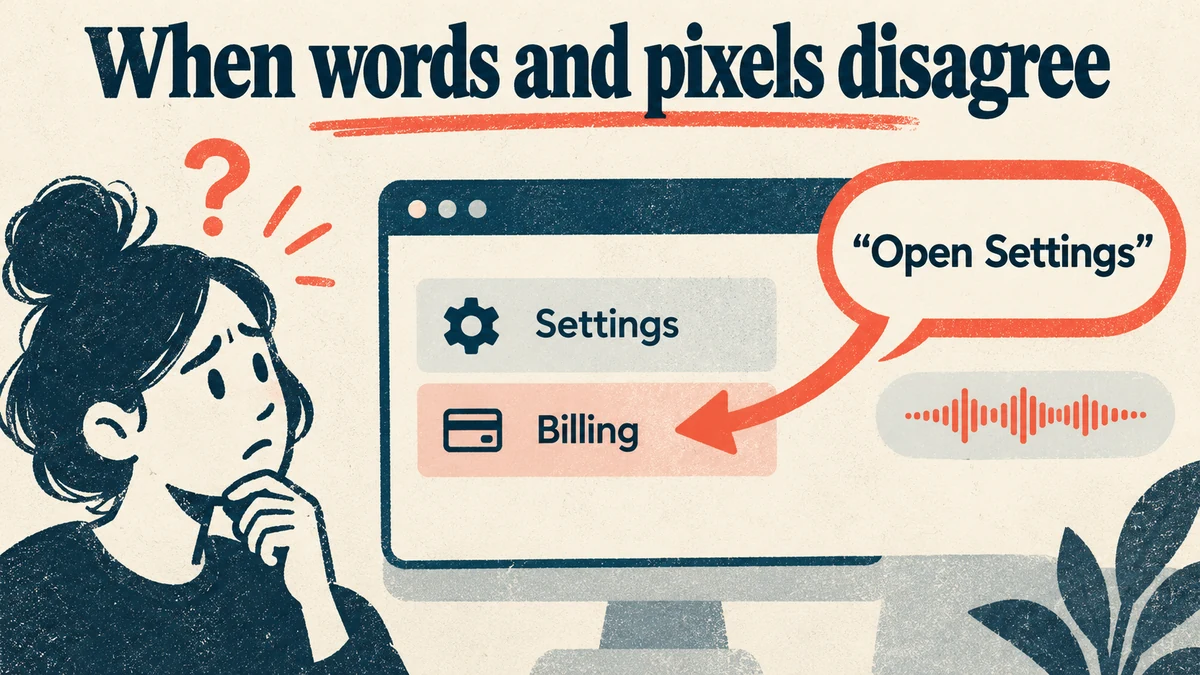
- UI labels must match the screen. The narration says a button name and the viewer looks for it. A dub may translate a label the interface itself shows in English, or the reverse. Either way the words and the pixels disagree.
- Timing is tight. Narration in a tutorial is tied to on-screen actions. Translated speech is often longer or shorter than the original, and the help page lists fast speech as a reason a video may be skipped.
- Product names and jargon. Terms like "webhook", "workspace" or your product's name shouldn't be translated. A general-purpose dub has no glossary from you.
None of this makes auto dubbing a bad idea. It means a tutorial dub deserves a listen before it goes live, which is exactly what Manually review dubs before publishing allows.
How to review auto dubs before they go live
Based on YouTube's help page and launch post:
- Open YouTube Studio on your computer. The help page says managing dubs, including previewing, publishing and deleting, is only available there.
- Go to Settings → Channel → Advanced settings and check Manually review dubs before publishing, rather than turning the feature off. Click Save.
- Go to the Languages section for a video. The launch post says that's where the dubs appear.
- Listen at the moments that matter. For a tutorial, that's every point where the narration names a button, menu or field.
- Publish the dubs you approve, and unpublish or delete the ones you don't. With manual review on, a pending dub is published from that video's Languages controls. The launch post says you can unpublish or delete dubs.
- Upload your own track for languages you care about most. Per the multi-language audio help page, if an automatic dub already exists for that language, you must delete it before uploading your own.
YouTube auto dubbing vs re-narrating the tutorial
There are two different ways to get a tutorial into another language:
| YouTube auto dubbing | Re-narrating from the script | |
|---|---|---|
| Starting point | Your published video's spoken audio | A script tied to the on-screen actions |
| Needs speech in the original | Yes (videos with little speech can be skipped) | No, the script is the source |
| Where it lives | On YouTube only | Exported video, usable on any platform |
| Your control over wording | Review, unpublish or replace the dub | Edit the translated script before generating audio |
| Cost on YouTube's side | YouTube doesn't list a charge on its help page | Depends on the tool |
The right choice depends on where the video lives. If your tutorials only live on YouTube and already have narration, auto dubbing with manual review is a low-effort start. If your tutorials also live in a help center, an LMS or a product tour, you need a translated file you control.
For more on that workflow, see our guide to translating tutorial videos into other languages and the broader guide to multilingual tutorial videos.
Where Vorec fits
Vorec works from the other end. It records your screen with its own macOS recorder, or takes a recording you upload, and drafts narration matched to the workflow it captured. It then generates the voiceover, so nothing is spoken into a microphone.
Because the narration starts as a script tied to on-screen actions, it can be regenerated in supported languages on eligible plans without re-recording. Per our live plan settings, Starter includes 3 translation languages, Pro and Business include more, and the trial includes none. The translated narration is text you can edit in the editor before its audio is generated, and the result is an exported video you can host anywhere, including YouTube.
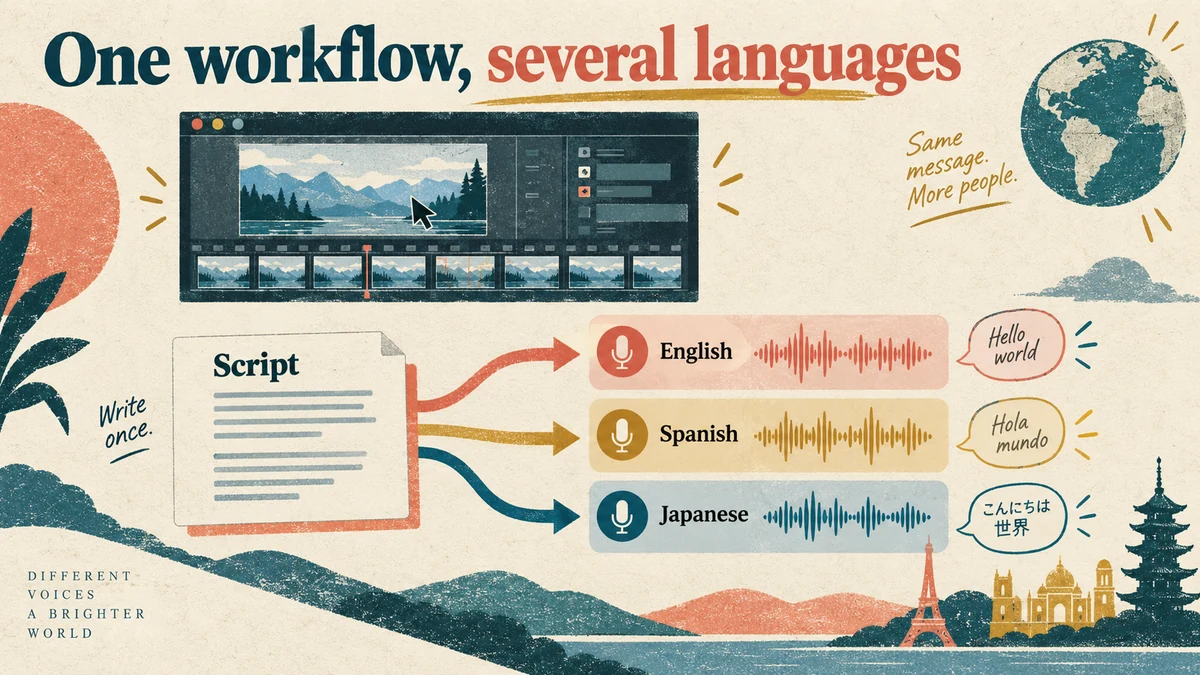
That doesn't replace auto dubbing on YouTube. The two can coexist: publish your own language versions where they matter, and let YouTube's auto dubs cover the rest, reviewed first.
If the voice side interests you, our explainers on AI voice cloning and Gemini text-to-speech go deeper.
FAQ
Is YouTube auto dubbing free?
YouTube's help page doesn't list a charge for creators to use it. We found no fee mentioned in the help page or either blog post we checked.
How do I turn off auto dubbing on YouTube?
In YouTube Studio, go to Settings → Channel → Advanced settings, uncheck Allow automatic dubbing, and save. If you only want to check dubs first, check Manually review dubs before publishing instead.
Why wasn't my video auto-dubbed?
The help page lists the reasons: longer than 120 minutes, little or no speech, an unsupported or undetected source language, speech that's too fast, or copyrighted content. Your channel also has to be eligible.
Can viewers hear the original audio?
Yes. The help page says viewers can switch between the original and dubbed audio tracks, and dubbed videos are marked "auto-dubbed" in the description.
Will YouTube dub a silent screen recording?
No. Auto dubbing translates existing speech, and the help page lists "no speech, only music, or very little spoken content" as a reason a video may be skipped. A silent recording needs narration first.
Can I replace an auto dub with my own translation?
Yes. The multi-language audio help page says you must delete the automatic dub for that language first, then upload your own audio track. That page says the manual feature is available to creators with access to Advanced features.
Want the recording to narrate itself? Record with Vorec, or upload one you already have, and get a narrated tutorial plus a written guide. Start free. 7-day trial, 100 credits, no credit card required. Trial includes up to 3 projects; exports carry a watermark. Paid plans start at $9/month.