Meta App Review (2026): How to Pass, Step by Step
Vorec Team · 2026-11-22 · About 11 min read
Meta App Review decides whether your app can use Facebook, Instagram, WhatsApp or Threads data from people who don't have a role on your app. Most rejections come from the submission, not the code: a permission requested but never shown, a screen recording that skips the login, or a test account the reviewer can't open.
This guide walks through the whole process as Meta documents it. Everything below was read on Meta's own developer documentation on 22 November 2026, and the sections link to the pages they come from. Where Meta's docs don't answer a question, we say so.
The short answer
You need App Review when your app requests Advanced Access to a permission or feature, which is what lets it work for people who have no role on the app. Before you submit, Meta generally expects a verified business, a complete Basic Settings page (icon, privacy policy, category, data deletion), at least one successful API call per requested permission in the last 30 days, and a separate screen recording for every permission and feature, each showing the full login, the permission being granted and the data being used. Meta says reviews typically take less than a week, often only 2 to 3 days.
Do you need App Review at all?
Meta's access levels page describes two levels:
| Access level | Who it covers | How you get it |
|---|---|---|
| Standard Access | People with a role on your app (or in the business that owns it) | Automatic for all permissions and features |
| Advanced Access | Everyone else | Approved permission by permission through App Review |
If your app will only be used by people who have a role on the app, Meta's App Review overview says App Review is not required.
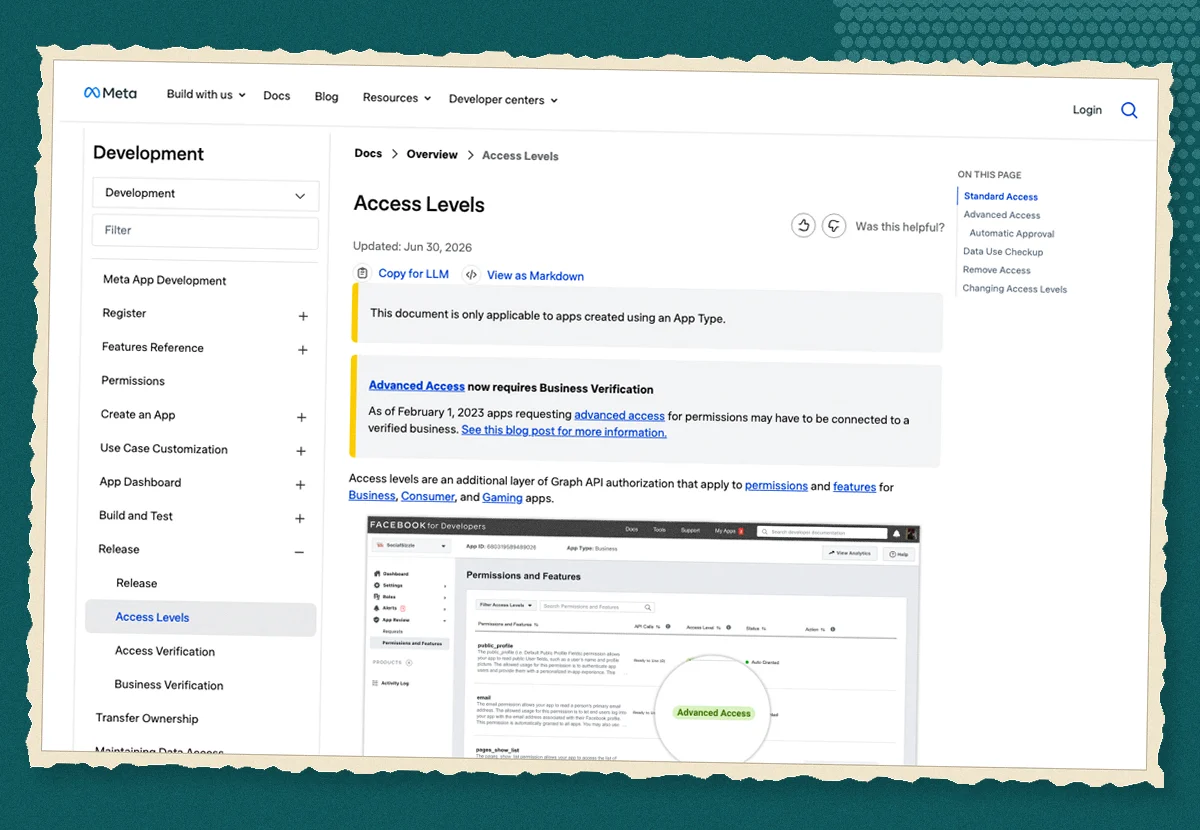
Meta's Access Levels page (updated 30 June 2026), read on 22 November 2026.
Two other details:
- email and public_profile: Meta says newly created Consumer apps are automatically approved for Advanced Access to these two, and public_profile is granted to every app.
- App modes: in Development mode an app can only request permissions from role users. In Live mode it can ask anyone, but only for permissions approved through App Review (app modes). Business apps have no modes and rely on access levels (App Review introduction).
Before you submit: the checklist
Work through this before you open the submission form. Each item comes from Meta's submission walkthrough or the pages it links to.
- Finish the app. Changing basic or advanced settings after you submit may require re-review, and Meta rejects apps that are still in development.
- Make it reachable. The app or website must be publicly available, or you must explain how to access it.
- Make a real API call. At least one successful call with each permission you request, within 30 days of submitting. The Request advanced access button stays grey until Meta logs that call.
- Verify your business. Meta's Business Verification page says it is required for Advanced Access, and for apps that let other businesses access their own data. It is completed in Business Manager by someone with an Admin role in the business.
- Complete Basic Settings. A 1024 x 1024 app icon with no Meta logos or trademarks, a privacy policy URL, terms of service URL, contact email, app category and app purpose (basic settings).
- Add data deletion. Give people a way to delete their data: a data deletion instructions URL (it can point to the relevant section of your privacy policy) or a data deletion callback.
- Read the Allowed Usage for each permission. If your app doesn't fit it, Meta says the permission will not be approved.
- Prepare test access. Meta tests with its own accounts. Never share your personal Meta account's credentials; if people can sign up without Facebook Login, Meta recommends including credentials for a test user.
How to submit, step by step
Meta's walkthrough runs through these steps in the App Dashboard (Meta numbers Business Verification as Step 1.5):
- Step 1: Select permissions and features under App Review > Permissions and Features, and click Request advanced access for each one. Request only what the app uses now.
- Step 1.5: Complete Business Verification if you are prompted.
- Step 2: Answer the data handling questions. Meta evaluates the answers immediately.
- Step 3: Complete App Settings: icon, privacy policy URL, app purpose, category and a primary contact email you can read, because review emails go there.
- Step 4: Complete App Verification: confirm the platform settings and describe exactly how a reviewer can reach and test the app. If people sign in with a Meta login, the reviewer uses Meta's own test accounts.
- Step 5: Complete usage descriptions: for every permission and feature, describe why the app needs it and upload its screen recording. Meta says each permission needs its own description and asks you not to copy and paste them.
- Step 6: Submit for Review.
For the usage description, Meta suggests answering four questions: how the permission helps your users, why the app needs it, how the app uses the data, and why the app would be less useful without it.
Screen recordings: what Meta wants to see
This is where most submissions are won or lost. Meta's screen recordings guide says your submission must include recordings that show how to test every permission and feature you request, and that it will not approve a permission it can't verify from your recordings.
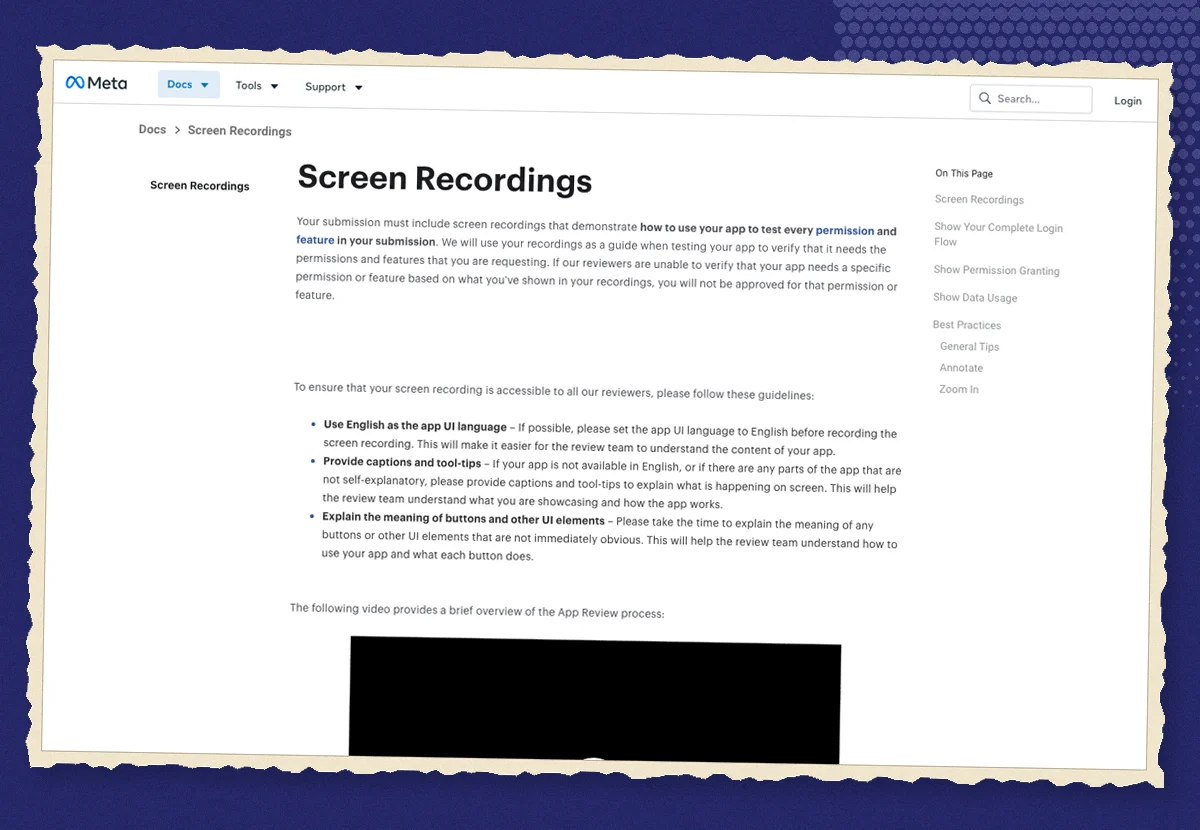
Meta's screen recordings guide, read on 22 November 2026.
Each recording should show three things, in order:
- The complete login flow, starting logged out and ending logged in.
- The person granting the permission you are demonstrating, on Meta's permission dialog.
- The feature using the data: someone doing the thing that needs the permission, and what your app does with that data.
Meta's recording guidelines:
- Record in high resolution, ideally 1080p or better.
- Lower your monitor's resolution to a width of 1440 pixels or less so text is readable.
- Set the app UI to English. If the app isn't available in English, or a screen isn't self-explanatory, add captions and tool-tips.
- Explain buttons and UI elements whose meaning isn't obvious.
- Use the mouse rather than the keyboard, and enlarge the cursor, so the reviewer can see every action.
- Record only the app window or full-screen app.
- Leave audio out. Meta says its reviewers will not listen to it, so captions and annotations must carry the explanation.
Meta's guide notes that the free recorders it mentions can't annotate, zoom or edit, and suggests dedicated recording software or a video editor for those steps. The recording doesn't need to explain why the app needs a permission; the usage description does that.
What the most-requested permissions need
From Meta's permissions reference, here is what the recording must show for the permissions developers request most:
| Permission | Depends on | The recording must show |
|---|---|---|
| `pages_show_list` | — | The user's Pages being connected to your app |
| `pages_read_engagement` | `pages_show_list` | A post's content from the user's Facebook Page displayed in your app |
| `pages_manage_posts` | `pages_read_engagement`, `pages_show_list` | Creating, editing and deleting a post, then the updated post on the Page |
| `instagram_basic` (Facebook Login) | `pages_read_user_content`, `pages_show_list` | The login and the user selecting their Instagram account |
| `instagram_business_basic` (Instagram Login) | — | The complete Instagram login process, and the account's username and ID |
| `instagram_business_content_publish` | `instagram_business_basic` | Creating a feed photo post, adding a caption, hashtags and other metadata, and publishing |
| `ads_read` | — | Ads performance data such as impressions, conversions, spend, clicks and reach |
| `ads_management` | `pages_read_engagement`, `pages_show_list` | Ads performance data such as impressions, conversions, spend, clicks and reach |
| `whatsapp_business_messaging` | `whatsapp_business_management` | A message being sent and received in WhatsApp |
`business_management` may be requested as a dependency of another permission; if so, Meta asks you to name the main permission it supports. An Instagram app can use Facebook Login or Instagram Login, but Meta says not both.
Instagram, WhatsApp and Threads
- Instagram: upload a screencast of the end-to-end user experience for each permission or feature (Instagram App Review).
- WhatsApp: Meta asks for a separate video clip for each permission and warns that one video covering several may be rejected. A recording made with a camera or camera phone is accepted, a screenshot is not. Meta states an average App Review turnaround of about 24 hours for WhatsApp. If you use the WhatsApp Business Platform only for your own business, as a Direct Developer, Meta says you don't need Advanced Access or App Review (WhatsApp App Review).
- WhatsApp Tech Providers: your business must be verified first (Tech Provider guide). Meta's 9 October 2026 developer blog post says Access Verification is no longer required for Tech Provider onboarding, while Business Verification and App Review for advanced permissions still are.
- Threads: the Threads app setup guide lists a data deletion URL among the required assets, and says testing is only required if you submit the app for App Review.
How long it takes and what happens next
Meta's App Review introduction says it typically takes less than one week to process a submission, often only 2 to 3 days, but it may take longer during peak periods. Results appear in Alert > Inbox in the App Dashboard, and you can track status under App Review > Requests.
If a permission is rejected, read the reviewer's notes, fix that specific gap, and submit again. Meta's docs we read don't describe an appeal route for App Review decisions. The developer appeals page Meta links is described for enforcement actions, and the docs don't say whether it covers rejected App Review requests.
Why submissions get rejected
Meta's common mistakes page and the walkthrough name these:
- The reviewer can't access the app, or it requires credentials Meta wasn't given.
- A screen recording is missing for one of the requested permissions or features.
- The app is still in development, or features are unfinished.
- Permissions requested for future use that the app doesn't use yet.
- Facebook Login can't be found or doesn't work.
- A fake account used for testing.
- The use doesn't fit the permission's Allowed Usage.
After approval: how apps lose access
Approval is not permanent. From Meta's docs:
- Data Use Checkup is annual for apps that are live or have Advanced Access. Meta notifies admins 60 days before it is due, with reminders at 30, 10 and 3 days, and says a missed checkup deactivates the app until it is done, with no extensions (Data Use Checkup FAQ).
- Inactive apps: after 90 days with no logins, API calls or webhooks, an app may be deemed inactive (maintaining data access), and permissions removed during inactivity must be re-approved through App Review.
- Unused permissions: if the app doesn't use a permission for 90 days, the user must grant it again (permissions reference).
- Enforcement: actions range from a warning to revoking approved permissions or deactivating the app, and a revoked permission needs a new App Review (enforcement).
How to make the screen recordings with Vorec
Meta's recordings are silent by design, so everything a reviewer needs has to be on screen. That is what Vorec's editor is built for. Record each permission's flow with Vorec's macOS recorder, or upload a recording you already made, then:
- Add captions for a reviewer who watches muted. Vorec drafts narration matched to the workflow and turns it into captions you can edit line by line. Since Meta ignores audio, the captions carry the explanation of each step.
- Make dialogs readable. In the editor you can add cursor-follow zoom and apply click-based auto-zoom to enlarge the permission dialog and small buttons, and callouts can point at the exact control being clicked.
- Explain unclear buttons, as Meta asks, with callouts and text on screen.
- Hide test data you don't want shown with blur boxes.
- Hold the frame. Freeze-sync can hold a frame so a caption finishes before the next screen appears.
- One project per permission. Meta wants a separate recording for each permission, so keep one project for each; when a reviewer asks for clearer captions, you edit and re-export instead of re-recording. Missing footage still needs a new take.
Export MP4 at 1080p on any paid plan. Plans start at $9 a month, with a free trial and no credit card required (current allowances on the pricing page). For other platforms' rules, see our app review demo video requirements by platform.
Frequently asked questions
How long does Meta App Review take?
Meta says it typically processes a submission in less than one week, often in 2 to 3 days, though it may take longer during peak periods. For WhatsApp, Meta states an average turnaround of about 24 hours.
Do I need App Review if only my team uses the app?
No. Meta says App Review is not required if the app is only used by people who have a role on the app. They get Standard Access automatically.
Do Meta App Review screen recordings need audio?
No. Meta says to omit audio because reviewers will not listen to it. Use captions, tool-tips and annotations to explain each step, especially if the app isn't available in English.
Can one screen recording cover several permissions?
Plan one recording per permission or feature. Meta asks you to upload a recording under each permission and won't approve one that is missing a recording. For WhatsApp, it warns that a single video covering several permissions may be rejected.
Is Business Verification required for Meta App Review?
Meta's docs say Business Verification is required to get Advanced Access, and for apps that let other businesses access their own data. It isn't needed if only people with a role on the app use it.
What happens if I don't complete Data Use Checkup?
Meta says the app will be deactivated until the checkup is completed, and that extensions are not provided. Notices start 60 days before it is due.
Need clear screen recordings for Meta App Review? Record each permission's flow with Vorec, or upload recordings you already have, then add captions, zoom and callouts so a reviewer can follow it with the sound off. Start your free trial, no card needed.