How to Record a Webex Meeting (2026): Cloud, Local, Plans
Vorec Team · 2026-11-04 · About 8 min read
To record a Webex meeting, you need to be the host or a cohost. In the meeting, click Record, choose whether to save to the cloud or to your computer, then click Record again. Click Stop when you're done. Cloud recordings are saved as MP4 files to your Webex site and can take up to 24 hours to arrive; local recordings are saved as MP4 files on your computer when the meeting ends. Cloud recording needs a paid Webex plan (Starter, Plus or Business); local recording is available on the Free plan too, if your site administrator allows it. Everything below comes from Cisco's Webex Help Center articles, read on 2 November 2026. Vorec, which publishes this page, comes up near the end.
Cloud or local: which recording should you pick?
Webex offers two kinds of recording, and the choice affects who can record, what ends up in the file, and where you find it afterwards.
| Cloud recording | Local (computer) recording | |
|---|---|---|
| Plans, per Webex Help | Starter, Plus and Business. Not available on the Free plan. Enterprise plans are configured by the site administrator | Free, Starter, Plus and Business. Enterprise plans are configured by the site administrator |
| Saved to | Your Webex site (User Hub) as an MP4 | Your computer as an MP4 |
| When it's ready | Up to 24 hours, depending on file size and bandwidth | When the meeting or event ends, per Webex |
| Audio captured | Meeting audio | Only when you joined with Computer audio. Call in and Call me audio isn't recorded |
| Chat, participants panel, transcripts, shared files | Not stated in the articles we read | Not included |
| Recording layout | You can choose a layout, per Webex's cloud-recording article | You can't choose a layout |
| Works from | Desktop and mobile apps (the cloud article gives steps for both) | Desktop app only |
Webex also notes that recording transcripts are not available on the Free plan, and that if your site runs out of storage, you can download recordings from User Hub and delete them there to free space.
Who can record a Webex meeting?
Only the host can start a recording. If the host isn't in the meeting, a cohost takes over the host role and can record; when the original host rejoins, they get the role back.
Attendees can't record a meeting. Webex's own article puts it plainly: if you were invited to the meeting, ask the host to record. The one exception in the articles we read is Webex Training, where the host can make a participant the presenter so that they can record, in WRF format on Windows only, if the site administrator allows it.
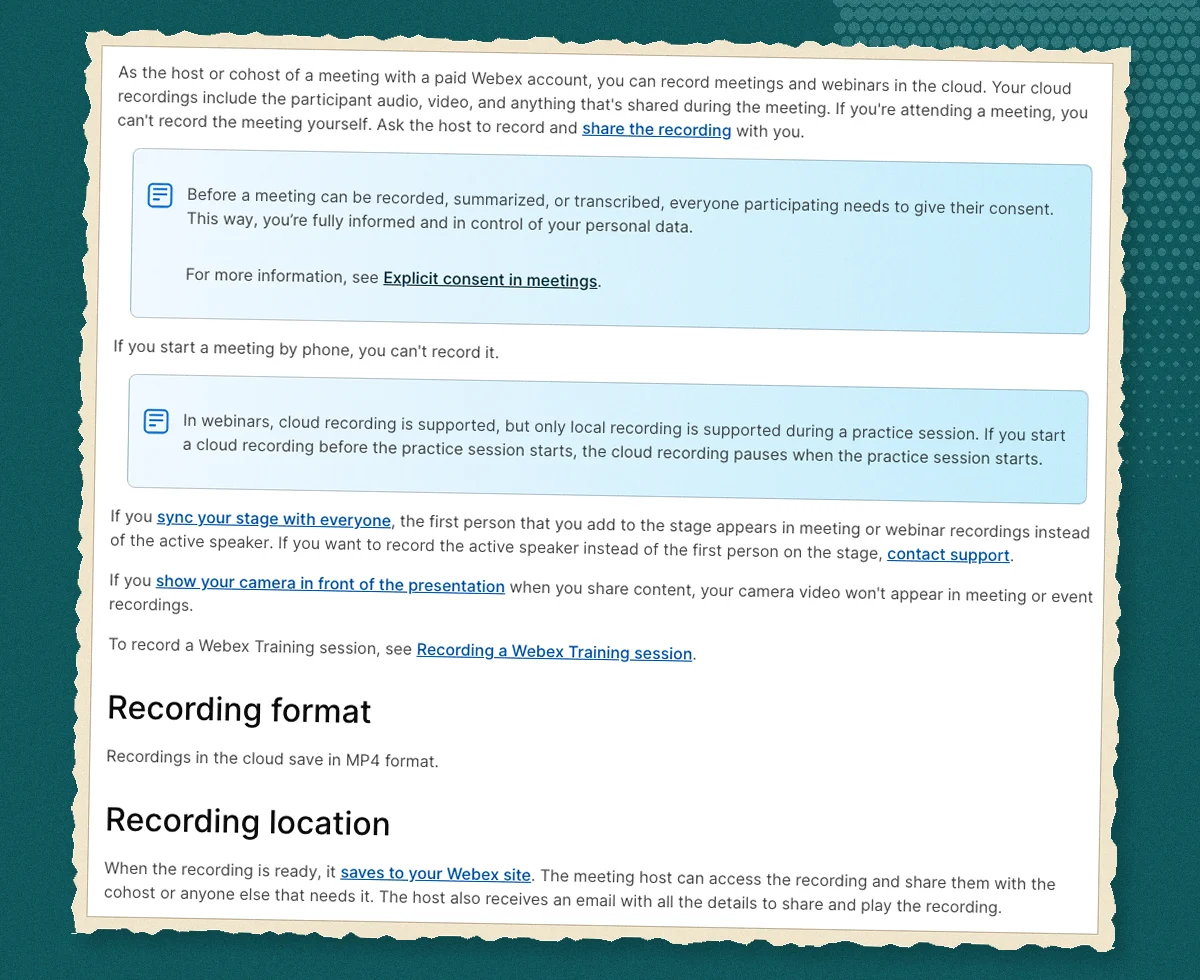
One more rule applies to everyone: before a meeting can be recorded, summarized or transcribed, everyone participating needs to give their consent. Our reading: expect a consent step when the host starts recording.
How to record a Webex meeting to the cloud
Cisco's steps, for the host or a cohost with a paid account:
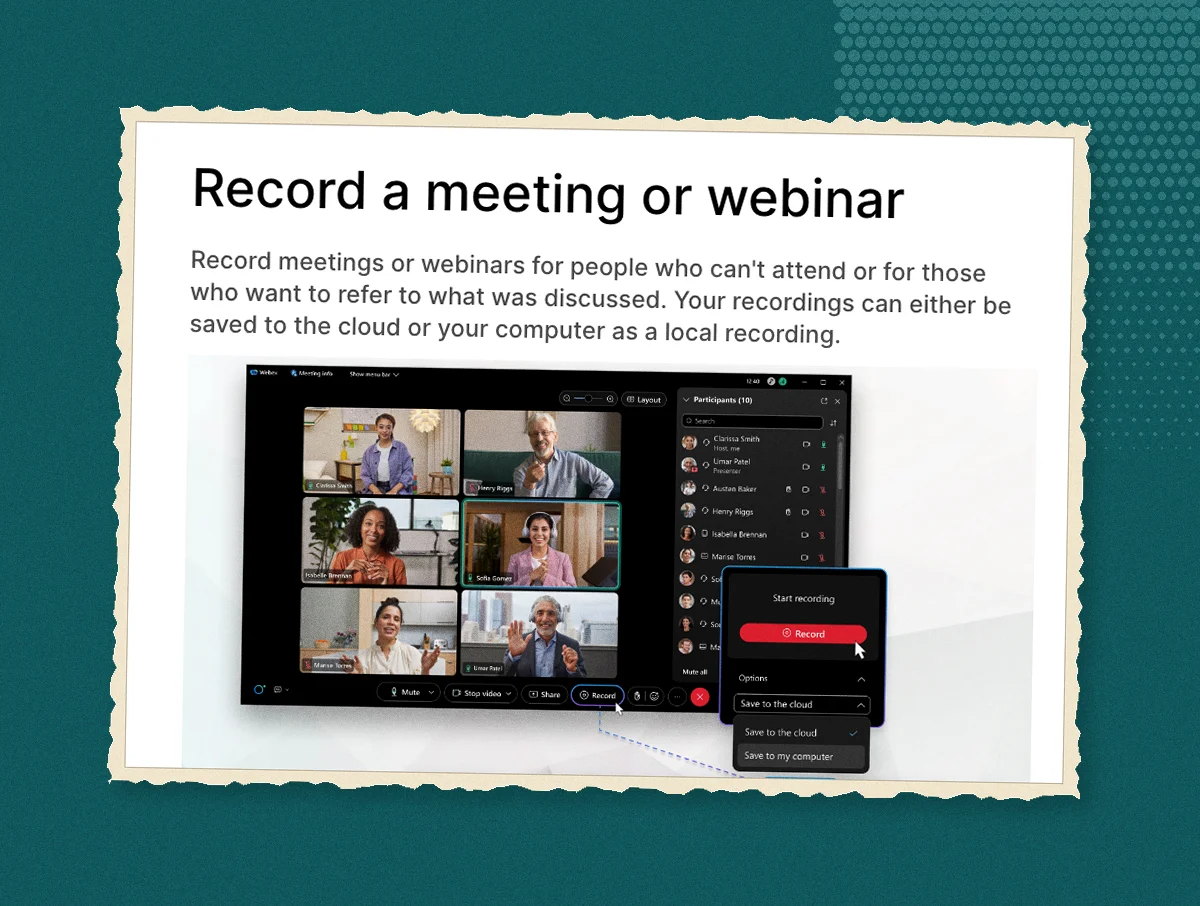
- In the meeting, click Record. If you don't see it, look under More options.
- Choose the cloud option.
- Click Record. A recording indicator appears in the top right of your window.
- To keep one continuous file across a break, click Record again and choose Pause or Resume.
- Click Stop to end the recording.
When the recording has been processed, Webex emails you. Processing can take up to 24 hours. The file is an MP4 that Webex says plays on most computers without new software.
Two cloud-specific points from the help articles:
- If you show your camera video in front of shared content, your video won't appear in the recording.
- If the meeting is linked to a Webex space, you can't change the recording settings for it.
How to record a Webex meeting on your computer
Local recording saves the file to your machine. Your site administrator has to allow local recording for your site first; if the computer option is missing, Webex says the option may be disabled and to contact your administrator.
- Join the meeting with Computer audio. This is the only audio option that gets recorded locally. If you picked another option, Webex shows a warning and records without sound.
- Click Record and select the option for your computer.
- Click Record.
- Optional: click Record, then Pause and Resume, to keep a single recording.
- Click Stop.
Where the MP4 goes, per Webex Help:
| Platform | Default save location |
|---|---|
| Windows | The Documents folder |
| Mac | Your Home folder, in Finder |
| Webex Suite | The folder you choose, otherwise Downloads |
Webex recommends saving recordings to a local folder rather than a network location, because playback from a network location isn't supported. Local recordings don't include panels such as chat and participants, transcripts, or files shared with Share File, and you can't choose a layout.
Where do Webex recordings go?
Cloud recordings live in User Hub. Sign in at user.webex.com and select Recordings in the navigation panel. From there you can play, share or download them. Attendees who want the file should look for an email from the host with a link.
Local recordings are wherever the table above says, unless you changed the location.
If you have older recordings in Webex's Advanced Recording Format (ARF), they can be converted to MP4 on Windows only; Webex says you can't convert them on a Mac.
Why can't I record on Webex? A checklist
The help articles list these reasons a recording won't start or won't include what you expected:
- You aren't the host or cohost. Ask the host to record.
- You started the meeting by phone. Phone-started meetings and webinars can't be recorded.
- You joined from the web app on a device such as a Chromebook. Local recording is only available from the desktop app.
- The computer option is missing. Local recording is disabled for your site; ask your administrator.
- You're on the Free plan and want a cloud recording. Cloud recording needs Starter, Plus or Business.
- No audio in a local recording. You didn't join with Computer audio.
- Your organization adds visual watermarks to shared content; Webex says recording may be blocked in that case.
- A webinar practice session is running. Webex says only local recording is supported during practice sessions.
- Playback looks wrong in Windows Media Player. Webex notes that recording playback doesn't fully support it. Our suggestion, not Webex's: try a browser or another player.
Recording automatically
If you schedule from the Webex App, either from the meetings calendar or from a space, you can set the meeting to start recording automatically. That removes the "did anyone press Record?" problem for recurring sessions.
Turning a recorded Webex walkthrough into a tutorial
A Webex recording is a record of a conversation. If part of that conversation was someone sharing their screen and walking through a process, the recording holds a tutorial, buried in a longer file with side comments and pauses.
The practical path is to download the MP4, trim it to the screen-share section, and narrate that section properly. Vorec can take that trimmed recording: upload it in the browser on any operating system, and Vorec analyses it, drafts narration matched to the workflow it sees, and generates the voiceover, so nobody re-records a microphone track. In the editor you can add smooth cursor motion, cursor-follow zoom and click-based auto-zoom, and freeze-sync can hold a frame so an explanation has time to finish. The same capture can produce a written step-by-step guide. If you'd rather not start from a meeting, Vorec also has its own macOS recorder, and an AI coding agent can drive it for you through the Claude Code plugin, with the take staying on your Mac until you've reviewed it. Vorec doesn't record Webex meetings itself.
Vorec starts with a free trial, no credit card required (current allowances are on the pricing page). The trial includes up to 3 projects, and exports carry a watermark. Paid plans are Starter at $9 a month ($86 a year), Pro at $24 a month ($230 a year) and Business at $59 a month ($566 a year). For the same workflow on other platforms, see how to record a Zoom meeting, how to record a Teams meeting and how to record a Google Meet call, or read how to add narration to a screen recording.
FAQ
Can you record a Webex meeting for free?
Yes, locally. Webex lists local recording as available on the Free plan, as long as your site administrator allows it. Cloud recording and recording transcripts are not available on the Free plan.
Can a participant record a Webex meeting?
Not in meetings. Only the host, or a cohost acting as host, can record, and Webex's advice to invited participants is to ask the host for the recording. In Webex Training, a host can make a participant the presenter so they can record (WRF format, Windows only), if the site administrator allows it.
Where are Webex recordings saved?
Cloud recordings are saved to your Webex site and listed under Recordings in User Hub. Local recordings are saved to your computer: the Documents folder on Windows, the Home folder on a Mac, or the folder you chose in the Webex Suite.
How long does a Webex cloud recording take to appear?
Up to 24 hours, depending on file size and bandwidth. Webex emails you when it's ready.
What format are Webex recordings?
MP4, for both cloud and local recordings. Older ARF recordings can be converted to MP4 on Windows.
Does Webex notify participants when recording starts?
Webex requires everyone participating to consent before a meeting can be recorded, summarized or transcribed, and a recording indicator is shown while recording is on.
Why is there no sound in my local Webex recording?
You didn't join with Computer audio. Webex only captures audio in a local recording when Computer audio is the selected audio option.
Sources: Cisco Webex Help Center, Record a meeting or webinar (article dated 21 October 2025), Record a meeting or webinar on your computer (26 October 2026), Record a meeting and webinar in the cloud (28 October 2026) and Find your Webex recordings (11 March 2026). All read 2 November 2026. Plan availability is as those articles state it; check your own site's settings, since Enterprise plans are configured by the administrator.
Want the recording to narrate itself? Record with Vorec, or upload one you already have, and get a narrated tutorial plus a written guide. Start free. Trial includes up to 3 projects; exports carry a watermark.