App Store Demo Video: Fix Guideline 2.1 Rejection
Vorec Team · 2026-03-23 · About 6 min read
You Just Got Rejected

You open your email and see it: "Guideline 2.1 - Information Needed." Apple needs a screen recording showing your app's functionality before they can continue the review.
This is the single most common App Store rejection. It is the guideline first-time submitters run into most often.
The fix is straightforward: record your app working on a real device and attach the video to your App Store Connect submission. But "straightforward" does not mean fast — especially if you have never created a demo video before.
Here is exactly what Apple wants, how to record it, and how to add professional narration so reviewers understand your app instantly.
What Apple Reviewers Want to See
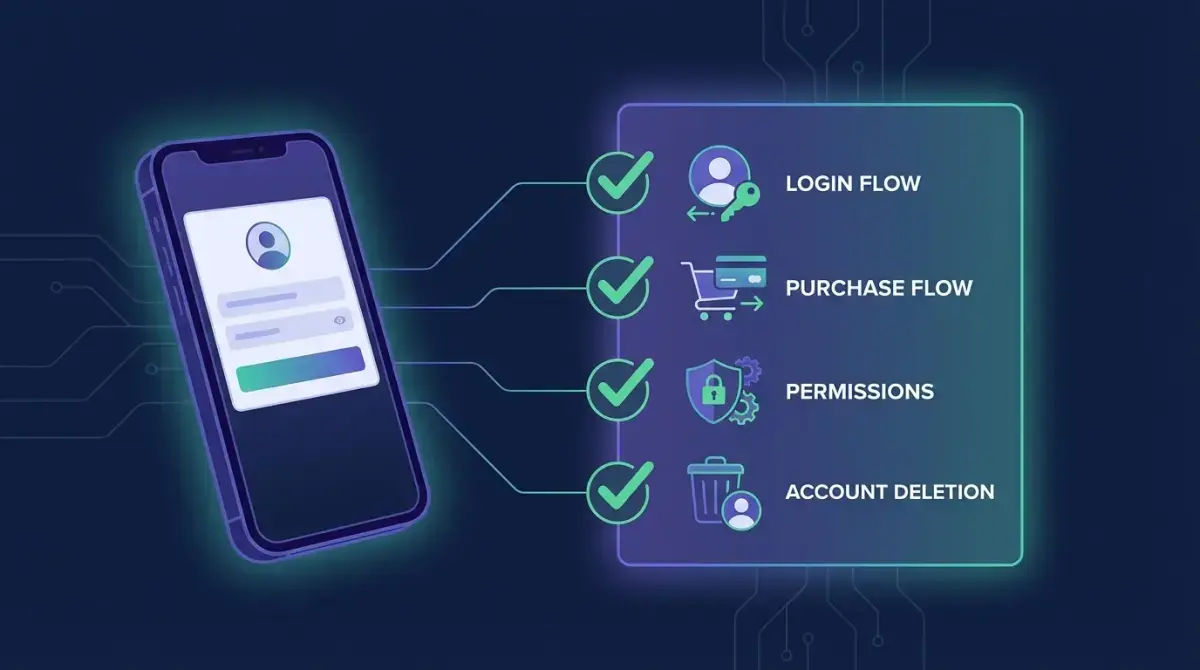
Apple's rejection message tells you to include a screen recording that demonstrates:
- App launch and core features — the typical user flow from opening the app
- Account registration, login, and deletion — if your app has accounts
- In-app purchases and subscription flows — if your app has paid content
- User-generated content — content reporting and blocking mechanisms
- Permission prompts — any requests for location, camera, contacts, microphone
- Regional differences — or confirmation that the app works consistently everywhere
The key insight: Apple reviewers are not your users. They have hundreds of apps to review daily. Your video needs to be clear, concise, and narrated so they understand what they are seeing without guessing.
Why a Silent Recording Is Not Enough
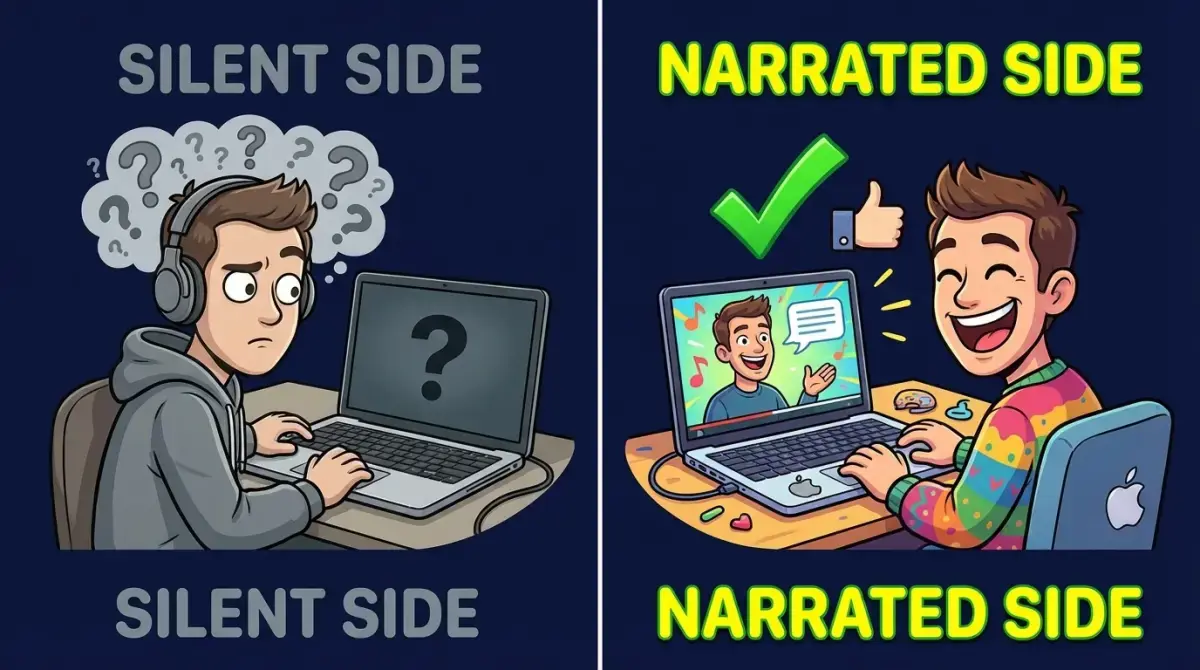
Most developers grab QuickTime, record their screen, and submit. The result is a silent video of someone tapping around an app with no context.
Apple reviewers watching a silent recording have to figure out:
- What is this app supposed to do?
- Why did the user tap that button?
- Is this the login flow or the signup flow?
- What happens after this loading screen?
- Is this behavior intentional or a bug?
A narrated video eliminates this guesswork. The reviewer hears "This is the account registration flow — the user enters their email, receives a verification code, and is redirected to the home screen" while watching it happen. Clear, professional, no ambiguity.
Narrated demo videos get approved faster because reviewers spend less time trying to understand your app.
Step-by-Step: Creating Your Demo Video
Step 1: Plan What to Show
Before recording, make a checklist based on Apple's requirements:
Required for all apps:
- App launch → home screen
- Core feature walkthrough (the main thing your app does)
- Navigation between key sections
If your app has accounts:
- Sign up flow (new account creation)
- Login flow (existing account)
- Account deletion flow (required since 2022)
- Provide test credentials in App Store Connect notes
If your app has payments:
- Subscription or in-app purchase flow
- What the user gets after purchasing
- How to manage/cancel subscriptions
If your app requests permissions:
- Each permission prompt with the purpose string visible
- What happens when the user grants permission
- What happens when the user denies permission
If your app has user-generated content:
- How users create/share content
- How users report inappropriate content
- How users block other users
Step 2: Record Your Screen
On iPhone/iPad:
- Settings → Control Center → add Screen Recording
- Open Control Center → tap the record button
- Walk through each flow on your checklist
- Stop recording when done
On Mac (using Simulator):
- Open Xcode Simulator with your app installed
- Use QuickTime → File → New Screen Recording
- Select the Simulator window
- Walk through each flow
Tips for a clean recording:
- Use a clean device (no personal notifications, no clutter)
- Turn on Do Not Disturb
- Use realistic test data, not "test123" or "asdf"
- Pause 1-2 seconds between major actions
- Keep it under 5 minutes if possible
- Record at the device's native resolution
Step 3: Add AI Narration
This is where most developers struggle. You have two options:
Option A: Record voiceover manually
- Watch your recording and write a script
- Set up a microphone
- Record yourself narrating while watching the playback
- Sync audio with video in iMovie or similar
- Time: 1-2 hours
Option B: Use AI narration (recommended)
- Upload your silent recording to Vorec
- AI analyzes your app walkthrough and understands each interaction
- AI writes a professional narration script for each action
- AI generates natural-sounding voiceover
- Adaptive timing syncs narration with video automatically
- Time: 5 minutes
The AI approach is faster and produces more consistent results. The narration sounds professional, covers each action clearly, and the timing is handled automatically.
Step 4: Review the Narration
Whether you used manual or AI narration, review the result:
- Does the narration explain what the user is doing and why?
- Are account flows clearly identified (signup vs login)?
- Are permission requests explained (why the app needs camera access)?
- Is the purchase flow narrated with clear descriptions?
- Does the video cover everything on your checklist?
With AI narration, you can edit individual segments and regenerate just the audio for that section — no need to re-record everything.
Step 5: Export and Submit
Format requirements for App Store Connect:
- Format: MP4 or MOV
- Maximum file size: 500 MB
- Resolution: match your device (1080p is fine)
How to attach:
- Open App Store Connect → your app → App Review
- In the Notes field, explain what the video shows
- Click the attachment icon and upload your narrated video
- Include test account credentials if needed
- Submit for review
What to Say in the Review Notes
Along with the video, write clear notes. Here is a template:
"Attached is a narrated screen recording demonstrating the app's complete functionality including: [list flows shown]. Test account credentials: email: demo@example.com, password: Demo1234. The app functions consistently across all regions. All permission requests are explained in the video with their purpose strings visible."
Common Mistakes That Cause Re-Rejection
- Silent video with no context — reviewers cannot tell what they are looking at
- Skipping the account deletion flow — Apple requires this since 2022, they will reject again
- Using "test" data — fake-looking data makes the app look incomplete
- Recording too fast — reviewers need time to see each screen
- Missing permission explanations — if you request camera access, show and explain why
- Wrong format or too large — stick to MP4 under 500 MB
- Not providing test credentials — if your app requires login, give them working credentials
How AI Narration Helps You Get Approved Faster
The difference between a silent recording and a narrated one is the difference between the reviewer guessing and the reviewer understanding.
A well-narrated demo video:
- Reduces review time — reviewers process narrated videos faster because they do not need to figure out context
- Prevents follow-up rejections — clear narration answers questions before they are asked
- Looks professional — signals that the developer takes quality seriously
- Covers edge cases — narration can explain non-obvious features ("This screen appears only for first-time users")
With Vorec, the narration is generated in minutes. Upload your screen recording, AI understands the app walkthrough, and you get back a professionally narrated video ready to attach to App Store Connect.
Checklist Before Submitting
- App launch and core features demonstrated
- Account signup, login, and deletion flows shown
- In-app purchases walkthrough (if applicable)
- Permission prompts visible with purpose strings
- Content reporting/blocking shown (if applicable)
- Narration explains each action clearly
- Test credentials provided in notes
- Video is MP4/MOV, under 500 MB
- Review notes describe what the video covers
Getting Started
Got a Guideline 2.1 rejection right now? Fix it in 5 minutes:
- Record your app on your device (silent is fine)
- Upload to vorec.ai — 100 free credits
- AI generates professional narration
- Export, attach to App Store Connect, resubmit
Stop spending hours on demo videos. Let AI narrate your app walkthrough so Apple reviewers understand it instantly.